.gif)
.gif)
.gif)

 What information should be include in the "Admin > Library > Highlight Icon" tab?
The Admin > Library > Highlight Icon tab in UrbanSoft serves as a centralized visual asset library for managing tour package highlight icons and selling point badges. It allows travel administrators to upload high-resolution icons (such as wifi, meals included, 5-star hotel, or special attraction icons), rearrange their display order, and maintain visual consistency across tour itineraries, client brochures, and marketing materials.
What Can I Do?
You can create and manage your agency's visual highlight icons using the following key functions:
-
Browse & Sequence Icons: View the complete Highlight Icon index table and drag-and-drop entries to adjust their default display sequence.
-
Upload Custom High-Resolution Icons: Add new branded feature badges and highlight icons (
900 x 900 px, PNG/JPG/JPEG under 2MB). -
Remove Obsolete Visual Assets: Tick the delete checkbox next to unneeded icons and update the library to remove them permanently.
Field Definitions & Operational Guidance
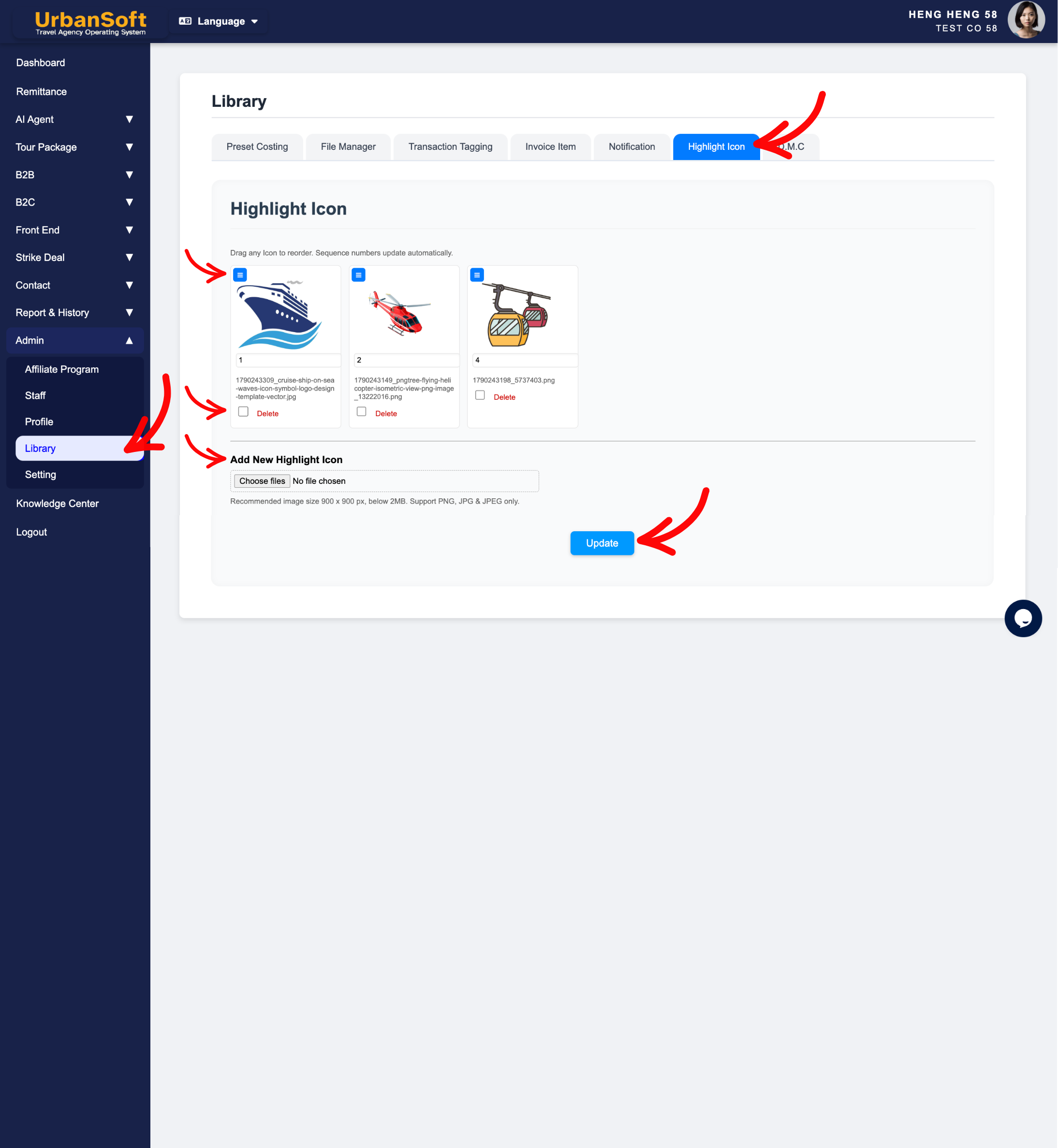
1. Highlight Icon Index Table & Sequence Ordering
-
Highlight Icon Index Table: Displays all pre-loaded and uploaded tour feature badges and icons.
-
Drag to Arrange Sequence: Drag individual icon rows up, down, left or right to set the default display order shown during tour package creation.
2. Uploading & Deleting Icons
-
Add New Highlight Icon: Click this action button, upload a high-resolution icon image (recommended dimensions:
900 x 900 px, PNG/JPG/JPEG under 2MB), and click Update to save and upload the image to the system repository. -
Delete Icon: Tick the Delete checkbox next to any unwanted highlight icon and click Update to remove the asset from your library.
Example
When adding a new promotional highlight badge for luxury tour packages:
-
Navigate to Admin > Library > Highlight Icon.
-
Click Add New Highlight Icon, choose a
900 x 900 pxPNG image featuring a "5-Star Hotel" luxury badge (under 2MB), and click Update. -
Drag the newly uploaded badge row to the top of the index table so it appears first in the tour package highlight selection menu.
Important Notes
-
Uploading transparent PNG icons (
900 x 900 px) ensures crisp rendering across both digital itineraries and printed PDF brochures. -
Removing an icon from
Admin > Library > Highlight Icondeletes it from the library for future tour packages without disrupting published historical itineraries.
Different Angles: Same Stories, Same Content, New Perspective
- What image specifications, drag-and-drop sequence controls, upload steps, and deletion rules make up the Admin > Library > Highlight Icon tab in UrbanSoft?
Same Folder Articles
Related Articles
-
 What information should be include in the "Admin > Library > Preset Costing" tab?
-
What information should be include in the "Admin > Library > File Manager" tab?
-
What information should be include in the "Admin > Library > Invoice Item" tab?
-
What information should be include in the "Admin > Setting > Notice" tab?
-
How to set up my "Company Profile"?
