.gif)
.gif)
.gif)

 What information should be include in the "Admin > Library > Preset Costing" tab?
The Admin > Library > Preset Costing tab in UrbanSoft serves as a centralized pricing rule repository for storing seasonal surcharges, peak-period rates, and day-specific pricing rules. It allows travel agencies to configure reusable costing templates based on single dates, date ranges, or recurring weekends. Once configured, these pre-set pricing rules can be applied across tour package costings to simplify seasonal pricing adjustments and ensure consistency across quotations.
What Can I Do?
You can manage seasonal pricing rules and cost templates using the following key functions:
-
Navigate & Organize Preset Costings: Browse the Preset Costing index table and use the search bar or sort filters (Single Day, Date Range, or Weekend) to locate specific pricing entries.
-
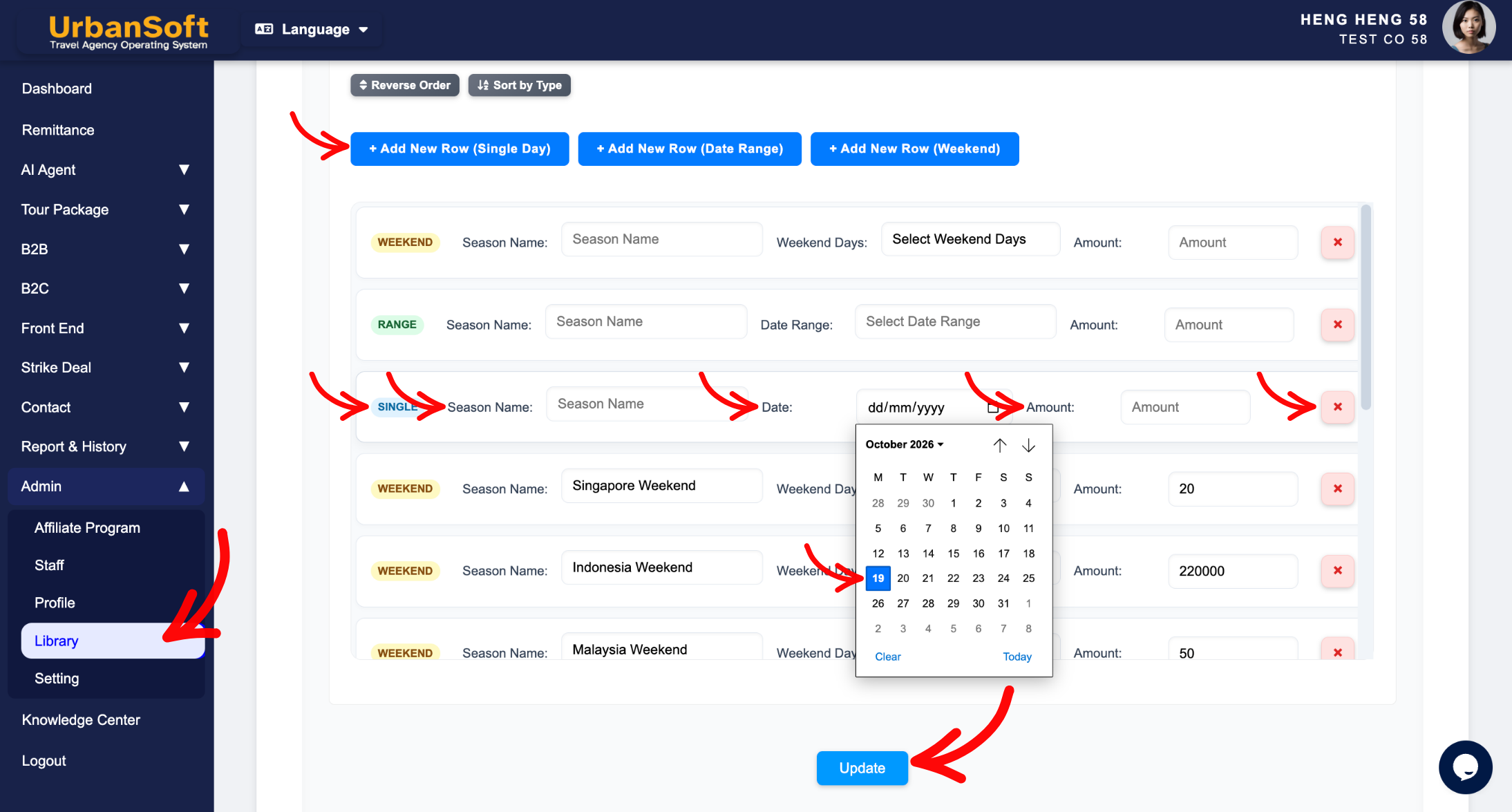
Configure Single Day Surcharges: Add individual single-day pricing rules for specific holidays or event dates.
-
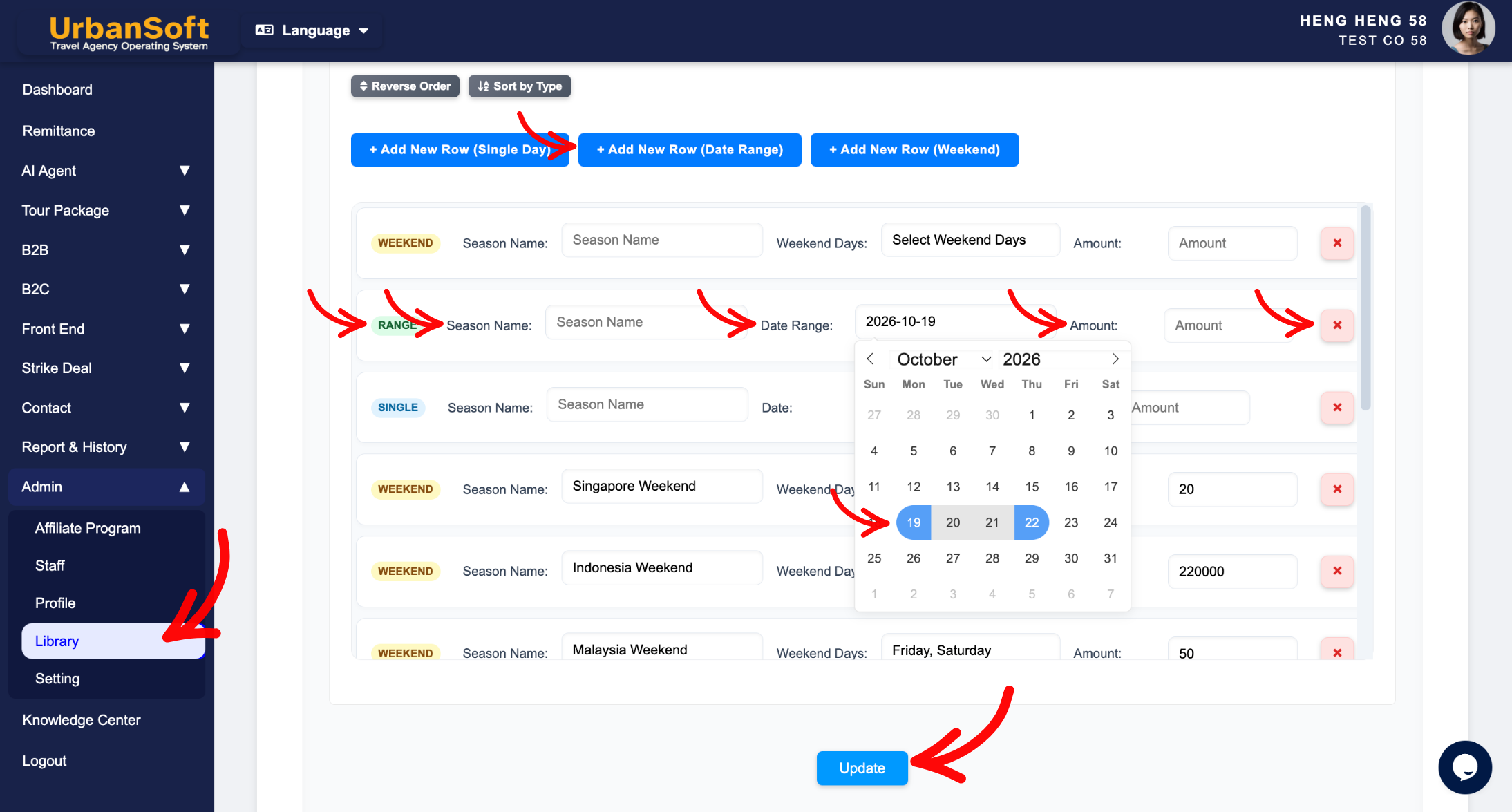
Configure Date Range Surcharges: Set up multi-day date range pricing rules for extended peak seasons, school holidays, or trade fairs.
-
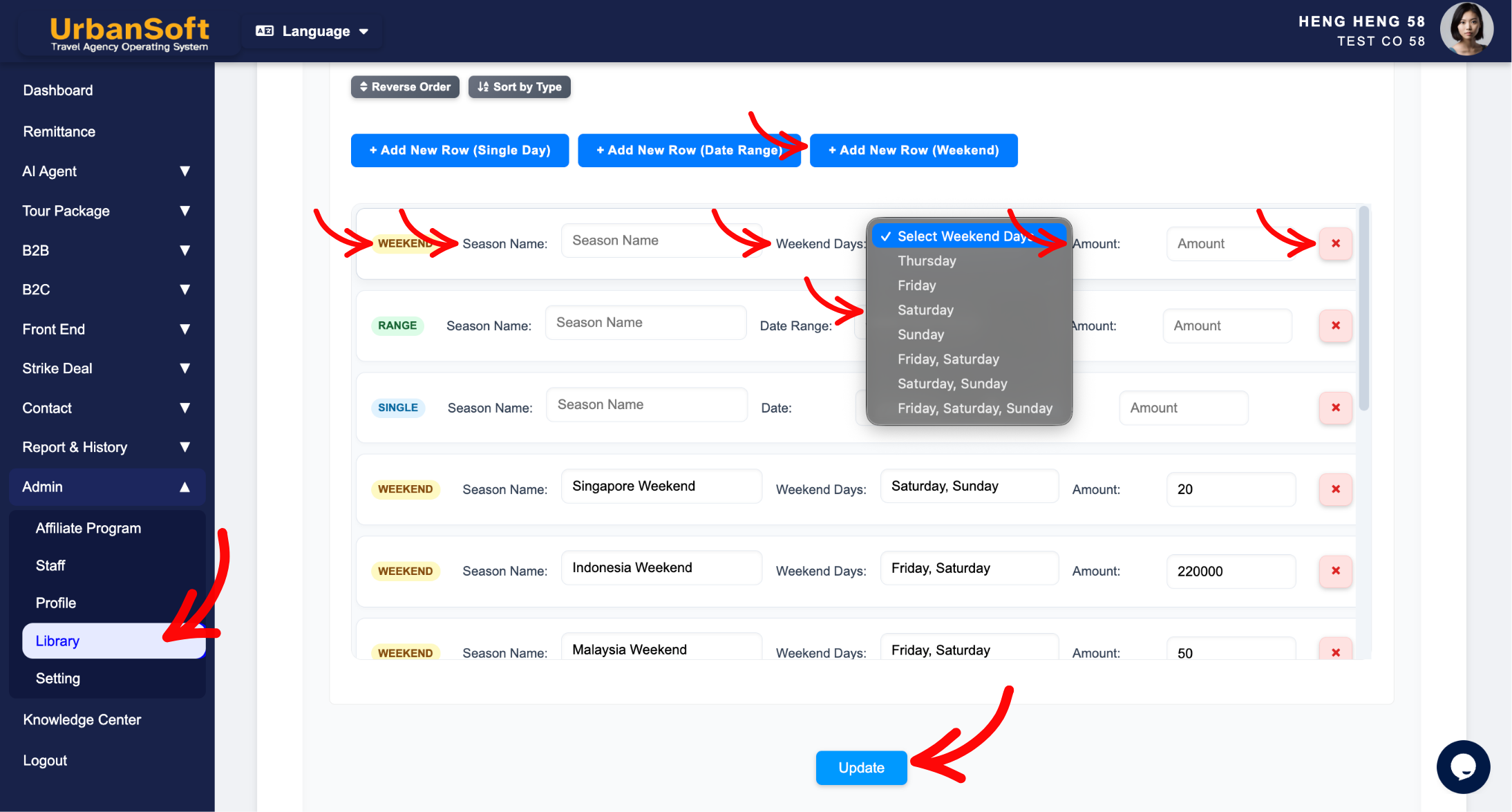
Configure Recurring Weekend Rates: Define weekend pricing surcharges applied to specific days of the week across a season.
-
Manage Rules & Verify Completeness: Delete outdated pricing rows, verify completeness indicators, and save configuration updates globally.
Field Definitions & Operational Guidance
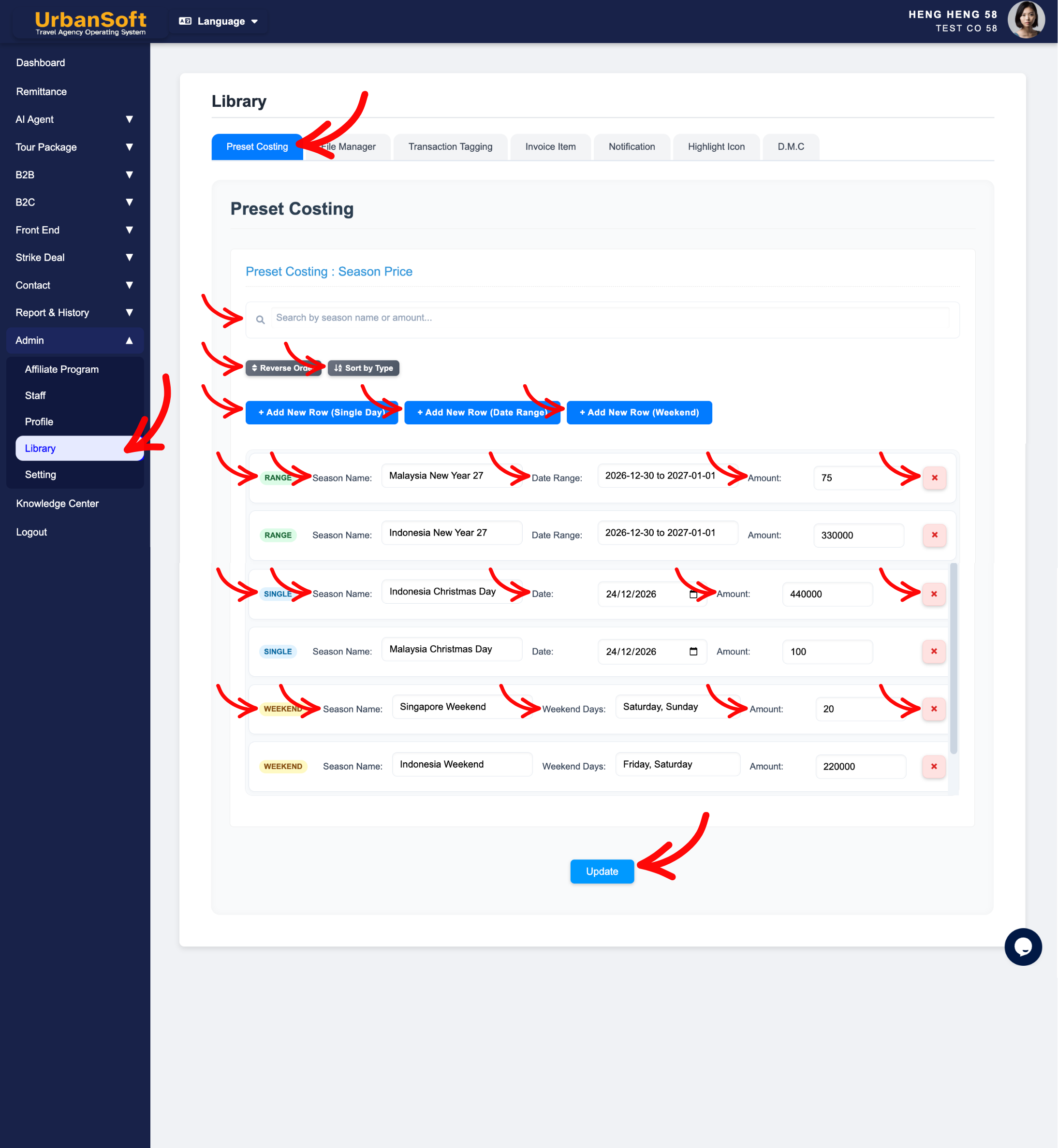
1. Preset Costing Types & Setup Rules
-
Add Single Day: Click Add New Row (Single Day), auto set Type to
Single, enter the Season Name (e.g.,"Christmas Day Surcharge"), select the specific Date, and enter the surcharge Amount. -
Add Date Range: Click Add New Row (Date Range), auto set Type to
Range, enter the Season Name (e.g.,"Summer Peak Season"), select the starting and ending Date Range, and enter the surcharge Amount. -
Add Weekend: Click Add New Row (Weekend), auto set Type to
Weekend, enter the Season Name (e.g.,"Weekend Transport Surcharge"), select the relevant Weekend Days option (e.g.,Friday–Sunday), and enter the surcharge Amount.
2. Table Actions, Verification & Saving
-
Delete Row: Click the delete button next to any entry to remove unneeded costing rules, and confirm the system prompt to finalize deletion.
-
Complete All Field: Displays a status summary verifying that the entire set of Preset Costing settings—including Type selection, Season Name, Relevant Dates/Days of the week, Amount, and final submission—has been fully populated.
-
Update: Click this action button to save all progress, fields, and configurations for the Preset Costing section.
Example
When setting up seasonal surcharges in the Preset Costing library:
-
Go to Admin > Library > Preset Costing.
-
Click Add New Row (Date Range), auto set Type to
Range, enter Season Name: "Chinese New Year Peak Period", select dates from Jan 28 to Feb 05, and enter Amount: "150". -
Click Add New Row (Weekend), auto set Type to
Weekend, enter Season Name: "Friday-Saturday Coach Surcharge", select Fri & Sat, and set Amount: "50". -
Verify the Complete All Field check indicator and click Update to save the pre-set costing rules into your system library.
Important Notes
-
Pre-configuring seasonal surcharges in
Admin > Library > Preset Costing,saves time during package assembly by allowing sales planners to load standard pricing rules, into tour package cost structures with a single click. -
Modifying or deleting a preset costing entry in the Library, updates the template repository for future use, without altering already published historical tour package costings.
Different Angles: Same Stories, Same Content, New Perspective
- What single-day rules, date ranges, weekend surcharges, season names, and amount inputs make up the Admin > Library > Preset Costing tab in UrbanSoft?
Same Folder Articles
Related Articles
-
 What information should be include in the "Admin > Setting > General" tab?
-
What information should be include in the "Cost Structure" tab?
-
What should be filled out in the "Surcharges for Public Holiday & Peak Seasons" field in Setting > General and Cost Structure section?
-
Relationship between "Costing Currency, Quote Currency, Current Rate, and Fixed Rate" in Setting > General and Tour Package?
-
How to create "Tour Package Costing"?
