.gif)
.gif)
.gif)

 How to set up my "Company Profile"?
This guide explains how to complete and manage your Company Profile in UrbanSoft. You will learn how to configure mandatory company identity fields, multi-language details, officer contacts, messaging accounts, official document uploads, and branch or team profiles.
When Do You Use This?
Use this feature during initial onboarding or whenever your company information, licensing, contact details, branch locations, or key personnel change. Keeping this updated ensures accurate information appears across system documents and partner networks.
Before You Start
-
You need:
-
Authorized administrator access to your UrbanSoft backend.
-
Your company registration details, tourism license numbers, official documents, logos, and staff contact information ready.
-
-
Precautions:
-
Complete all mandatory fields marked with an asterisk (
*) to avoid validation errors when saving. -
Ensure uploaded company profiles and official documents meet supported file formats and size constraints.
-
Step-by-Step
-
Log in to your UrbanSoft account using your administrator credentials.
-
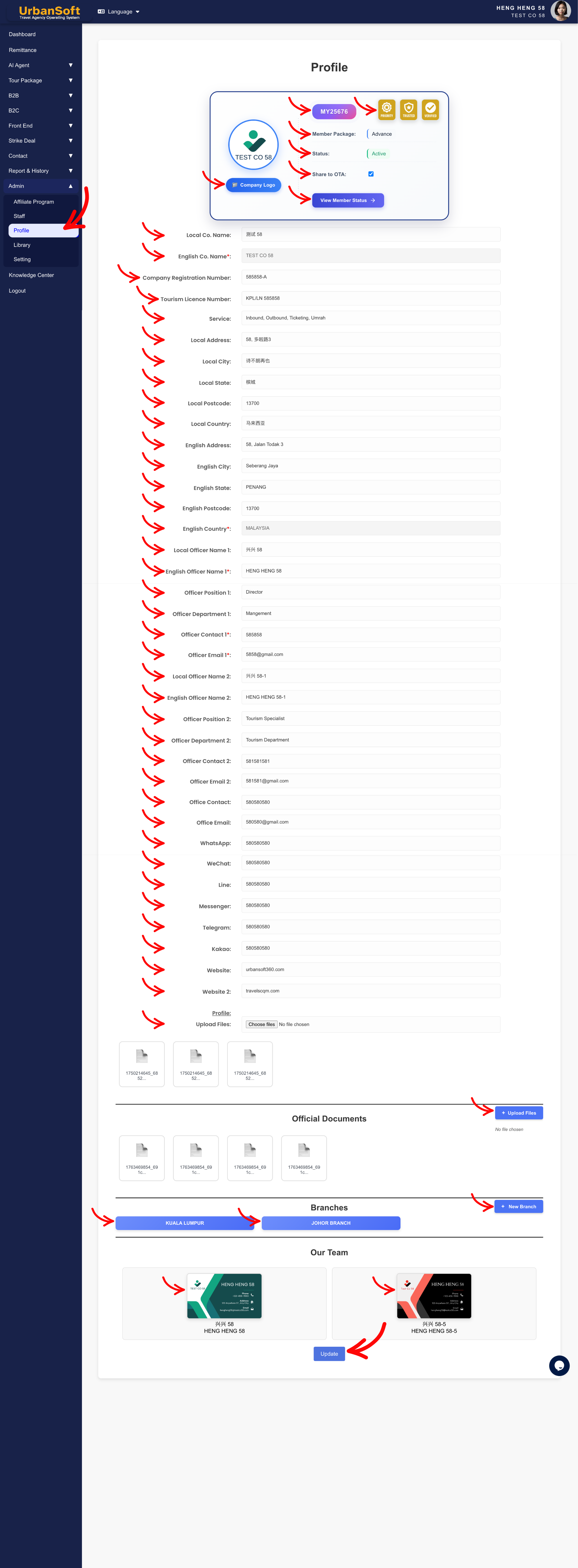
From the main menu, navigate to Admin > Profile.
-
Review System Identifiers:
-
Recommended Badges: Review your badges awarded by UrbanSoft (Priority, Trusted, Verified).
-
Member Code: Verify your auto-generated unique identifier.
-
Member Package: Check your current tier (Starter, Launch, Growth, Advance, Premium, or Elite).
-
Status: Ensure status is set to Active.
-
Share to OTA: Toggle to allow your company profile share to selected OTA.
-
View Member Status: Click to check your membership status and details.
-
-
Fill in Basic & Licensing Details:
-
Enter Local Co. Name (in your local language) and mandatory English Co. Name*.
-
Upload a Company Logo file (
500 x 500 px, PNG/JPG/JPEG under 2MB) . -
Provide your Company Registration Number and Tourism Licence Number.
-
Specify your Service offerings (e.g., Inbound, Outbound, Domestic, Ticketing, Umrah, Hajj).
-
-
Enter Address Information:
-
Complete Local Address, Local City, Local State, Local Postcode, and Local Country.
-
Complete mandatory English Address, English City, English State, English Postcode, and English Country*.
-
-
Set Officer & Office Contact Details:
-
Enter Local Officer Name 1, mandatory English Officer Name 1*, Officer Position 1, Officer Department 1, mandatory Officer Contact 1*, and mandatory Officer Email 1*.
-
(Optional) Fill in secondary officer details (Officer Name 2, Officer Position 2, Officer Department 2, Officer Contact 2, Officer Email 2, etc.).
-
Add general Office Contact and Office Email.
-
Add the international direct dialing code to all contact numbers.
-
-
Configure Social & Messaging Channels:
-
Enter contact handles/numbers for WhatsApp, WeChat, Line, Messenger, Telegram, Kakao, Website, and Website 2.
-
-
Upload Files & Documents:
-
Upload your company profile media under Profile: Upload Files (Support Word/Excel/Text/PDF/PNG/JPG/JPEG under 6MB) .
-
Upload official licences or certificates under Official Documents: Upload Files (Support Word/Excel/Text/PDF/PNG/JPG/JPEG under 6MB) .
-
Official Documents: Upload and submit the official documents, like Company Registration Certificate, Toursim Licence, Office Inside and Outlook photo with signboard, etc, to receive Recommended Badges.
-
-
Manage Branches & Team:
-
Add branch office details under Branches.
-
Define your company staff visitibility to partner under Our Team.
-
-
Click Update at the bottom of the page to apply your settings.
Expected Result
Your company profile information, branding assets, contact details, and team structure will be saved and automatically linked to system-generated itineraries, invoices, quotations, and client-facing documents.
Important Notes
-
Key mandatory fields (marked with
*) include English Co. Name, English Country, English Officer Name 1, Officer Contact 1, and Officer Email 1. -
"Local" refers to your native language version, while "English" provides the international translation for cross-border B2B/B2C communications.
-
Official documents and profile images uploaded here can be manage under Admin > Library > File Management.
-
Add the international direct dialing code to all contact numbers.
Common Mistakes
-
Leaving mandatory (
*) fields empty, which prevents profile updates from saving. -
Entering incorrect country codes or phone numbers for messaging channels like WhatsApp or Telegram.
-
Forgetting to click Update after uploading official documents or setting up branch details.
Different Angles: Same Stories, Same Content, New Perspective
-
Where can I update my company registration number and tourism licence in UrbanSoft?
-
How do I configure officer contact details and social media channels for itinerary PDFs?
-
How to edit or update my "Company Profile"?
 How to edit or update my "Company Name and Country"?
