.gif)
.gif)
.gif)

 How to setup "Admin > Setting" page?
This guide explains how to configure and manage the Admin > Setting module in UrbanSoft. You will learn how to set up General configurations, pricing rules, Notice templates, Client Requests, Printing PDF layouts, TI Brochures (Tour Itinerary Brochures), Invoice & Receipt rules, and Download & Delete (data backup or deletion options).
When Do You Use This?
Use this setup process when initializing your UrbanSoft account for the first time, updating company branding and document templates, or modifying system-wide operational rules and default preferences.
Before You Start
-
You need:
-
Administrator-level access to your UrbanSoft account.
-
Company assets prepared (e.g., logos, header banners matching recommended dimensions, and payment QR codes).
-
-
Precautions:
-
Certain core general settings (such as company name, country, base currencies and member package currency) have a strict 1-time edit limitation within a 14-day window after registration; changes afterward require platform support assistance.
-
File uploads for banners and logos must comply with size limits (below 2MB) and supported formats (PNG, JPG, JPEG) to ensure proper generation on PDF documents.
-
Step-by-Step
-
Log in to your UrbanSoft account using your administrator credentials.
-
From the left navigation menu, go to Admin > Setting.
-
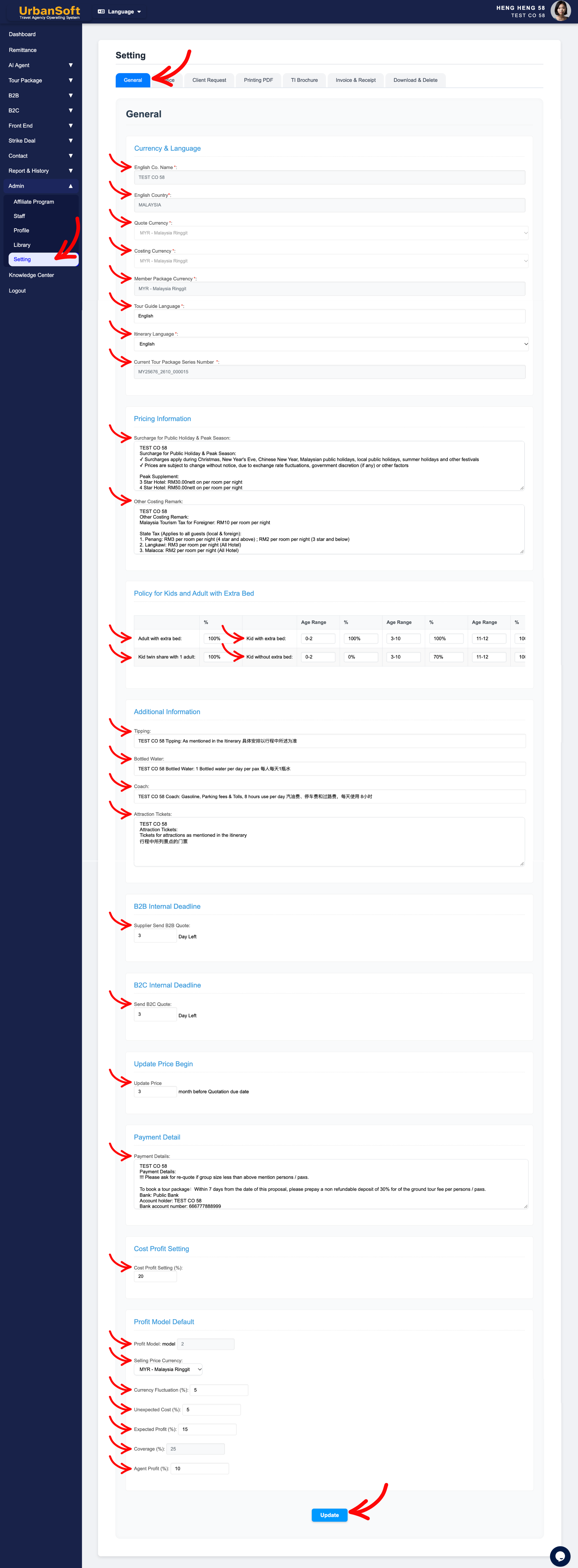
Configure Setting > General:
-
Currency & Language: Set your English company name, country, quote currency, costing currency, member package currency, tour guide language, and itinerary language. Note that core fields are restricted to a 1-time edit within 14 days.
-
Pricing Information & Policies: Configure public holiday/peak season surcharges, other costing remarks, and rules for kids and adults with extra beds (including 3 age ranges and pricing structures).
-
Additional Information & Deadlines: Set defaults for tipping, bottled water, coach, attraction tickets, B2B/B2C internal deadlines, update price timelines, payment details, and profit models/cost profit settings.
-
Currency & Language
-
English Co. Name*: Enter your officially registered English company name (e.g., "Urban Travel & Tour Sdn Bhd"). Note: Editable once for first 14 days after signup; contact support for further changes.
-
English Country*: Select your company's operating home country (e.g., "Malaysia"). Note: Editable once for first 14 days after signup; contact support for further changes.
-
Quote Currency*: Select your primary currency for client-facing quotations (e.g., "MYR" or "USD"). Note: Editable once for first 14 days after signup; contact support for further changes. For Growth membership and above - Can choose from multiple quote currencies for pricing when assembling tour packages. For Starter and Launch membership only 1 default quote currency.
-
Costing Currency*: Select your base currency used for internal costing and accounting calculations (e.g., "MYR"). Note: Editable once for first 14 days after signup; contact support for further changes.
-
Member Package Currency*: Select the currency used for member subscriptions pricing. Note: Editable once for first 14 days after signup; contact support for further changes.
-
Tour Guide Language*: Set the default preferred language for tour guide services across packages (e.g., "English" or "Mandarin").
-
Itinerary Language*: Select the default language used for generating customer itineraries (e.g., "English"). Note: For Launch membership and above - Can choose from multiple itinerary language when assembling tour packages. For Starter membership only 1 default itinerary language.
-
Current Tour Package Series Number *: System auto-generated running number sequence used to tag and track tour packages automatically.
-
-
Pricing Information
-
Surcharge for Public Holiday & Peak Season: Enter default text or rules regarding holiday surcharges (e.g., "Surcharge applies during Public Holidays and Peak Seasons: USD 30/pax").
-
Other Costing Remark: Enter standard pricing disclaimers automatically applied to quotes (e.g., "Prices subject to 6% SST and availability at time of booking").
-
-
Policy for Kids and Adult with Extra Bed
-
Adult with extra bed: Define default rate for adults taking an extra bed (e.g., "100% of Adult Twin Share Rate").
-
Kid twin share with 1 adult: Define default rate for a child or infant sharing a room with 1 adult (e.g., "90% of Adult Rate").
-
Kid with extra bed: Set up to 3 age ranges (e.g., Age 0-2, 3-8, 9-12) and specify default pricing percentage or fixed amount (e.g., "75% of Adult Rate").
-
Kid without extra bed: Set up to 3 age ranges (e.g., Age 0-2, 3-8, 9-12) and specify default pricing percentage or fixed amount (e.g., "50% of Adult Rate").
-
-
Additional Information
-
Tipping: Set standard tipping policy guidelines (e.g., "USD 5 per pax / per day for Driver and Guide").
-
Bottled Water: Set standard complimentary drinking water allowance (e.g., "1 bottle of mineral water per pax / per day").
-
Coach: Define standard vehicle allocation quality (e.g., "Air-conditioned private coach transfer with licensed driver").
-
Attraction Tickets: Set default entry ticket coverage (e.g., "Includes all entrance tickets as listed in itinerary").
-
-
B2B Internal Deadline
-
Supplier Send B2B Quote (? Day Left): Set the internal buffer / KPI days required for supplier to submit B2B quotes before clients deadlines (e.g., "3 Days").
-
-
B2C Internal Deadline
-
Send B2C Quote (? Day Left): Set the internal target / KPI days for sales staff to issue B2C quotations to buyers (e.g., "2 Days").
-
-
Update Price Begin
-
Update Price Begin (? day or month before Quotation due date): Set how far in advance tour prices must be updated before the quotation expires (e.g., "1 Month before due date").
-
-
Payment Detail
-
Payment Details: Enter default bank account details, payment links, or remittance instructions to appear on invoices and quotation (e.g., "Bank: Maybank | Acc No: 512345678901 | SWIFT: MBBEMYKL").
-
-
Cost Profit Setting
-
Cost Profit Setting (%): Set default profit margin percentage markup applied across tour costing modules (e.g., "15%").
-
-
Profit Model Default
-
Profit Model: Select the default pricing model structure (e.g., "Model 1: Cost Plus Margin").
-
Selling Price Currency: Select the default currency used for final selling prices.
-
Currency Fluctuation (%): Set a percentage buffer to absorb foreign exchange fluctuations (e.g., "3%").
-
Unexpected Cost (%): Set a contingency margin for unbudgeted expenses (e.g., "2%").
-
Expected Profit (%): Set the targeted net profit margin (e.g., "10%").
-
Coverage (%): Auto count operational coverage percentage (total of = currency fluctuation + unexpected cost + expected profit) (e.g., "5%").
-
Agent Profit (%): Set default commission/profit share reserved for sales agents or B2B partners (e.g., "10%").
-
-
Complete All Field: Displays a status summary verifying of entire set of General settings, included Currency & Language, Pricing Information, Policy for Kids and Adult with Extra Bed, Additional Information, B2B Internal Deadline, B2C Internal Deadline, Update Price Begin, Payment Detail, Cost Profit Setting, Profit Model Default and final submission have been fully populated.
-
Update: Click to save all progress, fields, and configurations for the General section.
-
-
Configure Setting > Notice:
-
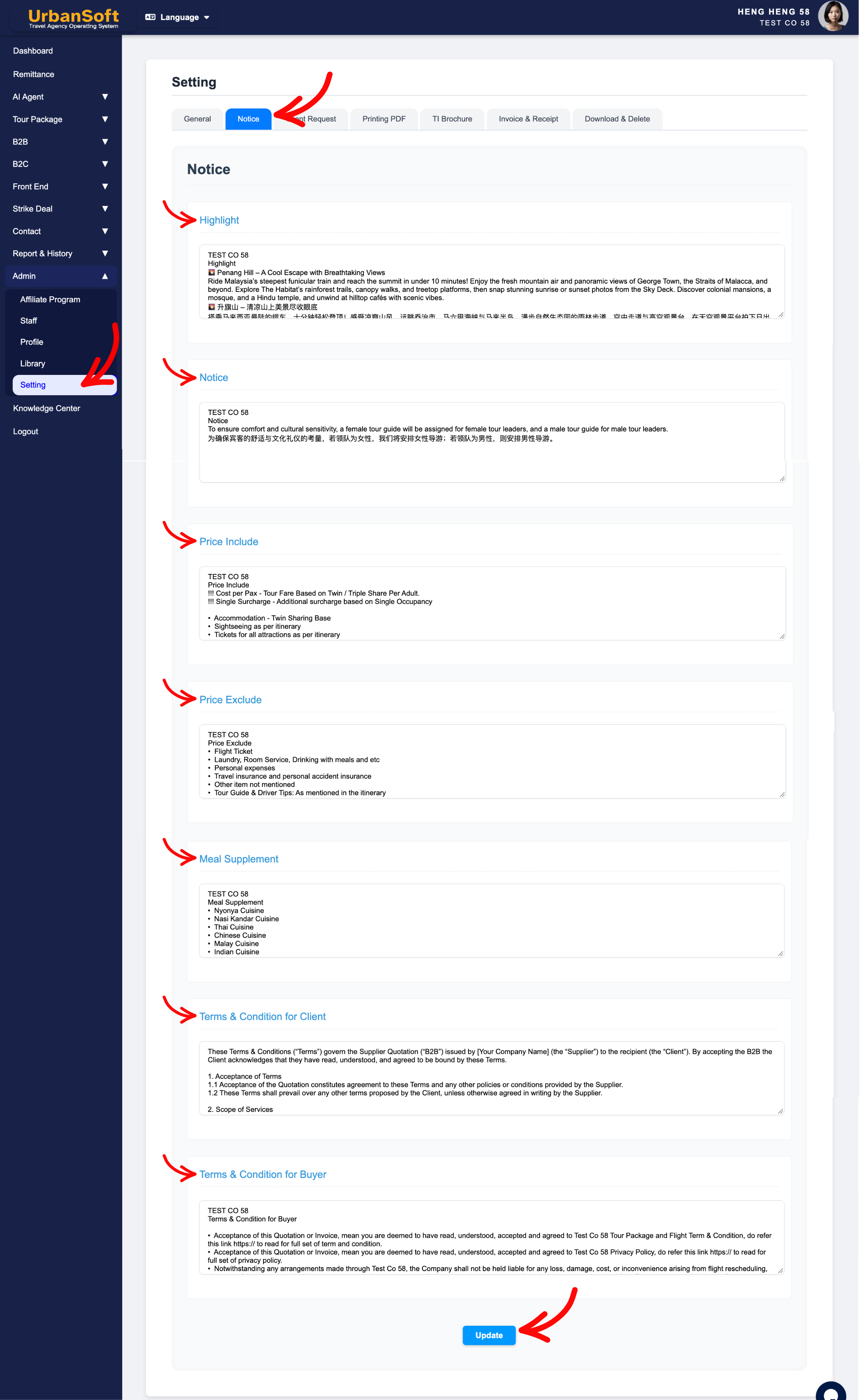
Set up standard text blocks for highlights, notices, price inclusions, price exclusions, meal supplements, and terms & conditions for clients and buyers.
-
Highlight: Enter your company's standard or default selling points that auto-populate when creating a new package (e.g., "Guaranteed Departure | No Hidden Charges | Handpicked 4-Star Accommodation").
-
Notice: Enter master travel disclaimers, visa reminders, or general booking notes automatically applied to itineraries (e.g., "Passports must be valid for at least 6 months from travel return date. Visa requirements are the passenger's responsibility.").
-
Price Include: Set the baseline template listing services covered in standard tour packages (e.g., "Includes: Hotel accommodation, daily breakfast, private AC transport, entrance fees, and licensed tour guide.").
-
Price Exclude: Set the baseline template listing items not covered in default packages (e.g., "Excludes: Personal expenses, international flights, travel insurance, porterage fees, and tipping.").
-
Meal Supplement: Enter standard meal upgrade pricing policies or surcharge notes (e.g., "Optional Halal / Vegetarian meal upgrade available upon request at USD 10/pax/day.").
-
Terms & Condition for Client: Enter default B2B trade terms, credit payment periods, cancellation windows, and agency booking rules for travel agents and B2B clients (e.g., "Full payment due 14 days prior to group arrival. B2B commissions and net fares are subject to confidential agency agreements.").
-
Terms & Condition for Buyer: Enter default payment schedules, cancellation fees, refund rules, and travel policies for direct retail B2C buyers (e.g., "30% deposit required upon booking confirmation. Cancellations within 14 days of departure are non-refundable.").
-
Complete All Field: Displays a status summary verifying of entire set of Notice settings, included Highlight, Notice, Price Include, Price Exclude, Meal Supplement, Terms & Condition for Client, Terms & Condition for Buyer and final submission have been fully populated.
-
Update: Click to save all progress, fields, and configurations for the Notice section.
-
-
Configure Setting > Client Request:
-
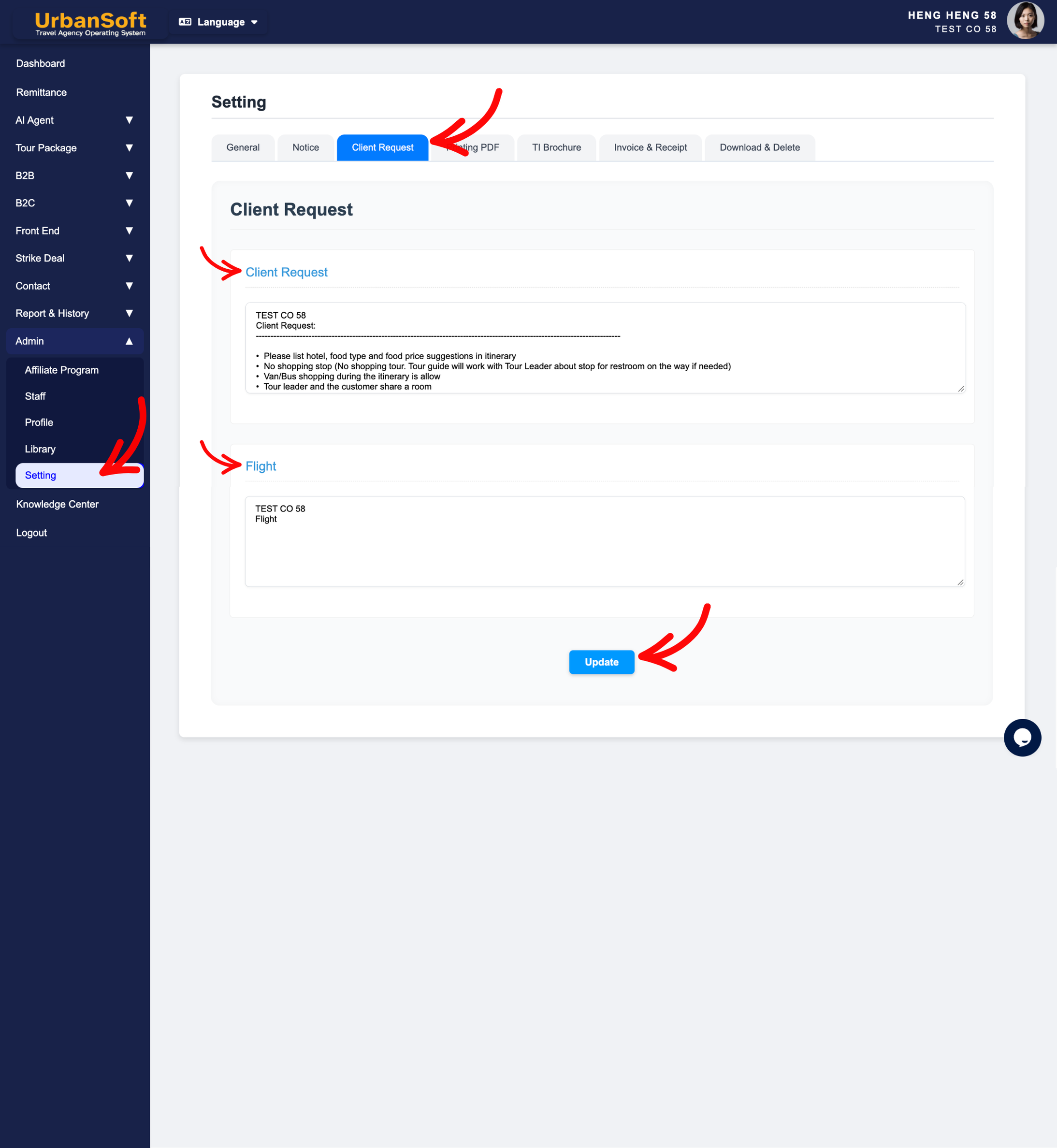
Define default options and requirements for client requests and flight handling.
-
Client Request: Enter or pre-configure standard choices list and request templates for common special client requests, preferences, and customized requirements (e.g., "Wheelchair Assistance required", "Adjoining / Connecting Rooms", "High Floor Room Preference", "Dietary Restrictions: Vegetarian / Halal / No Pork / No Lard", or "Honeymoon Decoration / Special Celebration"). Pre-defining these options helps your team quickly record client demands during booking intake.
-
Flight: Enter or pre-configure default flight options, airline seating preferences, luggage allowances, or flight arrangement disclaimers for customized tour packages (e.g., "Include Round-Trip Air Tickets", "Land Tour Only - Flight Excluded", "Standard Luggage Allowance: 20kg Checked Baggage + 7kg Cabin Baggage", or "Flight details to be provided by client 14 days prior to departure").
-
Complete All Field: Displays a status summary verifying of entire set of Client Request settings, included Client Request, Flight and final submission have been fully populated.
-
Update: Click to save all progress, fields, and configurations for the Client Request section.
-
-
Configure Setting > Printing PDF:
-
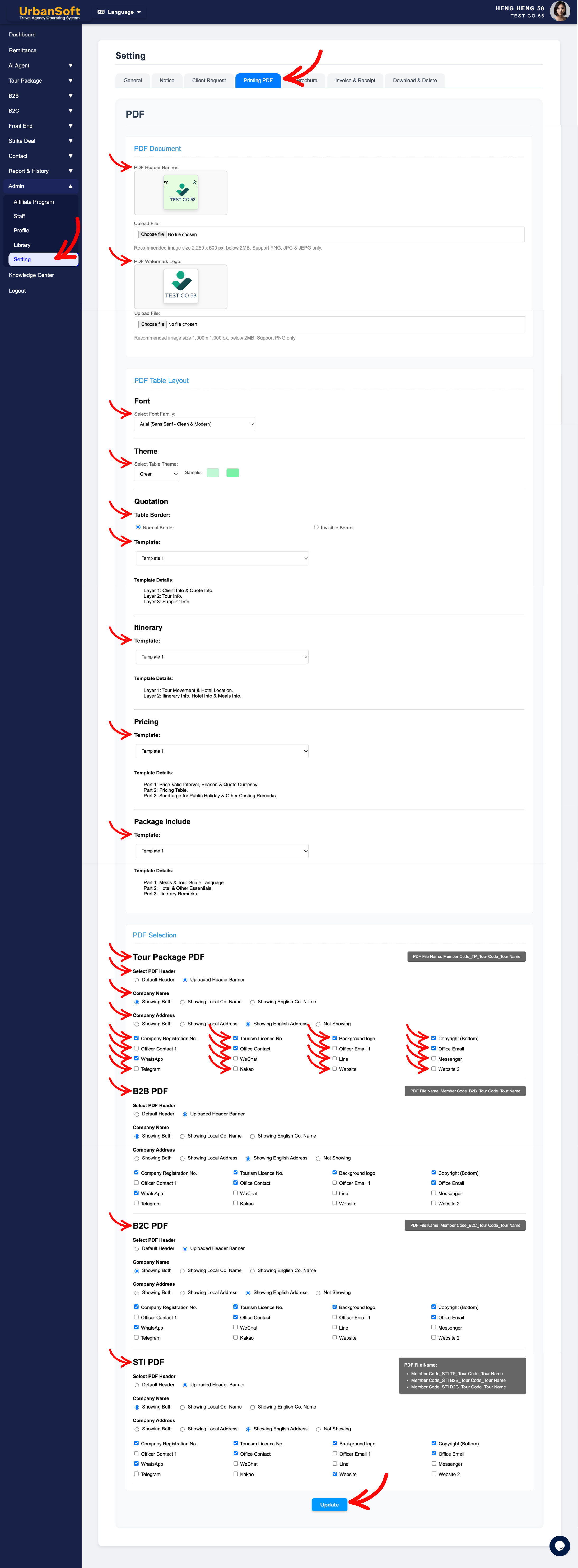
PDF Document: Upload your PDF header banner (recommended 2,250 x 500 px, below 2MB, PNG/JPG) and watermark logo (recommended 1,000 x 1,000 px, below 2MB, PNG only, transparent background).
-
PDF Table Layout: Choose fonts, themes, quotation/itinerary/pricing/package include templates, showing template arrangement for each selection.
-
PDF Selection: 4 type of PDF in this section (Tour Package PDF, B2B PDF, B2C PDF, STI PDf), start from choose header styles, company name/address display options, and toggle visibility for official registration numbers, tourism licences, background logos, copyright, and officer contacts/social links (WhatsApp, WeChat, Line, Messenger, Telegram, Kakao, Website).
-
PDF Document
-
PDF Header Banner: Upload a custom high-resolution banner image (2,250 x 500 px, PNG/JPG/JPEG under 2MB) featuring your company branding, logo, and contact graphics to appear across the top of exported PDF documents.
-
PDF Watermark Logo: Upload a transparent background logo file (1,000 x 1,000 px, PNG only under 2MB) to render as a faint corporate watermark behind the text on generated PDF pages.
-
-
PDF Table Layout
-
Font: Select your primary typography style (e.g., "Arial" or "Helvetica") from the dropdown to ensure readability across all exported tables.
-
Theme: Choose a color theme palette matching your corporate brand identity (e.g., "Navy Blue", "Modern Dark", or "Classic Slate").
-
Quotation:
-
Table Border: Choose Normal Border for traditional structured grids or Invisible Border for a sleek, borderless modern aesthetic.
-
Template & Template detail: Select your preferred quotation table layout template from the dropdown to format how clients, quote, tour, supplier information are visually structured.
-
-
Itinerary:
-
Template & Template detail: Select your preferred daily itinerary table layout template from the dropdown to format how tour movement, hotel location, itinerary detail, hotel & meals information are usually structured.
-
-
Pricing:
-
Template & Template detail: Select your preferred pricing table layout template from the dropdown to format how price valid interval, season & quote currency, pricing table, surcharge for public holiday, and other costing remarks information are visually structured.
-
-
Package Include:
-
Template & Template detail: Select your preferred package include table layout template from the dropdown to format how meal & tour guide language, hotel & other essentials detail and itinerary remarks information are visually structured.
-
-
-
PDF Selection (Applies individually across Tour Package PDF, B2B PDF, B2C PDF, and STI PDF)
-
Select PDF Header: Choose Uploaded Header Banner to use your customized branded banner image, or Default Header for system-generated text headers.
-
Company Name: Choose Showing Both (English + Local) or select Showing English Co. Name / Showing Local Co. Name depending on whether the document targets domestic or international audiences.
-
Company Address: Choose Showing Both or select Showing English Address / Showing Local Address / Not Showing based on quotation formatting preferences.
-
Ticks element to show: Check the boxes for elements you wish to display on the exported PDF header and footer:
-
Company Legal Credentials: Company Registration No., Tourism Licence No., Copyright (Bottom).
-
Branding Graphics: Background logo.
-
Primary Contact Details: Officer Contact 1, Office Contact, Officer Email 1, Office Email.
-
Social & Instant Messaging Channels: Check WhatsApp, WeChat, Line, Messenger, Telegram, or Kakao to print direct social contact icons and handles.
-
Websites: Check Website and Website 2 to include corporate URLs on document footers.
-
-
-
Complete All Field: Displays a status summary verifying of entire set of Printing PDF settings, included PDF Document, Table Layout, Selection and final submission have been fully populated.
-
Update: Click to save all progress, fields, and configurations for the Printing PDF section.
-
-
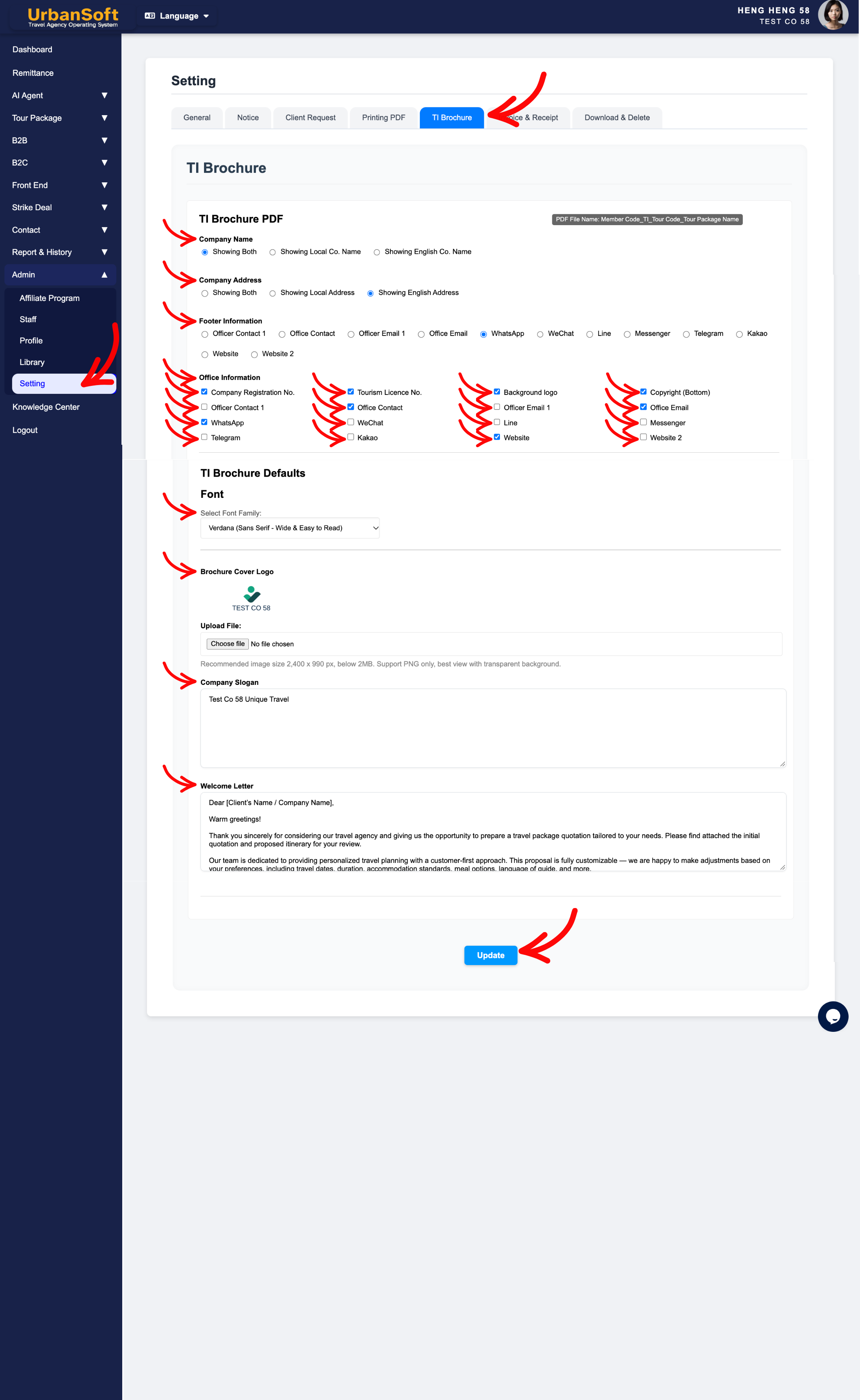
Configure Setting > TI Brochure (Tour Itinerary Brochure):
-
Configure brochure company name, address, footer/office information, default fonts, brochure cover logo (recommended 2,400 x 990 px, transparent PNG), company slogan, and welcome letter.
-
TI Brochure PDF
-
Company Name: Choose Showing Both (English + Local) or select Showing English Co. Name / Showing Local Co. Name to set how your corporate title displays on the brochure cover and headers.
-
Company Address: Choose Showing Both or select Showing English Address / Showing Local Address to control the address block display.
-
Footer Information: Select which primary contact details or channels to display in the brochure footer (e.g., Officer Contact 1, Office Contact, Officer Email 1, Office Email, WhatsApp, WeChat, Line, Messenger, Telegram, Kakao, Website, or Website 2).
-
Office Information: Check the specific credentials and contact icons you want printed on the document:
-
Legal Credentials: Check Company Registration No., Tourism Licence No., and Copyright (Bottom).
-
Visual Branding: Check Background logo.
-
Communication Channels: Check Officer Contact 1, Office Contact, Officer Email 1, Office Email, WhatsApp, WeChat, Line, Messenger, Telegram, Kakao, Website, or Website 2.
-
-
-
TI Brochure Defaults
-
Font: Select the typography style from the dropdown for all text across the brochure pages to ensure readability.
-
Brochure Cover Logo: Upload a transparent background logo file (2,400 x 990 px, PNG only under 2MB) designed to blend smoothly over cover images.
-
Company Slogan: Enter your official tagline or value proposition (e.g., "Crafting Unforgettable Journey Experiences Across Asia").
-
Welcome Letter: Write a standard introductory message or greeting from your management to set a warm, welcoming tone for clients opening the brochure (e.g., "Dear Traveler, Thank you for choosing us to guide your journey...").
-
-
Complete All Field: Displays a status summary verifying of entire set of TI Brochure settings, included TI Brochure PDF Defaults and final submission have been fully populated.
-
Update: Click to save all progress, fields, and configurations for the TI Brochure section.

-
-
Configure Setting > Invoice & Receipt:
-
PDF Layout & Document: Upload header banners for invoices, receipts, and quotations; configure table themes, template, company detail and buyer display rules.
-
PDF Format & Numbering: Set numbering formats (can combine year/month/day, prefix, sequence number, etc.), number widths, payment instructions, QR code images, tax rates, e-confirmation text, terms & conditions applicability, and payment due date alert reminders.
-
eSigning: Quotation and Invoice support eSigning and stamping.
-
PDF Layout
-
Invoice Header Banner: Upload a branded header banner image (2,250 x 500 px, PNG/JPG/JPEG under 2MB) featuring your company logo and official header design for all tax invoices.
-
Receipt Header Banner: Upload a dedicated header banner image (2,250 x 500 px, PNG/JPG/JPEG under 2MB) for official payment receipts.
-
Quotation Header Banner: Upload a official header banner image (2,250 x 500 px, PNG/JPG/JPEG under 2MB) for financial quotations.
-
Table Theme (Quotation, Invoice & Receipt):
-
Select Table Theme: Choose a primary accent color for table headers that matches your brand identity.
-
Quotation & Invoice Template & Detail: Select the layout template for itemizing tour fees, breakdown costs, subtotal, tax lines, and eSigning.
-
Receipt Template & Detail: Select the receipt layout template to display payment records, payment methods (Bank transfer / Card payment), and outstanding balances clearly.
-
-
-
PDF Document (Applies individually across Invoice PDF, Receipt PDF, and Quotation PDF)
-
Select PDF Header: Choose Uploaded Header Banner to display your graphical banner, or Default Header for plain text.
-
Company Name & Address: Select Showing Both (English + Local) or choose single-language options according to your accounting requirements.
-
Company Information: Check the credentials and channels to print on the header/footer (Company Registration No., Tourism Licence No., Officer Contact 1, Office Contact, Officer Email 1, Office Email, WhatsApp, WeChat, Line, Messenger, Telegram, Kakao, Website 1, Website, etc.).
-
Buyer Name, Company Name & Address: Choose whether to display the client/buyer's details in English, Local language, Both, or Not Showing.
-
Buyer Contact & Email: Select Show to display direct buyer contact information or Hide to keep documents strictly B2B/agency-focused.
-
-
PDF Format & Numbering (Applies individually across Invoice PDF, Receipt PDF, and Quotation PDF)
-
Numbering Format: Build your prefix structure using parameters like
YEAR/MONTH/(INV/ORC/QUO)/NUMBER(e.g., "2026/10/INV-00001" for invoices or "2026/10/ORC-00001" for receipts or "2026/10/QUO-00001" for quotation). -
Number Width: Select the digit padding for running numbers (e.g., "5 Digits" to render
00001). -
Current Number Used Until: System auto-counter showing the latest generated document number.
-
Notes / Payment Instructions: Enter default bank account details, SWIFT code, and remittance rules (e.g., "Bank: Maybank | Acc: 512345678901. Please email proof of payment to finance@company.com").
-
QR Code Image: Upload your DuitNow/Touch 'n Go/PayNow QR code or bank payment QR (500 x 750 px, PNG/JPG under 2MB) for instant scanning.
-
Tax Rate %: Enter the default government tax rate percentage applicable to tour services (e.g., "6%" or "0%").
-
E-Confirmation Text: Enter automated acknowledgment or e-signature confirmation notes printed at the bottom of generated invoices and quotation.
-
Showing Term & Condition for: Check Invoice, Receipt, and/or Quotation, then select Client (B2B) or Buyer (B2C) to apply the corresponding legal terms.
-
Payment Due Date Alert:
-
First Reminder & Second Reminder: Enter the number of days before or after the due date to trigger automated follow-up emails (e.g., "7 Days before due date" and "1 Day after due date").
-
Email for send alert & Send to Buyer: Enter the internal notification email and enable automated sending to the buyer/client.
-
Send Mail Limit: Set maximum per invoice automated email dispatch limits to prevent spam flagging.
-
-
-
Complete All Field: Displays a status summary verifying of entire set of Invoice & Receipt settings, included PDF Layout, Document, Format, Numbering, eSigning and final submission have been fully populated.
-
Update: Click to save all progress, fields, and configurations for the Invoice & Receipt section.
-
-
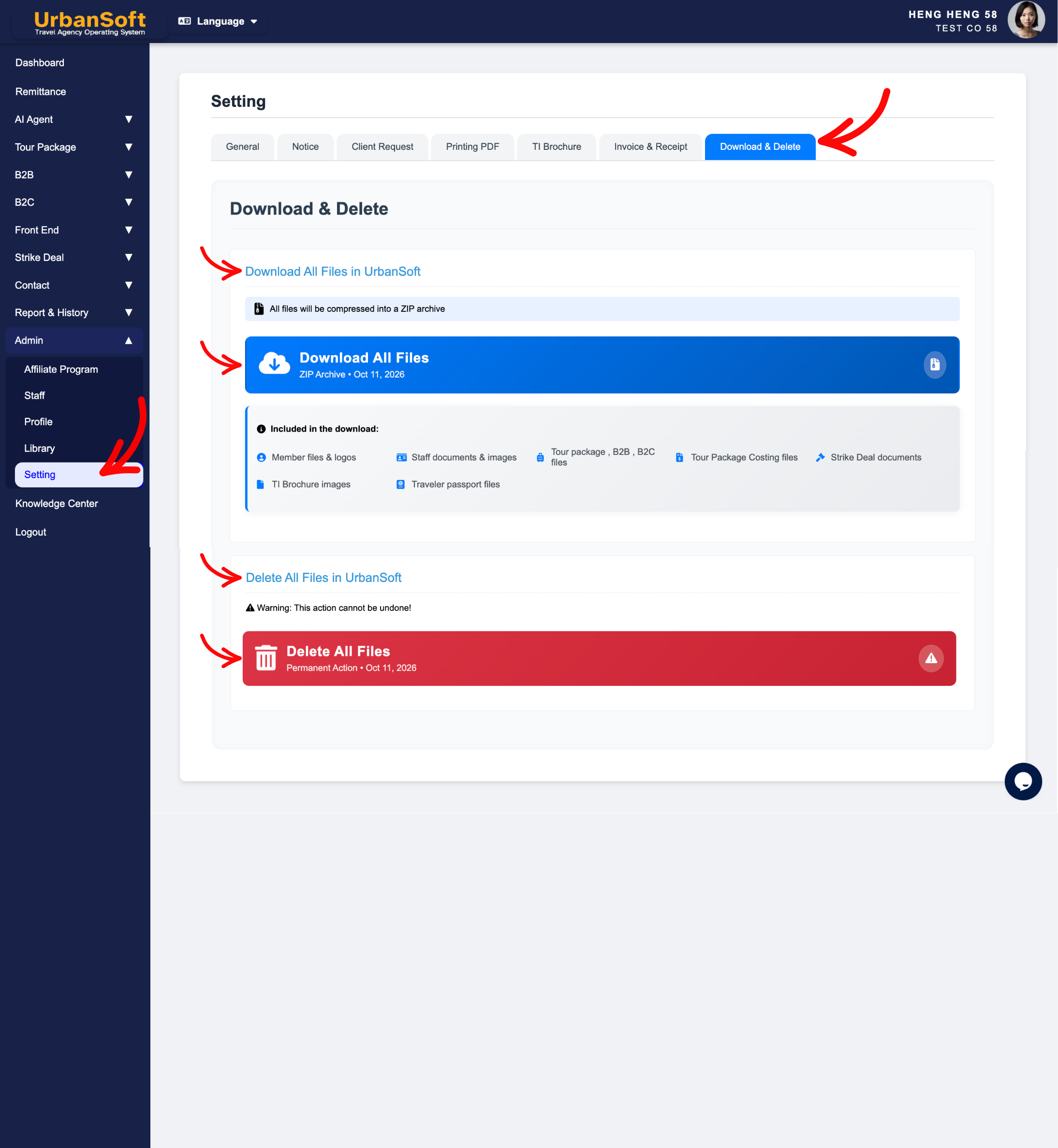
Configure Setting > Download & Delete:
-
Use download options to compress and export all system files (member files, staff documents, tour packages, B2B/B2C files, costing sheets, strike deals, brochures, and traveler passports) into a ZIP archive. Handle account deletion with extreme caution if required.
-
Download All Files in UrbanSoft
-
Download All Files: Click this action to export and download a complete ZIP archive of all media, documents, and attachments stored across your company's UrbanSoft account.
-
Included in the download: Automatically packages member files & logos, staff identity documents & images, tour package resources, B2B & B2C quotation attachments, tour package costing worksheets, strike deal documents, TI brochure media, and traveler passport copy files.
-
Best Practice: Perform this backup regularly (e.g., monthly or quarterly) or before making major system updates to maintain an offline data archive for audit and compliance purposes.
-
-
Delete All Files in UrbanSoft
-
Delete All Files: A high-security system purge designed to permanently wipe all stored attachments and media files from your account.
-
3-Time Confirmation Security Protocol: Requires a strict 3-step security verification process, including entering a unique special OTA authorization code requested directly from UrbanSoft support to prevent accidental data loss.
-
Warning Notice: This action cannot be undone! Once executed, all stored images, documents, and passport files will be permanently erased.
-
Best Practice: Only execute this operation during company offboarding, major system resets, or when clearing account data under data protection/GDPR requirements. Always perform a full ZIP download prior to initiating any file deletion.
-
-
Expected Result
Your UrbanSoft system will be fully configured with your company branding, custom document layouts, automated numbering formats, and operational rules, ensuring professional generation of itineraries, quotations, invoices, and receipts.
Important Settings Overview
-
Setting > General: Controls core company identity, currencies, language preferences, child pricing rules, and default profit margins. Core fields have a 1-time edit limit within first 14 days after sign-up.
-
Setting > Notice: Manages standard terms, inclusions/exclusions, and notice blurbs used across quotations and proposals.
-
Setting > Client Request: Handles default parameters for client special requests and flight requirements.
-
Setting > Printing PDF: Centralizes design, branding headers, watermarks, table layouts, and element visibility for Tour Package, B2B, B2C, and STI PDFs.
-
Setting > TI Brochure: Configures marketing-focused Tour Itinerary Brochures, cover logos, slogans, and welcome letters.
-
Setting > Invoice & Receipt: Manages financial documents, header banners, numbering formats, QR codes, tax rates, and automated payment reminder alerts.
-
Setting > Download & Delete: Allows complete data archiving into a ZIP file or secure account data removal.
Common Mistakes
-
Attempting to modify core company names or currencies after the 14-day window without contacting support (
care@urbansoft360.com). -
Uploading banner images or logos that exceed the 2MB file size limit or use unsupported file formats.
-
Forgetting to click Update after updating individual configuration tabs.
Different Angles: Same Stories, Same Content, New Perspective
-
Where do I configure company branding headers and watermarks for PDFs in UrbanSoft?
-
How do I set up default currencies and profit models in system settings?
Same Folder Articles
Related Articles
-
 How to edit or update "My Setting"?
-
What kind of details can be preset on the "Admin > Setting" page?
-
Why am I unable to edit my "Company Name and Country" in the Setting > General and Company Profile page?
-
How to change Setting > General and Top Up Credit / Deposit / Upgrade "Costing Currency" and "Member Package Currency" option?
