.gif)
.gif)
.gif)

 What information should be include in the "Admin > Library > Invoice Item" tab?
The Admin > Library > Invoice Item tab in UrbanSoft serves as a centralized billing template repository for managing reusable billing line items. It allows travel agencies to pre-define standard fee descriptions, service breakdowns, and itemized billing text (such as Visa Handling Fees, Airport Transfers, Travel Insurance Surcharges, or Customized Ground Services). Once stored in the library, these preset invoice items can be populated into customer quotations, tax invoices, and receipts with a single click, ensuring accuracy and consistency across billing documentation.
What Can I Do?
You can create and manage your agency's standardized billing line items using the following key functions:
-
Browse Pre-Configured Billing Items: View all stored invoice items within the Invoice Item index table.
-
Create New Preset Line Items: Add new standard fee items with custom titles and detailed descriptions.
-
Edit Existing Item Templates: Modify item titles and content descriptions globally to reflect updated billing standards or fee structures.
-
Maintain & Clean Up Templates: Delete obsolete or unused billing item entries from your system library.
Field Definitions & Operational Guidance
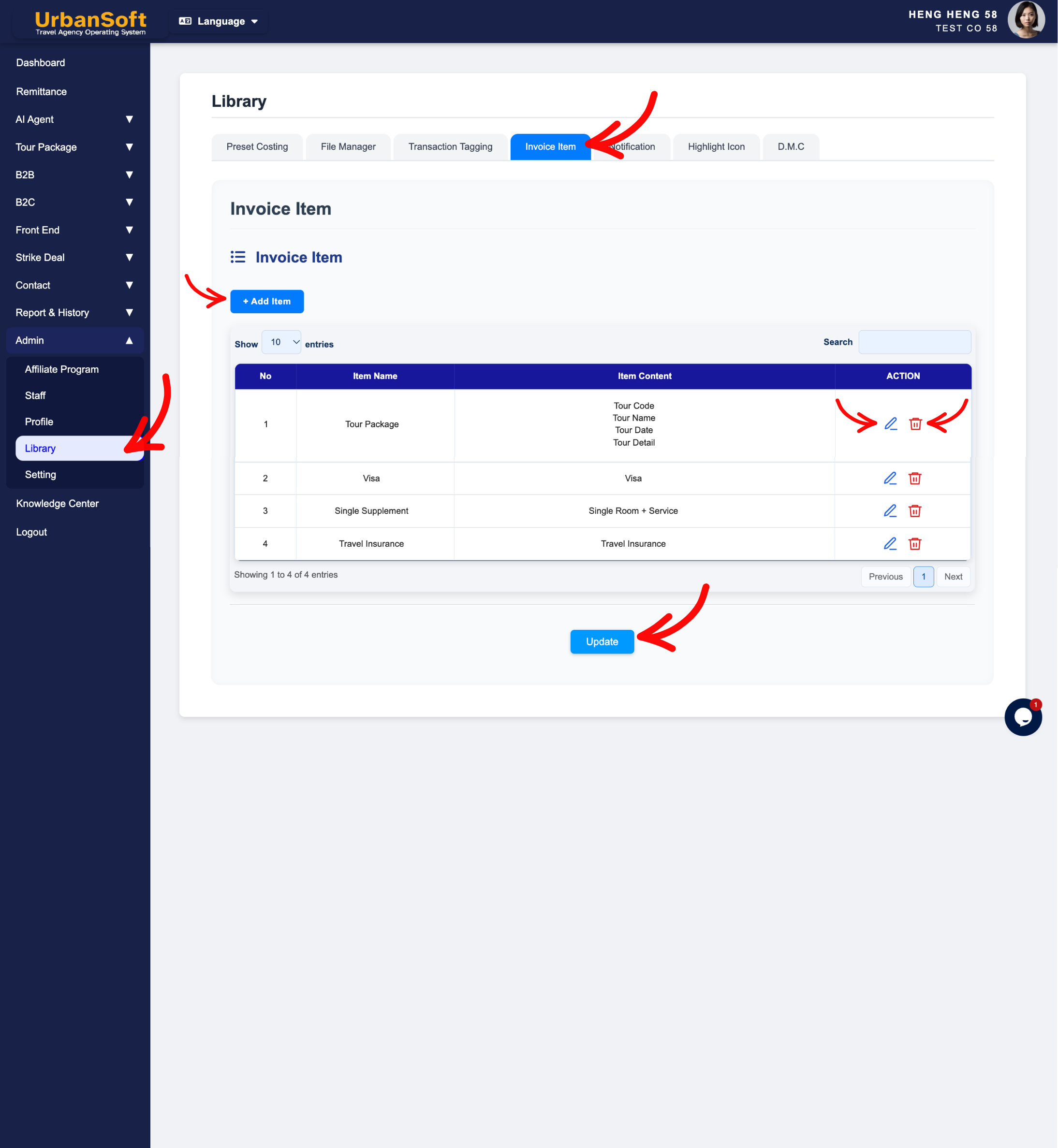
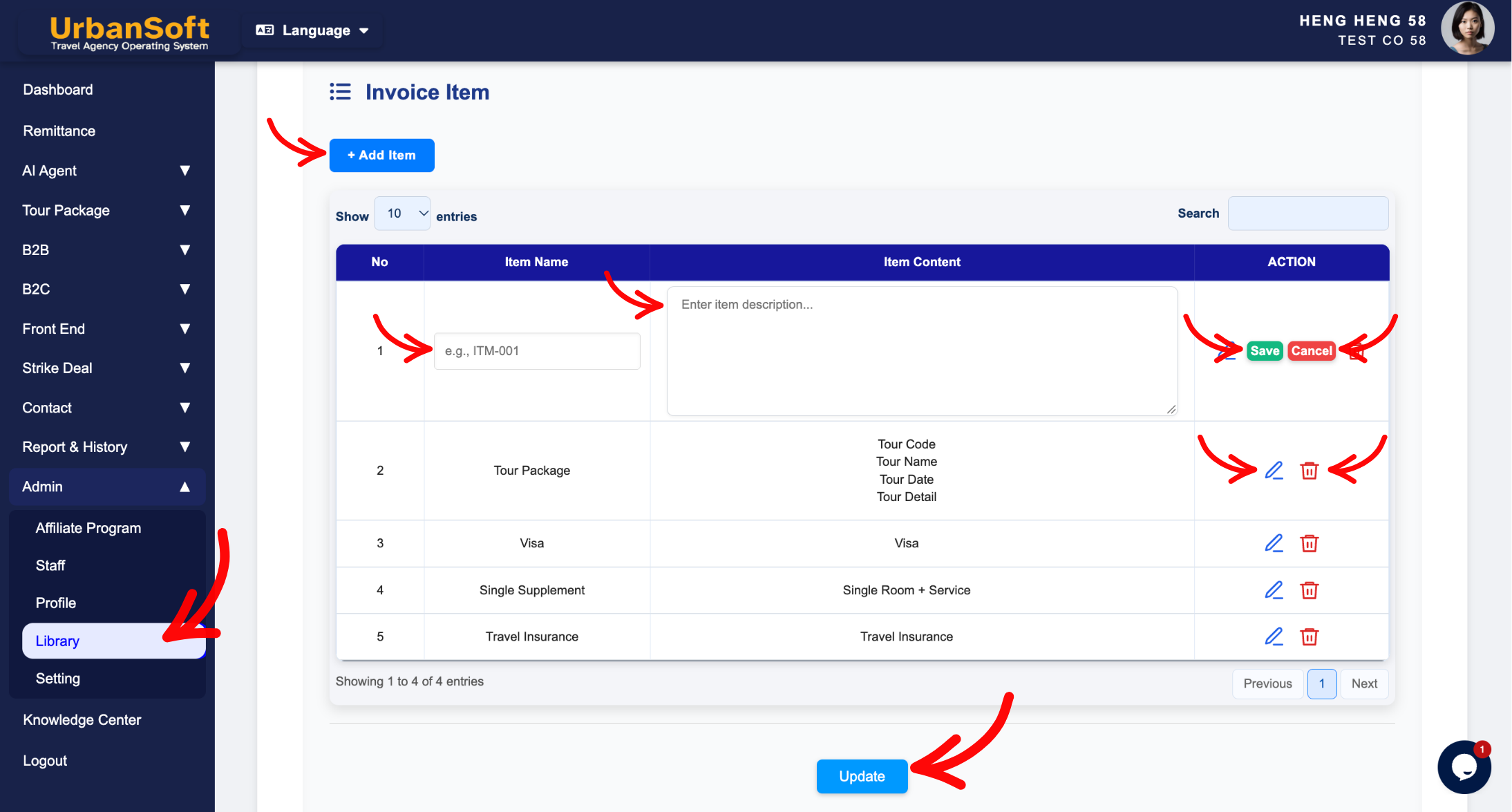
1. Invoice Item Index Table & Creation
-
Invoice Item Index Table: Displays the complete list of pre-configured billing items, showing their respective Item Name and Item Content.
-
+ Add Item: Click this action button to open the billing item entry form.
-
Item Name: Enter a concise, recognizable title for the billing item (e.g.,
"Visa Processing Fee"or"Private Airport Transfer"). -
Item Content: Enter the detailed description or breakdown text that will appear on the printed invoice or quotation (e.g.,
"Express tourist visa application handling fee including embassy submission and processing charges."). -
Save: Click Save to add the newly created billing item to your system library.
2. Managing & Updating Line Items
-
Manage Row Actions: Use inline controls (Edit, Cancel, or Delete) to modify or remove existing invoice item entries.
-
Edit: Click Edit on any row to change the Item Name or Item Content, then click Save to update the template across the library.
-
Delete: Click Delete to remove obsolete billing items that are no longer required for active invoicing.
Example
When setting up standard billing templates for optional travel services:
-
Navigate to Admin > Library > Invoice Item.
-
Click + Add Item.
-
Enter Item Name: "International Travel Insurance" and Item Content: "Comprehensive 7-day overseas travel insurance policy covering medical emergencies, flight cancellations, and luggage loss."
-
Click Save. When creating a customer invoice under
Admin > Setting > Invoice & Receiptor inside a B2C quote, finance staff can select this preset item to auto-populate the full description into the line item table instantly.
Important Notes
-
Storing standard billing items under
Admin > Library > Invoice Itemeliminates repetitive typing and prevents clerical errors when staff issue invoices or quotations. -
Editing an item in the Library updates the default master template for future billing documents without altering previously issued historical invoices or published quotations.
Different Angles: Same Stories, Same Content, New Perspective
- What item names, content descriptions, index table controls, and preset billing templates make up the Admin > Library > Invoice Item tab in UrbanSoft?
Same Folder Articles
Related Articles
-
 What information should be include in the "Admin > Library > Preset Costing" tab?
-
What information should be include in the "Admin > Library > Transaction Tagging" tab?
-
What information should be include in the "Admin > Setting > Invoice & Receipt" tab?
-
What information should be include in the "Admin > Library > File Manager" tab?
-
How to set up my "Company Profile"?
