.gif)
.gif)
.gif)

 How to add "Tour Package Tags" on Library > Transaction Tagging and Tour Packages Basic Information in UrbanSoft?
This guide explains how to apply tour package tags in UrbanSoft. You need to set up tags under administrative library settings first, and then attach those tags to your tour packages for easier searching, filtering, and reporting.
When Do You Use This?
Use this feature when you want to categorize and organize your tour packages using custom labels or tags (defaulted from Admin > Library > Transaction Tagging, e.g., "Honeymoon", "Early Bird", "Seasonal Special"), allowing quick filtering for both internal operations and customer searches.
Before You Start
-
You need:
-
Administrator or staff access to the UrbanSoft backend with library management and tour package editing permissions.
-
Your desired tag names clearly defined before creating them.
-
-
Precautions:
-
You must create or manage tags in the Admin Library first before they become selectable inside the tour package editor.
-
Ensure tag naming is consistent across your team to maintain organized filtering and statistics.
-
Step-by-Step
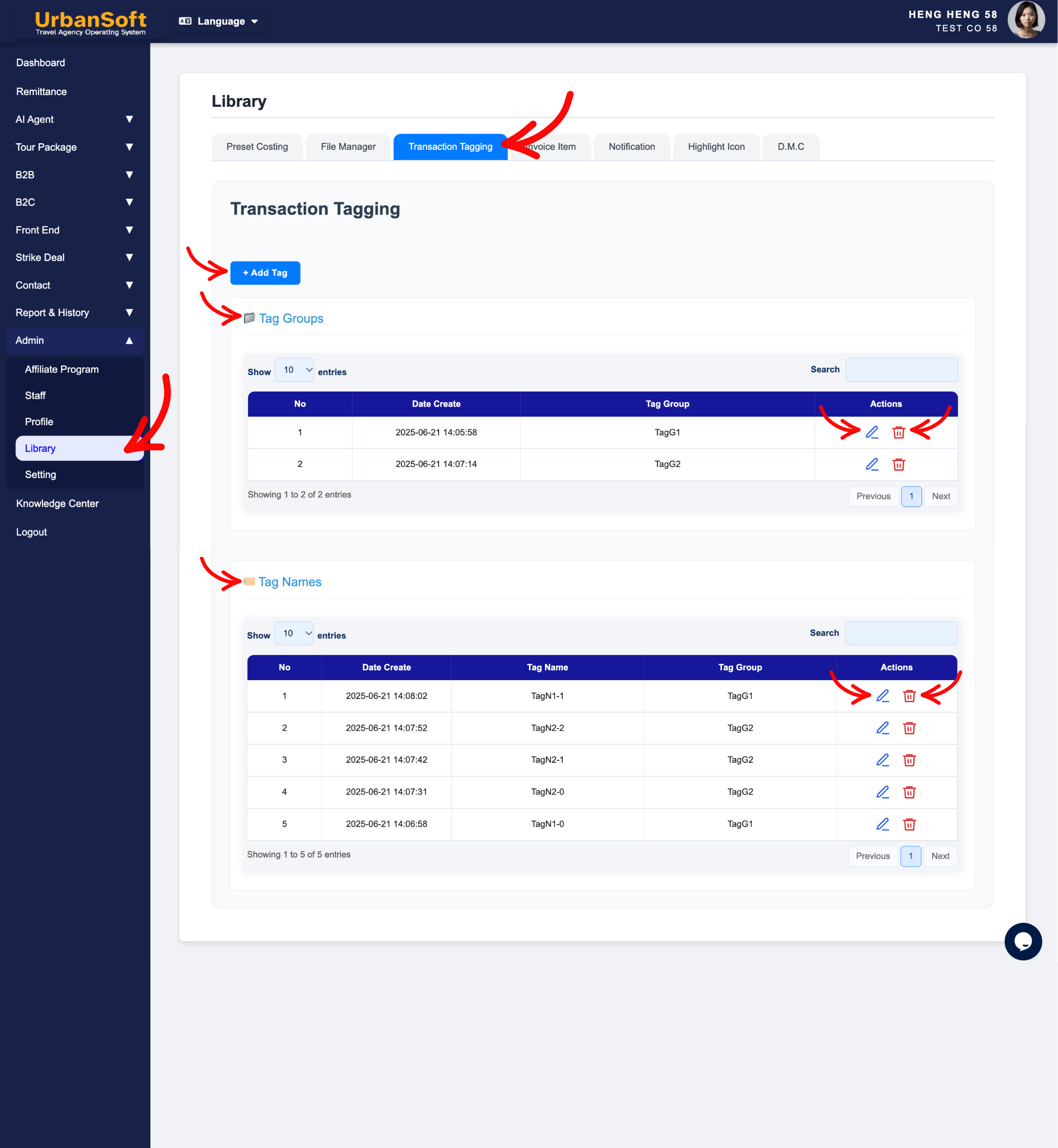
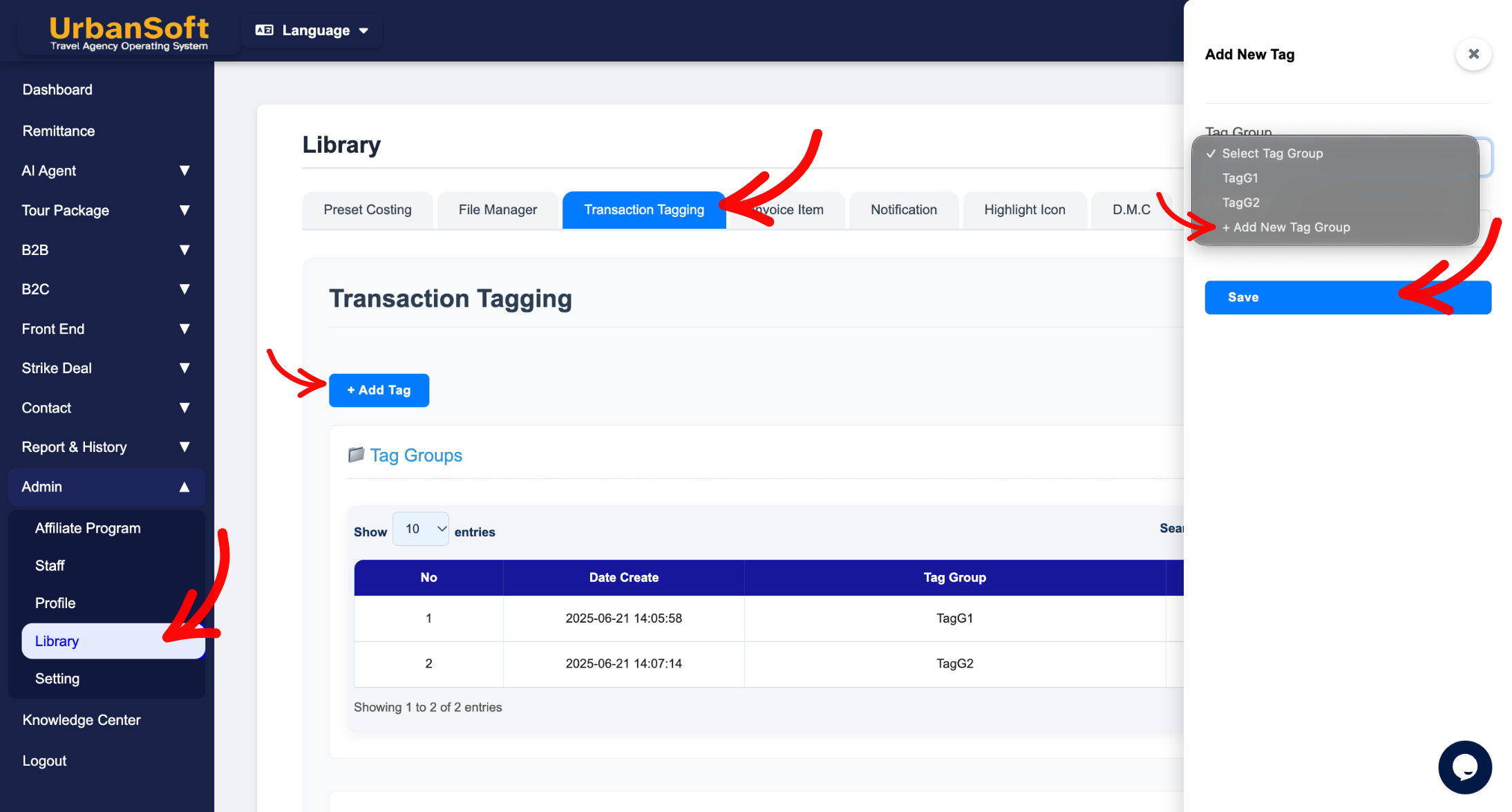
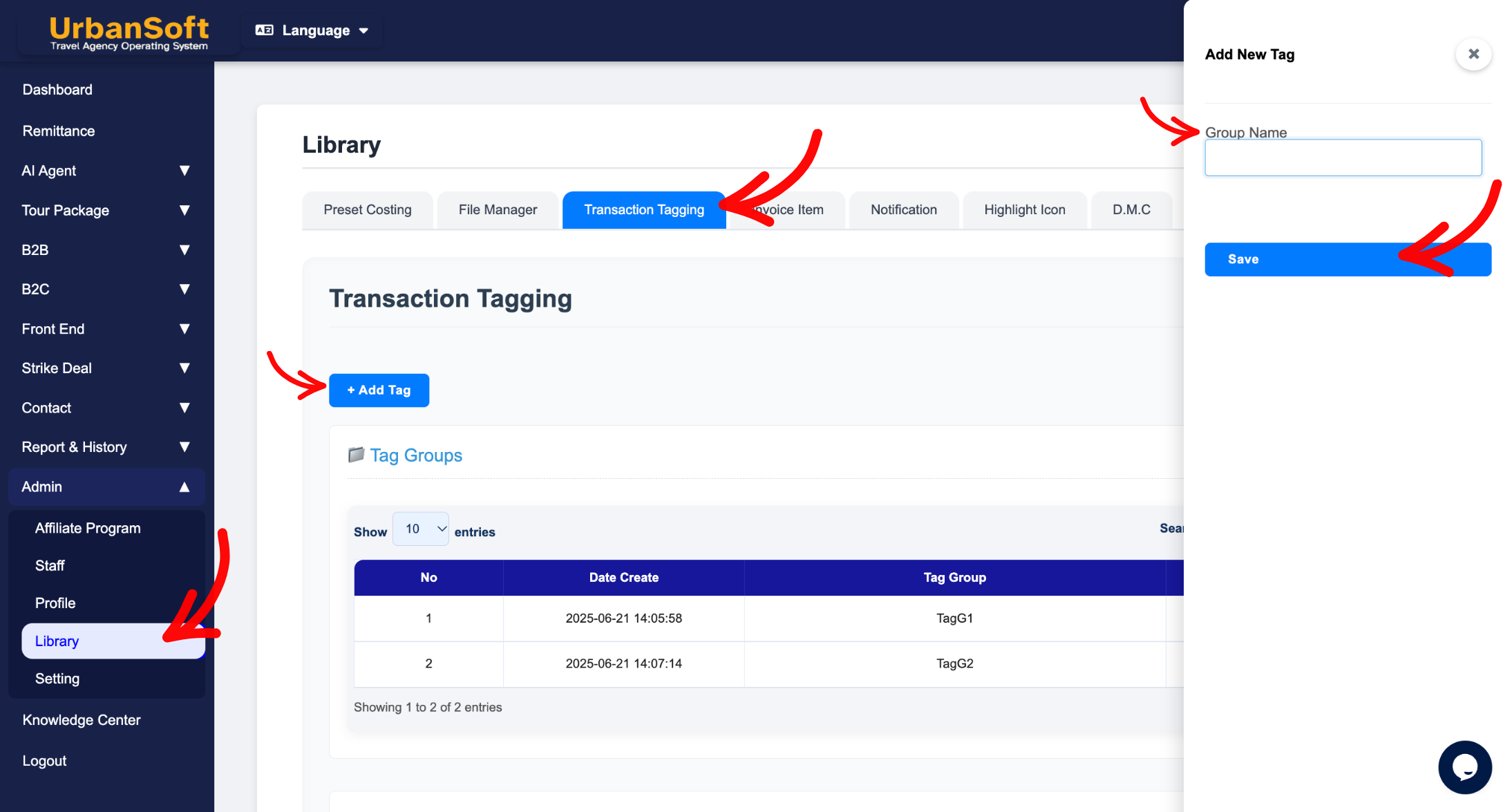
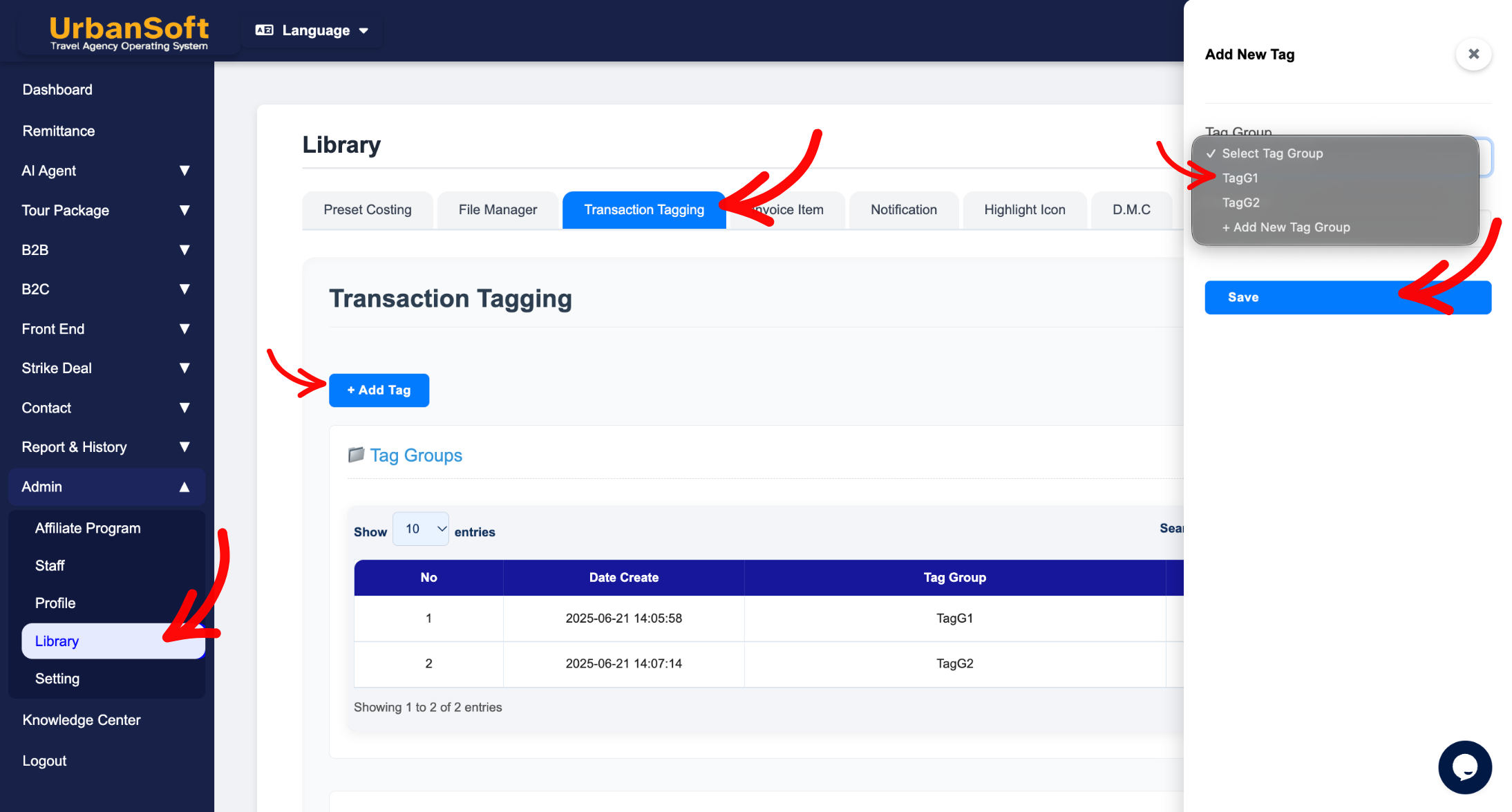
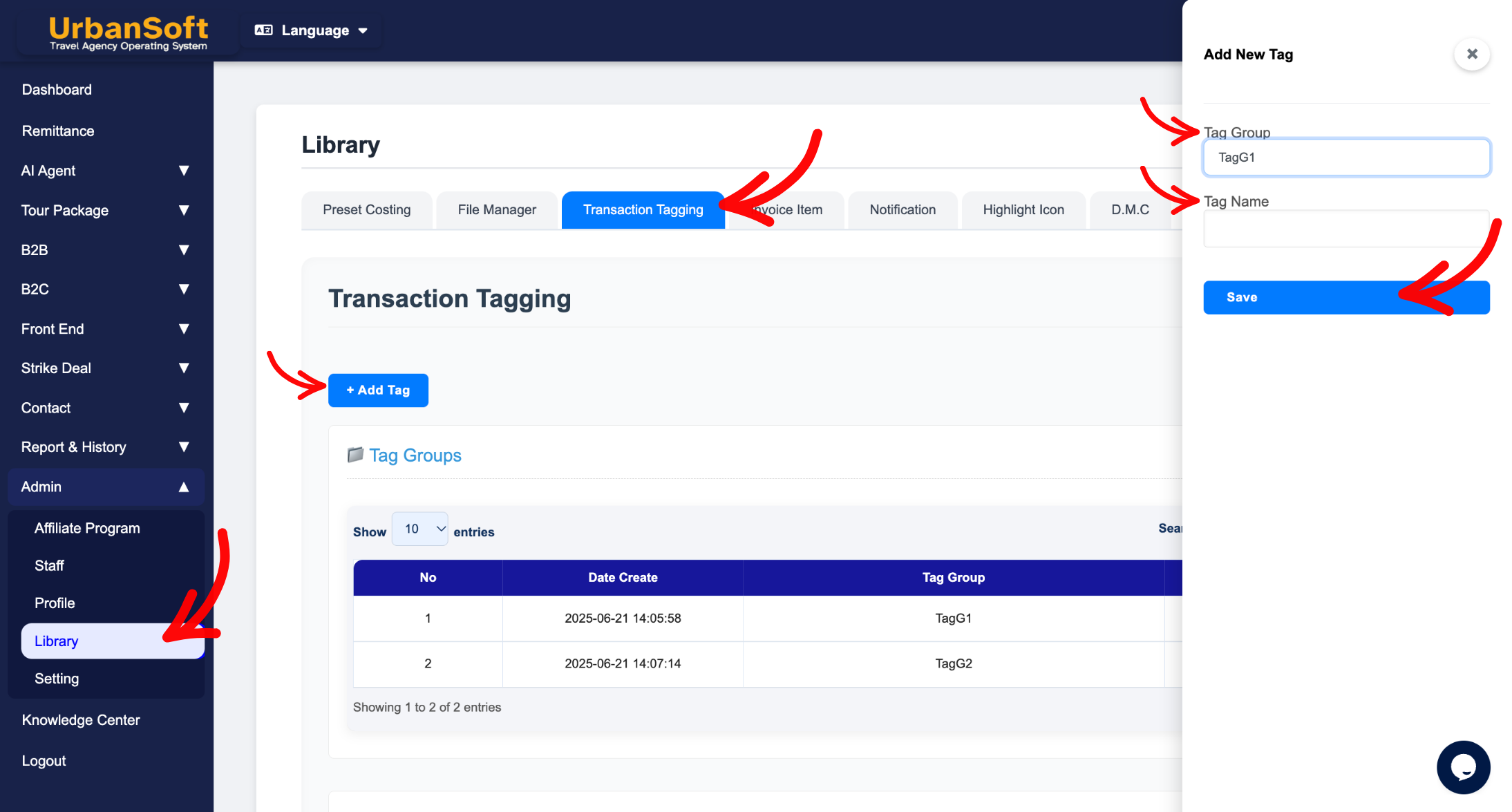
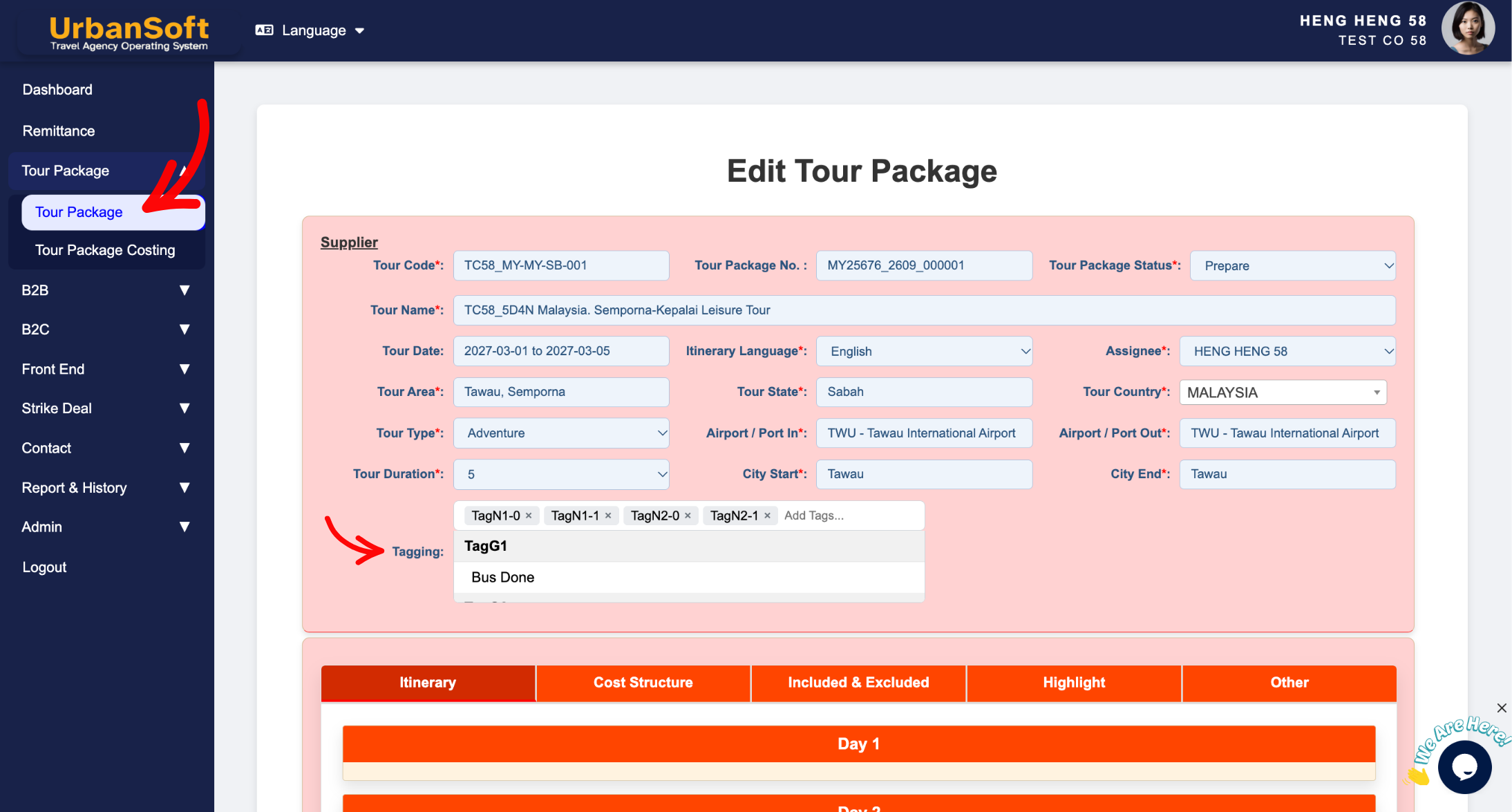
-
Log in to your UrbanSoft account using your administrative credentials.
-
Go to Admin > Library > Transaction Tagging from the left navigation menu.
-
Add or configure your desired tags in the Transaction Tagging management page.
-
Save your newly created tags.
-
From the left navigation menu, go to Tour Package > Tour Package, overhere will have tour package index table.
-
Click the + Add New Tour Package button or click Edit on an existing tour package.
-
Locate the Tagging field on the package settings page.
-
Select the appropriate tags from the dropdown list (which are populated from your Transaction Tagging library).
-
Click Update to apply the tags to the tour package.
Expected Result
The selected tags will be attached to your tour package, allowing you to easily filter, search, and categorize packages across your UrbanSoft system and reports.
Important Notes
-
Tags must first be added in Admin > Library > Transaction Tagging; otherwise, they will not appear in the tour package tag selection list.
-
Managing tags centrally in the library ensures standardized tag names for accurate search results and statistical analysis.
Common Mistakes
-
Looking for an option to create new tags directly inside the tour package page instead of adding them in Admin > Library > Transaction Tagging first.
-
Misspelling or duplicating tag names in the library settings, causing redundant categories.
-
Forgetting to click Update after attaching tags to a tour package.
Different Angles: Same Stories, Same Content, New Perspective
-
Where do I manage and add tags for UrbanSoft tour packages?
-
Why can't I find my new tag in the tour package tag selection list?
 How to check "My Membership Status"?
