.gif)
.gif)
.gif)

 How to create "New Tour Package" manually?
This guide will walk you through, how to manually create and configure a new tour package in UrbanSoft. You will learn how to set up package details, itinerary, pricing, inclusions/exclusions, etc, and publish the package for B2B or B2C sales.
When Do You Use This?
Use this feature when you want to design and launch a custom or standardized tour package from scratch, without importing external PDF/Word/Text file feeds or pre-existing templates.
Before You Start
-
You need:
-
Authorized access to the UrbanSoft Admin portal with Tour Package management permissions.
-
Essential tour details prepared, including title, destination, duration, itinerary, pricing structure, and high-quality images.
-
-
Precautions:
-
Ensure all mandatory fields (marked with an asterisk
*) are completed accurately. -
Verify room/seat inventory and pricing currency before publishing to prevent booking errors.
-
Step-by-Step
-
Log in to your UrbanSoft account using your credentials.
-
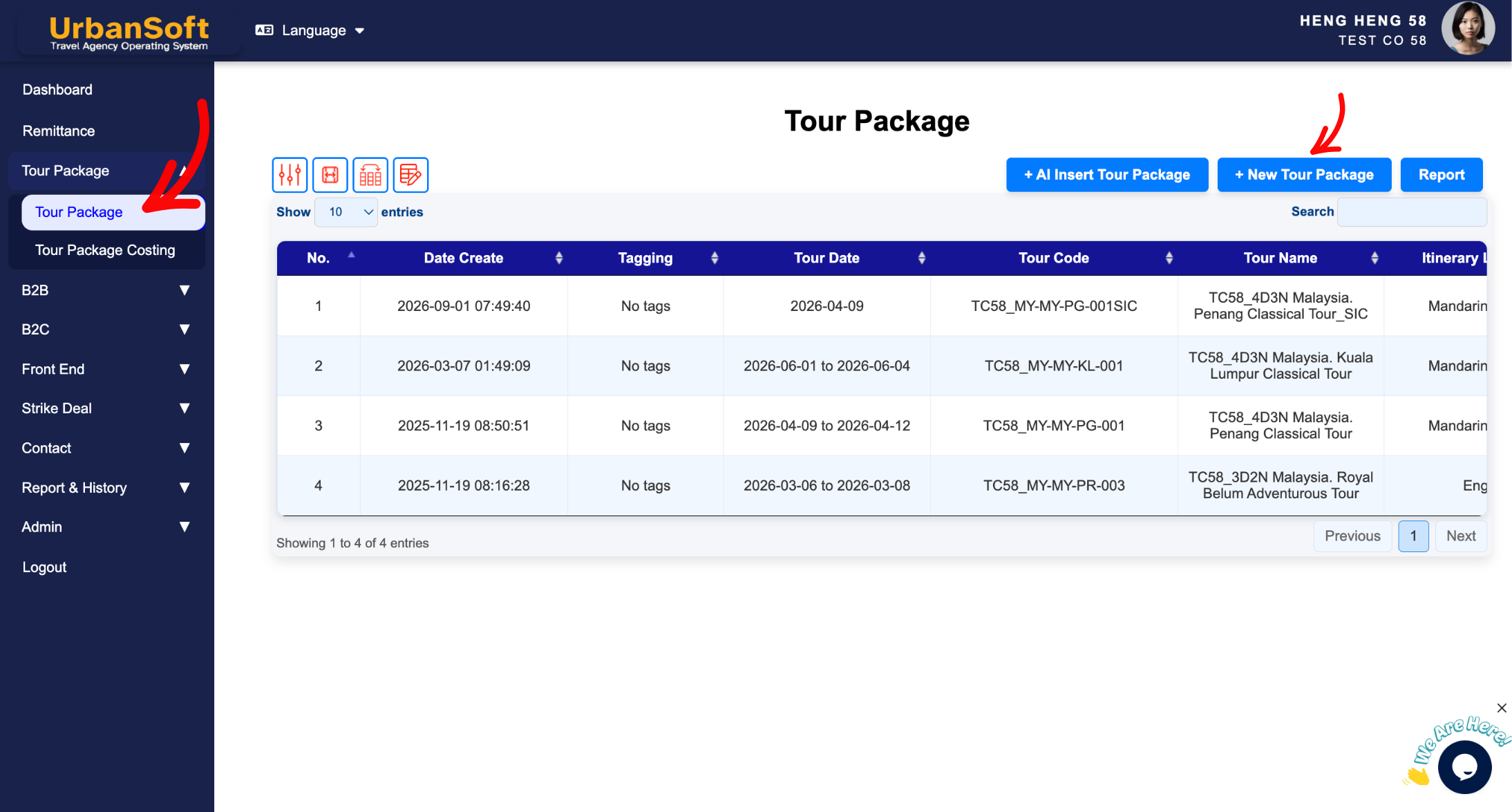
From the left navigation menu, go to Tour Package > Tour Package, overhere will have tour package index table.
-
Click the + Add New Tour Package button. New Tour Package, build by 6 main tab, 1. Basic Information, 2. Itinerary, 3. Cost Structure, 4. Include & Exclude, 5. Highlight, 6. Other.
-
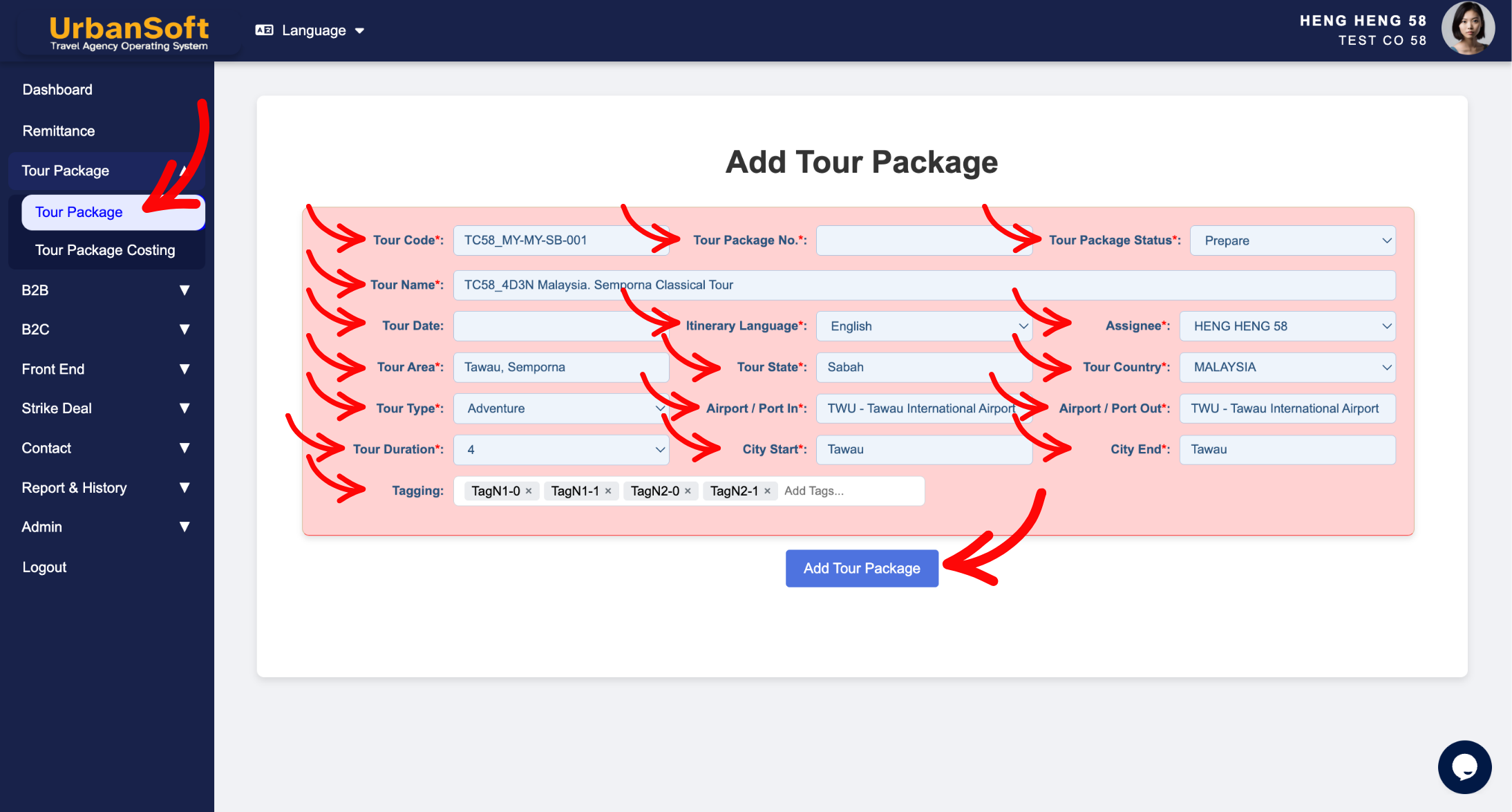
Fill in the Basic Information:
-
Tour Code*: There is no fixed format for the tour code. You may use your company’s preferred format. It can be numbers, letters, date or a combination of both (e.g., "MY-PG-0403-002" or "MYABC-8D-Chongqing-20260310").
-
Tour Name*: Enter the title of your trip following your company's naming convention, and there is no restriction on length or structure (e.g., "5D4N Highlights of Penang & Langkawi"). Keep it clear and attractive for clients.
-
Tour Package No.*: This field is auto-generated by UrbanSoft to provide a unique tracking series number. No input is needed from you.
-
Tour Package Status*: Select "Prepare" while you are still editing or drafting the details. Change it to "Completed" once the itinerary, pricing, and settings are finalized and ready for publishing.
-
Assignee*: Select the person in charge (PIC) or team member responsible for creating, updating, and managing this specific tour package.
-
Itinerary Language*: Choose the primary language for this itinerary (e.g., English, Traditional Chinese). Note: Multi-language features depend on your UrbanSoft plan tier.
-
Tour Date: Specify the applicable date range or valid departure period for this package. This field can be empty, for those tour package no fix the date yet.
-
Tour Area*: Enter the city or region or zone where the tour takes place (e.g., "Southeast Penang" or "Georgetown, Butterworth"), can be multiple area.
-
Tour State*: Enter the specific state or province (e.g., "Penang", "Sabah", or "Semporna"), can be nultiple state.
-
Tour Country*: Select the destination country (e.g., "Malaysia" or "Japan").
-
Tour Type*: Choose the travel style or category that fits best (e.g., "Sightseeing", "Adventure", "Luxury", or "Cruise").
-
Tour Duration*: Select the number of days and nights (e.g., "4 Days 3 Nights"). This directly determines the number of day-by-day itinerary rows generated by the system.
-
Airport / Port In*: Specify the primary arrival gateway code or airport, seaport, landport name (e.g., "PEN - Penang International Airport" or "Port Klang").
-
Airport / Port Out*: Specify the primary departure gateway code or airport, seaport, landport name (e.g., "LGK - Langkawi International Airport" or "Johor Baharu Land Port").
-
City Start*: Enter the starting city where guests begin their tour (e.g., "George Town").
-
City End*: Enter the final city where the tour ends (e.g., "Kuah" or "Kuala Lumpur").
-
Tagging: For Growth Membership and above, Add relevant keywords or categories (defaulted from Admin > Library > Transaction Tagging, e.g., "Honeymoon", "Family Friendly", "UNESCO Heritage") to make searching, filtering, and cross-referencing easier within your system database.
-
Complete All Field: Displays a status summary verifying that administrative, identification details, destination & geographical coverage, travel style, gateways, logistics, tagging and final submission have been fully populated.
-
Add Tour Package: Once all information is completed, click the "Add Tour Package" button below to create your new tour package.
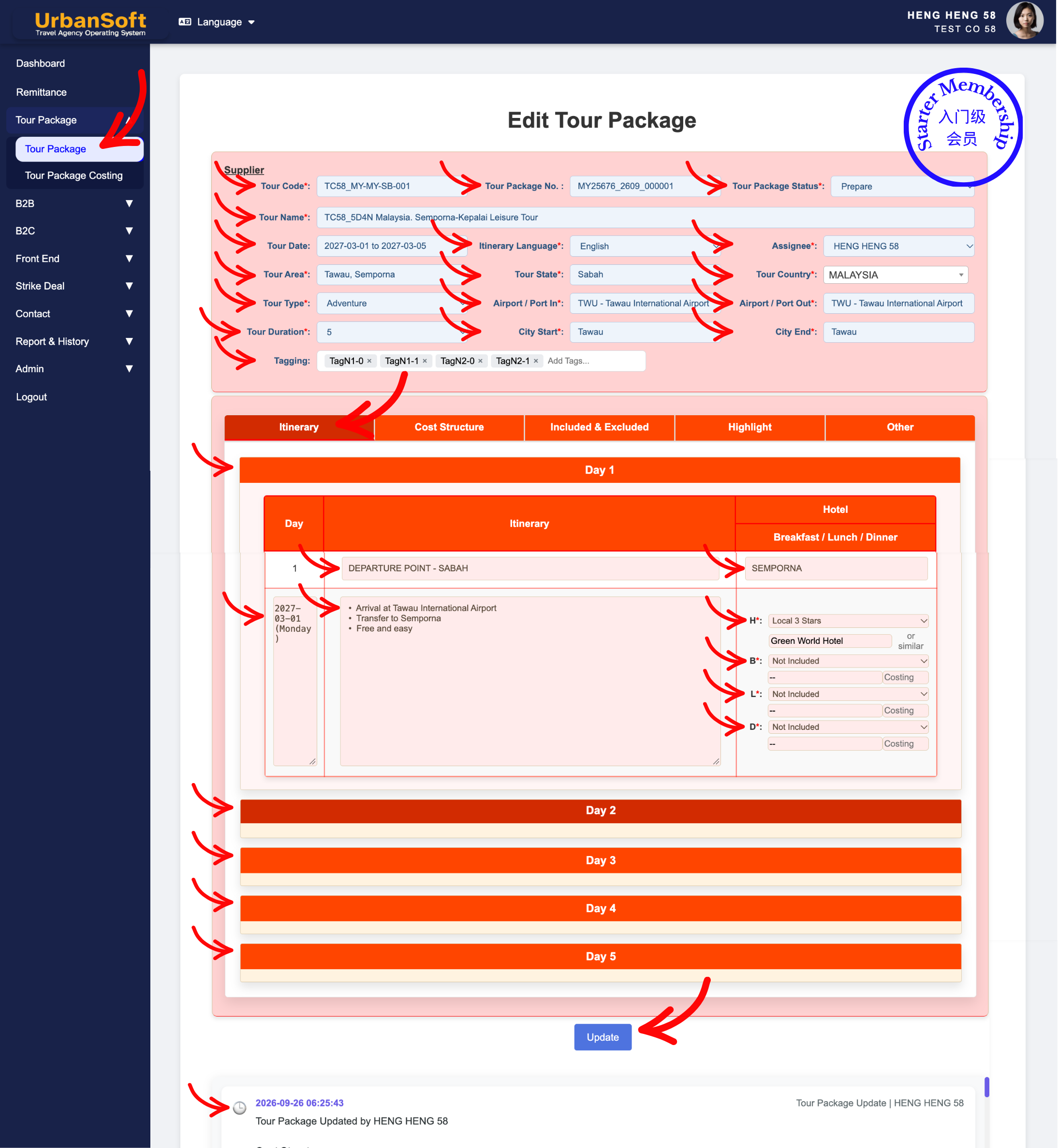
For Starter Membership: The images above show their control interface. Starter membership not allow to use DMC (Destination Management Center). Please upgrade to optimal your feature and maximal your profit and time.
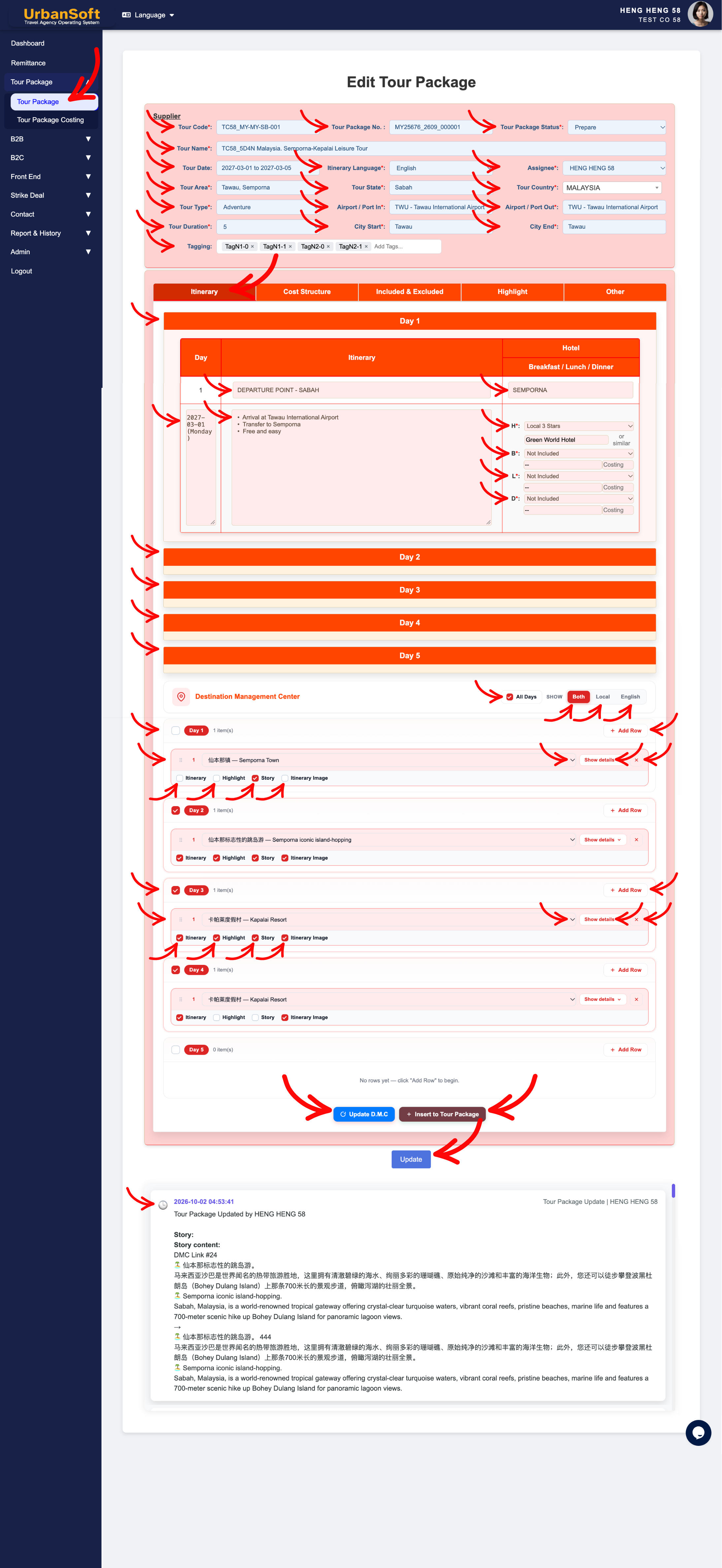
For Launch Membership and above: The images above show their control interface. Include DMC (Destination Management Center) feature.
-
-
Set up the Itinerary Content & DMC - Destination Management Center:
-
Click on the Day: Click on the Day 1, day 1 itinerary form will drop down. Fill up all mandatory (*) information.
-
Day: Auto number, showing the sequential day number (e.g., Day 1). Refer to Tour Duration, on top of the form.
-
Date / Day of Week: Automatically populated with the exact calendar date and day of the week if a Date Between range is selected in Tour Date (for fixed-date group tours). Leave the Tour Date field blank when creating fixed-duration but open-dated or recurring tour packages.
-
Movement / Day Title / Headline: Specify the travel transit routing or city-to-city or location-to-location movement and travel distances, or a brief engaging title summarizing the main highlight or destination for the day (e.g., Penang - Langkawi" or "Kuala Lumpur - Malacca - Kuala Lumpur" or "Arrival in Tokyo & Shibuya Exploration").
-
Itinerary / Description / Daily Schedule: For Launch Membership and above - Can use DMC (Destination Management Center) or enter Manually. Inserted from DMC, at Itinerary tab, setup itinerary detail in DMC section, system will transfer detail to itinerary section (editable), or Manually provide a clear, step-by-step detailed description of the morning, afternoon, and evening activities, attractions visited, sightseeing spots, entry points, travel distances and travel schedule. For Starter Membership - only Manually enter is allow.
-
Hotel Location: Enter the city, region, or area where the hotel is located for this night (e.g., "Georgetown" or "Batu Ferringhi"). No need to enter full hotel address.
-
Hotel Star Rating: Dropdown fields to select hotel official star rating of the accommodation provided for that night (e.g., "Local 4 Star" or "International 5 Star").
-
Hotel Name: Enter the designated hotel, resort, or accommodation name for the night, system will automatically add in "or similar". (e.g., "Eastern & Oriental Hotel" or "To Be Advised (TBA)" if not finalized).
-
Breakfast*: Dropdown fields to select the meal inclusion status and breakfast type (e.g., "Hotel Breakfast", or "Not Included").
-
Breakfast Name: Specify the breakfast name or venue of the breakfast (e.g., "International Buffet Breakfast at Hotel").
-
Breakfast Cost: Enter the estimated or actual budget/cost allocated per person for breakfast (e.g., "USD 10" or "MYR 40"). This feeds into internal costing calculations.
-
Lunch*: Dropdown fields to select the meal inclusion status and lunch type (e.g., "Local Buffet ", "Local Cuisine", or "Local Flavor").
-
Lunch Name: Specify the lunch name or restaurant name for lunch (e.g., "Nyonya Cuisine Mewah Restaurant").
-
Lunch Cost: Enter the estimated or actual budget/cost allocated per person for lunch (e.g., "USD 15" or "MYR 45"). This feeds into internal costing calculations.
-
Dinner*: Dropdown fields to select the meal inclusion status and dinner type (e.g., "International Buffet", "Special Cuisine", or "Special Flavor").
-
Dinner Name: Specify the dinner name or restaurant name for dinner (e.g., "Seafood Set Dinner at Gurney Drive").
-
Dinner Cost: Enter the estimated or actual budget/cost allocated per person for dinner (e.g., "USD 25" or "MYR 80"). This feeds into internal costing calculations.
-
Timeline: A timeline is a line or list that displays the progress of events—such as dates, times, the people involved, locations, and what was created, modified, or stored—in chronological order.
-
Complete All Day Itinerary: A quick overview or checklist status ensuring all day-by-day activities, meals, and hotels for the entire tour length have been fully populated before proceeding.
-
Update: Click this action button to save all your entries and progress for the itinerary package.
-
Tour Package Images: Upload attraction or activities images at Highlight tab > Tour Package Images.
-
DMC - Destination Management Center: For Launch Membership and above - A centralized hub to pre-build and store reusable attractions, activities, events, and tour proposals so they can be instantly inserted into any tour package itinerary with a single click. For Starter Membership - not allow to use DMC. Please upgrade to optimal your feature and maximal your profit and time.
-
Checkbox All Days: Tick this box if you want to apply or insert the selected DMC itinerary across every single day of the tour package.
-
Checkbox Day: Tick individual day boxes (e.g., Day 1 or Day 2) to insert the DMC itinerary into specific days only.
-
Show: Choose Both, Local, or English to determine which language variation of the DMC content displays on the DMC section or tour package view. Select Both to display Local and English language content, select Local to display Local language content only, if select English only display English language content.
-
Add Row: Click to add a new blank itinerary activity row under the selected day.
-
Select a DMC Preset Itinerary: Choose a pre-set destination, attraction, activities, event and proposal from the dropdown list to quickly populate its pre-set content. (Preset & Manage DMC Itinerary at Admin > Library > D.M.C)
-
Show Details: Click to preview and inspect all pre-set itinerary name, itinerary information, highlight description, story content and image uploaded of the selected DMC itinerary.
-
Itinerary Name / Information / Highlight / Story / Image: Previews DMC template elements in the selected language mode (both, local or english language (depand on option selected)), including main images (up to 4 images per preset).
-
Checkbox Selection Controls:
-
Checkbox Insert Itinerary: Tick to inject itinerary descriptions into the Itinerary tab daily schedule breakdown.
-
Checkbox Insert Highlight: Tick to push key selling points directly into the Highlight tab.
-
Checkbox Insert Story: Tick to send rich background stories into the Other tab.
-
Checkbox Insert Itinerary Image: Tick to copy attraction photos into the daily itinerary image gallery in the Highlight tab.
-
-
Arrange Order: Drag or reorder the sequence of DMC itinerary to adjust the visiting order within a day's schedule.
-
Update D.M.C: Click to update and save changes made in DMC section (if forgot to Update DMC section, and direct click Insert to Tour Package button, all adjustment in MDC section will gone).
-
Insert to Tour Package: Click to instantly inject the selected DMC itinerary, highlights, story, and images directly into the active tour package.
-
-
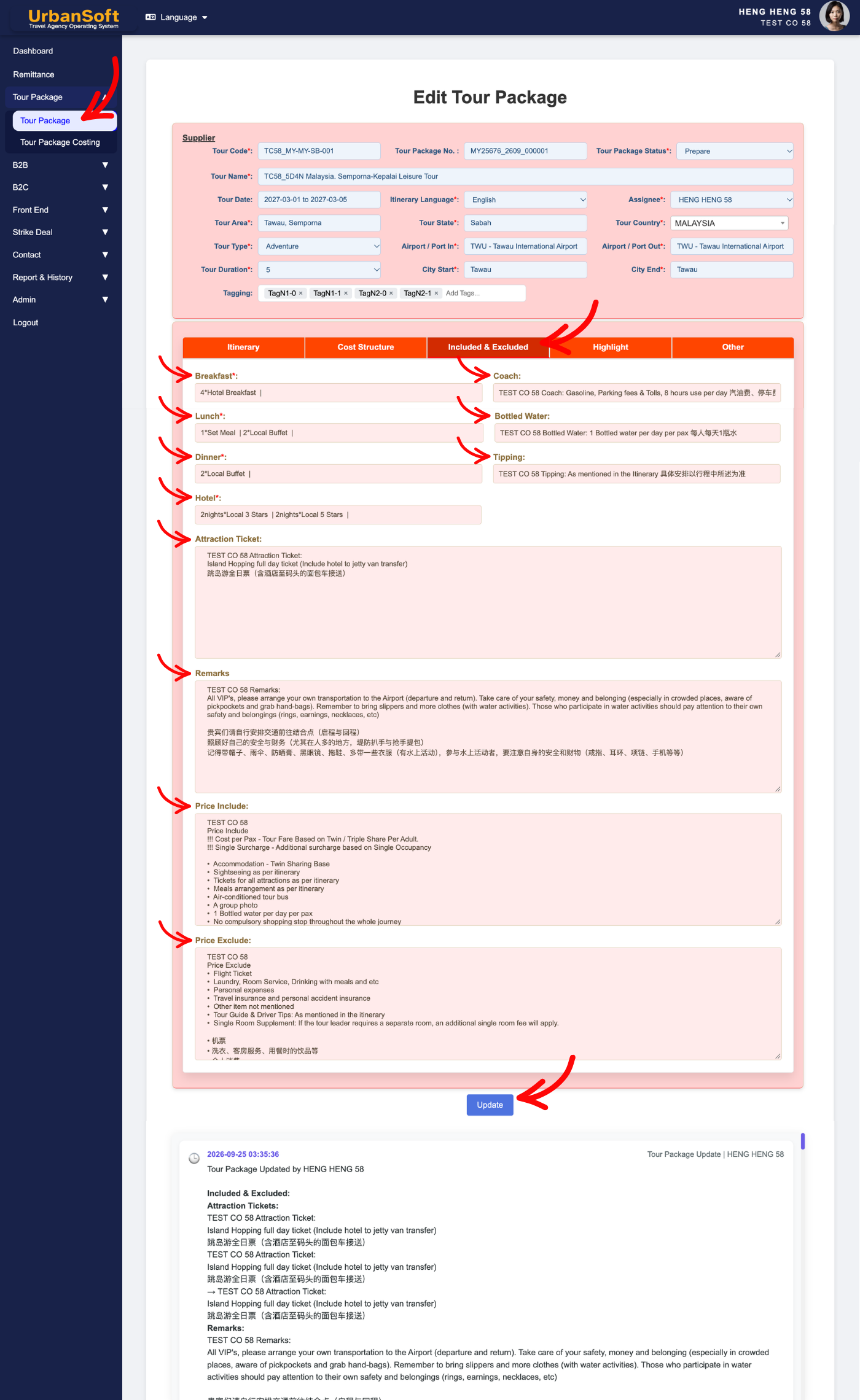
Set up Cost Structure & Pricing:
-
Price Valid Between: Select the start and end dates defining the validity period for this specific pricing table (e.g., "2026-04-01 to 2026-09-30").
-
Season: Categorize the pricing season (e.g., "Low Season", "Peak Season", or "Super Peak").
-
Tour Guide Language: Select the primary language for tour guide services (defaulted from Admin > Setting > General, such as "English" or "Mandarin"), although is default but still allow to be changed here.
-
If Other Language: You can also add other language services requested by the customer (e.g., "French" or "Japanese").
-
Other Language Fee: Enter the additional surcharges or daily fees incurred for providing a specialized or non-standard language tour guide.
-
Quote Currency*: Select the base selling currency used for calculating and displaying tour package prices on client-facing quotations (defaulted from Admin > Setting > General, e.g., "MYR", "USD", or "SGD"), although is default but still allow to be changed here.
-
Currency Rate: Displays the active real-time system exchange rate, used to convert foreign supplier costs into final base costing, or convert final costing into the selling/quote currency automatically.
-
Fix Rate: Allows manual input of a fixed exchange rate to override fluctuating market rates.
-
Use Fix Rate: Toggle option to lock in and enforce the custom fixed rate, for supplier costing, client quotations and profit margin stability.
-
Please select No. of Pax based on the capacity of coach with ideal rate: Choose the group size tier (passenger count) alongside appropriate vehicle types to calculate optimized per-pax pricing.
-
A-costing for until O-costing for: Represents the 15 customizable pricing category slots (A through O) used to tier different group sizes or vehicle capacities.
-
Select No of Pax: Choose or manually enter the specific passenger group size (e.g., A = 6 Pax, B = 8 + 1 TL Pax, J = 7 - 10 Pax). Note: When manually typing pax numbers, insert a space after the first digit to ensure proper system formatting and per-pax calculations.
-
Select Transport Option: Pick the vehicle type assigned to that specific group size tier (e.g., "Van", "18-Seater VIP Coach, or "Big Bus").
-
NOS / Note: Enter the Number of Seats (NOS) or internal operational notes regarding transport arrangements, driver allocations, or special vehicle requirements.
-
Cost per Pax: For Launch Membership and above - Can use Tour Package Costing or enter Manually. Calculated using the Tour Package Costing Module to generate the final selling price (Cost + Profit) and inserted into the table (editable). For Starter Membership - Manually enter the final selling cost per individual traveler based on the selected pax tier and vehicle costs.
-
Single Surcharge: For Launch Membership and above - Can use Tour Package Costing or enter Manually. Calculated using the Tour Package Costing Module to derive the final single supplement rate (Cost + Profit) and inserted into the table (editable). For Starter Membership - Manually enter the single supplement fee charged to solo travelers occupying a private room alone.
-
Driver and Guide Tipping: For Launch Membership and above - Can use Tour Package Costing or enter Manually. Calculated using the Tour Package Costing Module to calculate the final tipping amount (Cost + Profit) and inserted into the table (editable). For Starter Membership - Manually enter the required or suggested tipping fee per pax or per day for the driver and tour guide.
-
View costing breakdown in PDF: Click to generate and preview a comprehensive PDF sheet detailing itemized cost and profit components for verification.
-
Surcharge for Public Holiday & Peak Season: Specify mandatory extra charges applicable during public holidays or peak travel dates (pre-populated from Admin > Setting > General), although is default but still allow to be changed here.
-
Other Costing Remark: Include additional pricing conditions, genera cost disclaimers, tax notes, and supplementary financial conditions applicable (pre-populated from Admin > Setting > General, e.g., "Subject to 6% SST"), although is default but still allow to be changed here.
-
Policy for Kids and Adult with Extra Bed: Defines the age rules, bed configurations, and discounted or standard pricing tiers for adults using extra beds as well as children or infant traveling with or without extra bedding.
-
Adult with extra bed*: Set the pricing percentage or fixed rate for an adult sharing a room using an extra bed (defaulted from Admin > Setting > General, e.g., "100% of Adult Rate" or "90%"), although is default but still allow to be changed here.
-
Kid twin share with 1 adult*: Set the pricing rate for a child or infant sharing a twin room with 1 adult (defaulted from Admin > Setting > General, e.g., "100% of Adult Rate"), although is default but still allow to be changed here.
-
Kid with extra bed*: Set the pricing rate for a child or infant occupying an extra bed in a room with parents (defaulted from Admin > Setting > General, e.g., "75% of Adult Rate"), although is default but still allow to be changed here.
-
Kid without extra bed*: Set the pricing rate for a child or infant sharing existing bedding without requiring an extra bed (defaulted from Admin > Setting > General, e.g., "50% of Adult Rate"), although is default but still allow to be changed here.
-
Multi-Kid Age Group Configuration (Up to 3 Groups): Ability to add up to 3 age groups with distinct age ranges and percentage rates.
-
Notice: Load and display Important operational reminders, special instructions, safety disclosures, and travel guidelines (pre-populated from Admin > Setting > Notice. e.g., visa requirements, passport validity, health protocols, weather alerts, dress codes, or baggage allowances), although is default but still allow to be changed here.
-
Upload Supplier Original Quotation: Allow to attach essential documents, promotional materials, brochures, itinerary details and quotation directly to tour packages. supported file format is PDFs or spreadsheets or word or text or images (PDF/Excel/Word/Txt/Png/JPG).
-
Upload New File or Choose from File Manager: Choose whether to upload a fresh document from your computer or attach an existing file from the system repository.
-
Download Selected / Select All: Management tools allowing users to bulk-select and download attached essential files.
-
Complete All Field: A quick overview or checklist status ensuring all currency, costing per pax, holidays surcharges, kid policy, and extra cost for the entire tour have been fully populated before proceeding, etc.
-
Update: Click this action button to save all your entries and progress for the cost structure.
-
-
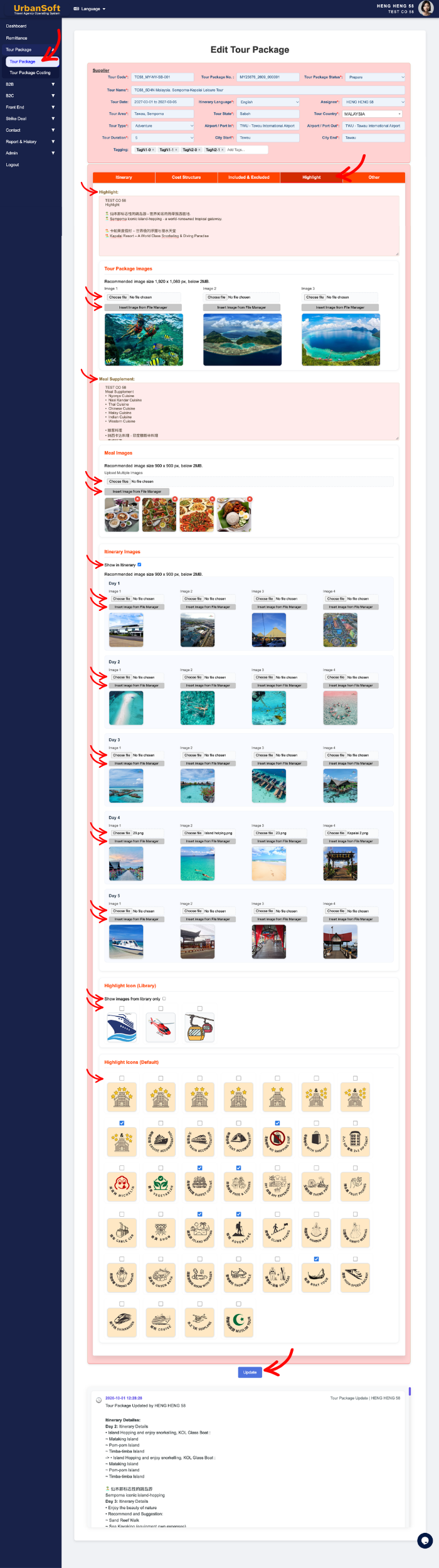
Configure Inclusions & Exclusions:
-
Breakfast*: Automatically calculated by the system based on your daily itinerary inputs; displays the total number of breakfast meals served and type of breakfast (e.g., "4*Hotel Breakfasts"). It is systems auto generated and cannot be manually modified.
-
Lunch*: Automatically calculated by the system based on your daily itinerary inputs; displays the total number of lunch and type of meals served (e.g., "1*Set Meal | 2*Local Buffet"). It is systems auto generated and cannot be manually modified.
-
Dinner*: Automatically calculated by the system based on your daily itinerary inputs; displays the total number of dinner and type of meals served (e.g., "2*Local Buffet | 1*Local Cuisine"). It is systems auto generated and cannot be manually modified.
-
Hotel*: Auto calculated by the system based on the total nights stayed and hotel star rating across the itinerary (e.g., "2nights*Local 3 Stars | 2nights*Local 5 Stars"). It is systems auto generated and cannot be manually modified.
-
Coach: State details of transportation arrangements provided for the group (defaulted from Admin > Setting > General, e.g., "Gasoline, Parking fees & Tolls, 8 hours use per day" or "Air-conditioned private coach transfer throughout the tour" or "14-Seater VIP Van"), although is default but still allow to be changed here.
-
Bottled Water: Specify the complimentary drinking water allowance provided to guests (defaulted from Admin > Setting > General, e.g., "1 bottle of mineral water per person per day"), although is default but still allow to be changed here.
-
Tipping: Specify whether daily or per-tour driver and tour guide gratuity terms and payment expectations (defaulted from Admin > Setting > General, e.g., "Included" or "Excluded - USD 5 per person per day payable on-site"), although is default but still allow to be changed here.
-
Attraction Ticket: List the attraction and ativities entrance tickets included in the base package (defaulted from Admin > Setting > General, e.g., "Includes entry tickets to Penang Hill Funicular Railway"), although is default but still allow to be changed here.
-
Remarks: Enter additional operational notes or service conditions regarding inclusions (e.g., "All parties should be aware that disturbances may occur in certain areas along this group's route.").
-
Price Include: Summarize all items covered by the total tour cost in clear bullet points (defaulted from Admin > Setting > Notice, e.g., "Accommodation, specified meals, transportation, English-speaking guide, entrance fees"), although is default but still allow to be changed here.
-
Price Exclude: Explicitly list all items not covered or expenses to be borne by the traveller to avoid miscommunication (defaulted from Admin > Setting > Notice, e.g., "Personal expenses, travel insurance, flight tickets, optional tours, porterage fees"), although is default but still allow to be changed here.
-
Complete All Field: A quick overview or checklist status ensuring all tipping, attraction ticket, price include and exclude for the entire tour have been fully populated before proceeding, etc.
-
Update: Click this action button to save all your entries and progress for the Included & Excluded.
-
-
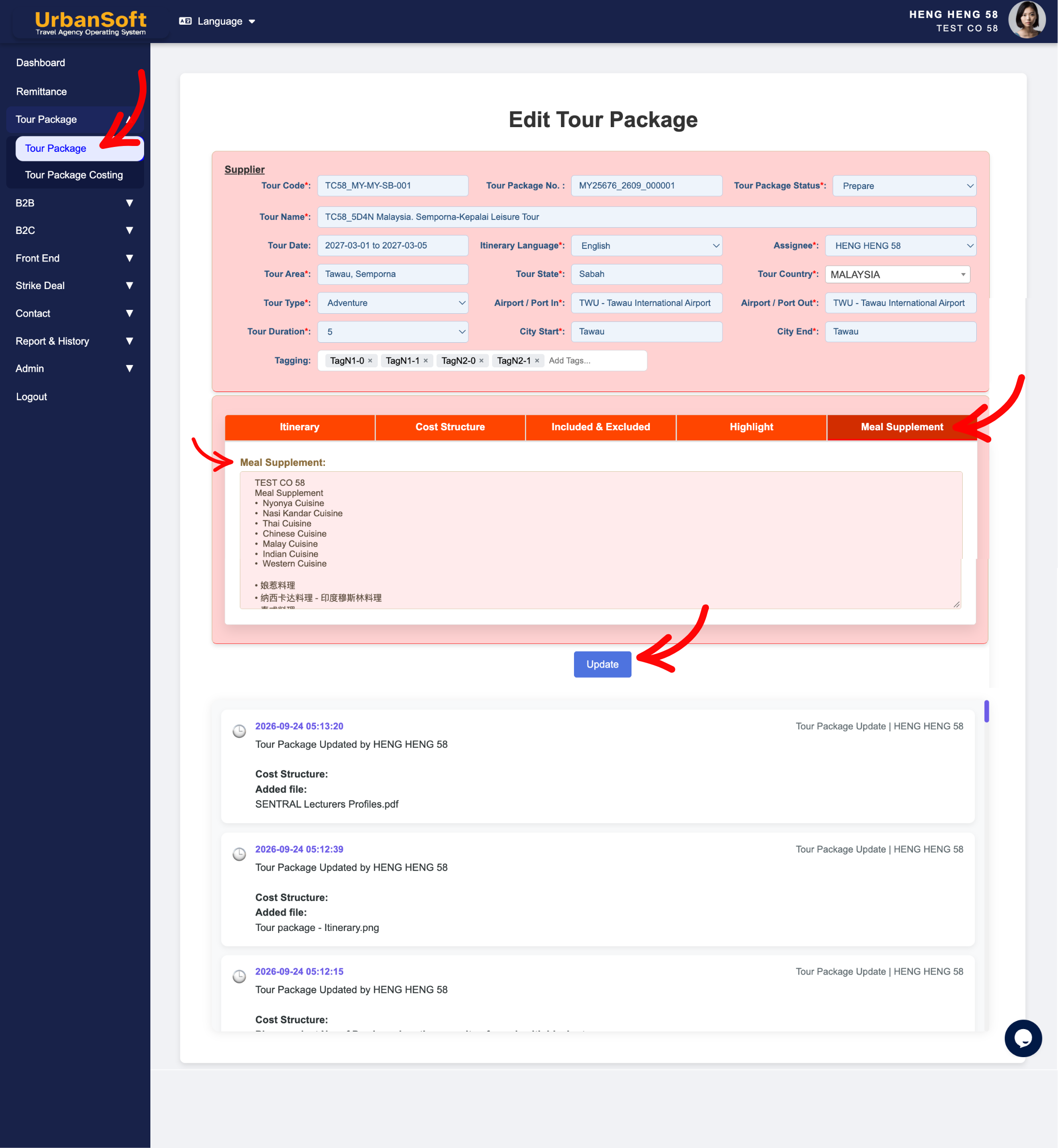
Configure Highlight:
-
Highlight: For Launch Membership and above - Can use DMC (Destination Management Center) or enter Manually. Inserted from DMC, at Itinerary tab, setup itinerary detail in DMC section, system will transfer detail to higlight section (editable), or Manually enter 3 to 5 key selling points - such as core attractions or signature experiences (defaulted from Admin > Setting > Notice, e.g., "5-Star Heritage Hotel Stay", "Direct Flight", "UNESCO World Heritage Walking Tour"). For Starter Membership - only Manually enter is allow.
-
Tour Package Images (max 3 images): Select from assisting file manager image or upload up to 3 high-resolution landscape cover photos (1920 x 1080 px, under 6MB) that represent the overall tour, such as iconic destination landmarks or hero shots used for package thumbnails and proposal covers.
-
Meal Supplement: Enter dining details such as specify restaurant names, cuisine styles, and local signature dishes, as well as optional upgrades, associated surcharges, special dietary requirements, and unique dining experiences. (automatically populated from Admin > Settings > Notice; e.g., "Lobster & Seafood Upgrade: +USD 25/person," "Halal Meal Surcharge: +USD 10/person/day," or "Mandatory Christmas Eve Dinner Surcharge: +USD 50/person").
-
Meal Images: Select from assisting file manager image or upload appetizing, square photos (900 x 900 px, under 2MB) of signature local dishes, featured dining venues, or specialty set meals included in the itinerary.
-
Show in Itinerary: Choose whether to display them directly inside the daily itinerary breakdown box or featured in the main highlight section.
-
Itinerary Images (max 4 images per day): For Launch Membership and above - Can use DMC (Destination Management Center) or select/upload Manually. Inserted from DMC, at Itinerary tab, setup itinerary detail in DMC section, system will transfer detail to higlight section (editable), or Manually select from assisting file manager image or upload clear, square photos (900 x 900 px, under 2MB) showing the specific daily activities or attractions. For Starter Membership - only Manually select or upload images is allow.
-
: Choose whether to display highlight icon from own library or default icon.
-
Highlight Icon (Library): Select or upload custom feature icons, managed in Admin > Library > Highlight Icon settings (e.g., custom icon for "Free Wi-Fi", "No Shopping Stops", or "2+1 VIP Coach").
-
Highlight Icon (Default): Choose standard platform icons linked directly to the Travelooker.com OTA default icon sysbol (e.g., universal symbols icon for "5* Hotel", "Adventure Tour", or "Cruise Accommodation").
-
Complete All Field: A quick overview or checklist status ensuring all highlight and meal supplement detail, images and icons for the entire tour have been fully populated before proceeding, etc.
-
Update: Click this action button to save all your entries and progress for the highlight.
-
-
Configure Other:
-
Story: Attraction, Activity, Event, story
-
Story: For Launch Membership and above - Can use DMC (Destination Management Center) or enter Manually. Inserted from DMC, at Itinerary tab, setup itinerary detail in DMC section, system will transfer detail to story section (editable), or Manually enter engaging backstories, cultural history, and unique trivia (covering attractions, activities, events, dining experiences, etc.), photo/image uploading or display is not supported. For Starter Membership - only Manually enter is allow.
-
Complete All Field: A quick overview or checklist status ensuring all story and other options for the entire tour have been fully populated before proceeding, etc.
-
Update: Click this action button to save all your entries and progress for the other.
-
-
Configure Prepare or Completed: After confirming all itinerary details, change the status from "Prepare" (In preparation – saved as draft) to "Completed" (Completed – published and displayed), then click "Update" to save the changes.
-
Set Publishing & Visibility:
-
Choose whether to make the package visible on B2B, B2C, Front End.
-
Expected Result
Your new tour package will be created successfully and listed under Tour Package List. Depending on your visibility settings, it will immediately be available for B2B & B2C quotation, online booking or agent distribution.
Important Notes
-
You can save your progress as a draft and return to complete or update details later.
-
Double-check booking cutoff dates to ensure system validation works properly during automated bookings.
Common Mistakes
-
Leaving mandatory pricing or departure date fields empty, preventing package activation.
-
Uploading images that are too large or unsupported formats, leading to slow page loads.
-
Forgetting to set correct B2B/B2C visibility options, making the package invisible to clients.
Different Angles: Same Stories, Same Content, New Perspective
-
Where can I manually add a new itinerary or tour package in UrbanSoft?
-
How do I build a custom tour package from scratch?
-
What should I do after adding a new tour package?
-
How to create and manage tour packages in UrbanSoft?
-
What information is required when setting up a new tour package?
-
How does UrbanSoft auto-generate package series numbers?
-
What should be filled out in the "Tour Movement" field in an itinerary section?
-
Should I enter the full address in the "Hotel Location" field in an itinerary section?
Same Folder Articles
-
 How to create "New Tour Package", with "Ai Insert Tour Package" feature?
-
How to edit or update an existing "Tour Package"?
-
How to duplicate assisting "Tour Package"?
-
How to use "Ai Translate" to translate assisting tour package to another new other language tour package?
-
How to "Search and Filter" tour packages in Tour Package Index Table?
Related Articles
-
How to edit or update an existing "Tour Package"?
-
How to select the "Tour Package Status"?
-
Are there any restrictions or requirements for my "Tour Code and Tour Name" format?
-
Can I use the same "Tour Code and Tour Name" for multiple packages?
-
What's the difference between PDF version of STI and Tour Package?
