.gif)
.gif)
.gif)

 How to edit or update an existing "Tour Package"?
This guide will show you how to locate and modify an existing tour package in UrbanSoft. You will learn how to access the tour package editor, update package details, itineraries, media, or pricing, and save the updated changes safely.
When Do You Use This?
Use this feature when you need to adjust operational details for an active or drafted tour package, such as revising itinerary descriptions, updating departure dates and prices, or adding new gallery images.
Before You Start
-
You need:
-
Authorized access to the UrbanSoft Admin backend with Tour Package management permissions.
-
The exact package title or ID you wish to modify.
-
-
Precautions:
-
Ensure that updates to prices or departure dates do not conflict with existing confirmed bookings.
-
Save changes promptly to prevent accidental loss of edits during long sessions.
-
Step-by-Step
-
Log in to your UrbanSoft account using your administrative credentials.
-
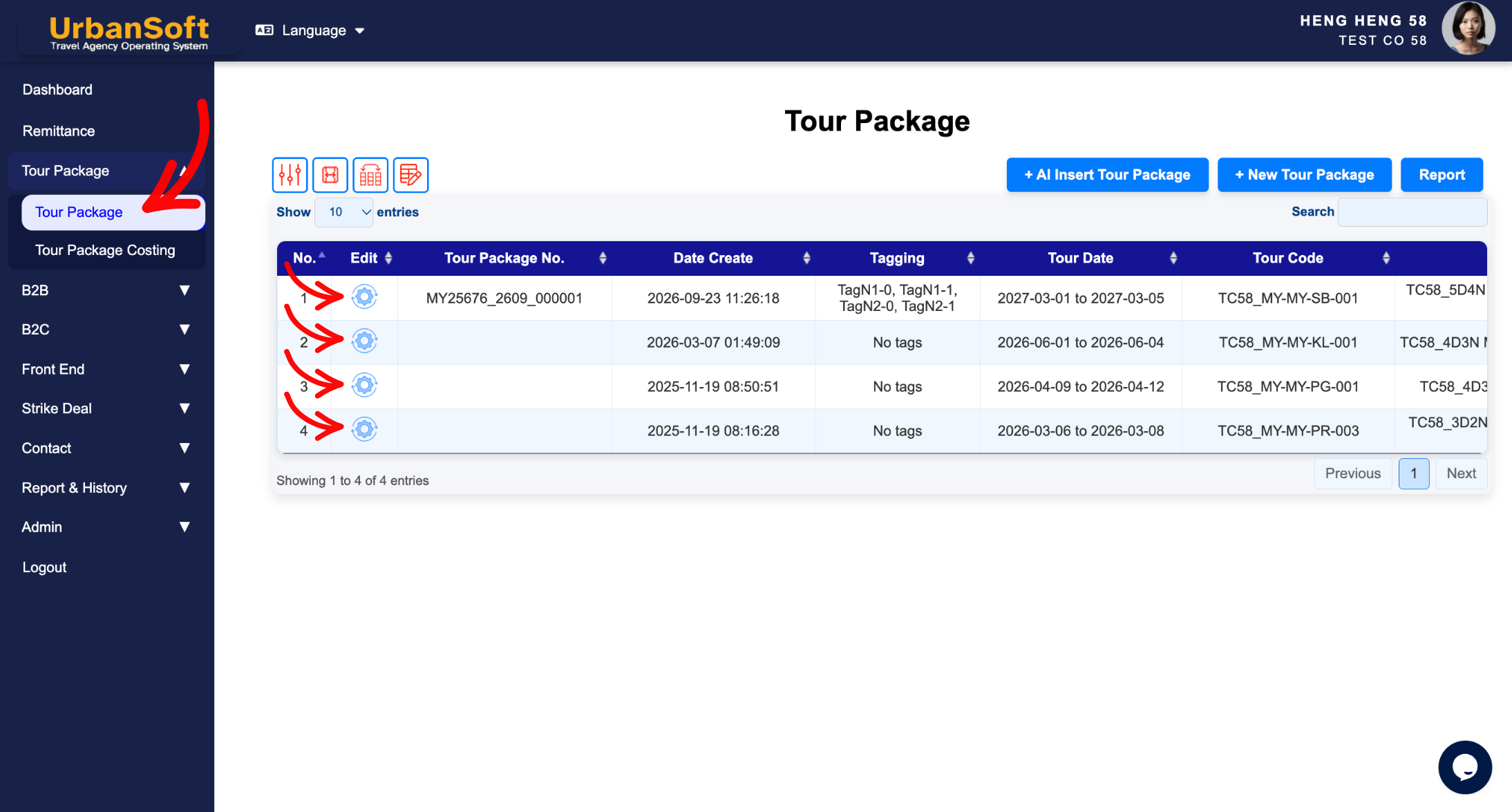
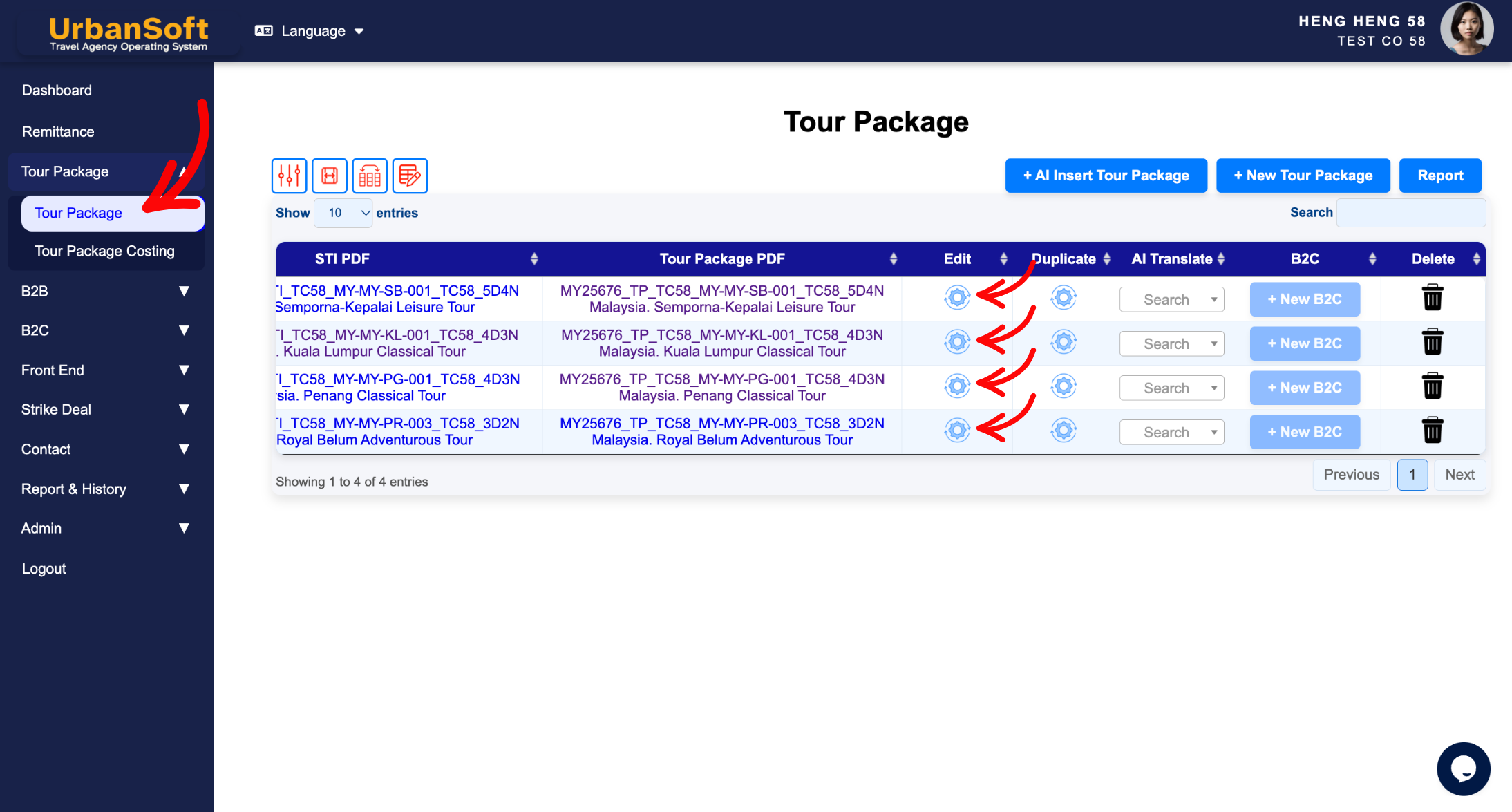
From the main left navigation menu, go to Tour Package > Tour Package, overhere will have tour package index table.
-
Use the search bar or filter options to locate the tour package you want to edit.
-
Click the Edit (Roll gear icon) button next to the relevant package, at the beginning or end of the table.
-
Navigate through the editing tabs (e.g., Basic Information, Itinerary, Cost Structure, Include & Exclude, Highlight, Other):
-
Update the necessary fields such as package title, duration, or destination.
-
Modify day-by-day itinerary details or change inclusions/exclusions.
-
Adjust pricing tiers, departure dates, images or highlight icon as needed.
-
Refer this article for full detail explanation on how to building complete tour package. How to create new tour package manually?
-
-
Review all updated information to ensure accuracy.
-
Click Update at the bottom of the page to apply the changes.
Expected Result
Your tour package will be updated successfully, and all modified details, pricing, or itineraries will immediately reflect across your system and can be published at sales channels anytime.
Important Notes
-
Modifying package details will update the listing for future quote; existing confirmed bookings will retain their original itinerary and price agreement.
-
You can toggle visibility settings or switch the status back to prepare if extensive revisions are required.
Common Mistakes
-
Editing departure dates without verifying open customer reservations or blocked inventory.
-
Leaving required fields empty after making adjustments, preventing the updates from saving.
-
Forgetting to click Update before navigating away from the page.
Different Angles: Same Stories, Same Content, New Perspective
-
Where can I edit existing tour itineraries in UrbanSoft?
-
How do I modify prices or itinerary for an active tour package?
Same Folder Articles
-
 How to create "New Tour Package" manually?
-
How to create "New Tour Package", with "Ai Insert Tour Package" feature?
-
How to duplicate assisting "Tour Package"?
-
How to use "Ai Translate" to translate assisting tour package to another new other language tour package?
-
How to "Search and Filter" tour packages in Tour Package Index Table?
Related Articles
-
How to create "New Tour Package" manually?
-
How to "Upload Files" in tour package?
-
What should be filled out in the "Surcharges for Public Holiday & Peak Seasons" field in Setting > General and Cost Structure section?
-
What should be filled out in the "Notice" field in Setting > Notice and Cost Structure section?
-
Can I modify Tour Package information, after setting defaults on the "Admin > Setting" page?
