.gif)
.gif)
.gif)

 How to select the "Tour Package Status"?
This guide explains how to properly set and manage the status of a tour package in UrbanSoft. You will learn the difference between the Prepare and Complete status options, how each status impacts the Tour Package Costing tool, and when to transition your package for active selling.
When Do You Use This?
Use this setting when you are creating or updating a tour package and need to control whether it is still in the costing/editing phase or fully finalized for distribution.
Before You Start
-
You need:
-
Authorized access to the UrbanSoft Admin backend with Tour Package management permissions.
-
An existing or newly drafted tour package.
-
-
Precautions:
-
Ensure you utilize the Tour Package Costing tool while in Prepare status before marking the package as Complete.
-
Verify that all mandatory fields, itinerary details, and pricing are finalized before changing the status to Complete.
-
Step-by-Step
-
Log in to your UrbanSoft account using your administrative credentials.
-
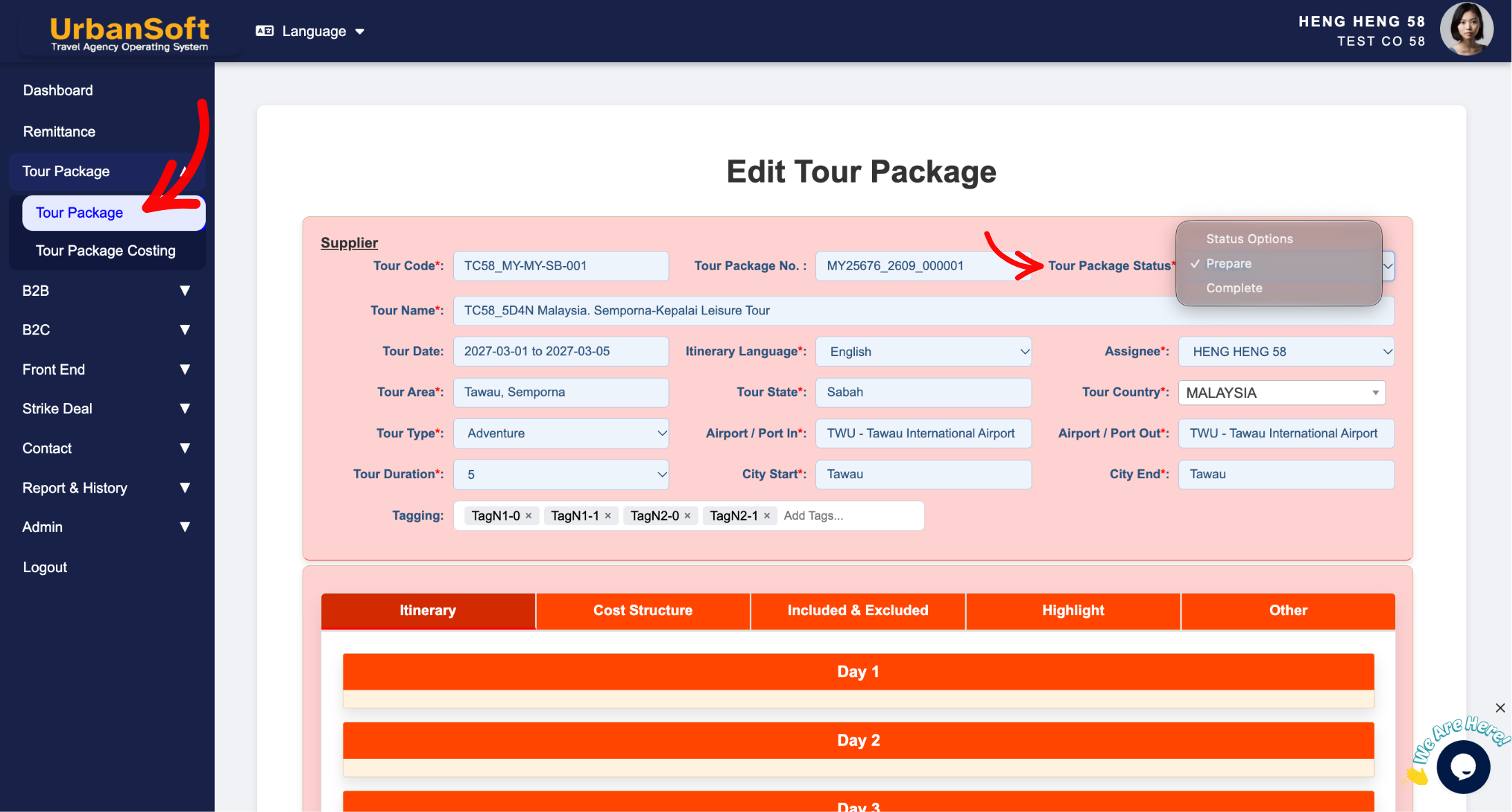
From the main left navigation menu, go to Tour Package > Tour Package, overhere will have tour package index table.
-
Click the + Add New Tour Package button or click the Edit button next to an existing tour package.
-
Locate the Package Status dropdown field on the package configuration page.
-
Choose the appropriate status:
-
Select Prepare if you are still gathering details, editing information, or calculating costs using the Tour Package Costing feature.
-
Calculate your total costs using the costing tool and insert the finalized selling price back into the package.
-
Select Complete once all required information is fully filled out, verified, and ready for market.
-
When the status is Complete, ony can it be transferred to B2B or B2C for further modification, signifying that it is ready for market launch.
-
-
Click Update to apply the status selection.
Expected Result
Selecting Prepare allows you to continue editing and running cost calculations. Selecting Complete finalizes the package so it can be quoted, published, or shared with B2B partners and B2C clients.
Important Notes
-
The Tour Package Costing feature is only accessible when the package status is set to Prepare.
-
Once the status is changed to Complete, the costing tool cannot be used for that package unless switched back.
-
Marking a package as Complete indicates that all details are locked, verified, and ready for official quotations.
Common Mistakes
-
Setting the status to Complete prematurely, which prevents access to the costing calculation tool.
-
Forgetting to insert the calculated selling price back into the package before marking it as Complete.
-
Leaving mandatory fields incomplete when attempting to finalize a package.
Different Angles: Same Stories, Same Content, New Perspective
-
What is the difference between Prepare and Complete status in UrbanSoft tour packages?
-
Why can't I access the Tour Package Costing tool on my package?
Same Folder Articles
-
 How to create "New Tour Package" manually?
-
How to create "New Tour Package", with "Ai Insert Tour Package" feature?
-
How to edit or update an existing "Tour Package"?
-
How to duplicate assisting "Tour Package"?
-
How to use "Ai Translate" to translate assisting tour package to another new other language tour package?
Related Articles
-
How to create "New Tour Package" manually?
-
How to edit or update an existing "Tour Package"?
-
What information should be include in the "Tour Package Basic Information" tab?
-
Relationship between "Tour Date" and "Tour Duration" in tour package.
-
Am I allowed to add multiple areas / state / province in the “Tour Area” and “Tour State” field?
