.gif)
.gif)
.gif)

 How can I update "My Library"?
This guide explains how to manage and update your reusable platform assets in My Library in UrbanSoft. You will learn how to configure Preset Costing rules, monitor Cloud Storage in File Manager, set up Transaction Tagging and Invoice Items, configure Strike Deal Notifications, manage Highlight Icons, and create D.M.C (Destination Management Center) repository content.
When Do You Use This?
Use this feature when centralizing company assets and automation rules, such as setting seasonal rate rules, organizing media uploaded across modules, defining custom tags for transaction filtering, customizing invoice line items, adjusting deal due-date alerts, or managing reusable DMC itinerary content and icons.
Before You Start
-
You need:
-
Active access to your UrbanSoft account with permission to manage master data or library.
-
The updated details, text, or surcharge you wish to replace in your target library item.
-
Required images, icon files (900 x 900 px, PNG/JPG/JPEG under 2MB), seasonal rates, or DMC descriptions ready.
-
-
Precautions:
-
Storage Limits: Cloud storage capacity in File Manager directly depends on your active Membership Package, can increase the storage.
-
Icon/Image Specs: Custom highlight icons and DMC images must be 900 x 900 px in PNG/JPG/JPEG format and under 2MB.
-
Updates made to Library will apply to newly created tour packages or quotations using those library items; they will not automatically overwrite details in historical packages already saved or sent.
-
Step-by-Step
-
Log in to your UrbanSoft account using administrative credentials.
-
From the main menu on the left, navigate to Admin > Library.
-
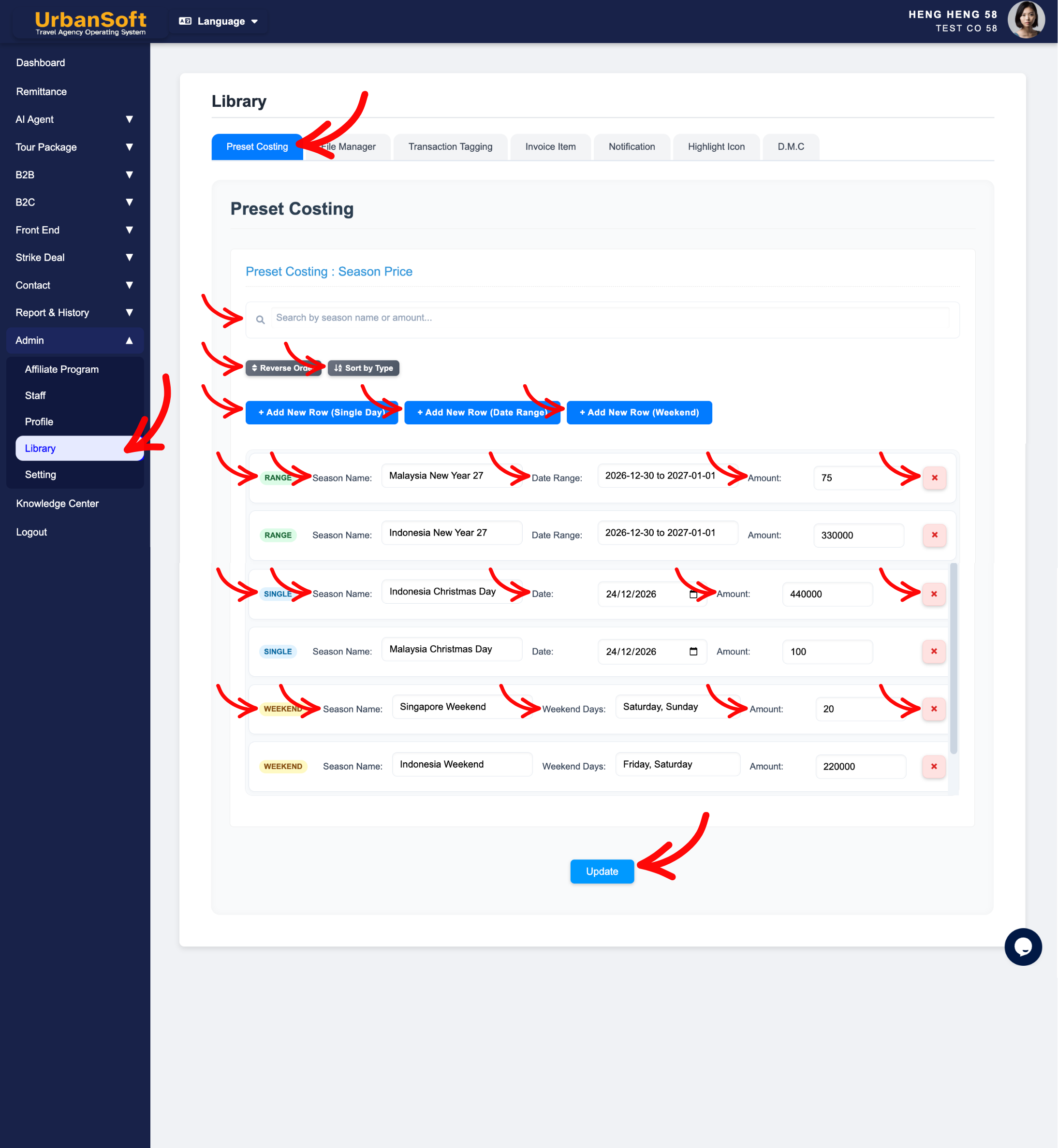
Configure Library > Preset Costing:
-
Preset Costing index table.
-
Use Search or Reverse Order / Sort by Type (Single Day / Date Range / Weekend) to locate entries.
-
Add Single Day: Click Add New Row (Single Day), set Type to Single, enter Season Name, select Date, and Amount.
-
Add Date Range: Click Add New Row (Date Range), set Type to Range, enter Season Name, select Date Range, and Amount.
-
Add Weekend: Click Add New Row (Weekend), set Type to Weekend, enter Season Name, select Weekend Days option, and Amount.
-
Use the Delete Row button to remove unneeded costing rules, confirm the deletion prompt when prompted by the system.
-
Complete All Field: Displays a status summary verifying of entire set of Preset Costinge settings, included Type selection, enter Season Name, Relevant Dates and Days of the week, Amount and final submission have been fully populated.
-
Update: Click to save all progress, fields, and configurations for the Preset Costing section.

-
-
Manage Library > File Manager:
-
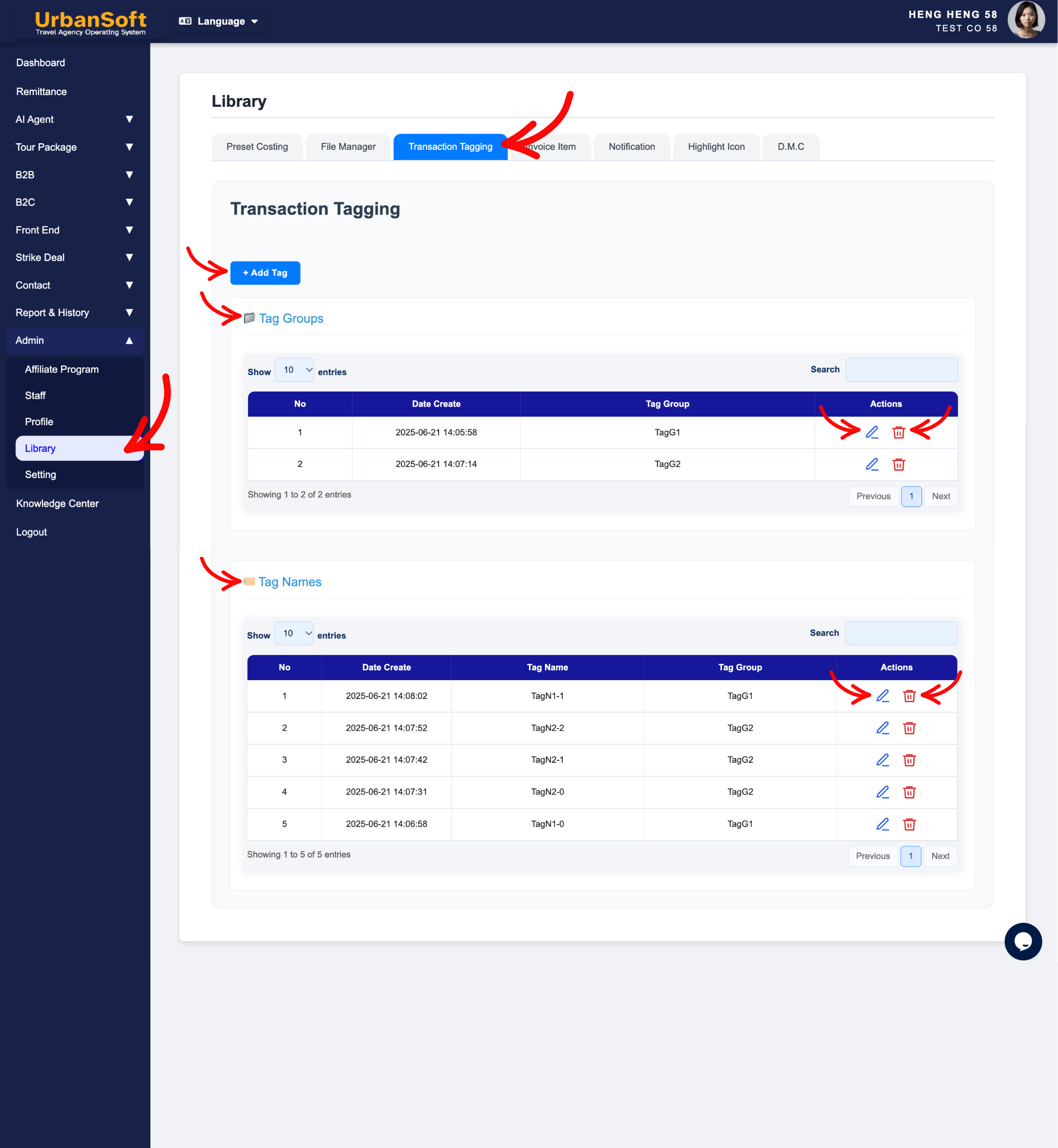
View Total File Size use, Available Cloud Storage, and Total Cloud Storage (determined by your membership package), you can add more cloud storage if you run out of space.
-
Review automatically organized files uploaded across the platform (Member Profile logos/documents, Staff photos/name cards, Tour Package & B2B/B2C files, supplier quotations, itinerary/meal images, DMC images, Strike Deals, Settings, etc).
-
Use Toggle All and Download Selected to download stored media in bulk.
-
-
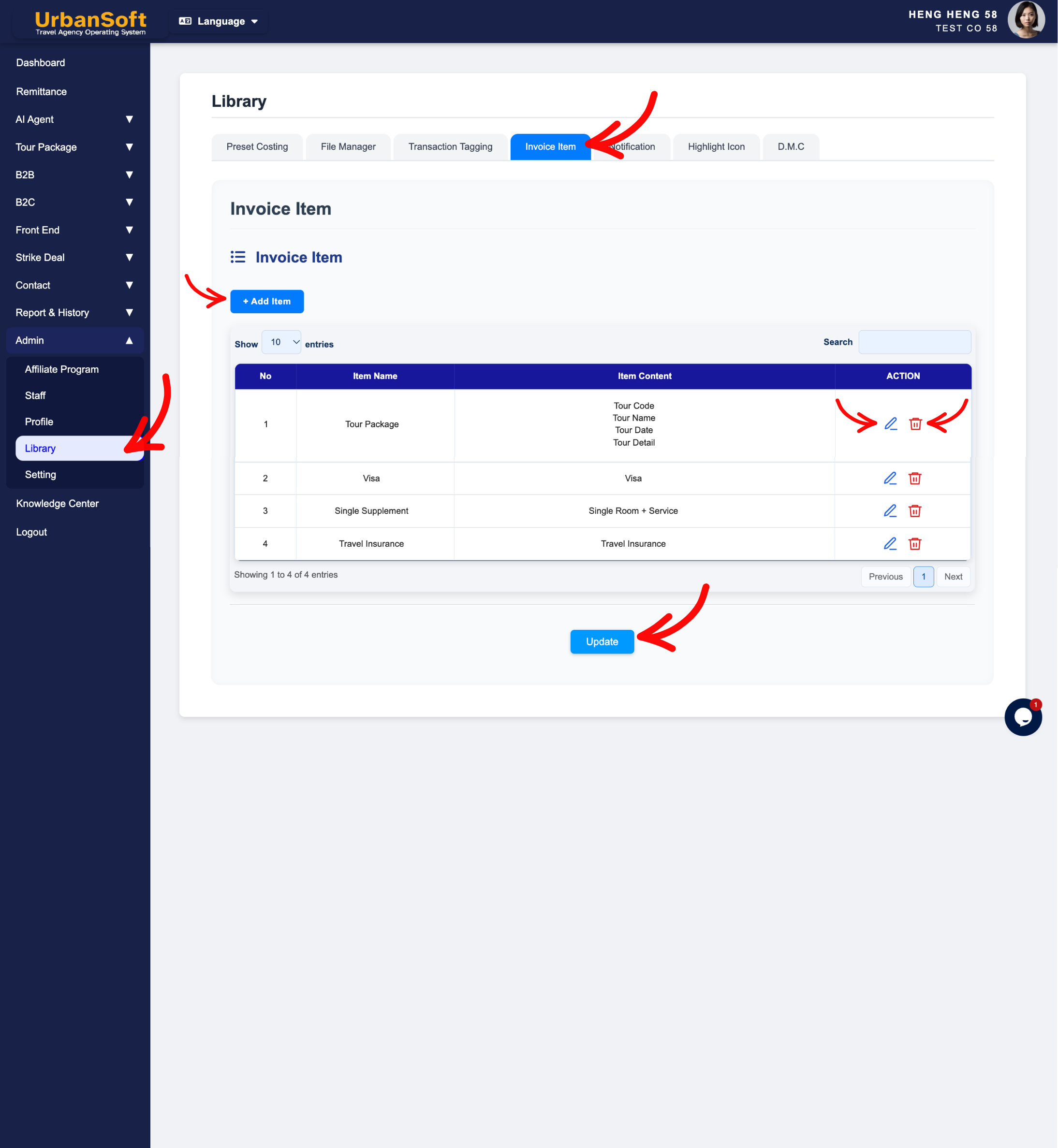
Manage Library > Transaction Tagging:
-
Tag Groups index table.
-
Click + Add Tag > Select + Add New Tag Group.
-
Enter Tag Group Name and click Save.
-
Manage tags group row using Edit, Cancel or Delete.
-
Click Edit to change Tag Group Name and click Save.
-
-
Tag Names index table
-
Click + Add Tag > Select Tag Group belonging.
-
Enter Tag Name and click Save.
-
Manage tags name row using Edit, Cancel or Delete.
-
Click Edit to change Tag Name and Tag Group belonging and click Save.
-
-
-
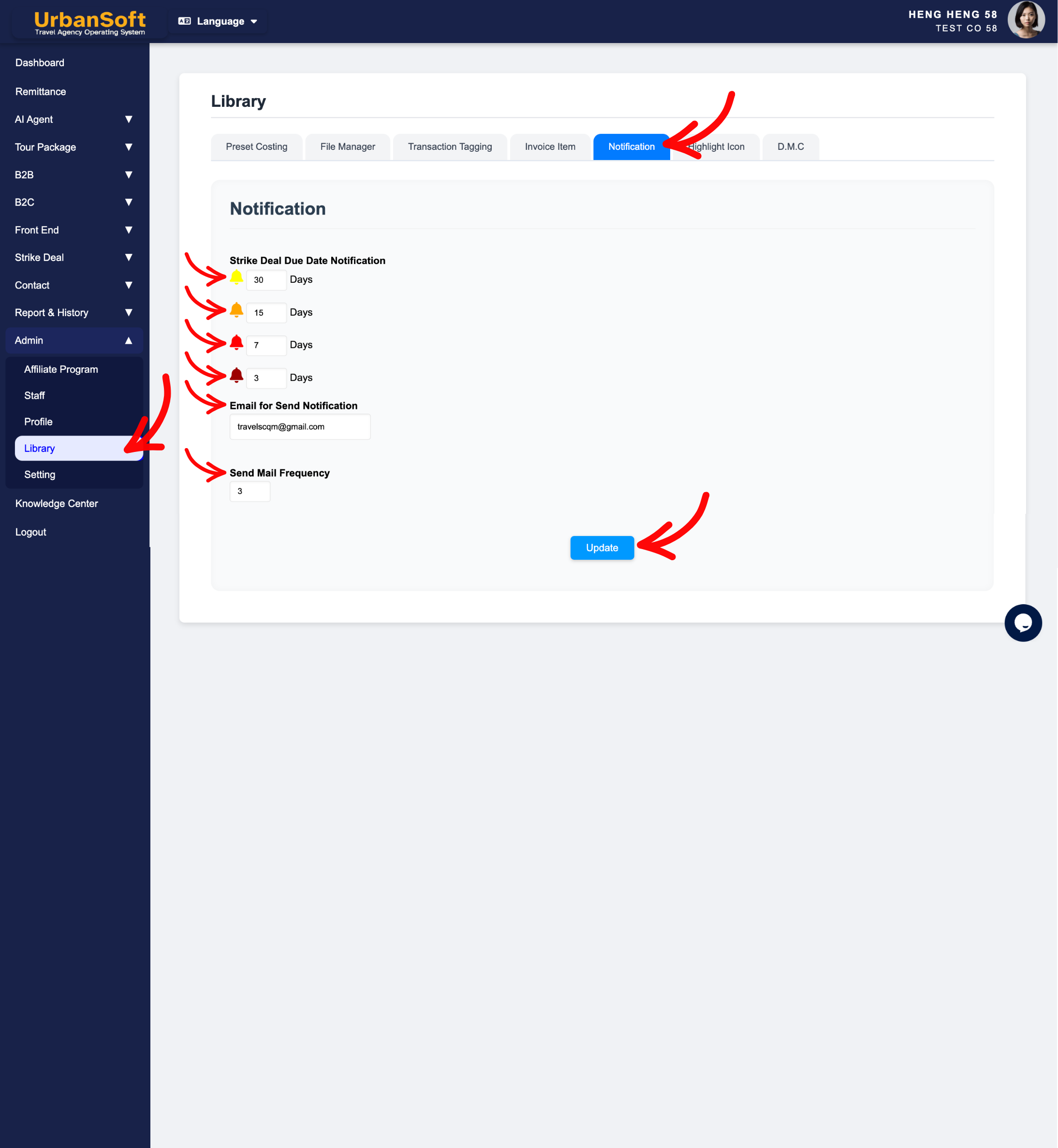
Manage Library > Invoice Item:
-
Invoice Item index table.
-
Click + Add Item.
-
Enter Item Name, Item Content and click Save.
-
Manage item row using Edit, Cancel or Delete.
-
Click Edit to change Item Name and Item Content and click Save.
-
-
Configure Library > Notification (Strike Deal):
-
Set up Strike Deal Due Date Notification, up to 4 notification milestones (e.g., 30, 20, 10, and 5 days before due date).
-
Specify Email for Send Notification: Enter your preferred email address for sending notification emails.
-
Set Send Mail Frequency:
-
Update: Click to save all progress, fields, and configurations for the Notification section.
-
-
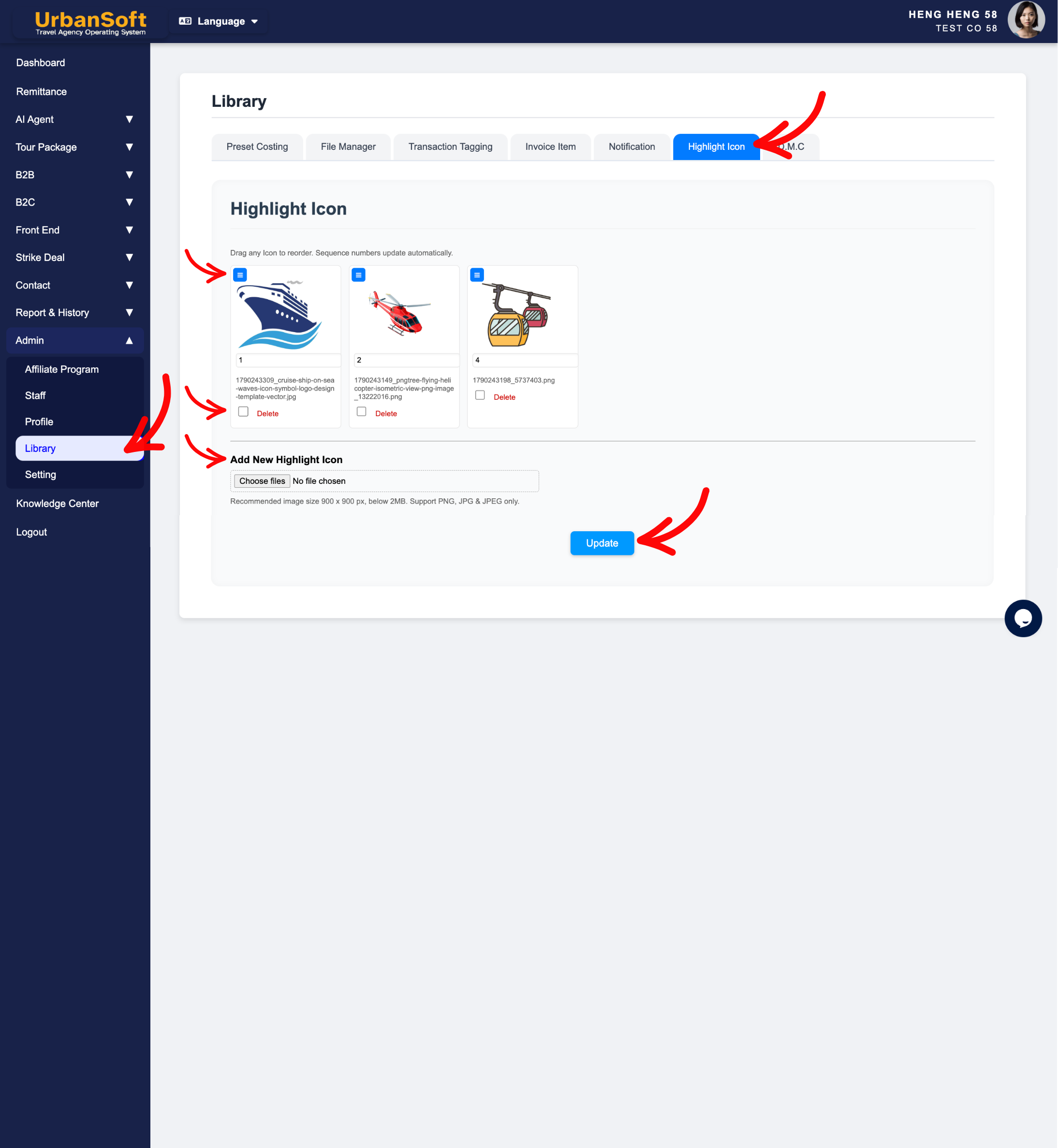
Manage Library > Highlight Icon:
-
Highlight Icon index table.
-
Drag to arrange icon sequence.
-
Click Add New Highlight Icon and upload an icon image (900 x 900 px, PNG/JPG/JPEG under 2MB), and click Update to upload image.
-
Tick Delete checkbox and click Update to remove icon.
-
-
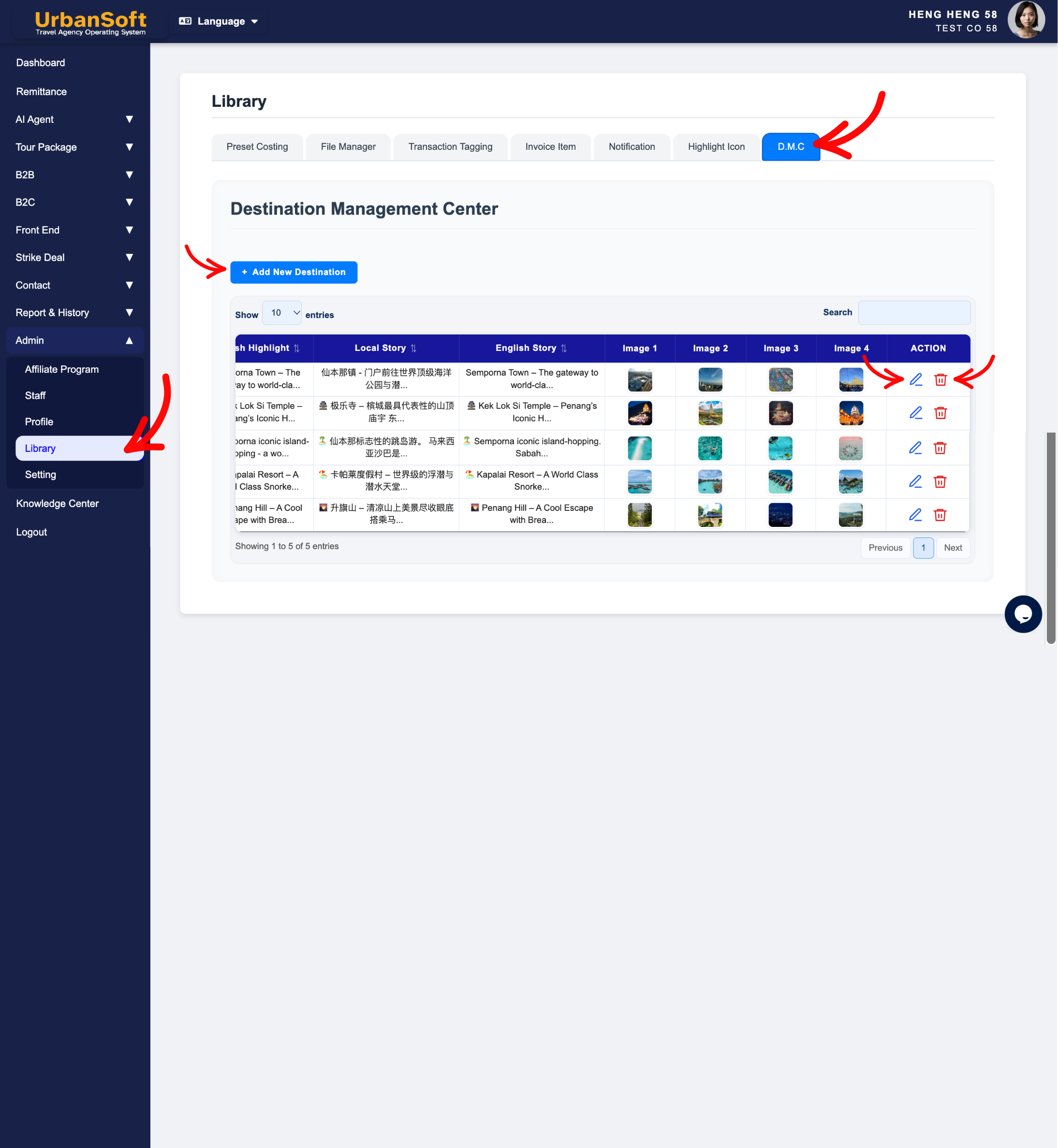
Manage Library > D.M.C (Content Repository):
-
Destination Management Center (D.M.C) index table.
-
Click + Add New Destination.
-
Basic Info:
-
Local Name: Enter a concise, official local or regional name for the attraction, activity, or destination (e.g., "升旗山缆车" or "九寨沟国家公园").
-
English Name: Enter the short, official English title for the attraction, activity, or landmark (e.g., "Penang Hill Funicular Railway" or "Jiuzhaigou National Park").
-
-
Description:
-
Local Itinerary: Enter concise, bullet-pointed activity descriptions in the local language outlining what happens during the visit and what services or tickets are included (e.g., • 游览升旗山(包含全程来回缆车票)• 游览升旗山生态公园(含入门票)).
-
English Itinerary: Enter concise, bullet-pointed daily activity steps in English explaining the visit sequence and inclusions (e.g., • Visit Penang Hill (includes round-trip funicular ticket) • Explore the Habitat Penang Hill (include entrance ticket) ).
-
Local Highlight: Enter 2 to 3 punchy, high-impact selling points in the local language to capture buyer attention in proposals (e.g., • 亚洲最古老缆车系统 • 833米高空俯瞰乔治市全景).
-
English Highlight: Enter 2 to 3 concise, impactful highlights in English emphasizing the top features of the attraction (e.g., • Asia's oldest funicular railway system • Panoramic 360-degree views of Georgetown at 833m above sea level).
-
Local Story: Enter rich historical, cultural, or storytelling background text in the local language to enhance buyer travel proposals and proposals (e.g., "升旗山建于1923年,在英殖民时期曾是著名的避暑胜地,拥有丰富的热带雨林生态与百年历史建筑...").
-
English Story: Enter engaging background history, cultural lore, or narrative insights in English to add depth and value to client itinerary proposals (e.g., "Built in 1923 during the British colonial era, Penang Hill served as a cool hill station retreat. Today, it stands as a UNESCO Biosphere Reserve rich in biodiversity...").
-
-
Upload up to 4 Images (direct upload or select from File Manager, 900 x 900 px, PNG/JPG/JPEG under 2MB).
-
Click Save to save all content and uploaded images.
-
-
Manage existing DMC entries row using Edit or Delete.
-
Expected Result
Your central Library assets, seasonal costing presets, transaction tags, invoice templates, notification triggers, highlight icons, and DMC content will be saved and immediately available across your UrbanSoft workflows.
Important Notes
-
Preset Costing: Allows setting seasonal pricing rules across Single Day, Date Range, and Weekend types.
-
File Manager: Aggregates all uploaded media across profile, staff, package, supplier, and DMC modules. Storage capacity depends on your membership package.
-
Notifications: Supports up to 4 Strike Deal due-date milestone alerts sent to your designated email.
-
Highlight Icons & DMC Images: Require 900 x 900 px PNG/JPG/JPEG files under 2MB.
-
Keeping Library updated ensures fast, accurate, and consistent quote generation across your team.
-
Always click Update before navigating away to avoid losing your changes.
Common Mistakes
-
Uploading custom highlight icons or DMC images that do not meet the 900 x 900 px or 2MB size requirements.
-
Exceeding the Cloud Storage limit allocated by your membership package without clearing old files or upgrading your plan.
-
Forgetting to set a valid notification email when configuring Strike Deal due date alerts.
-
Leaving the library editing page without clicking Update.
-
Expecting updates in Library to automatically change past tour packages created prior to the update.
Different Angles: Same Stories, Same Content, New Perspective
-
Where do I manage preset seasonal costing rules and transaction tags in UrbanSoft?
-
How can I upload reusable highlight icons and DMC itinerary descriptions to my library?
-
How do I edit and maintain master library items in UrbanSoft?
-
Where can I manage my reusable item and surcharge library assets?
 How to check "My Membership Status"?
