.gif)
.gif)
.gif)

 How to "Upgrade or Downgrade" my subscription plan?
This guide explains how to top-up credit, top-up deposit or change your current subscription plan in UrbanSoft. You will learn how to select a higher or lower plan tier, choose between monthly and yearly billing options, and complete the plan update process.
When Do You Use This?
Use this process whenever you need to top-up credit, top-up deposit or adjust your subscription plan—whether upgrading to access additional features or higher limits, or downgrading to a lower plan tier that better fits your current business needs.
Before You Start
You need:
-
Active access to your UrbanSof account with appropriate administrative privileges.
-
The amount you wish to top up or deposit.
-
Decision on your desired plan tier (upgrade or downgrade) and preferred billing cycle (Monthly or Yearly).
Precautions:
-
Monthly Billing: Charged automatically each month (Recurring Payment). You can cancel or switch plans at any time, and new plan pricing takes effect immediately upon switching.
-
Yearly Billing: Requires a non-refundable one-time full payment for the entire year. It cannot be cancelled during the active period, but you are allow to switch to higher plans before the yearly subscription expires.
Step-by-Step
-
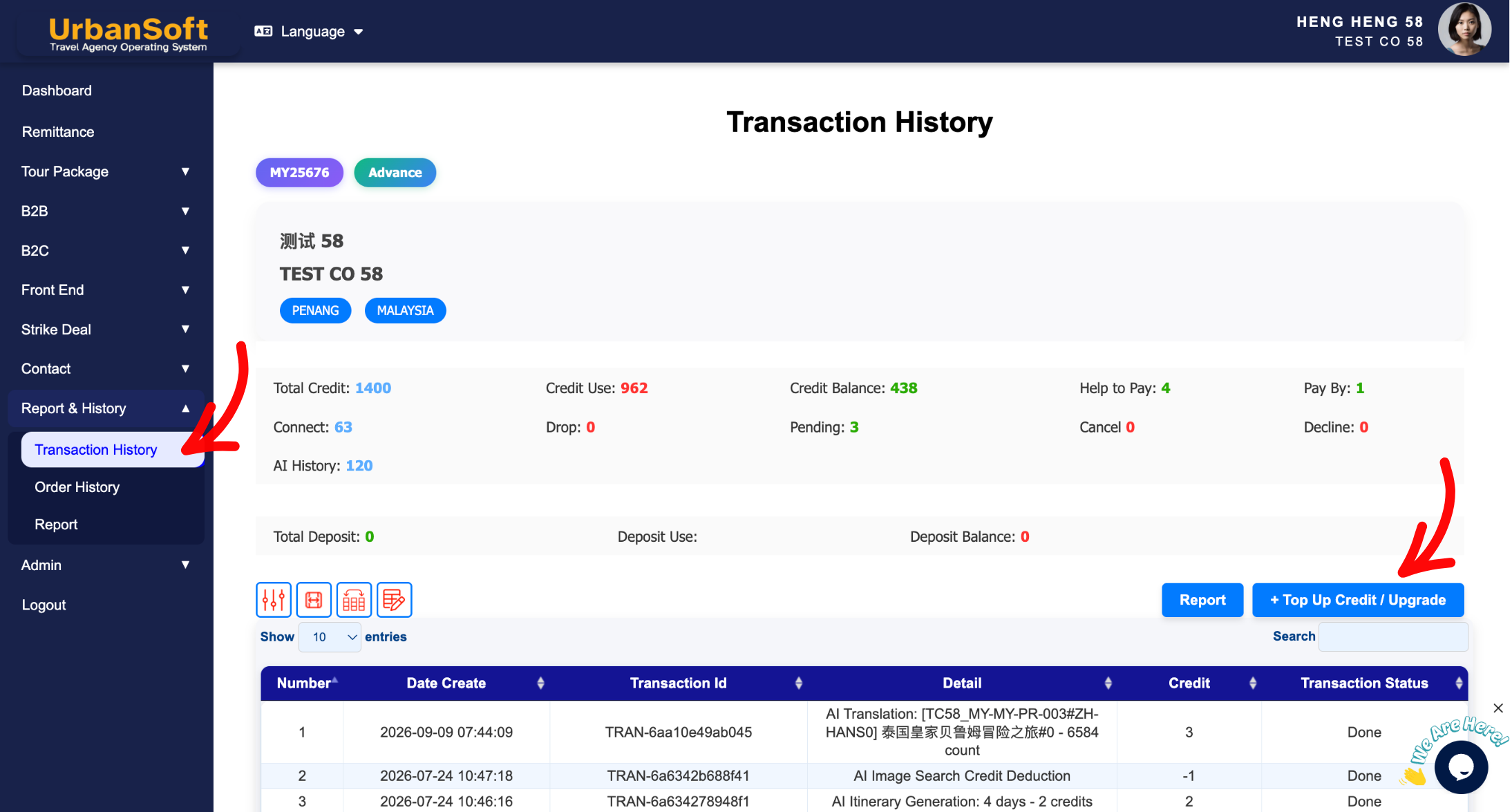
Log in to UrbanSoft and navigate to Report & History > Transaction / Order History > +Top Up Credit / Upgrade.
-
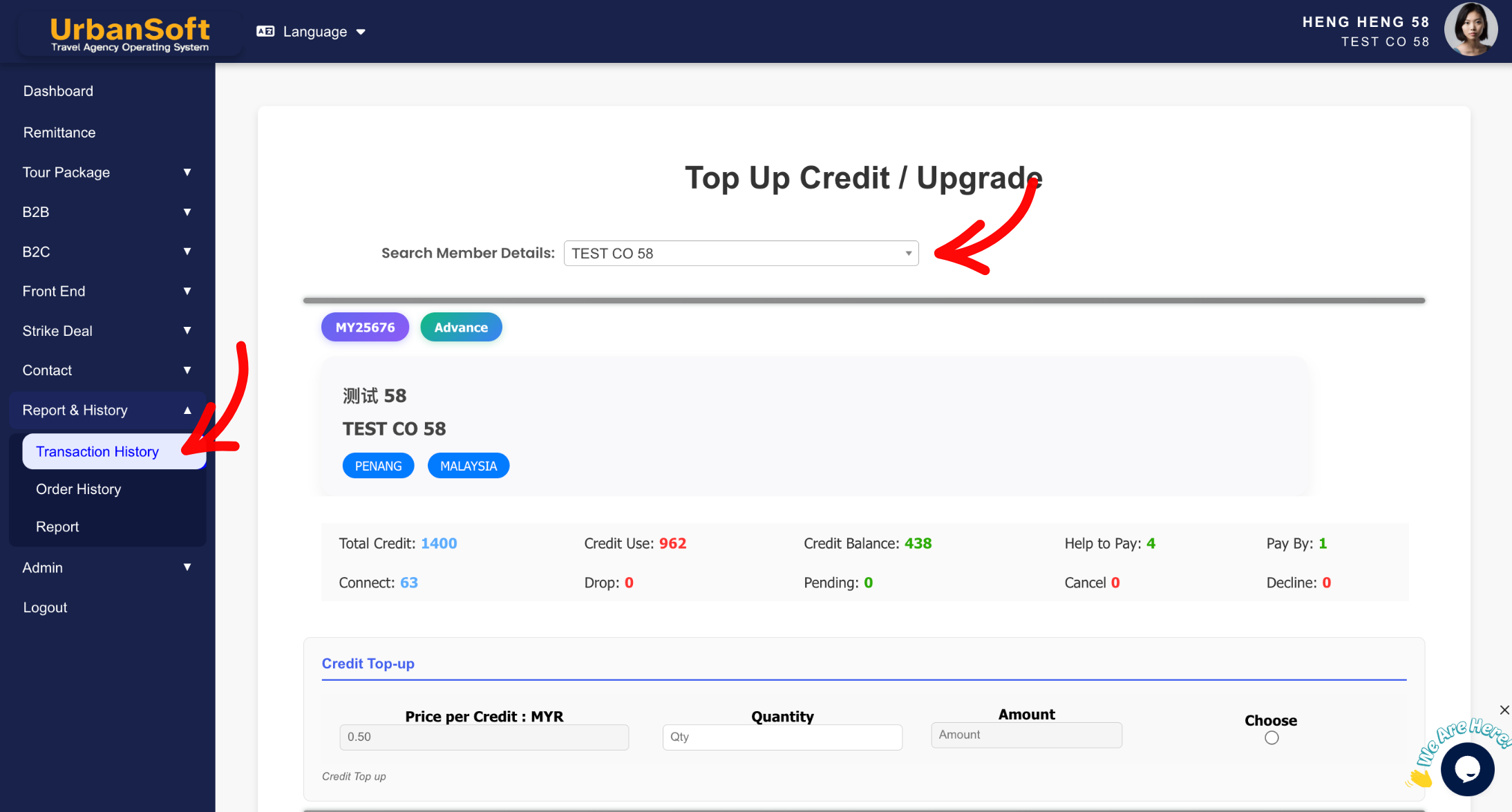
Select your member details (company name).
-
Locate the Subscription Plans section on the page.
-
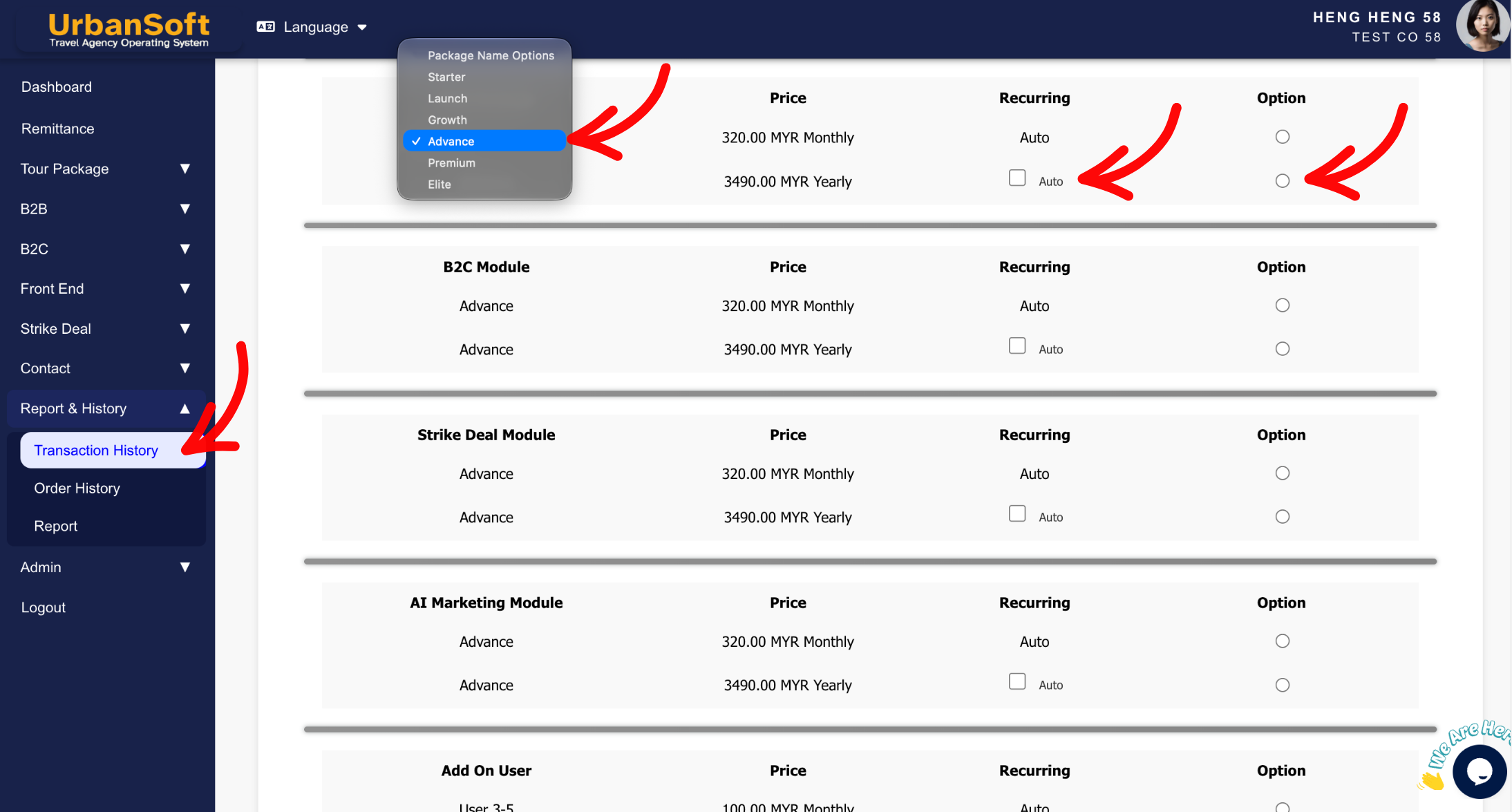
Scroll down to choose to your desired subscription plan (either a higher or lower tier than your current plan).
-
For subscription plan, you can select your preferred payment frequency (Monthly or Yearly).
-
Click the circle below Option to confirm the subscription plans you want.
-
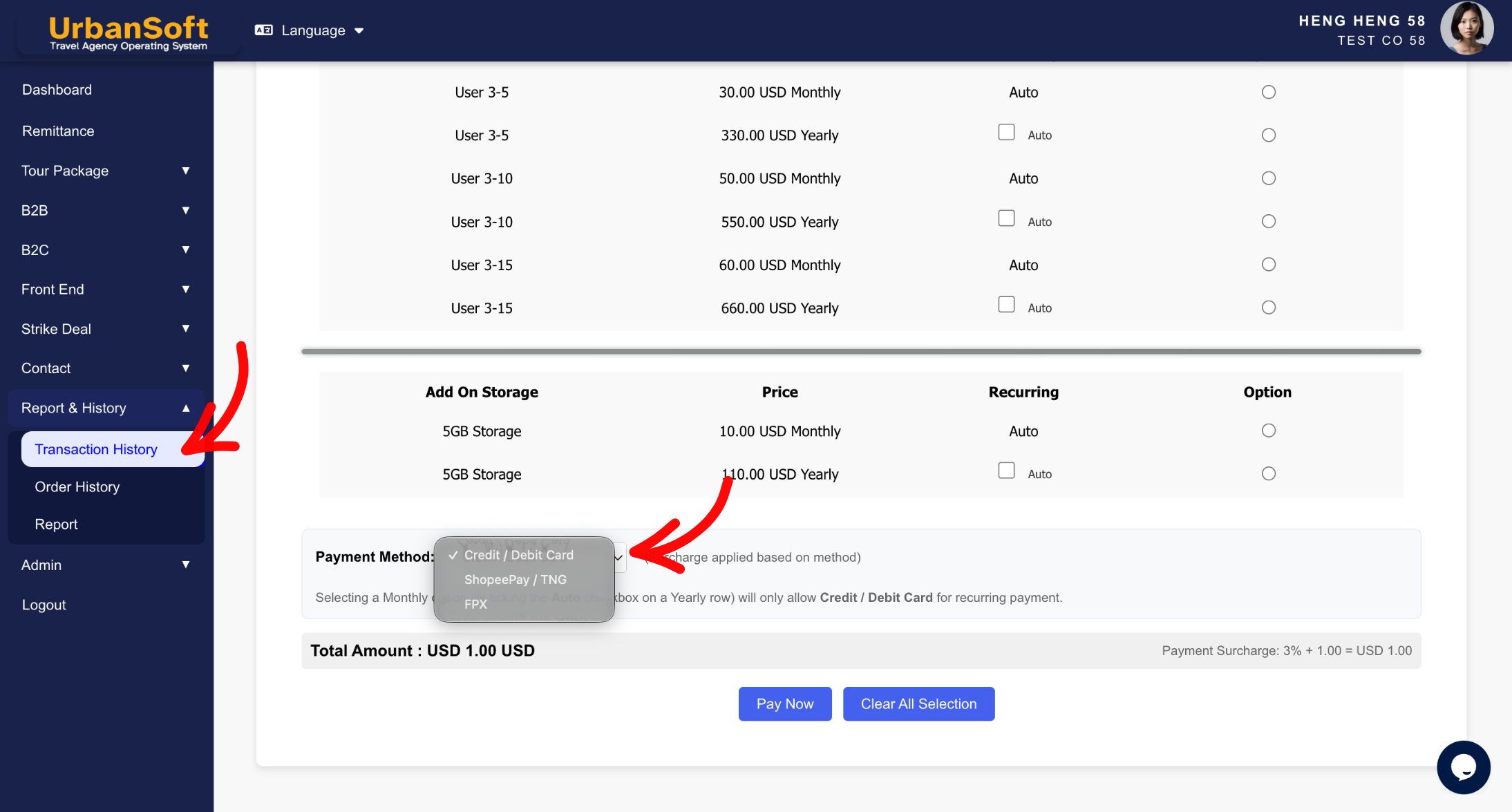
Select your payment method, can be Debit / Credit Card or eWallet or FPX transfer, each payment method come with difference payment surcharge, do study carefully before make a selection.
-
Confirm total amount included surcharge need to be paid.
-
Click Pay Now to confirm your selection. (Note: If you selected the wrong options, click Clear All Selections to reset before submitting.)
-
Proceed to complete payment following the standard payment instructions.
Expected Result
Your subscription plan request will be processed, and once payment is completed, your account will be updated to the new plan tier according to the terms of your chosen billing cycle.
Important Notes
-
Ensure you carefully review the payment frequency terms (Monthly vs. Yearly) before submitting, as yearly plans cannot be refunded or cancelled mid-term.
-
Use Clear All Selections if you need to modify your choices prior to final submission.
Common Mistakes
-
Choosing a Yearly plan assuming it can be downgraded or refunded midway through the active subscription period.
-
Forgetting to complete the payment step after submitting the upgrade/downgrade selection.
Different Angles: Same Stories, Same Content, New Perspective
-
How can I change my subscription tier and payment cycle in UrbanSoft?
-
What is the procedure for switching between monthly and yearly subscription plans?
-
How to change my membership package?
 How to "Subscribe" to UrbanSoft?
