.gif)
.gif)
.gif)

 How to add "New Staff"?
This guide explains how to add and register a New Staff member in UrbanSoft. You will learn how staff account allocations work based on your subscription plan (membership package) and user add-ons, where to enter staff profile details, and how to manage staff user permissions and access rights.
When Do You Use This?
Use this feature when onboarding new employees, operational personnel, tour officers, or sales representatives into your organization so they can access the UrbanSoft platform under your company account.
Before You Start
-
You need:
-
Authorized administrator credentials for your UrbanSoft backend account.
-
Your new staff member's personal information, contact phone numbers, email address, job title, and staff photo/name card images.
-
-
Precautions:
-
Complete all mandatory fields marked with an asterisk (
*) to avoid validation errors when saving. -
The total number of staff accounts you can create depends directly on your current Membership Package quota or purchased user add-ons.
-
If you have reached your maximum allowed staff limit, you must upgrade your subscription plan or purchase user add-ons via Report & History > Transaction / Order History > + Top Up Credit / Upgrade, before adding a new staff member.
-
Step-by-Step
-
Log in to your UrbanSoft account using your administrative credentials.
-
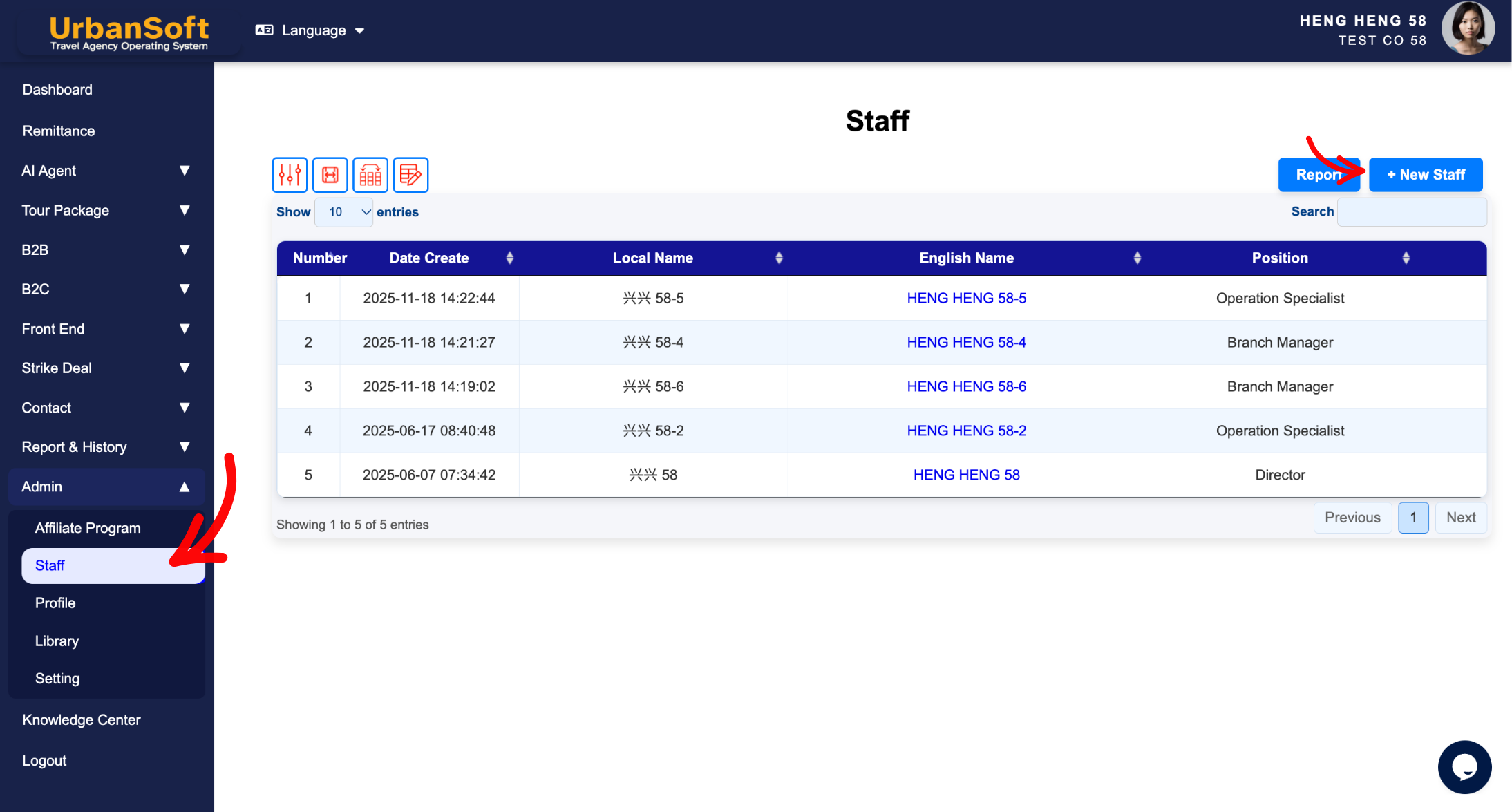
From the main left navigation menu, go to Admin > Staff > Staff Index Table and Click + Add Staff.
-
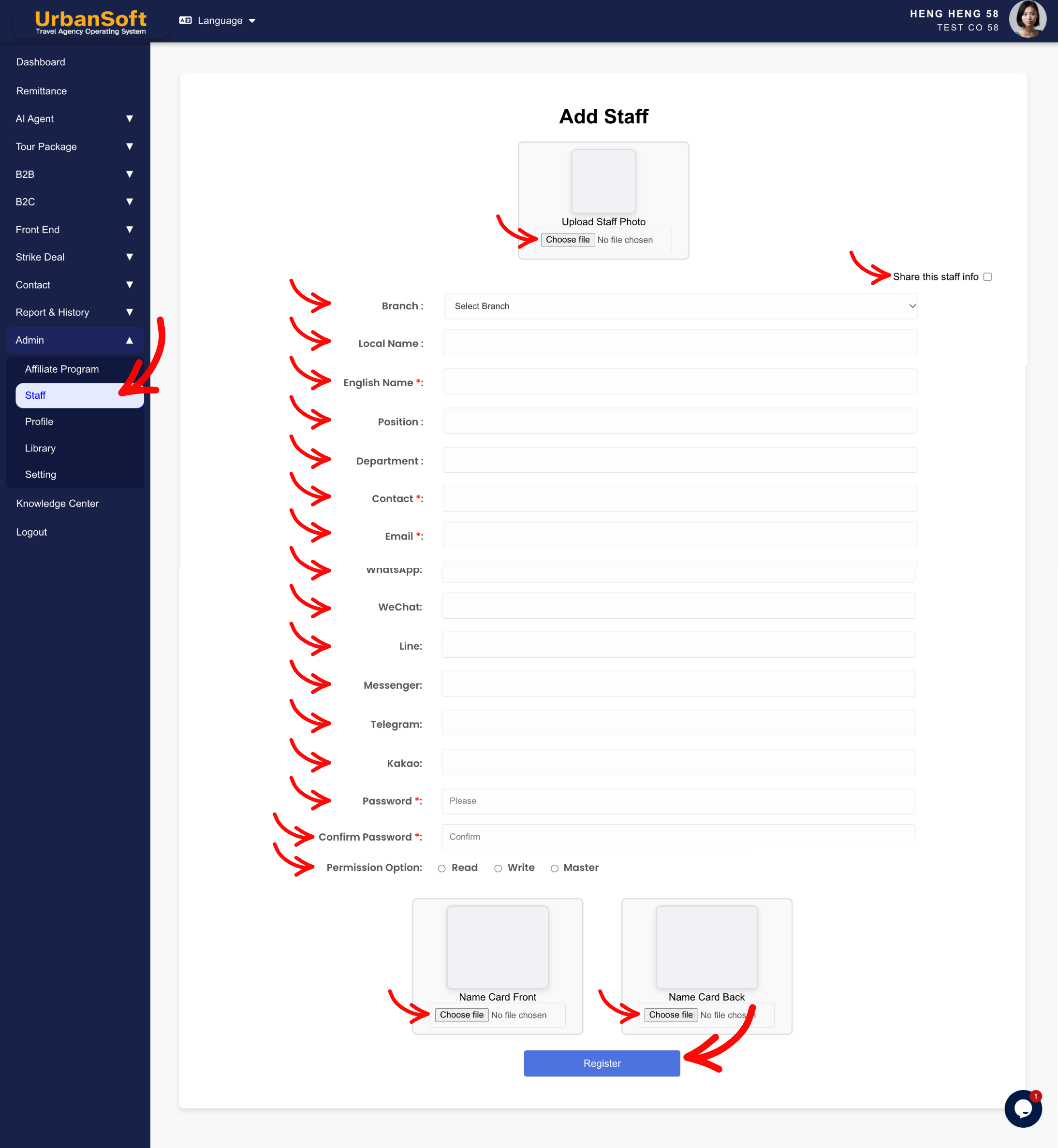
Fill in the staff member's profile Basic Information:
-
if you want this team member to be visible on your public
-
Branch: Select whether the staff member are attached to All Branches (for head office management) or assign them to a specific branch office (e.g., "HQ - Penang Branch" or "KL Branch").
-
Local Name: Enter the staff member's native or local language name (e.g., "张小明").
-
English Name*: Enter the employee's official English name as stated on their passport or IC (e.g., "John Tan").
-
Position: Enter the employee's job title or role within your travel company (e.g., "Senior Tour Consultant", "Operation Executive", or "Finance Manager").
-
Department: Select or specify the staff member's department (e.g., "Sales & Inbound", "Operations", "Ticketing", or "Accounting").
-
-
Set Contact Details:
-
Contact*: Enter the employee's primary mobile or direct telephone number with the country code (e.g., "+60123456789").
-
Email*: Enter the employee's official work email address, which serves as their primary login ID and system notification contact (e.g., "john@company.com").
-
-
Configure Social & Messaging Channels:
-
Enter contact handles/numbers for WhatsApp, WeChat, Line, Messenger, Telegram, and Kakao.
-
-
Set Password:
-
Password*: Set a secure initial login password following platform security guidelines.
-
Confirm Password*: Re-enter the exact password to verify accuracy before saving.
-
-
Upload Media & Documents:
-
Staff Photo: Upload a professional square portrait of the employee (500 x 500 px, PNG, JPG, or JPEG under 2MB) to represent the staff member across system profiles and client documents.
-
Name Card: Upload clean front and back images of the staff member's official corporate business card (PNG, JPG, or JPEG under 2MB) for official verification and profile completeness.
-
-
Set Permissions & Status:
-
Assign appropriate system roles or module access authorization tier.
-
Read: Allows the staff member to view itineraries, reports, and quotations without permission to create, edit or delete entries.
-
Write: Allows the staff member to create, edit, update, delete and manage tour packages, quotes, and day-to-day operations.
-
Master: Grants full administrative control over system settings, company setup, financial reports, and user management.
-
-
Click Update at the bottom of the page to finalize adding the new staff member.
Expected Result
The new staff member will be registered under your company profile. They will receive their account credentials/invitation to access the system, and their information will be reflected in internal team management and optional public profile displays.
Important Notes
-
The number of staff users you can add is governed by your UrbanSoft Membership Package.
-
If your user quota is full, upgrade your plan or top up user add-ons via Report & History > Transaction / Order History > +Top Up Credit / Upgrade.
-
Ensure staff profile photos and name card uploads adhere to image size constraints (PNG/JPG/JPEG under 2MB).
-
Always click Update after filling in the staff details.
Common Mistakes
-
Attempting to add a new staff member when your membership user quota is fully utilized without upgrading first.
-
Forgetting to toggle the switch if you intend to show staff profiles on your official company or branch profile.
-
Leaving required staff contact fields blank, which prevents saving the profile record.
-
Leaving mandatory (
*) fields empty, which prevents profile updates from saving.
Different Angles: Same Stories, Same Content, New Perspective
-
Where do I register a new employee profile in my UrbanSoft account?
-
How can I increase my staff account limit to add more team members?
 How to set up my "Company Profile"?
