.gif)
.gif)
.gif)

 How to edit, update or delete "Staff Information"?
This guide explains how to manage existing team profiles in UrbanSoft. You will learn how to edit employee details, update contact and role information, toggle profile visibility, and remove staff members when necessary.
When Do You Use This?
Use this feature when a staff member changes their phone number, email, department, or job position, or when an employee leaves your organization, and you need to delete their profile record to maintain security and free up staff account slots.
Before You Start
-
You need:
-
Administrator credentials for your UrbanSoft backend account.
-
-
Precautions:
-
Data & Access Warning: Deleting a staff member revokes their access privileges and removes their profile details from the system.
-
Deleting a staff member will release one user slot, restoring one unit (+1) back to your available staff quota.
-
Step-by-Step
-
Log in to your UrbanSoft account using your administrative credentials.
-
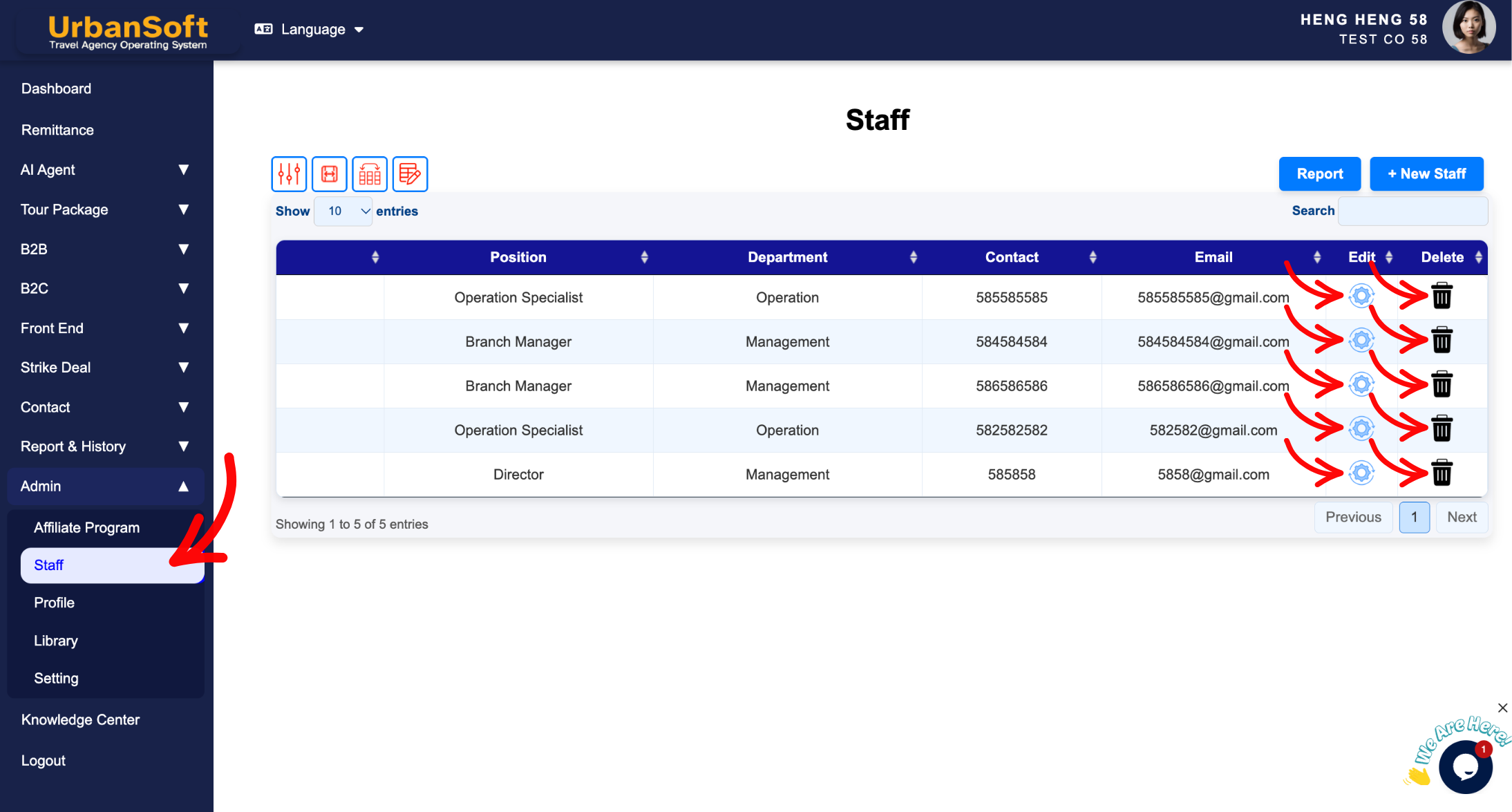
From the main left menu, navigate to Admin > Staff > Staff Index Table.
-
To Edit or Update Staff Information:
-
Locate the specific staff member in the team index list.
-
Click the Edit button next to their name.
-
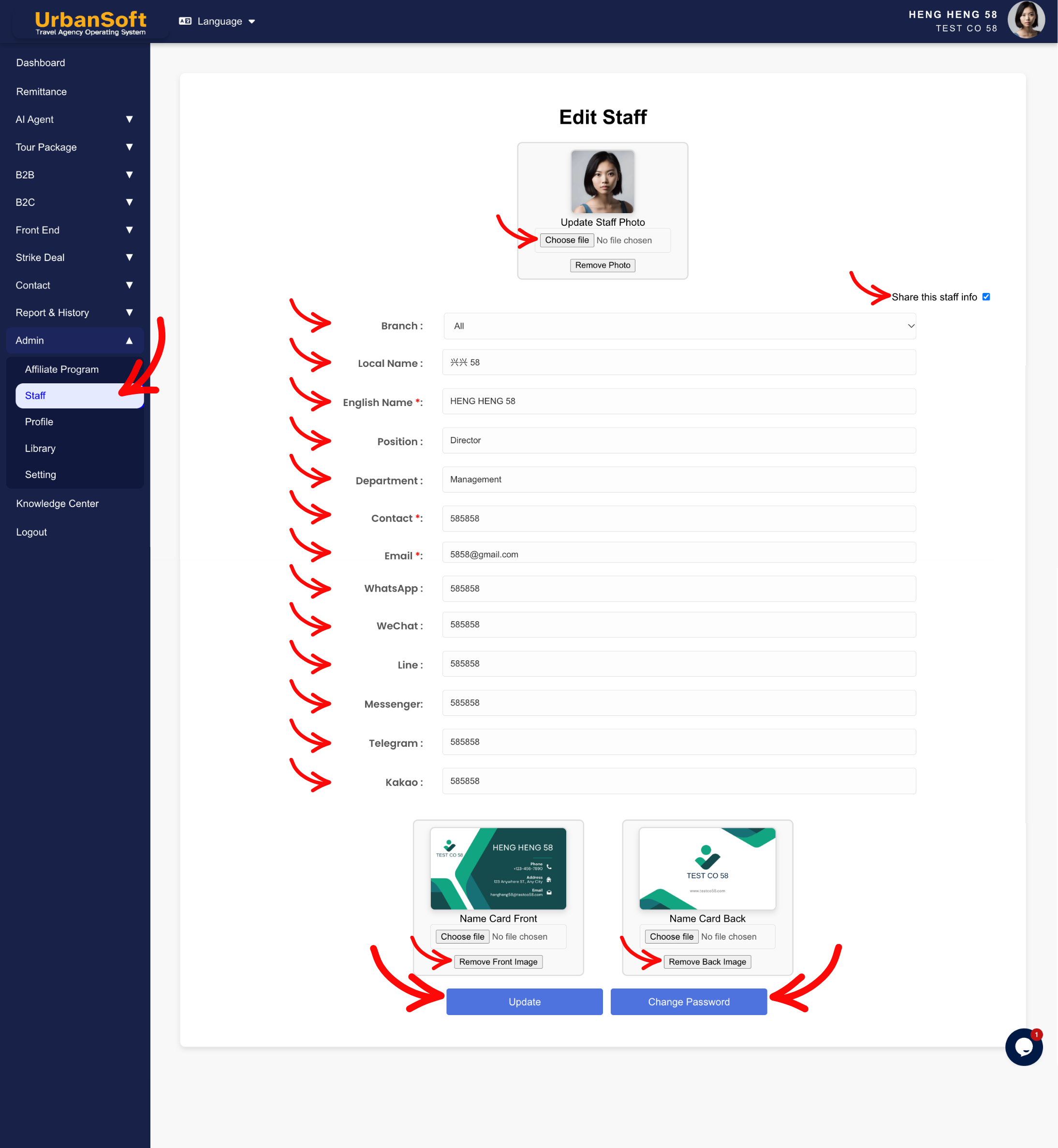
Modify the necessary fields (e.g., Staff Name, Position, Department, Phone, Email, or WhatsApp/WeChat details).
-
Update or replace profile photos or name card images if required (PNG/JPG/JPEG under 2MB).
-
Toggle Share this staff info if you wish to show or hide this team member on your public company or branch profile.
-
Click Update to apply your changes.
-
-
To Reset Password:
-
Locate the specific staff member in the team index list.
-
Click the Edit button next to their name.
-
Scroll down to locate Password button.
-
Change and Retype password, your password must meet several basic security requirements.
-
Click Update to apply your changes.
-
-
To Delete a Staff Member:
-
Locate the staff member you wish to remove from the index list.
-
Check the staff's name to confirm that this is the staff who is to be removed.
-
Click the Delete button next to their name.
-
Confirm the deletion prompt when prompted by the system.
-
The staff profile will be removed, and your account's available staff balance will automatically increase by one (+1).
-
Expected Result
Updated staff information will immediately take effect across system records and profile views. Deleting a staff member will permanently remove their profile and release one user slot (+1) back to your staff quota balance.
Important Notes
-
All fields marked with an asterisk (*) are required.
-
Please note that the staff member’s information can be different from PIC 1 & PIC 2 listed in the Profile page.
-
Staff Quota Release: Deleting 1 staff member restores +1 back to your remaining staff account quota.
-
Ensure profile photos and name card uploads comply with size restrictions (PNG/JPG/JPEG under 2MB).
-
Always click Update after editing staff details to finalize the changes.
Common Mistakes
-
Forgetting to click Update after making edits to a staff member's profile.
-
Attempting to delete a primary admin user rather than transferring admin permissions first.
-
Expecting deleted staff profile records to remain archived without backing up contact information prior to deletion.
Different Angles: Same Stories, Same Content, New Perspective
-
How do I update a team member's position or contact details in UrbanSoft?
-
What happens to my user quota when I delete an old staff account?
-
How can I manage "Staff Accounts"?
 How to set up my "Company Profile"?
