.gif)
.gif)
.gif)

 How to upload "Staff Photo & Name Card"?
This guide explains how to upload and manage Staff Photos and Name Cards for team members in UrbanSoft. You will learn the required image formats, file size limits, and where to upload media files to ensure employee profile cards display professionally.
When Do You Use This?
Use this feature when onboarding new employees or updating existing staff profiles so their professional photos and official business cards appear on internal team rosters and public company profiles.
Before You Start
-
You need:
-
Administrator credentials for your UrbanSoft account.
-
Clear staff profile photos and digital business name card files saved on your local device.
-
-
Precautions:
-
File Format: Supports PNG, JPG, or JPEG.
-
File Size Limit: Must be under 2MB per file.
-
Ensure profile photos are well-lit and professional for optimal presentation across client-facing documents and public profile views.
-
Step-by-Step
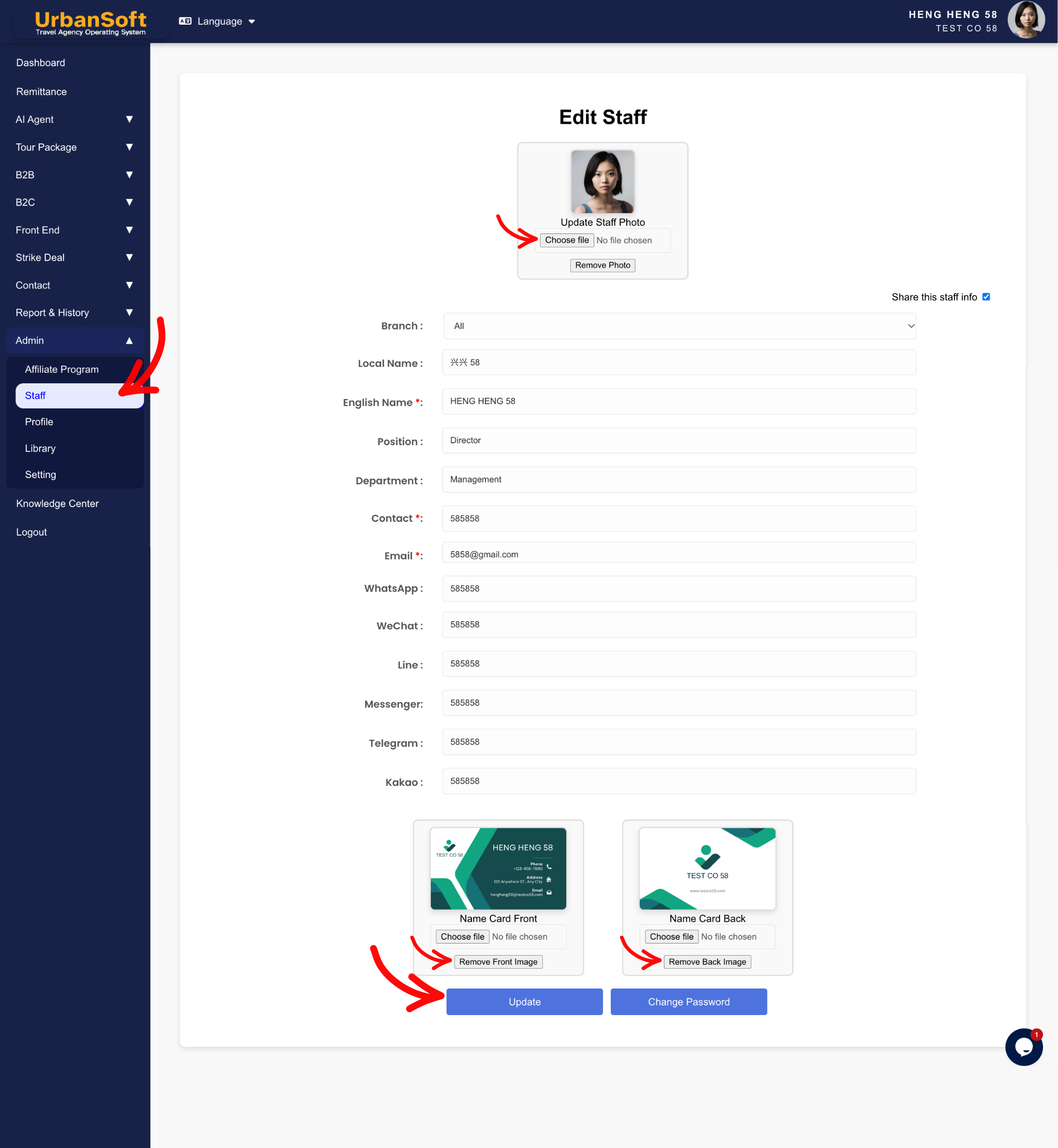
-
Log in to your UrbanSoft account using your administrative credentials.
-
From the main menu on the left, navigate to Admin > Staff > Staff Index Table.
-
Click + Add Staff to register a new staff, or click Edit next to an existing staff member.
-
To Upload Staff Photo:
-
Locate the Staff Photo upload field, upper section of profile page.
-
Click Upload File / Browse and select the staff headshot image (500 x 500 px, PNG/JPG/JPEG under 2MB).
-
-
To Upload Staff Font and Back Name Card:
-
Locate the Name Card upload field, bottom section of profile page.
-
Click Upload File / Browse and select the digital business card image (PNG/JPG/JPEG under 2MB).
-
-
Verify that image previews display correctly on the form.
-
Scroll to the bottom of the page and click Update to apply your changes.
Expected Result
The uploaded staff photo and name card will be saved to the employee record, displaying on team management views and public company profiles (if toggled on).
Important Notes
-
Upload Media Specifications: Both staff photo and name card uploads must be in PNG, JPG, or JPEG format and under 2MB per file.
-
Uploading clear name cards and staff photos enhances B2B trust and gives buyers a professional impression of your team.
-
Always click Update after uploading image files to finalize changes.
Common Mistakes
-
Uploading image files that exceed the 2MB size limit or use unsupported file formats (e.g., PDF or WEBP).
-
Forgetting to click Update after attaching the photo files.
-
Uploading blurry or poorly cropped photos that distort on profile views.
Different Angles: Same Stories, Same Content, New Perspective
-
Where do I attach a team member's digital business card in UrbanSoft?
-
What are the image format and size requirements for staff profile photos?
 How to set up my "Company Profile"?
