.gif)
.gif)
.gif)

 How to edit or update my "Company Name and Country"?
This guide explains the rules and process for editing or updating your registered Company Name and Country in UrbanSoft. You will learn about self-service modification limits, the post-registration window, and how to request changes if your business undergoes official rebranding or migration.
When Do You Use This?
Use this process when you need to correct your company name or registered country shortly after account creation, or when your business legally changes its corporate name or migrates its primary operating country.
Before You Start
-
You need:
-
Administrator credentials for your UrbanSoft account.
-
Official business registration documents or legal proof of name/country change (if requesting manual updates via support after the self-service window).
-
-
Precautions:
-
Self-service edits are strictly allowed only once within the first 14 days post-registration.
-
After the 14-day period, company name and country fields are locked on the Setting page to preserve audit trail integrity and prevent unauthorized entity changes.
-
Step-by-Step
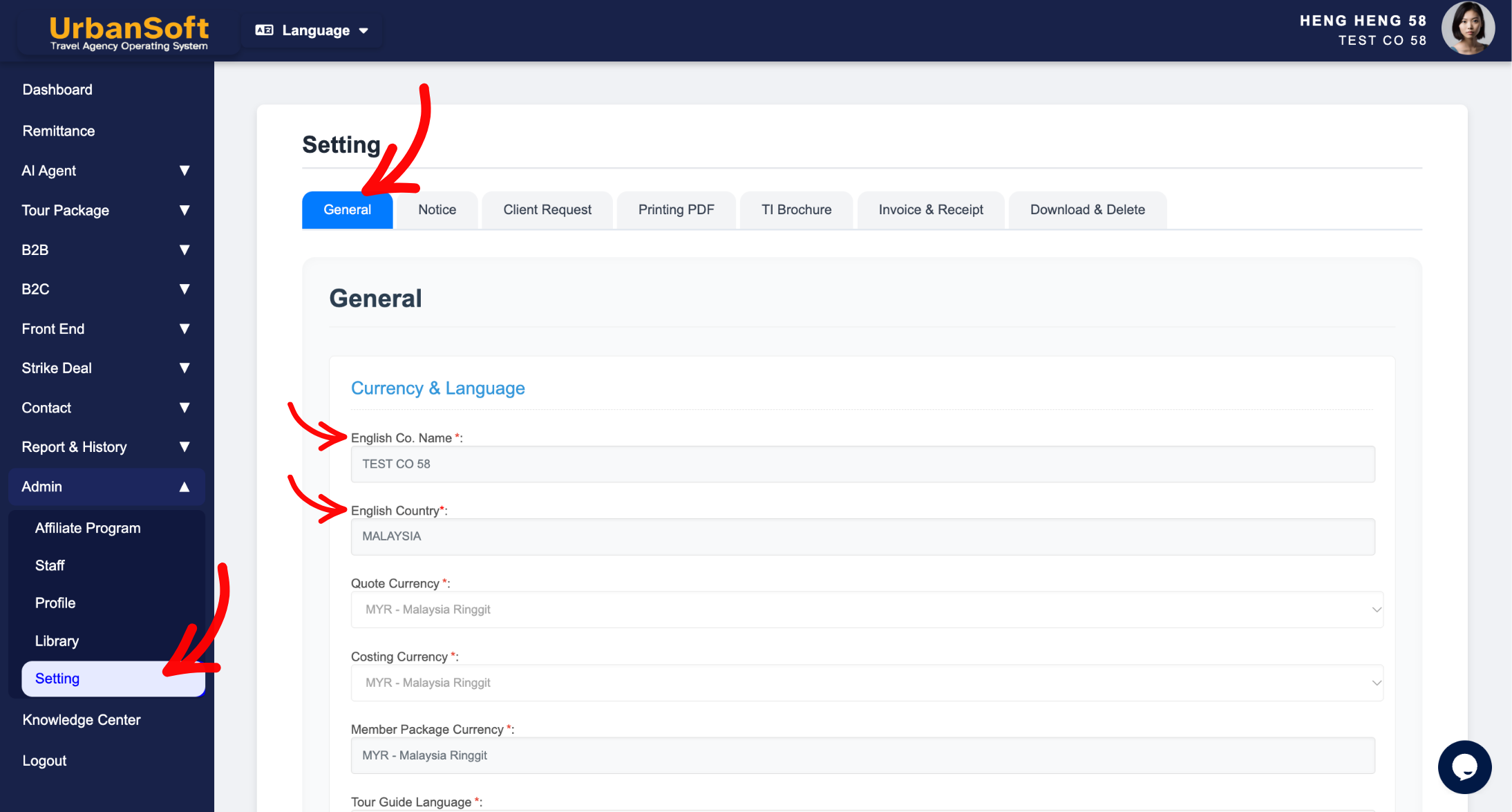
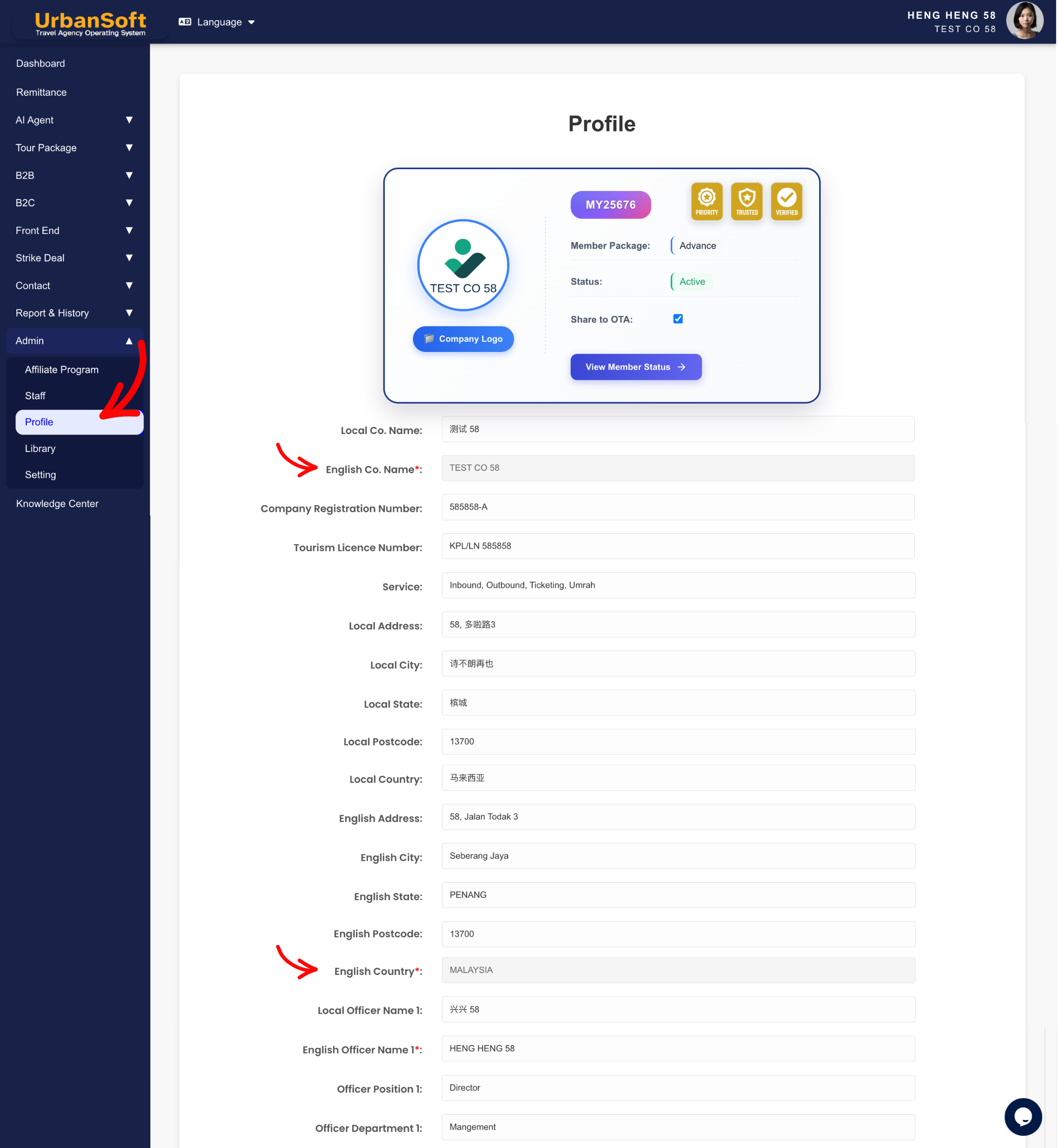
-
Self-Service Edit (Within 14 Days of Registration):
-
Log in to your UrbanSoft Admin portal.
-
Go to Admin > Setting > General.
-
Locate English Co. Name and English Country.
-
Make your single allowed edit and click Update.
-
-
Request Support Assistance (After 14 Days or for Legal Changes):
-
Prepare your official legal documentation verifying the legal name change or country relocation.
-
Send an official request email to UrbanSoft Support at care@urbansoft360.com.
-
State your current registered Company Name, Member Code, and the new verified Company Name and Country details.
-
The support team will review your verification documents and process the updates on system records.
-
Expected Result
For edits within 14 days, changes apply immediately. For support-assisted updates, your future system records, quotations, invoices, and PDF documents will reflect the newly verified company name and country, while historical audit trails remain preserved.
Important Notes
-
Company name and country are primary account fields set during initial account setup.
-
Direct self-service edits are restricted after registration. Note that company name and country modifications are only permitted once within the first 14 days post-registration.
-
After the initial 14-day window, or if you need to update your registered company name or country, direct edits via the Setting page are locked.
-
If your company undergoes an official rebranding, legal name change, or country migration, please contact UrbanSoft Support directly with relevant verification documents.
-
Changes made by support will update future system records, while historical transaction records remain preserved for audit compliance.
Common Mistakes
-
Trying to edit locked company name fields directly on the Setting page after the 14-day window has expired.
-
Submitting manual support requests without attaching valid official legal business registration documents.
-
Assuming that updating company details will alter historical invoices or finalized transaction records retroactively.
Different Angles: Same Stories, Same Content, New Perspective
-
Why are my company name and country fields locked in UrbanSoft settings?
-
How do I update my registered business name after official company rebranding?
 How to set up my "Company Profile"?
