.gif)
.gif)
.gif)

 How to make my "Staff" to be displayed on the "Company Profile"?
This guide explains how to control the public visibility of team members on your Company or Branch Profile in UrbanSoft. You will learn how to toggle the staff display setting for individual employees so their profile photos, names, titles, and contact details appear on your public-facing company or branch profile.
When Do You Use This?
Use this feature when you want to highlight key team members, tour consultants, sales representatives, or department heads on your public company or branch profile to build trust with B2B partners and prospective clients.
Before You Start
-
You need:
-
Authorized administrator credentials for your UrbanSoft account.
-
Staff profile records already added under the Staff Index Table section.
-
-
Precautions:
-
Ensure staff member details (Name, Position, Contact Number, Email, and Photo) are complete and accurate before enabling display on your profile.
-
You can enable or disable visibility for any staff member at any time.
-
Step-by-Step
-
Log in to your UrbanSoft account using your administrative credentials.
-
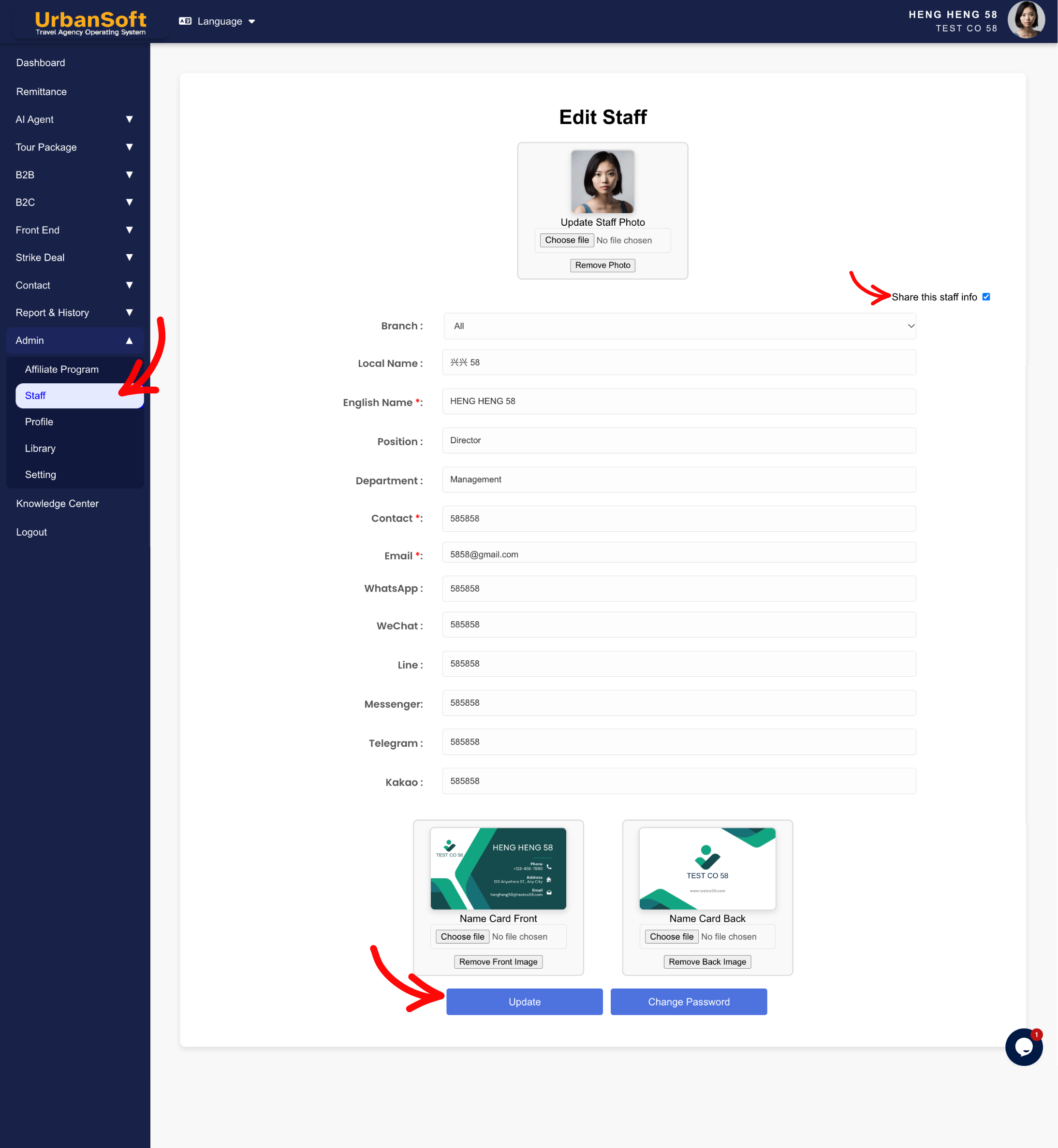
From the main navigation menu on the left, go to Admin > Staff > Staff Index Table.
-
Locate the staff member you wish to display on your company profile and click Edit (or click + Add Staff when registering a new employee).
-
Locate the Share this staff info toggle/checkbox setting on the upper staff form.
-
Tick / Enable the Share this staff info checkbox to make this staff member visible.
-
Scroll to the bottom of the page and click Update to apply your changes.
Expected Result
The selected staff member's profile card (including photo, name, position, and contact details) will be displayed on your company's public profile page.
Important Notes
-
Visibility Control: Use the Share this staff info checkbox/toggle on each staff member's edit form to control whether they are visible on your public Company or Branch Profile.
-
Only staff members with Share this staff info enabled will be visible to external buyers and platform users.
-
Always click Update after changing the visibility toggle to ensure changes take effect.
Common Mistakes
-
Adding a staff member but forgetting to check Share this staff info, leading to missing team members on your public profile.
-
Enabling display for staff profiles that lack photos or contact details, resulting in incomplete cards on your company page.
-
Forgetting to click Update after toggling the display setting.
Different Angles: Same Stories, Same Content, New Perspective
-
How do I publish a team member's card to my public company or branch profile in UrbanSoft?
-
Where is the visibility toggle switch to showcase sales staff on my business profile?
 How to set up my "Company Profile"?
