.gif)
.gif)
.gif)

 What information should be include in the "Itinerary" tab?
The Itinerary tab in an UrbanSoft tour package is the core operational engine used to construct detailed, day-by-day travel schedules. It captures daily movements, activity descriptions, hotel accommodations, and meal budget allocations. Furthermore, it integrates directly with the DMC (Destination Management Center) library, allowing travel operators to dynamically insert pre-built attractions, highlights, stories, and images into the tour package with a single click. Properly filling out this section ensures that generated quotes, customer PDFs, and operational itineraries display a clear, well-organized daily travel schedule.
What Can I Do?
You can build and manage daily schedules efficiently using the following key features:
-
Construct Day-by-Day Schedules: Click on any specific day (e.g., Day 1) to expand its form, then enter daily titles, transit movements, and activity descriptions.
-
Assign Accommodation & Meal Details: Specify daily hotel location, names, star ratings, meal types, venues, and estimated per-person costs for internal budget calculations.
-
Leverage DMC Library Content: Select pre-built destination templates from
Admin > Library > D.M.Cand inject complete itineraries, highlights, stories, and photos into single or multiple days. -
Inspect & Reorder Daily Activities: Preview DMC presets, reorder activity sequences using drag-and-drop controls, and verify section completeness before saving.
Field Definitions & Operational Guidance
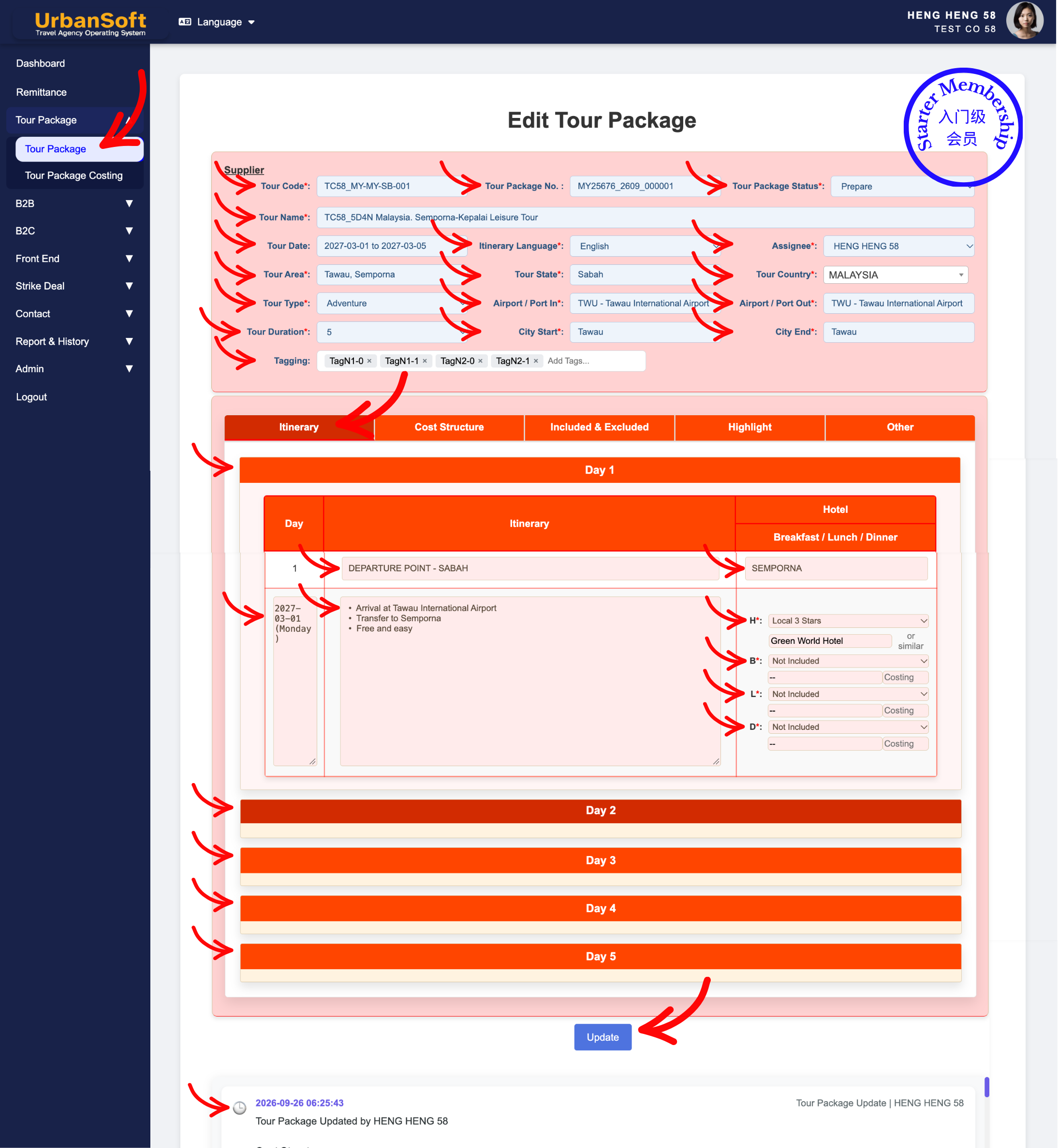
For Starter Membership: The images above show their control interface. Starter membership not allow to use DMC (Destination Management Center). Please upgrade to optimal your feature and maximal your profit and time.
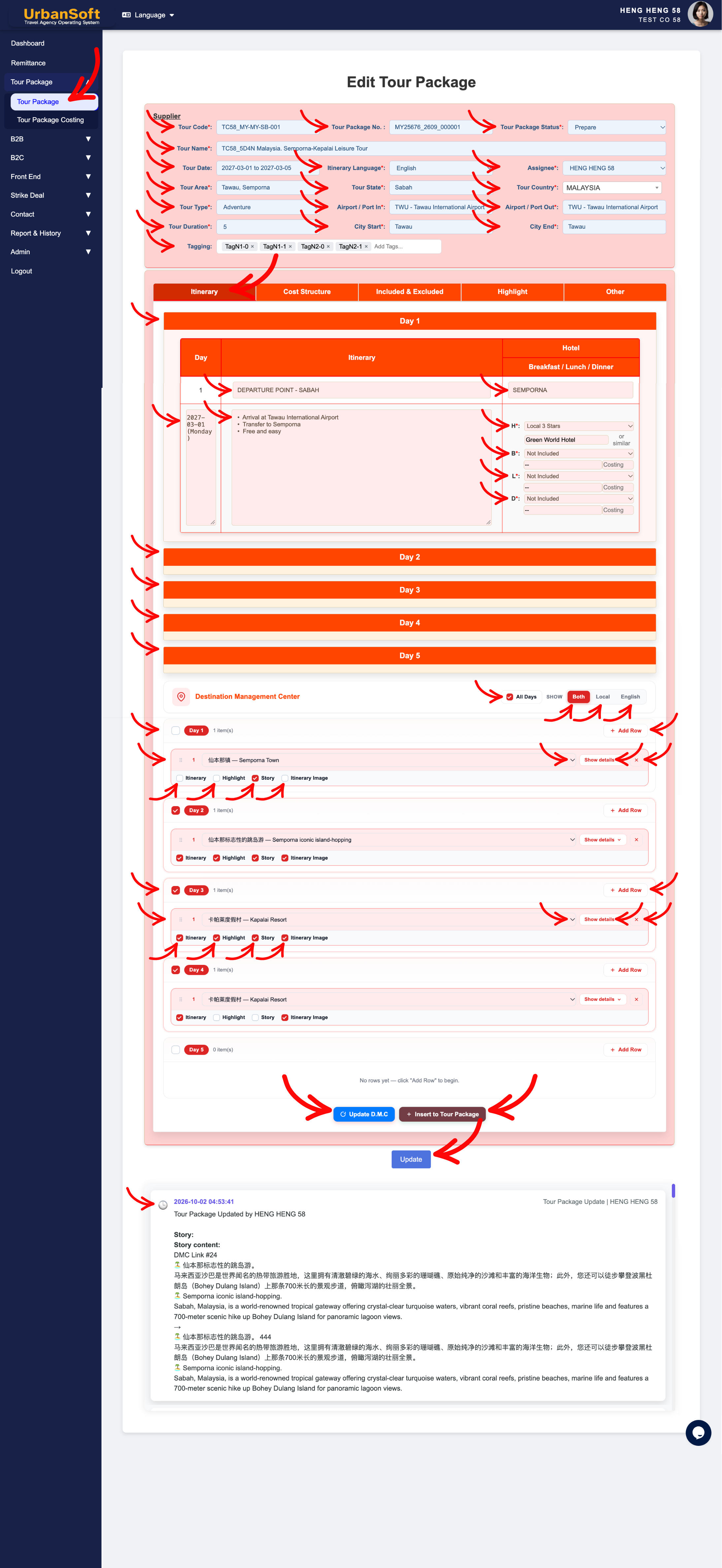
For Launch Membership and above: The images above show their control interface. Include DMC (Destination Management Center) feature.
1. Daily Schedule & Accommodation Basics
-
Click on the Day: Click on the Day 1, day 1 itinerary form will drop down. Fill up all mandatory (*) information.
-
Day: Auto number, showing the sequential day number (e.g., Day 1). Refer to Tour Duration, on top of the form.
-
Date / Day of Week: Automatically populated with the exact calendar date and day of the week if a Date Between range is selected in Tour Date (for fixed-date group tours). Leave the Tour Date field blank when creating fixed-duration but open-dated or recurring tour packages.
-
Movement / Day Title / Headline: Specify the travel transit routing or city-to-city or location-to-location movement and travel distances, or a brief engaging title summarizing the main highlight or destination for the day (e.g., Penang - Langkawi" or "Kuala Lumpur - Malacca - Kuala Lumpur" or "Arrival in Tokyo & Shibuya Exploration").
-
Itinerary / Description / Daily Schedule:
-
Launch Membership and above: Can use DMC (Destination Management Center) or enter Manually. Setup itinerary detail in DMC section (under bottom part of Itinerary tab), tick the Itinerary, click Update D.M.C, click Insert to Tour Package, system will auto transfer detail to itinerary section (editable).
-
Starter Membership: Manually provide a clear, step-by-step detailed description of the morning, afternoon, and evening activities, attractions visited, sightseeing spots, entry points, travel distances and travel schedule (editable).
-
-
Hotel Location: Enter the city, region, or area where the hotel is located for this night (e.g., "Georgetown" or "Batu Ferringhi"). No need to enter full hotel address.
-
Hotel Star Rating: Dropdown fields to select hotel official star rating of the accommodation provided for that night (e.g., "Local 4 Star" or "International 5 Star").
-
Hotel Name: Enter the designated hotel, resort, or accommodation name for the night, system will automatically add in "or similar". (e.g., "Eastern & Oriental Hotel" or "To Be Advised (TBA)" if not finalized).
2. Meal Allocation & Costing
-
Breakfast*: Dropdown fields to select the meal inclusion status and breakfast type (e.g., "Hotel Breakfast", or "Not Included").
-
Breakfast Name: Specify the breakfast name or venue of the breakfast (e.g., "International Buffet Breakfast at Hotel").
-
Breakfast Cost: Enter the estimated or actual budget/cost allocated per person for breakfast (e.g., "USD 10" or "MYR 40"). This feeds into internal costing calculations.
-
Lunch*: Dropdown fields to select the meal inclusion status and lunch type (e.g., "Local Buffet ", "Local Cuisine", or "Local Flavor").
-
Lunch Name: Specify the lunch name or restaurant name for lunch (e.g., "Nyonya Cuisine Mewah Restaurant").
-
Lunch Cost: Enter the estimated or actual budget/cost allocated per person for lunch (e.g., "USD 15" or "MYR 45"). This feeds into internal costing calculations.
-
Dinner*: Dropdown fields to select the meal inclusion status and dinner type (e.g., "International Buffet", "Special Cuisine", or "Special Flavor").
-
Dinner Name: Specify the dinner name or restaurant name for dinner (e.g., "Seafood Set Dinner at Gurney Drive").
-
Dinner Cost: Enter the estimated or actual budget/cost allocated per person for dinner (e.g., "USD 25" or "MYR 80"). This feeds into internal costing calculations.
3. Timeline, Review & Saving
-
Timeline: A timeline is a line or list that displays the progress of events—such as dates, times, the people involved, locations, and what was created, modified, or stored—in chronological order.
-
Complete All Day Itinerary: A quick overview or checklist status ensuring all day-by-day activities, meals, and hotels for the entire tour length have been fully populated before proceeding.
-
Update: Click this action button to save all your entries and progress for the itinerary package.
-
Tour Package Images: Upload attraction or activities images at Highlight tab > Tour Package Images.
4. Destination Management Center (DMC) Integration
-
DMC - Destination Management Center: For Launch Membership and above - A centralized hub to pre-build and store reusable attractions, activities, events, and tour proposals so they can be instantly inserted into any tour package itinerary with a single click. For Starter Membership - not allow to use DMC. Please upgrade to optimal your feature and maximal your profit and time.
-
Checkbox All Days: Tick this box if you want to apply or insert the selected DMC itinerary across every single day of the tour package.
-
Checkbox Day: Tick individual day boxes (e.g., Day 1 or Day 2) to insert the DMC itinerary into specific days only.
-
Show: Choose Both, Local, or English to determine which language variation of the DMC content displays on the DMC section or tour package view. Select Both to display Local and English language content, select Local to display Local language content only, if select English only display English language content.
-
Add Row: Click to add a new blank itinerary activity row under the selected day.
-
Select a DMC Preset Itinerary: Choose a pre-set destination, attraction, activities, event and proposal from the dropdown list to quickly populate its pre-set content. (Preset & Manage DMC Itinerary at Admin > Library > D.M.C)
-
Show Details: Click to preview and inspect all pre-set itinerary name, itinerary information, highlight description, story content and image uploaded of the selected DMC itinerary.
-
Itinerary Name / Information / Highlight / Story / Image: Previews DMC template elements in the selected language mode (both, local or english language), including main images (up to 4 images per preset).
-
Checkbox Selection Controls:
-
Checkbox Insert Itinerary: Tick to inject itinerary descriptions into the Itinerary tab daily schedule breakdown.
-
Checkbox Insert Highlight: Tick to push key selling points directly into the Highlight tab.
-
Checkbox Insert Story: Tick to send rich background stories into the Other tab.
-
Checkbox Insert Itinerary Image: Tick to copy attraction photos into the daily itinerary image gallery in the Highlight tab.
-
-
Arrange Order: Drag or reorder the sequence of DMC itinerary to adjust the visiting order within a day's schedule.
-
Update D.M.C: Click to update and save changes made in DMC section (if forgot to Update DMC section, and direct click Insert to Tour Package button, all adjustment in MDC section will gone).
-
Insert to Tour Package: Click to instantly inject the selected DMC itinerary, highlights, story, and images directly into the active tour package.
Example
When building Day 2 of a 5-Day Penang & Langkawi Tour package:
-
Click Day 2 to expand the form, set Movement: "Georgetown
🚌Batu Ferringhi", and enter morning/afternoon heritage walking tour details in Itinerary Description. -
Set Hotel Name: "G Hotel Gurney", Hotel Star Rating: "International 5 Star", and fill in Lunch Cost ("MYR 45") and Dinner Cost ("MYR 80").
-
Under the DMC section, select "Penang Heritage Walking Tour" from Select a DMC Preset Itinerary.
-
Tick Checkbox Insert Itinerary, Checkbox Insert Highlight, Checkbox Insert Story, and Checkbox Insert Itinerary Image.
-
Click Insert to Tour Package to populate schedule text, highlight selling points, rich background stories, and attraction photos automatically, then click Update to save.
Important Notes
-
Meal costs entered under Breakfast, Lunch, and Dinner directly populate internal costing worksheets to assist in calculating accurate total package expenses.
-
System-generated hotel entries automatically append
"or similar"to maintain operational flexibility during client proposals. -
Using DMC checkboxes allows travel planners to push activity descriptions, highlights, background stories, and images to their respective package tabs in a single action.
Different Angles: Same Stories, Same Content, New Perspective
- What daily schedule breakdown fields, accommodation details, meal costing allocations, and DMC library integration features are available in the Itinerary tab of UrbanSoft?
-
What key details should be included when setting up the daily itinerary schedule for a tour package in UrbanSoft?
-
What components are included in the Itinerary section?
Same Folder Articles
-
 How to create "New Tour Package" manually?
-
How to create "New Tour Package", with "Ai Insert Tour Package" feature?
-
How to edit or update an existing "Tour Package"?
-
How to duplicate assisting "Tour Package"?
-
How to use "Ai Translate" to translate assisting tour package to another new other language tour package?
Related Articles
-
What information should be include in the "Tour Package Basic Information" tab?
-
What information should be include in the "Highlight" tab?
-
What should be filled out in the "Costing Table" field in Cost Structure section?
-
What information should be include in the "Cost Structure" tab?
-
Relationship between "Costing Currency, Quote Currency, Current Rate, and Fixed Rate" in Setting > General and Tour Package?
