.gif)
.gif)
.gif)

 How to use "Ai Translate" to translate assisting tour package to another new other language tour package?
This guide will walk you through how to use the UrbanSoft AI Translate feature, to automatically translate an existing tour package into a completely new, localized tour package in another language. You will learn where to find the translation tool, how to select your target language, and how credit consumption works for AI Translate actions.
When Do You Use This?
Use this feature when you already have a finalized tour package in one language (e.g., English) and want to expand into multilingual markets (e.g., Chinese, Malay, Japanese) without re-entering itinerary details and terms manually from scratch.
Before You Start
-
You need:
-
Authorized access to the UrbanSoft Admin backend with Tour Package management permissions.
-
An existing source tour package that you want to translate.
-
Sufficient Credits in your UrbanSoft account balance, as using AI translation features consumes credits.
-
-
Precautions:
-
Ensure your account credit balance is sufficient before starting the process.
-
Review translated terms, localized attraction names, and pricing after translation to ensure complete accuracy for your target market.
-
Using the AI Translation feature requires the consumption of credits. 1 credit is consumed for every 5 days of the itinerary (e.g., 1–5 days consume 1 credit; 6–10 days consume 2 credits; 11–15 days consume 3 credits; 16–20 days consume 4 credits; and so on).
-
Step-by-Step
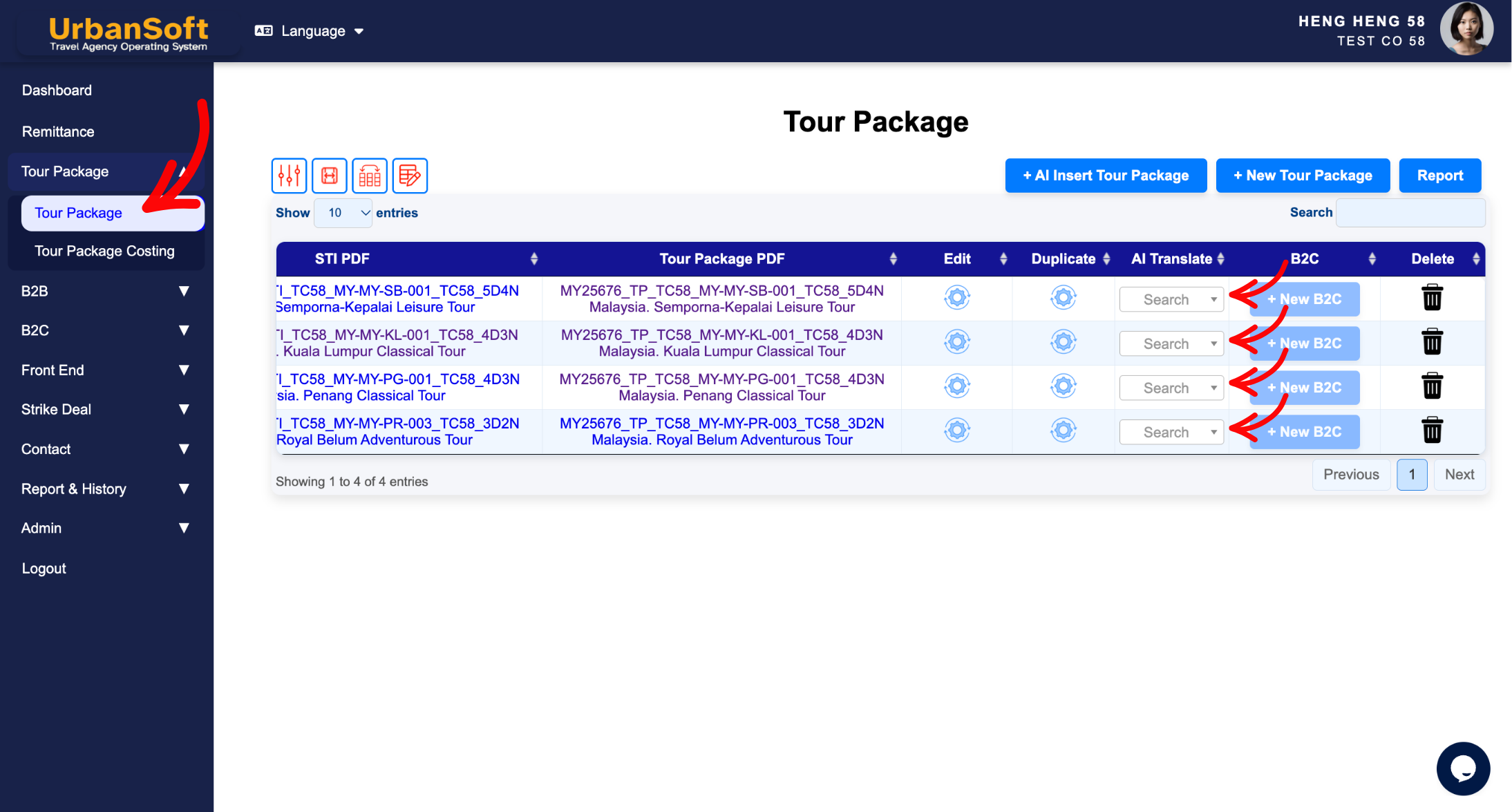
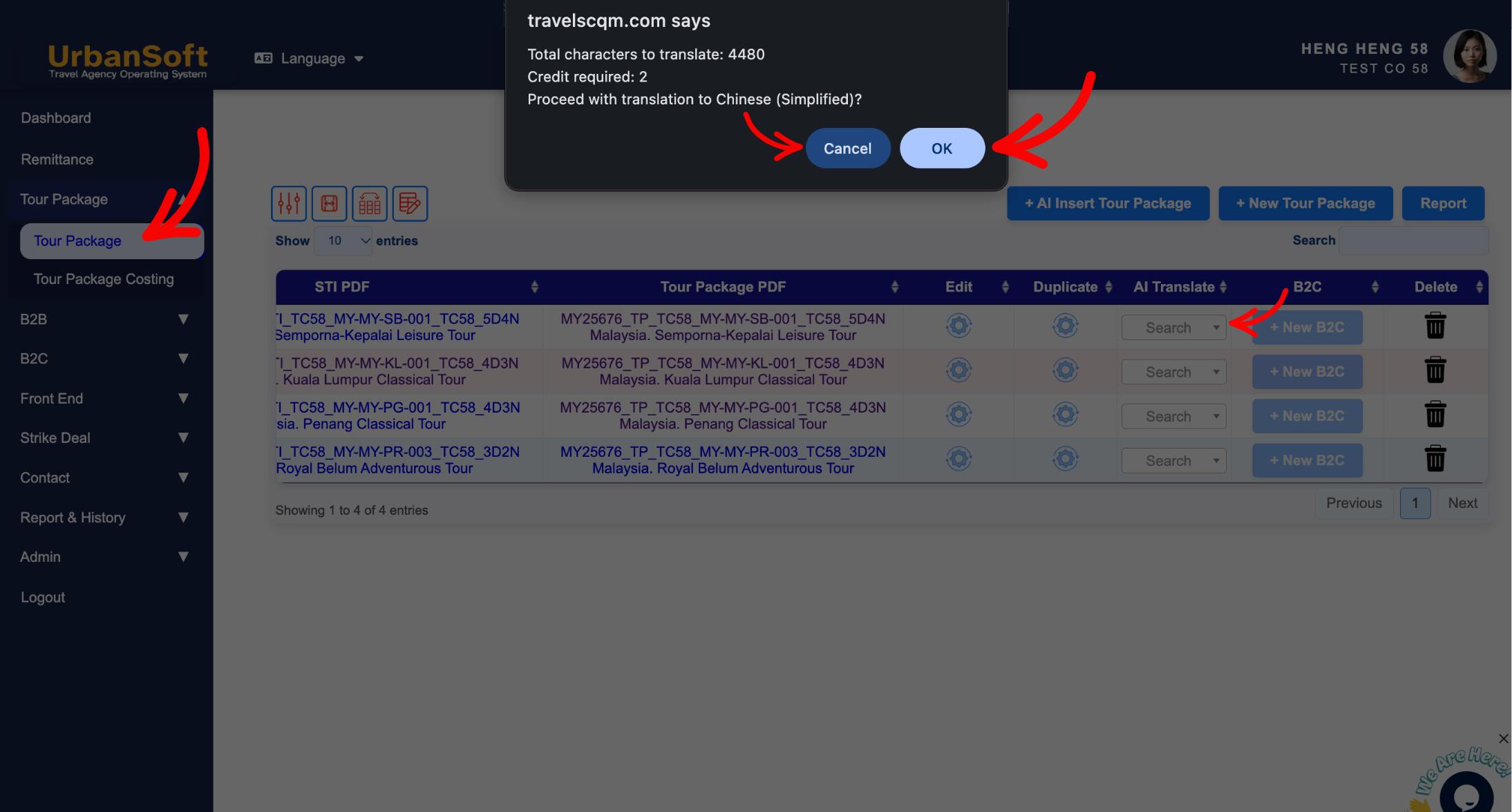
-
Log in to your UrbanSoft account using your administrative credentials.
-
From the main navigation menu on the left, go to Tour Package > Tour Package, overhere will have tour package list table.
-
Locate the existing tour package you wish to translate using the search or filter options.
-
Click the AI Translate option next to the target package in the action column at the end of the table.
-
Select your desired Target Language (e.g., Chinese, Japanese, Korean, etc.) from the dropdown list.
-
Check your estimated credit cost displayed on the confirmation screen.
-
Click OK, to confirm & translate.
-
Wait a few seconds while UrbanSoft's AI processes and translates all package content (including basic information, daily itineraries, inclusions, exclusions, highlights and cost).
-
The system will automatically generate and open a brand-new tour package in the selected target language.
-
Important to enter new and unique Tour Code and Tour Name.
-
Review and edit the generated content in each section to make any necessary adjustments.
-
Update pricing or departure dates if necessary, and click Update.
Expected Result
A brand-new, fully formatted tour package in the target language will be created in your system. The original source package remains unchanged, giving you two independent localized versions ready for sale.
Important Notes
-
AI Translate itineraries serve as an intelligent draft; always perform a final sanity check on operational details.
-
AI Credit Usage: AI translation is a credit-based feature. Credits will be deducted from your account balance upon initiating the translation process.
-
If your credit balance runs low, you can top up credits anytime under Report & History > Transaction / Order History > + Top Up Credit / Upgrade, or refer this article How to top up Credits?.
-
The translated package is generated as an independent tour package, so any subsequent changes made to the translation will not affect the original version.
Common Mistakes
-
Attempting to run AI Translate without enough credits in your account balance.
-
Forgetting to perform a quick review of localized terms or proper nouns before publishing the translated package.
-
Confusing AI Translate with simply editing the language setting of the original package.
Different Angles: Same Stories, Same Content, New Perspective
-
How do I convert my tour package into a different language using UrbanSoft AI Translate?
-
Where can I automatically translate an existing itinerary into another language?
 How to create "New Tour Package" manually?
