.gif)
.gif)
.gif)

 What information should be include in the "Highlight" tab?
The Highlight tab in an UrbanSoft tour package captures key visual elements, signature selling points, meal upgrades, daily itinerary photos, and icon tags. It enhances customer proposals, brochures, and online listings by showcasing high-resolution cover photos, featured dining details, and key attractions. While default content can be pre-populated from Admin > Setting > Notice or Admin > Library > Highlight Icon or Admin > Library > D.M.C (Destination Management Center), tour operators can fully customize all content for each individual package.
What Can I Do?
You can build a visual and attractive tour proposal using the following key functions:
-
Add Key Selling Points: Enter 3 to 5 core highlights, such as signature activities, luxury stays, or flight inclusions.
-
Upload High-Resolution Package Covers: Add up to 3 landscape cover photos to represent the tour on proposal headers and package thumbnails.
-
Specify Meal Supplements & Upgrades: Detail unique dining experiences, local delicacies, halal requirements, or mandatory holiday dinner surcharges.
-
Manage Meal & Daily Itinerary Images: Upload food photos and up to 4 daily activity photos per itinerary day, choosing where they appear.
-
Customize Feature Icons: Display custom icons from your own library or use Travelooker.com OTA standard default icons.
-
Verify Section Completeness: Check the progress checklist before saving your highlight settings.
Field Definitions & Operational Guidance
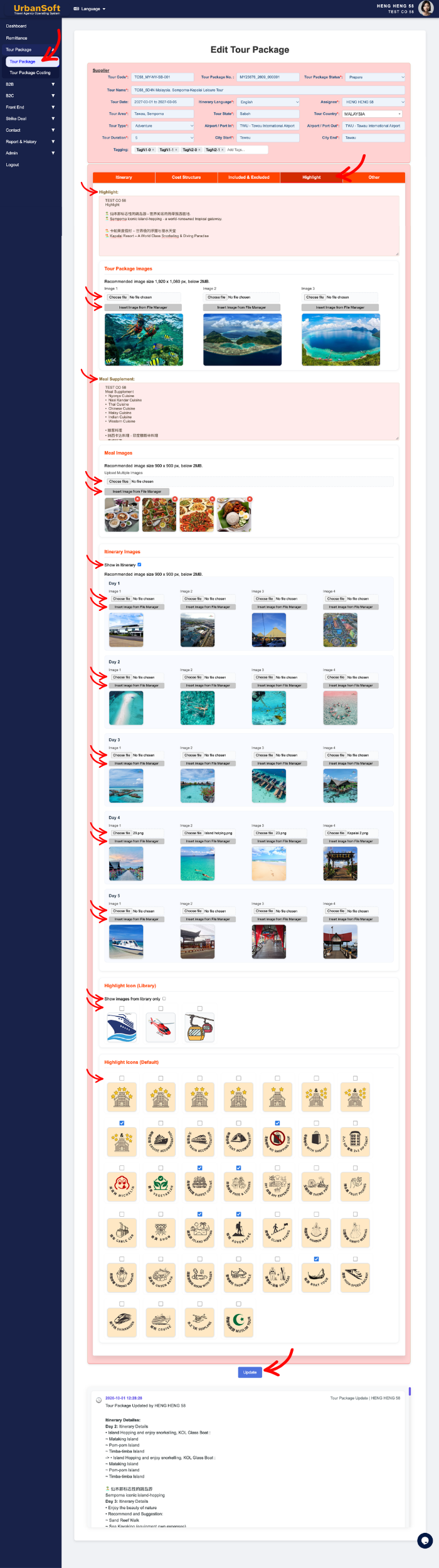
1. Core Highlights & Accompanying Cover
-
Highlight:
-
Launch Membership and above: Can use DMC (Destination Management Center) or enter Manually. Setup itinerary detail in DMC section (under bottom part of Itinerary tab), tick the Highlight, click Update D.M.C, click Insert to Tour Package, system will auto transfer detail to higlight section (editable).
-
Starter Membership: Manually enter 3 to 5 key selling points - such as core attractions or signature experiences (pre-populated from
Admin > Setting > Notice, e.g.,"5-Star Heritage Hotel Stay","Direct Flight", or"UNESCO World Heritage Walking Tour") (editable).
-
-
Tour Package Images (max 3 images): Select existing images from the File Manager or upload up to 3 high-resolution landscape cover photos (1,920 x 1,080 px, under 6MB) representing the overall tour.
2. Dining Experience & Meal Supplements
-
Meal Supplement: Enter detailed dining information, such as restaurant names, culinary styles, local signature dishes, optional meal upgrades, associated surcharges, or special dietary arrangements (pre-populated from
Admin > Setting > Notice, e.g.,"Lobster & Seafood Upgrade: +USD 25/person","Halal Meal Surcharge: +USD 10/person/day", or"Mandatory Christmas Eve Dinner Surcharge: +USD 50/person"). -
Meal Images: Select from the File Manager or upload clear, square photos (900 x 900 px, under 2MB) showcasing signature dishes, featured dining venues, or specialty set meals included in the itinerary.
3. Daily Itinerary Photos & Presentation Controls
-
Show in Itinerary: Choose whether to display uploaded photos directly inside the daily itinerary breakdown box, or feature them in the main highlight tab.
-
Itinerary Images (max 4 images per day):
-
Launch Membership and above: Can use DMC (Destination Management Center) or select/upload Manually. Setup itinerary detail in DMC section (under bottom part of Itinerary tab), tick the Itinerary Image, click Update D.M.C, click Insert to Tour Package, system will auto transfer detail to higlight tab (editable).
-
Starter Membership: Manually select from assisting file manager image or upload clear, square photos (900 x 900 px, under 2MB) showing the specific daily activities or attractions (editable).
-
4. Highlight Icons & System Tagging
-
Show Icon from library only: Choose whether to render feature icons strictly from your own custom library or use system default icons.
-
Highlight Icon (Library): Select or upload custom feature icons managed in
Admin > Library > Highlight Iconsettings (e.g., custom icons for"Free Wi-Fi","No Shopping Stops", or"2+1 VIP Coach"). -
Highlight Icon (Default): Choose standard platform icons linked directly to the Travelooker.com OTA default icon system (e.g., universal symbols for
"5* Hotel","Adventure Tour", or"Cruise Accommodation").
5. Completeness Verification & Saving
-
Complete All Field: Displays a quick status checklist ensuring all highlight text, meal details, images, and icons for the entire tour have been fully populated.
-
Update: Click this action button to save all entries, images, and configuration progress for the highlight tab.
Example
When building a 5-Day Hokkaido Winter Wonder Tour package:
-
Input Highlight entries: "Stay at Lake Toya Onsen Resort", "Direct Flight with Baggage Included", and "Kind Crab Buffet Dinner".
-
Upload 2 landscape Tour Package Images (1920 x 1080 px) of Mt. Yotei and Lake Toya for the proposal cover.
-
Add Meal Supplement details: "Includes 1-Night Seafood & King Crab Feast Upgrade (+USD 35/person included)" alongside 2 square Meal Images (900 x 900 px).
-
Select custom Highlight Icons (
"No Shopping Stops"and"Hot Spring Onsen") from your library. -
Review the Complete All Field status checklist and click Update to save the package presentation.
Important Notes
-
Tour package cover images should strictly follow the 16:9 landscape aspect ratio (1920 x 1080 px), while meal and itinerary images must be square (900 x 900 px) to prevent distortion on customer proposals.
-
Setting up custom icons in
Admin > Library > Highlight Iconallows your agency to maintain consistent visual branding across all tour proposals. -
Using Travelooker.com default icons ensures seamless sync when publishing your package directly to connected OTA sales channels.
Different Angles: Same Stories, Same Content, New Perspective
- What key visual assets, selling points, meal options, and icon settings make up the Highlight tab in UrbanSoft tour packages?
-
How to manage and edit package highlights on client itineraries?
Same Folder Articles
-
 How to create "New Tour Package" manually?
-
How to create "New Tour Package", with "Ai Insert Tour Package" feature?
-
How to edit or update an existing "Tour Package"?
-
How to duplicate assisting "Tour Package"?
-
How to use "Ai Translate" to translate assisting tour package to another new other language tour package?
Related Articles
-
What should be filled out in the "Costing Table" field in Cost Structure section?
-
What information should be include in the "Cost Structure" tab?
-
Relationship between "Costing Currency, Quote Currency, Current Rate, and Fixed Rate" in Setting > General and Tour Package?
-
What should be filled out in the "Price Excluded" field in Setting > Notice and Included & Excluded section?
