.gif)
.gif)
.gif)

 How to create "New Tour Package", with "Ai Insert Tour Package" feature?
This guide will show you how to quickly build and generate a complete tour package in UrbanSoft using the AI Insert Tour Package feature. You will learn how to leverage AI automation to automatically extract, structure, and populate package details, daily itineraries, and terms from raw text or itinerary files.
When Do You Use This?
Use this feature when you have an existing itinerary draft or enquiry, word documents (Docx), excel documents (Xlsx), Text file (Txt), PDF, or raw tour description text (copy & paste) and want to save time by letting UrbanSoft's AI automatically prepare the tour package structure for you.
Before You Start
-
You need:
-
Administrator or staff access to the UrbanSoft Admin backend, with Tour Package management permissions.
-
Your tour itinerary text, document, or outline ready to feed into the AI assistant.
-
Sufficient Credits in your UrbanSoft account balance, as using AI insert features consumes credits.
-
-
Precautions:
-
Review all AI-generated content (especially prices, inclusions, and dates etc) before publishing to ensure accuracy.
-
Ensure your uploaded text or document is clearly structured for the best AI extraction results.
-
Using the AI Insert Tour Package feature requires the consumption of credits. 1 credit is consumed for every 5 days of the itinerary (e.g., 1–5 days consume 1 credit; 6–10 days consume 2 credits; 11–15 days consume 3 credits; 16–20 days consume 4 credits; and so on).
-
Step-by-Step
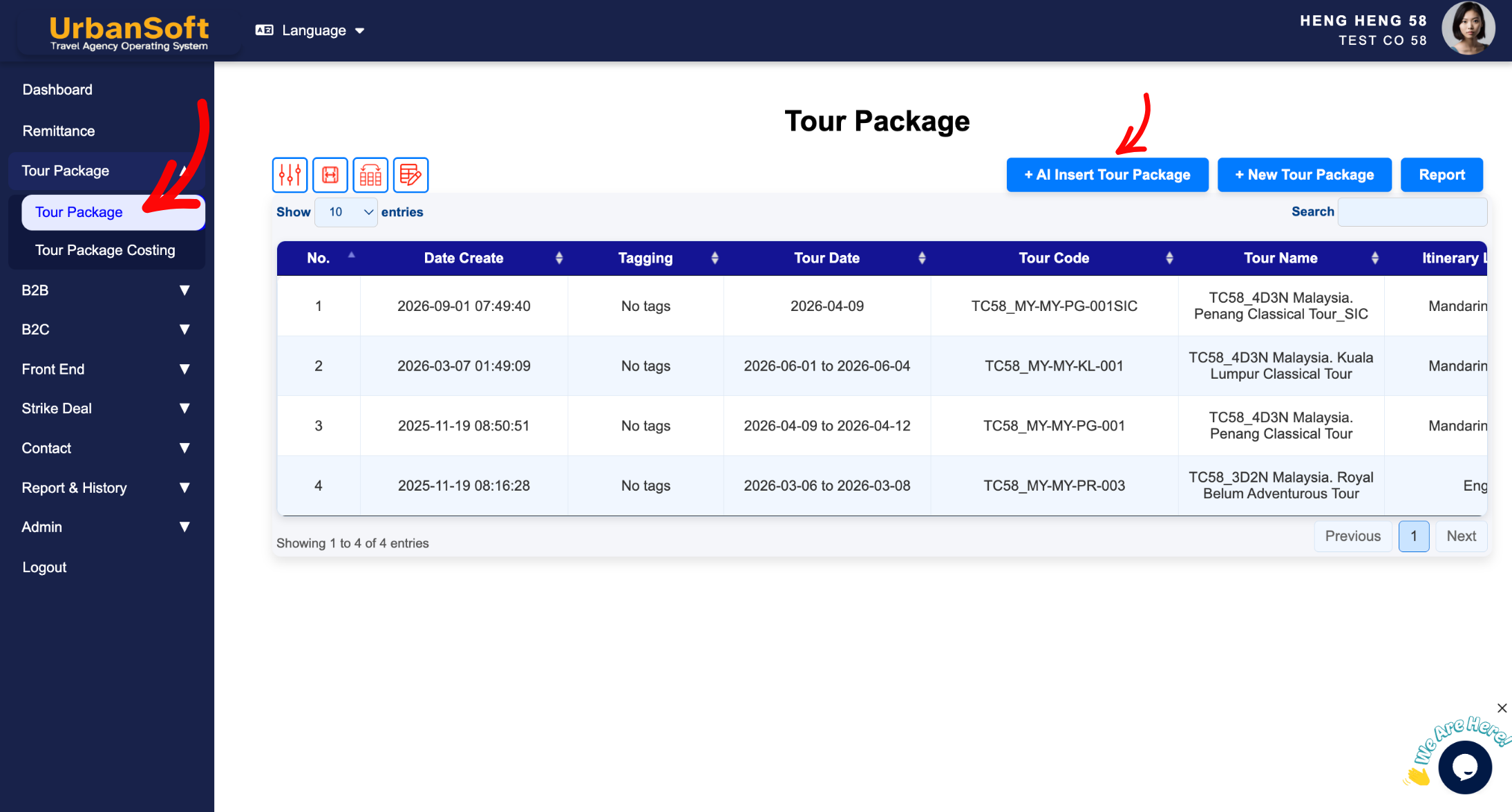
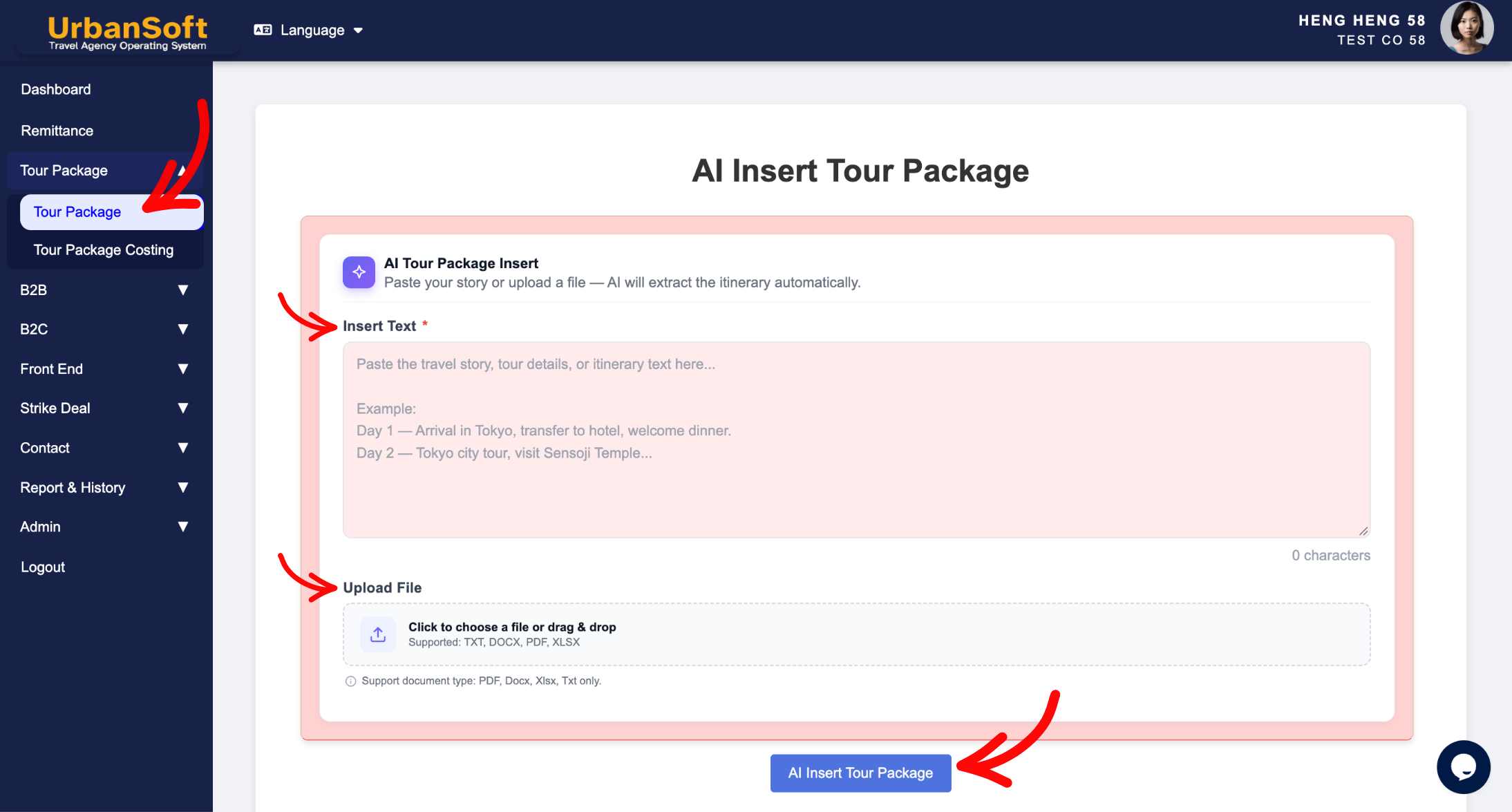
-
Log in to your UrbanSoft account using your credentials.
-
From the main navigation menu on the left, go to Tour Package > Tour Package, overhere will have tour package list table.
-
Click the AI Insert Tour Package button on the tour package list table page.
-
Paste your raw tour itinerary text into the provided AI prompt box, or upload your itinerary document via upload button.
-
Click AI Insert Tour Package button. System will prompt to message, credit will be needed to use this feature.
-
Confirm the feature request when prompted by the system, to start process with AI.
-
Wait a few seconds while the AI analyzes the content and automatically populates the fields for Basic Info, Day-by-Day Itinerary, Costing, Inclusions & Exclusions, Highlights and Meal Supplement.
-
Review and edit the generated content in each section to make any necessary adjustments.
-
Set up your Pricing (rates for adult/child/infant, and departure dates).
-
At highlight tab, upload high-resolution cover and gallery images for the package.
-
Refer this article for full detail explanation on how to building complete tour package. How to create new tour package manually?
-
Review all updated information to ensure accuracy.
-
Click Update at the bottom of the page to apply the changes.
Expected Result
UrbanSoft's AI will convert your unorganized itinerary into a fully formatted, structured tour package ready for sale, significantly reducing manual data entry time.
Important Notes
-
AI-generated itineraries serve as an intelligent draft; always perform a final sanity check on operational details.
-
You can further customize or enhance any AI-extracted field manually at any time.
Common Mistakes
-
Providing extremely vague or incomplete source text, leading to inaccurate AI generation.
-
Publishing the package immediately without verifying pricing, departure dates, or inclusions.
-
Forgetting to set inventory or currency rules after AI content generation.
Different Angles: Same Stories, Same Content, New Perspective
-
How do I use AI insert to auto-generate a tour package in UrbanSoft?
-
Can UrbanSoft AI convert my itinerary document into an active tour package?
Same Folder Articles
-
 How to create "New Tour Package" manually?
-
How to edit or update an existing "Tour Package"?
-
How to duplicate assisting "Tour Package"?
-
How to use "Ai Translate" to translate assisting tour package to another new other language tour package?
-
How to "Search and Filter" tour packages in Tour Package Index Table?
