.gif)
.gif)
.gif)

 How can I preset default information, for all Tour Packages in the "Admin > Setting" page?
This guide explains how to set up default configurations and information in UrbanSoft so that every new tour package you create automatically pre-fills with your preferred terms, conditions, notices, client request, and TI Brochure options.
When Do You Use This?
Use this feature when you want to establish consistent baseline information across all future tour packages, saving time and eliminating repetitive data entry during package creation.
Before You Start
You need:
-
Active login credentials to your UrbanSoft account with administrative access to settings.
-
The standardized information (such as general defaults, standard notices, client request, printing PDF, or TI brochure guidelines) that you want to apply across all tour packages.
Precautions:
-
Changes made on the Setting page will only apply to newly created tour packages moving forward; existing or previously created tour packages will remain unaffected.
-
You must scroll down and explicitly save each section you edit to ensure your updates are saved.
Step-by-Step
-
Log in to your UrbanSoft account.
-
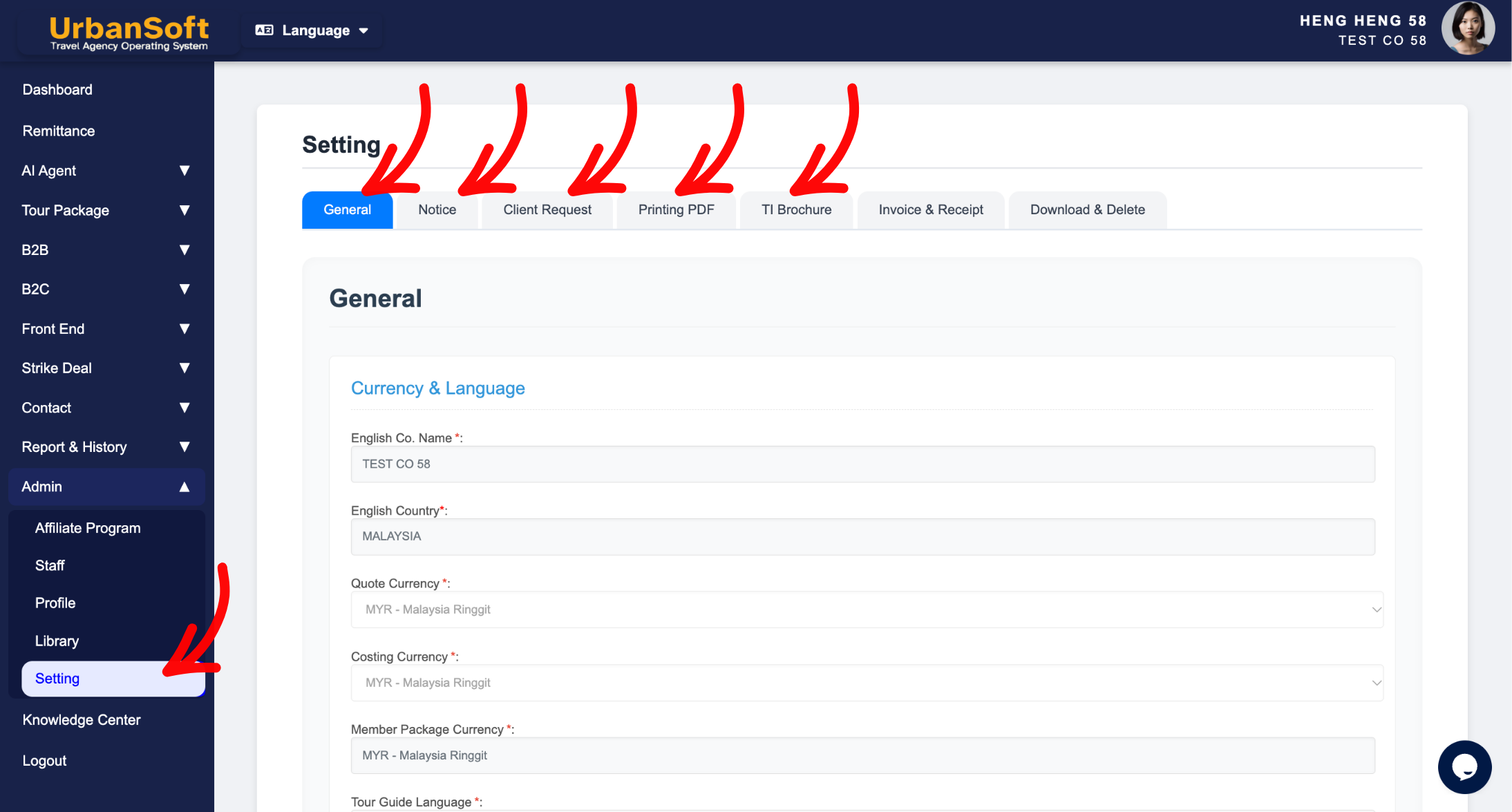
Go to Admin > Setting.
-
Review the available configuration sections, such as General, Notice, Client Request, Printing PDF, and TI Brochure.
-
Enter or update the default information you want to apply to all future tour packages.
-
Scroll down to the bottom of the section you modified and click Update.
-
Verify that your updates are saved successfully before navigating away.
Expected Result
Once saved, all newly created tour packages will automatically populate with your preset default information in the General, Notice, Client Request, Printing PDF, and TI Brochure sections.
Important Notes
-
You can still manually customize or override these preset details within individual tour packages after they are created.
-
Always click Update after modifying any input section to avoid losing your changes.
Common Mistakes
-
Forgetting to click Update before leaving or switching tabs.
-
Expecting preset settings to automatically update tour packages that were created before the settings were saved.
Different Angles: Same Stories, Same Content, New Perspective
-
How do I configure global default settings for new tour packages in UrbanSoft?
-
Where can I manage standard terms and notices for future tour pacakge?
Same Folder Articles
Related Articles
-
 How to reset the "Tour Guide Language" on Setting > General and Tour Package in UrbanSoft?
-
How to edit or update "My Setting"?
-
Will changes made on the "Setting" page, affect my existing "Tour Packages"?
-
What kind of details can be preset on the "Admin > Setting" page?
-
Can I modify Tour Package information, after setting defaults on the "Admin > Setting" page?
