.gif)
.gif)
.gif)

 How to change Setting > General and Tour Package "Itinerary Language" option?
This guide explains how language selection works for tour package itineraries in UrbanSoft. You will learn how your subscription plan (Starter vs. Launch plan and above) affects your ability to change itinerary languages and how to manage language settings.
When Do You Use This?
Use this guide when you want to create or edit a tour package in a specific language, or when you need to switch language options for your itinerary forms.
Before You Start
-
You need:
-
Authorized access to your UrbanSoft account settings and Tour Package module.
-
Knowledge of your current UrbanSoft subscription tier (Starter, Launch, etc.).
-
-
Precautions:
-
Starter plan users are limited to 1 time language change within a 14-day window after registration; after this window, the language setting is locked.
-
If you require multi-language support across tour packages, consider upgrading your subscription plan.
-
Step-by-Step
-
Log in to your UrbanSoft account with your credentials.
-
Check your current subscription tier under Admin > Profile.
-
For Starter Plan Users:
-
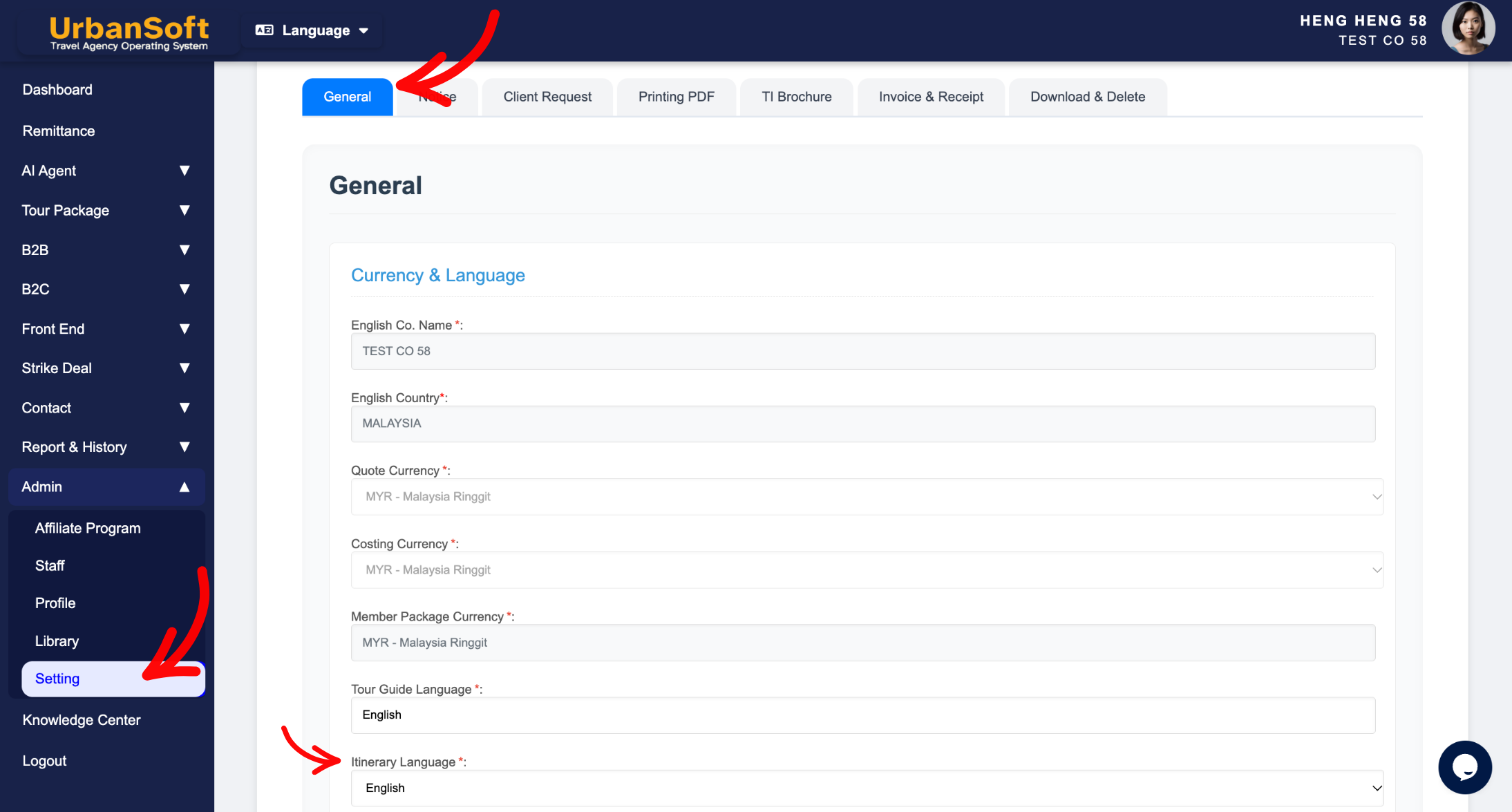
Navigate to Admin > Setting > General.
-
If you are within the 14-day window from registration, you may update your default language once.
-
If the 14-day period has passed or you have already changed it once, the language option will be locked on the platform.
-
To request a manual change after locking, send an email to care@urbansoft360.com or contact customer care.
-
-
For Launch Plan Users and Above:
-
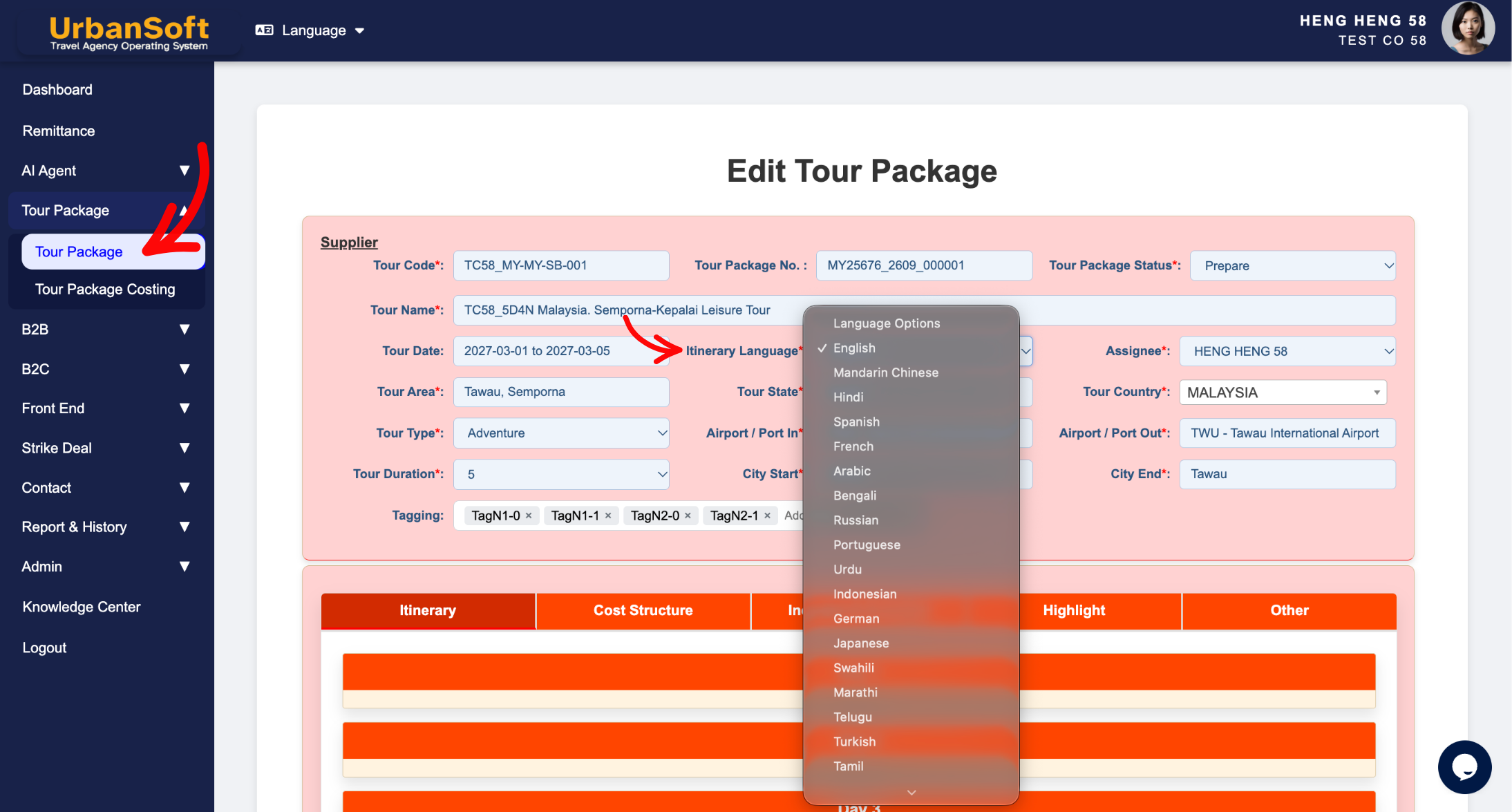
Go to Tour Package > Tour Package > Tour Package Index Table and click + Add New Tour Package or Edit on an existing package.
-
Select your desired itinerary language directly from the multi-language dropdown list inside the tour package form.
-
You still alow to set a default itinerary language under Admin > Settings > General; when you create a new tour package, the system will apply this default language, though you can still modify the itinerary language directly within the tour package form.
-
-
Click Update to apply your settings.
Expected Result
Launch plan users (and above) can seamlessly select and switch between multiple itinerary languages. Starter plan users will operate under their locked default language setting.
Important Notes
-
The tour package language option depends on the default language configured in your Setting page.
-
Starter plan users: Language changes are only permitted once within the first 14 days from registration under Admin > Setting > General. After that, the option is locked on the platform. To request a change, email care@urbansoft360.com.
-
Launch plan users and above: You can choose multiple languages directly from the dropdown list inside the tour package form.
-
To enable multi-language selection features, you must upgrade your subscription tier to at least the Launch plan. Please refer to How to upgrade or downgrade my subscription plan? for upgrade steps.
Common Mistakes
-
Assuming Starter plan users can change languages freely inside individual tour package forms.
-
Forgetting that the 14-day modification window starts from the exact account registration date.
-
Trying to edit locked language settings in the platform instead of contacting support via email.
Different Angles: Same Stories, Same Content, New Perspective
-
Why can't I change the itinerary language on my tour package form?
-
How do I enable multi-language itinerary dropdowns in UrbanSoft?
-
Why am I unable to select language options when adding a new tour package?
-
Can I enable multiple languages when creating a tour package?
-
Why can't I select a itinerary language?
Same Folder Articles
Related Articles
-
 How to create "New Tour Package" manually?
-
How to use "Ai Translate" to translate assisting tour package to another new other language tour package?
-
How to edit or update "My Setting"?
-
How to reset the "Tour Guide Language" on Setting > General and Tour Package in UrbanSoft?
-
How to "Upgrade or Downgrade" my subscription plan?
