.gif)
.gif)
.gif)

 How to upload files in my "Company Profile"?
This guide explains how to upload media files and official verification documents in your Company Profile within UrbanSoft. You will learn about the supported file formats, file size limits, and where to upload files for company branding and official compliance.
When Do You Use This?
Use this feature when completing your company profile setup, updating your marketing media assets, or submitting official business licenses and registration certificates to earn Recommended Badges on the platform.
Before You Start
-
You need:
-
Administrator access to your UrbanSoft backend account.
-
Your company media assets or official compliance documents saved on your local device.
-
-
Precautions:
-
Supported Formats: Word, Excel, Text, PDF, PNG, JPG, JPEG.
-
File Size Limit: Must be under 6MB per file.
-
Ensure scanned documents or photo uploads are clear, legible, and uncropped before submitting.
-
The official documents only for UrbanSoft, no others party can view.
-
Step-by-Step
-
Log in to your UrbanSoft account using your administrative credentials.
-
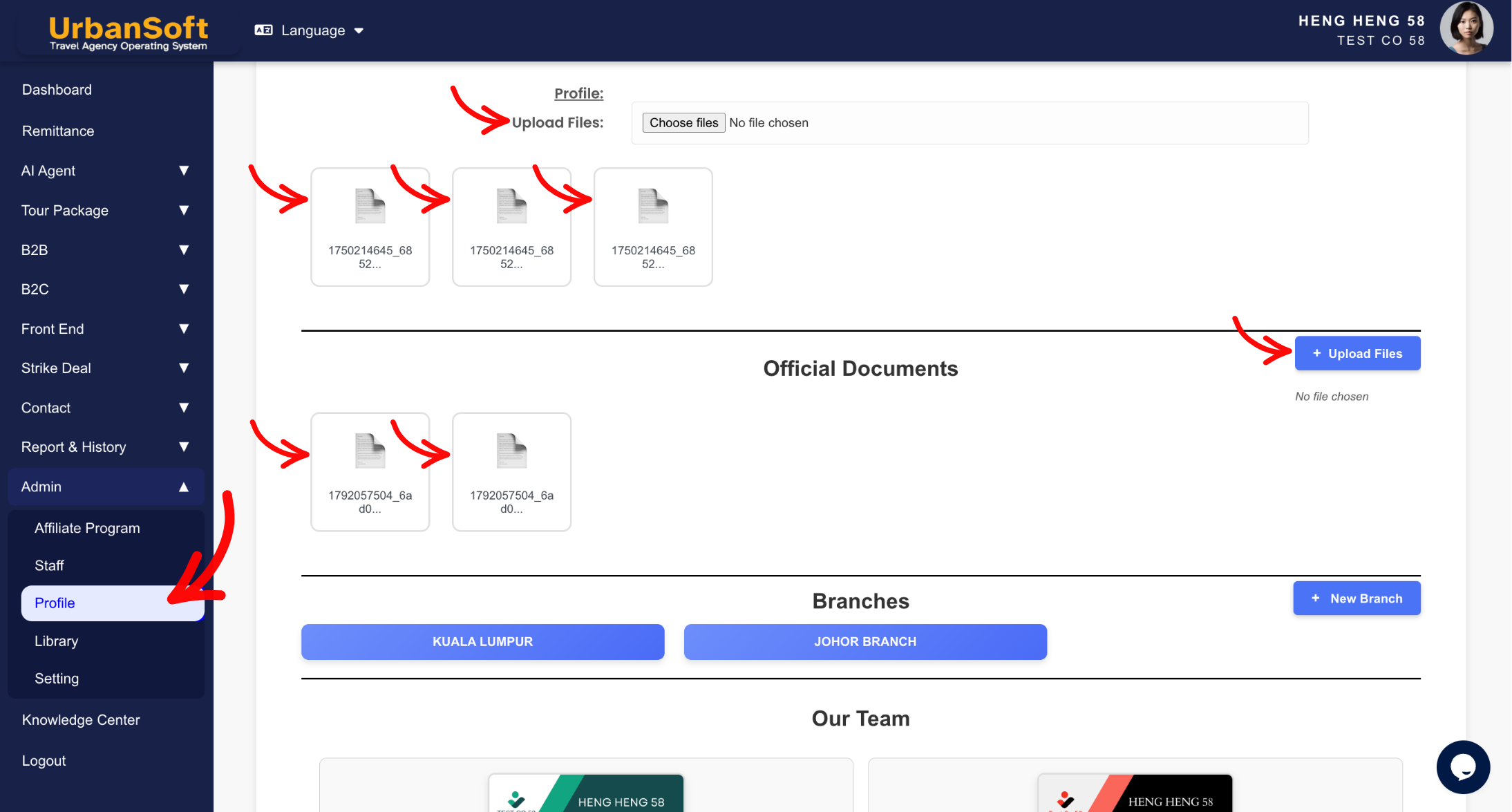
From the main menu on the left, navigate to Admin > Profile.
-
To Upload Company Profile Media Files:
-
Locate the Profile: Upload Files section.
-
Click Upload Files / Browse to select company media or promotional documents (Word/Excel/Text/PDF/PNG/JPG/JPEG under 6MB).
-
-
To Upload Official Compliance Documents:
-
Scroll down to the Official Documents: Upload Files section.
-
Click Upload Files / Browse to select official verification documents (Word/Excel/Text/PDF/PNG/JPG/JPEG under 6MB), such as:
-
Company Registration Certificate (e.g., SSM / Business License)
-
Tourism Licence
-
Office Photos (Clear photos of office inside and outlook with signboard)
-
This official documents only for UrbanSoft, no others party can view.
-
-
-
Verify that the files appear in the uploaded attachments list.
-
Scroll to the bottom of the page and click Update to apply changes or submit for badge verification.
Expected Result
Your company media files will be saved to your profile, and official documents will be submitted to UrbanSoft for verification to earn Recommended Badges (Verified, Trusted, or Priority).
Important Notes
-
Upload Files & Documents:
-
Upload your company profile media under Profile: Upload Files (Support Word/Excel/Text/PDF/PNG/JPG/JPEG under 6MB).
-
Upload official licences or certificates under Official Documents: Upload Files (Support Word/Excel/Text/PDF/PNG/JPG/JPEG under 6MB).
-
Official Documents: Upload and submit official documents—like Company Registration Certificate, Tourism Licence, and Office Inside & Outlook photos with signboard—to receive Recommended Badges.
-
-
Always ensure files are under 6MB and in supported formats before attempting to upload.
-
This official documents only for UrbanSoft, no others party can view.
-
Always click Update after uploading files to ensure they are properly recorded.
Common Mistakes
-
Uploading files exceeding the 6MB size limit or using unsupported file extensions.
-
Forgetting to click Update after attaching files to the profile form.
-
Submitting blurry or unreadable scanned official licenses, which delays badge approval.
Different Angles: Same Stories, Same Content, New Perspective
-
Where do I attach my business registration and tourism license in UrbanSoft?
-
What are the file size and format limits for uploading company profile documents?
 How to set up my "Company Profile"?
