.gif)
.gif)
.gif)

 How can I get "Recommended Badges"?
This guide explains how to earn and manage Recommended Badges (Verified, Trusted, Priority) in UrbanSoft. You will learn the eligibility requirements for each badge tier and how submitting official verification documents enhances your account status on the platform.
When Do You Use This?
Use this feature when completing your company profile setup to boost your credibility, unlock higher partner trust levels, and showcase verified operational credentials to B2B buyers and platform partners.
Before You Start
-
You need:
-
Authorized administrator access to your UrbanSoft backend.
-
Scanned copies or photo files of your official company compliance documents prepared on your local device.
-
-
Precautions:
-
Ensure uploaded document images are clear, legible, and uncropped.
-
Verify that all licenses and registration certificates are current and unexpired.
-
Upload Files (Support Word/Excel/Text/PDF/PNG/JPG/JPEG under 6MB) .
-
This official documents only for UrbanSoft, no others party can view.
-
Step-by-Step
-
Log in to your UrbanSoft account using your administrative credentials.
-
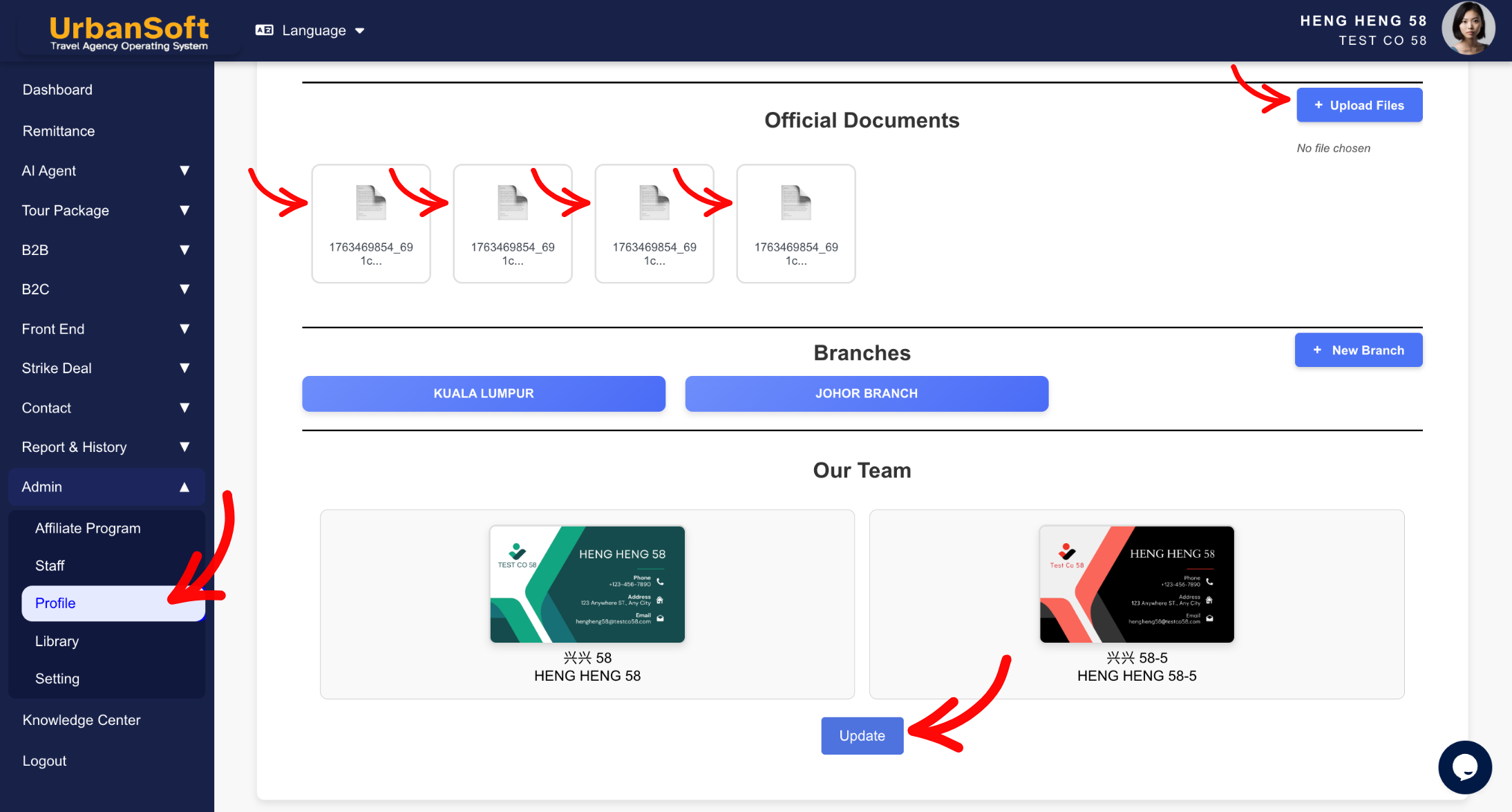
From the main menu on the left, navigate to Admin > Profile.
-
Scroll to the Official Documents section.
-
Upload your required official documents:
-
Company Registration Certificate (e.g., SSM / Business License)
-
Tourism Licence
-
Office Photos (Clear photos of office exterior/outlook showing company signboard, and office interior)
-
Additional compliance or tax documents as needed.
-
Support Word/Excel/Text/PDF/PNG/JPG/JPEG under 6MB.
-
This official documents only for UrbanSoft, no others party can view.
-
-
Click Update at the bottom of the page to submit your documents to UrbanSoft for verification.
-
After submit the documents, do email to care@urbansoft360.com or send your message here.
-
UrbanSoft support will audit your submitted documents and automatically assign the appropriate badge to your profile.
-
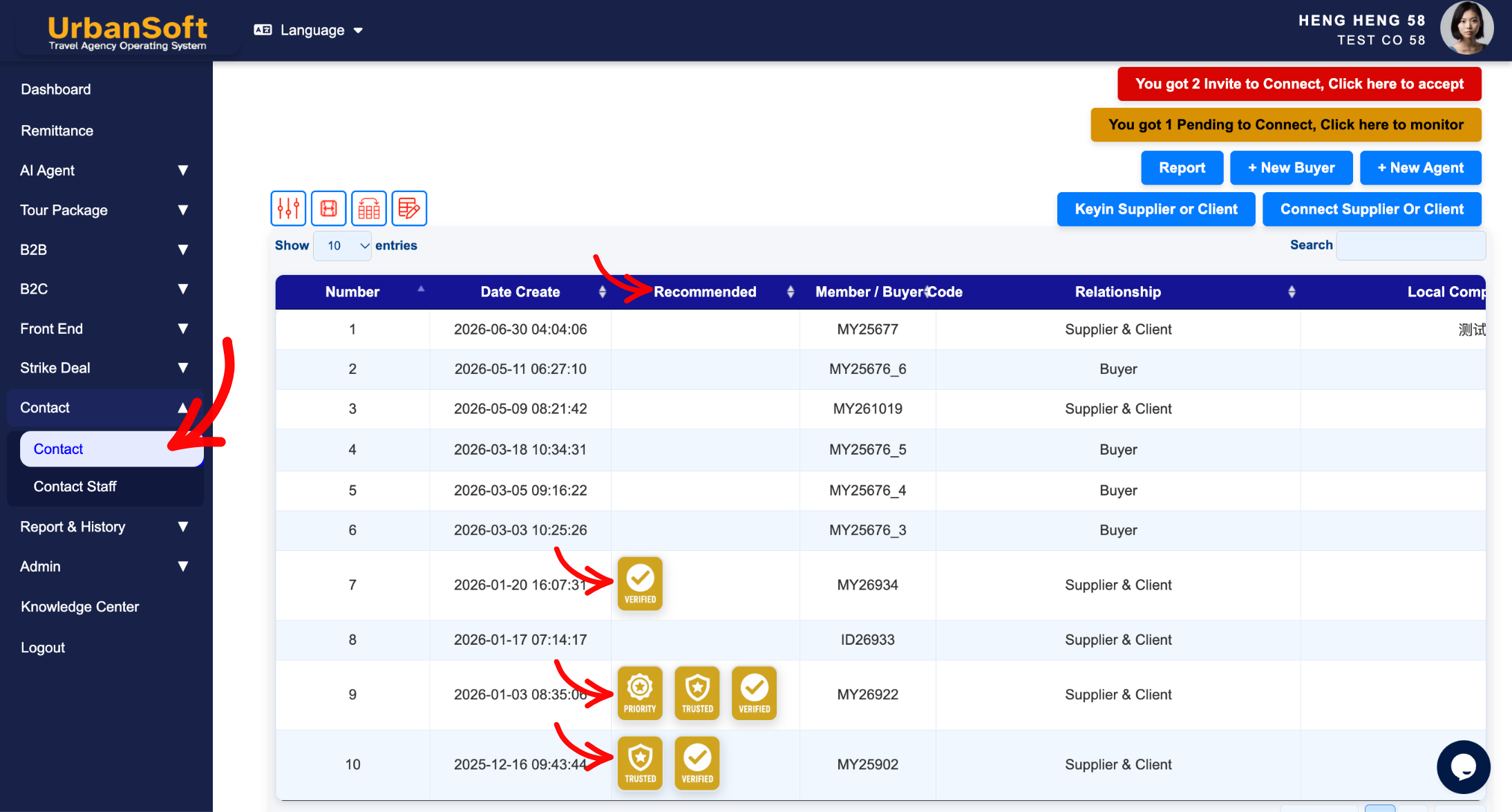
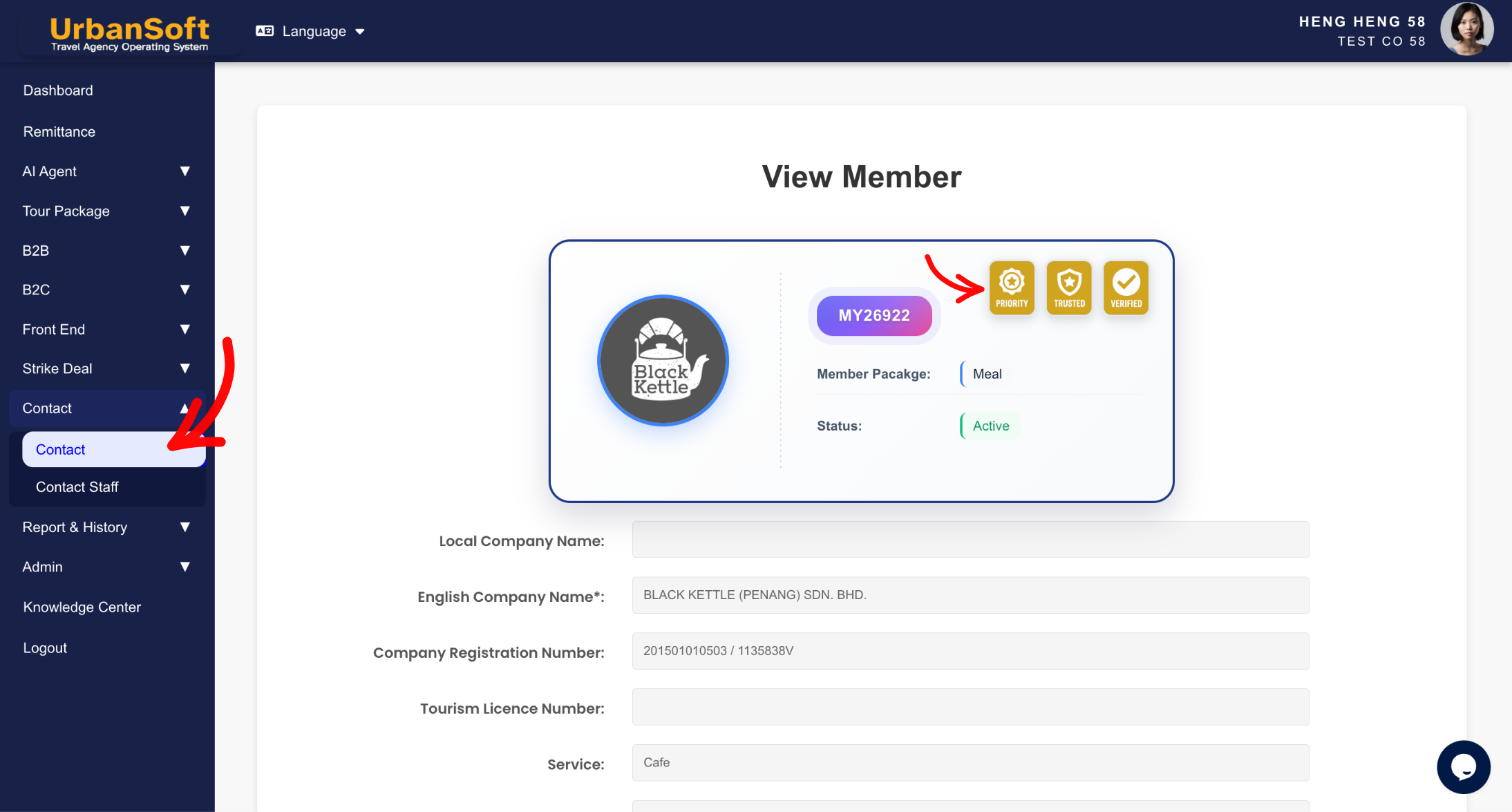
When you connect with other industry partners, your company profile and recommended badges will appear in their Contact Index Table. This enhances your visibility and credibility, thereby creating more opportunities for successful deals and collaborations.
Expected Result
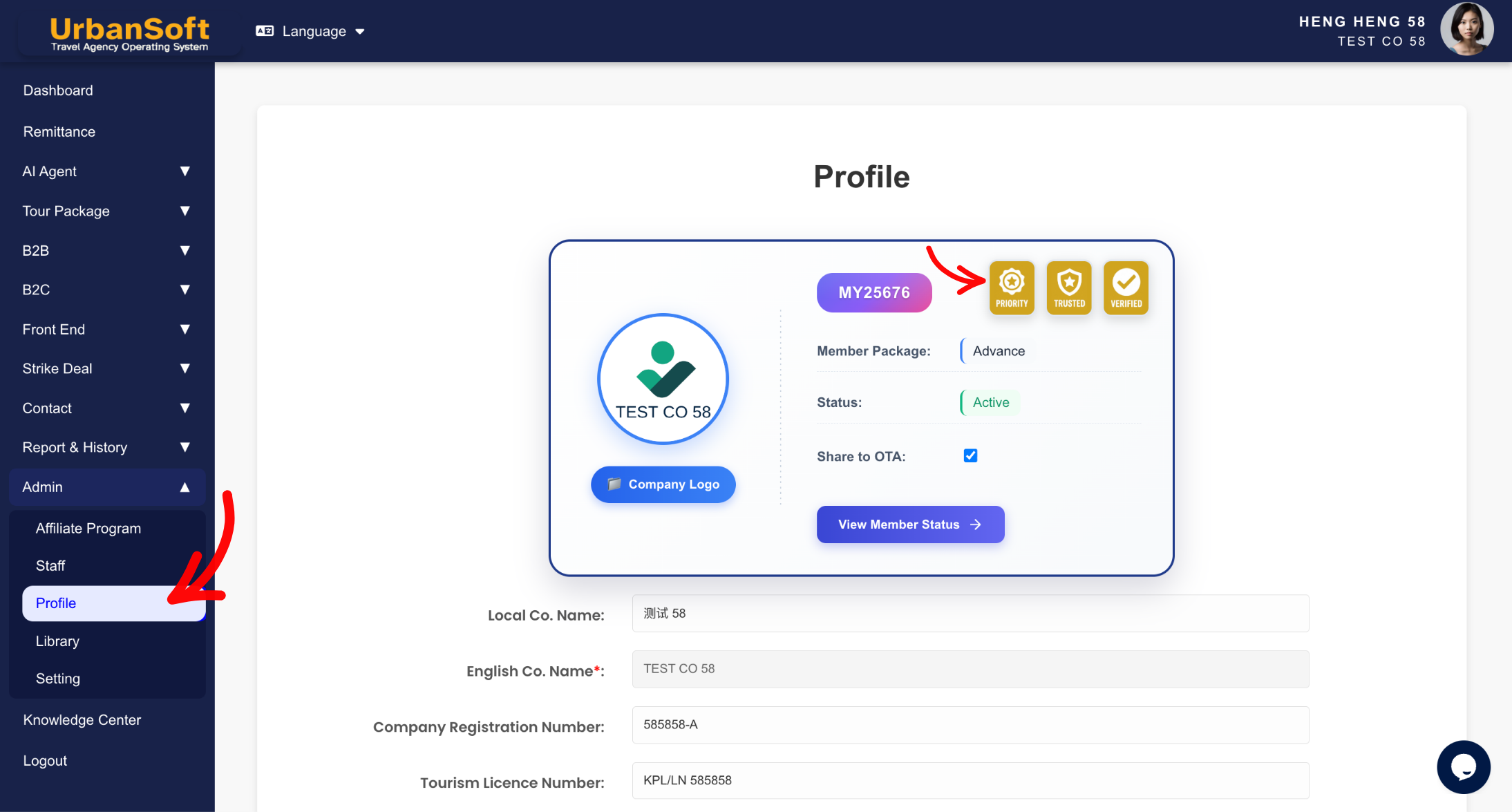
Once reviewed and approved by UrbanSoft, your awarded badge (Verified, Trusted, or Priority) will appear on your Company Profile and system-generated documents, confirming your trusted status to platform users and B2B buyers.
Important Notes
-
Badge Eligibility Breakdown:
-
Verified: Awarded for Starter plan users + valid Official Documents.
-
Trusted: Awarded for Launch to Premium plan users + valid Official Documents.
-
Priority: Awarded for Elite plan users + valid Official Documents, OR Launch until Premium plan users + valid Official Documents + 10 referred companies who purchase the UrbanSoft system via the affiliate program.
-
-
Official Documents Required: To receive Recommended Badges, you must upload and submit official verification documents including Company Registration Certificate, Tourism Licence, and Office Inside & Outlook photos with company signboard.
-
Upload Files (Support Word/Excel/Text/PDF/PNG/JPG/JPEG under 6MB) .
-
This official documents only for UrbanSoft, no others party can view.
Common Mistakes
-
Uploading blurry or unreadable photos of tourism licenses or company signboards.
-
Forgetting to click Update after uploading official document files.
-
Expecting a Priority or Trusted badge without upgrading subscription plans or fulfilling referral requirements.
Different Angles: Same Stories, Same Content, New Perspective
-
What are the requirements to unlock the Verified, Trusted, and Priority badges in UrbanSoft?
-
Where do I upload my tourism license and office photos for account verification?
 How to set up my "Company Profile"?
