.gif)
.gif)
.gif)

 What information should be include in the "Admin > Library > Transaction Tagging" tab?
The Admin > Library > Transaction Tagging tab in UrbanSoft serves as a centralized categorization and accounting classification module. It allows travel agencies to create custom 2-tier tagging hierarchies (Tag Groups and Tag Names) to categorize financial transactions, tour package bookings, and operational expenses. These custom tags provide enhanced reporting, filtering, and cross-departmental expense tracking across the platform.
What Can I Do?
You can structure and manage your agency's transaction metadata using the following key functions:
-
Create & Organize Tag Groups: Establish primary categorization folders (e.g., "Marketing Expenses", "Supplier Category", or "Regional Sales") to group related transactional tags.
-
Define & Assign Specific Tag Names: Create granular individual tags and map them directly under their parent Tag Groups for precise accounting classification.
-
Maintain & Edit Tagging Hierarchies: Modify tag group names, reassign individual tags to different parent groups, or delete obsolete tags from your library.
-
Streamline Reporting & Operations: Apply custom tags across transaction vouchers, costing sheets, and booking records for filtered financial reporting and audit tracking.
Field Definitions & Operational Guidance
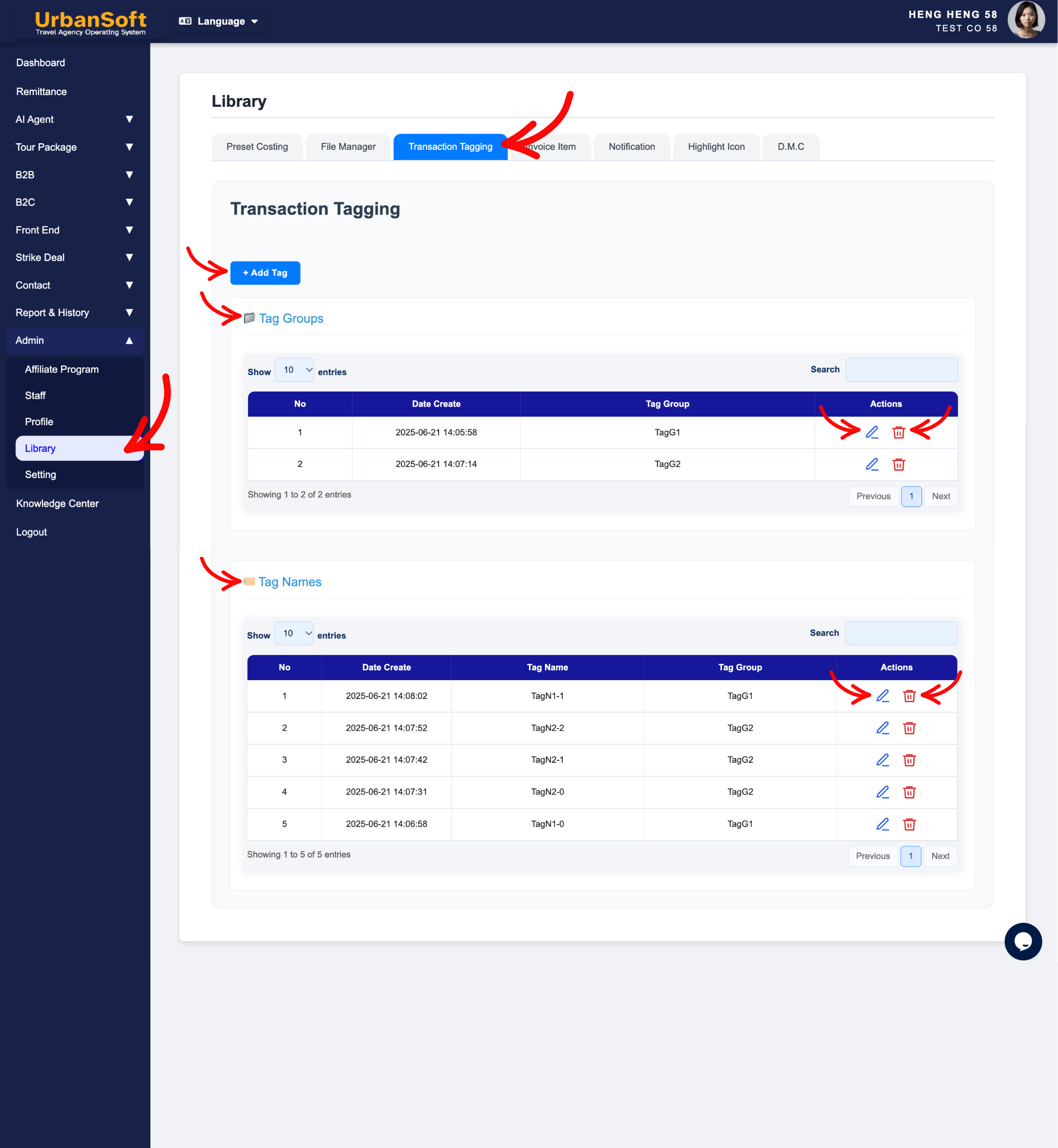
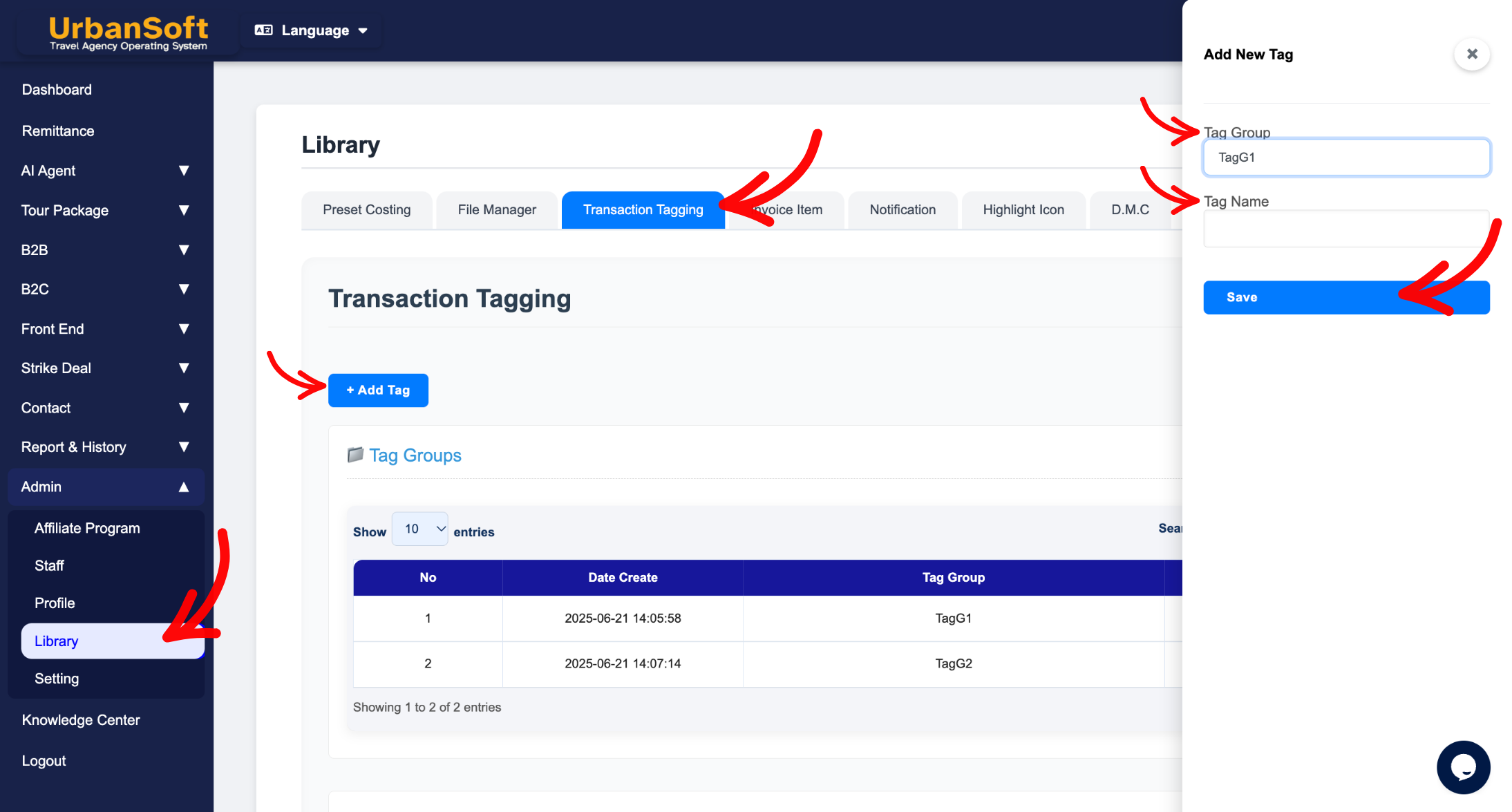
1. Tag Groups Management (Tag Groups Index Table)
-
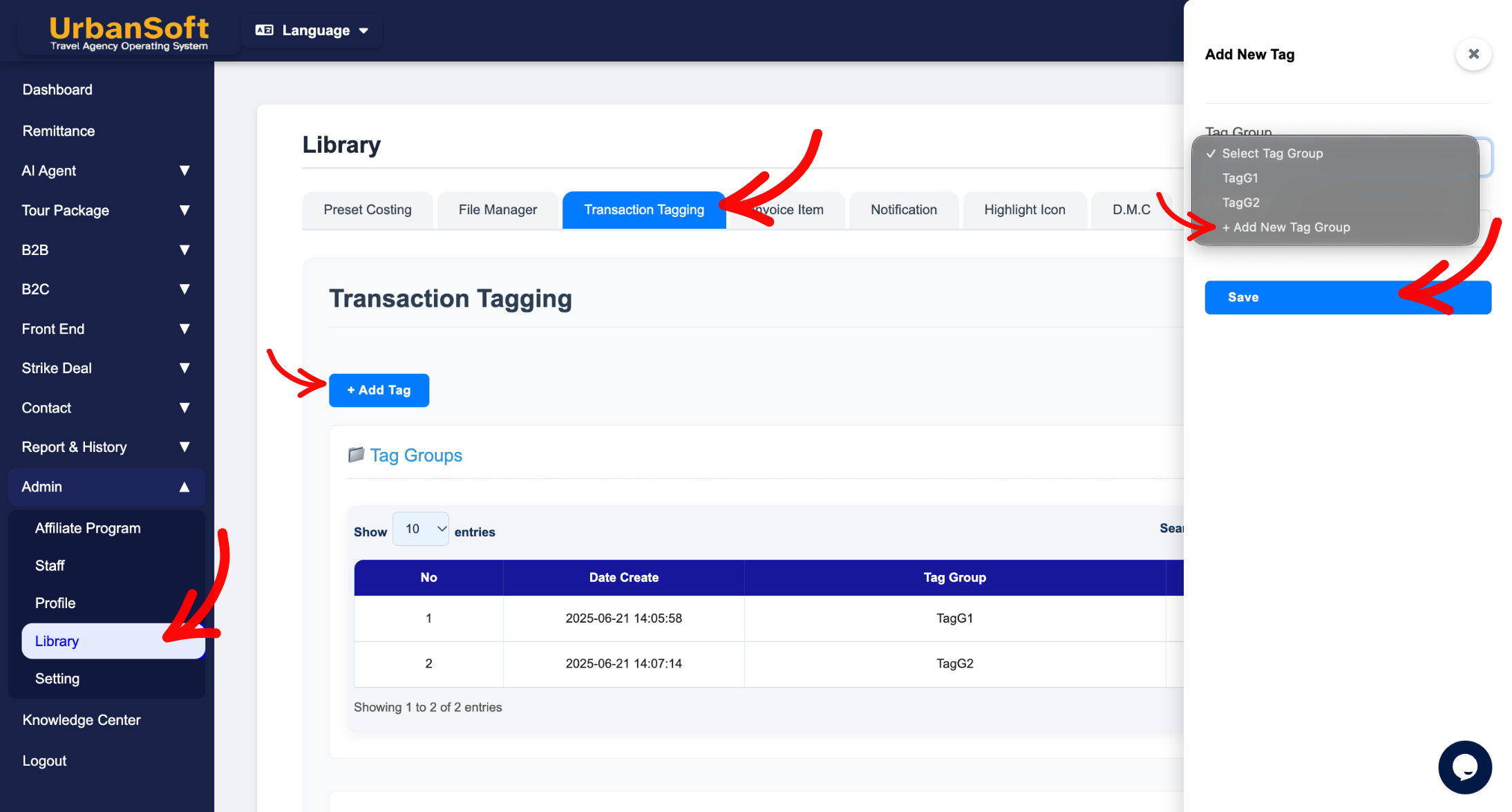
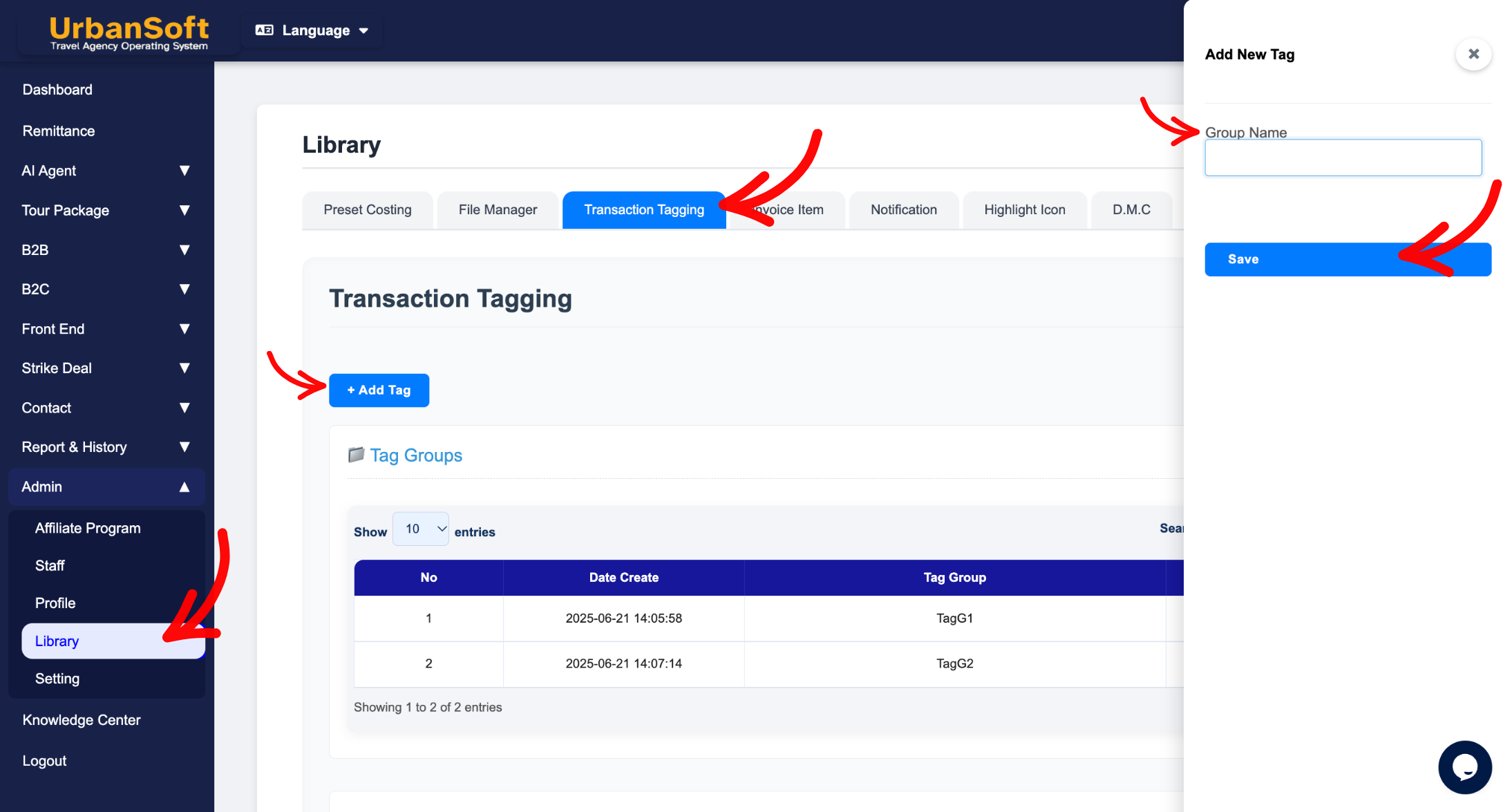
Add New Tag Group: Click
+ Add Tag> select+ Add New Tag Group, enter the Tag Group Name (e.g.,"Department Cost Center"), and click Save. -
Manage Tag Groups: Use the inline action buttons on any row to Edit, Cancel, or Delete existing tag groups.
-
Edit Tag Group: Click Edit to update the Tag Group Name and click Save to apply changes globally.
2. Tag Names Management (Tag Names Index Table)
-
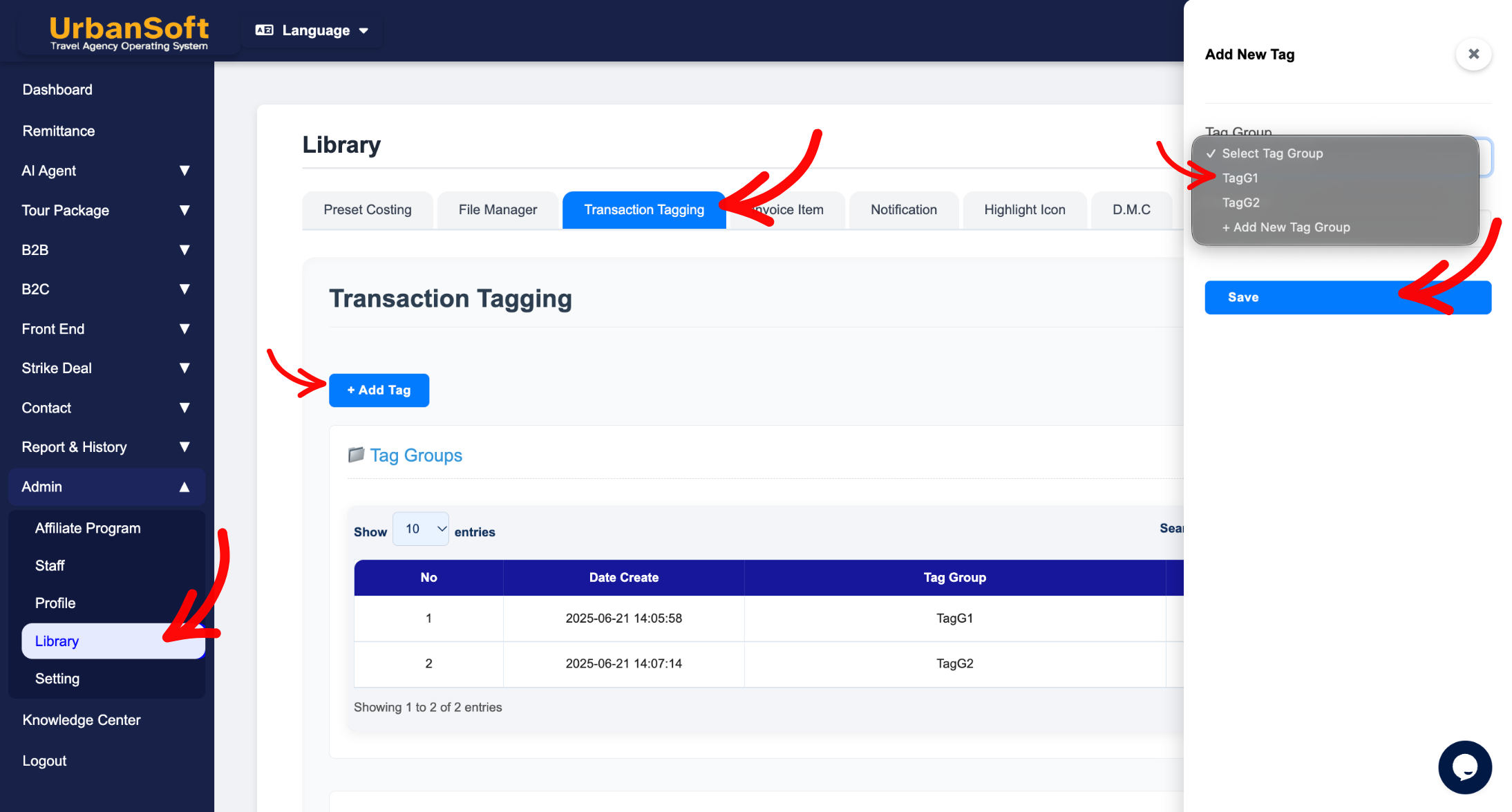
Add New Tag Name: Click
+ Add Tag> select the parent Tag Group belonging from the dropdown, enter the specific Tag Name (e.g.,"Social Media Ads"or"Inbound Transport"), and click Save. -
Manage Tag Names: Use the inline action buttons on any row to Edit, Cancel, or Delete specific tag entries.
-
Edit Tag Name & Mapping: Click Edit to modify the Tag Name or reassign its parent Tag Group belonging, then click Save.
Example
When setting up expense categories for a travel agency's marketing and operations teams:
-
Navigate to Admin > Library > Transaction Tagging.
-
Click
+ Add Tag>+ Add New Tag Group, type "Marketing & Promotion", and click Save. -
Click
+ Add Tag> select "Marketing & Promotion" as the Tag Group belonging, enter Tag Name: "Google Search Ads", and click Save. -
Repeat the process to add "Facebook Ads" and "Trade Show Booths" under the same group. When recording promotional expenses, finance staff can attach these exact tags for detailed ledger reporting.
Important Notes
-
Establishing clear, standardized Tag Groups and Tag Names under
Admin > Library > Transaction Taggingprevents duplicate entries and ensures consistent financial reporting across departments. -
Editing or renaming a tag entry in the Library automatically updates all associated historical records without breaking transaction references.
Different Angles: Same Stories, Same Content, New Perspective
- What tag groups, tag names, parent group mappings, and index table controls make up the Admin > Library > Transaction Tagging tab in UrbanSoft?
Same Folder Articles
Related Articles
-
 What information should be include in the "Admin > Library > Preset Costing" tab?
-
What information should be include in the "Admin > Library > File Manager" tab?
-
What information should be include in the "Admin > Setting > General" tab?
-
What information should be include in the "Admin > Setting > Invoice & Receipt" tab?
-
What information should be include in the "Tour Package Basic Information" tab?
