.gif)
.gif)
.gif)

 How to edit, update and delete "Company Branch"?
This guide explains how to edit, update, or remove existing company branch records in UrbanSoft. You will learn how updating branch details works and how deleting a branch restores your available branch balance while permanently erasing that branch's data.
When Do You Use This?
Use this feature when a branch changes its physical address, phone number, or key contact person, or when a branch location is officially closed and you want to free up your branch allocation limit.
Before You Start
-
You need:
-
Authorized administrator credentials for your UrbanSoft account.
-
-
Precautions:
-
Data Loss Warning: Deleting a branch permanently erases all associated branch information from the system without retaining historical data.
-
Deleting an existing branch will automatically release one branch slot, increasing your available branch quota balance by one (+1).
-
Step-by-Step
-
Log in to your UrbanSoft account using your administrative credentials.
-
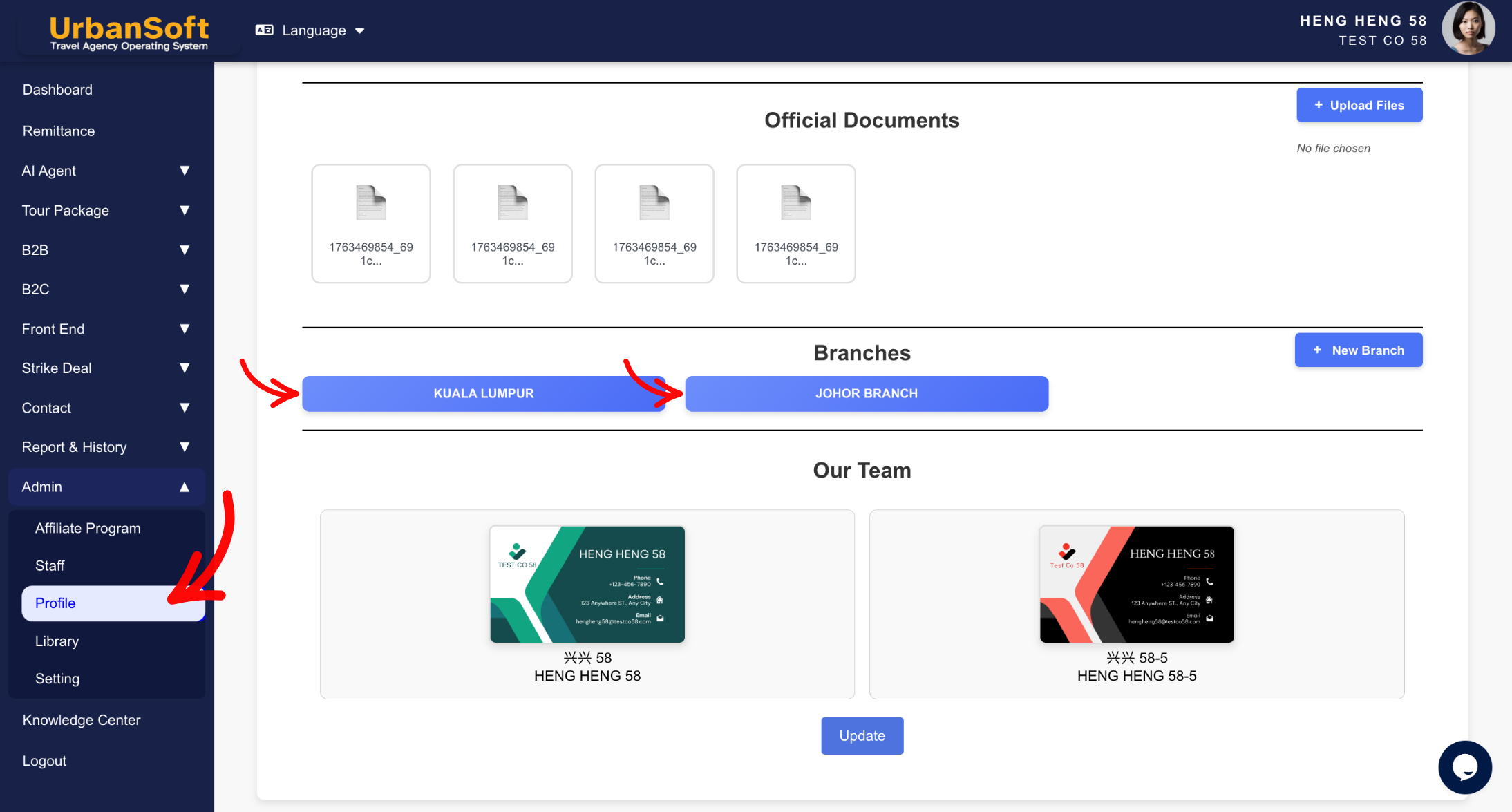
From the main menu on the left, navigate to Admin > Profile.
-
Scroll down to the Branches section to view your listed branch offices.
-
To Edit or Update a Branch:
-
Locate the specific branch you wish to modify.
-
Click the Branch Name blue button.
-
Update the relevant fields (e.g., Branch Name, Address, Contact Person, Phone, Email), mostly similar to company profile, refer to company profile for more detail explanation.
-
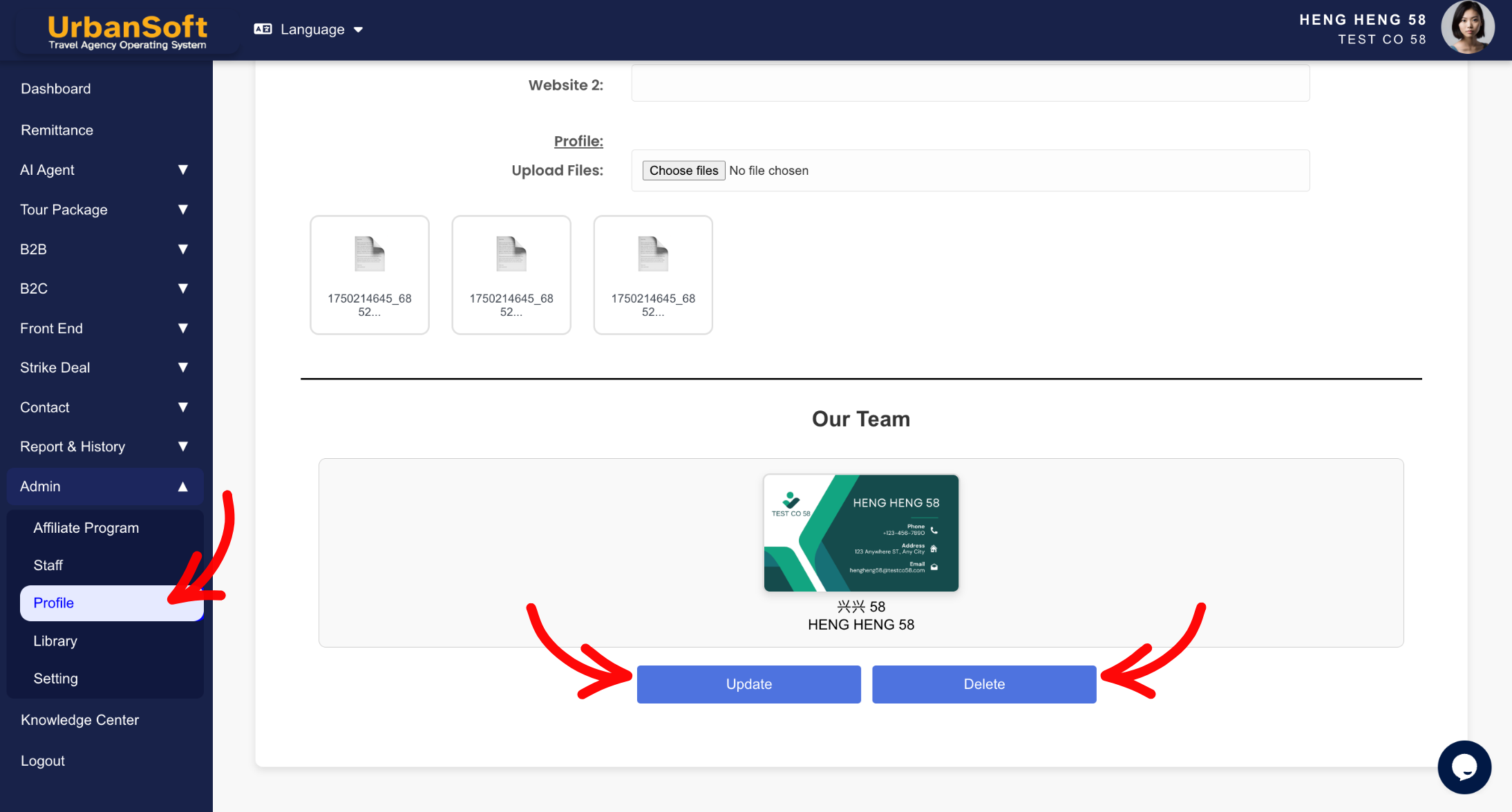
Click Update to apply your changes.
-
-
To Delete a Branch:
-
Locate the branch you wish to remove.
-
Click the Branch Name blue button.
-
Scroll down to the Delete button beside Update button.
-
Confirm the deletion prompt when asked by the system.
-
The branch record will be permanently deleted, and your branch balance quota will increase by one (+1).
-
Expected Result
Updated branch details will immediately reflect across your profile and official documents. Deleting a branch will permanently remove its records and restore one unit (+1) to your available branch balance, allowing you to register a new branch if needed.
Important Notes
-
Branch Balance Effect: Deleting 1 company branch will add +1 back to your remaining branch quota balance.
-
Permanent Removal: Deleted branch information is NOT retained or archived in the system. Ensure you back up any necessary details before confirming deletion.
-
Always double-check branch information before saving edits or confirming deletion.
Common Mistakes
-
Deleting a branch assuming the system will archive or retain historical branch contact details for recovery.
-
Forgetting to click Update after editing branch information.
Different Angles: Same Stories, Same Content, New Perspective
-
How do I update my branch office address and contact number in UrbanSoft?
-
What happens to my branch quota balance when I remove an old branch?
 How to set up my "Company Profile"?
