.gif)
.gif)
.gif)

 How to add "Company Branch"?
This guide explains how to add and manage additional Company Branches in UrbanSoft. You will learn how company branch allocations work based on your subscription tier (membership plan) and how to upgrade your plan or top up deposit if you reach your branch limit.
When Do You Use This?
Use this feature when your business expands to multiple physical office locations or regional branches and you need to register new branch details under your main UrbanSoft account.
Before You Start
-
You need:
-
Authorized administrator access to your UrbanSoft account.
-
Information for the new branch (branch name, address, contact numbers, and branch officers).
-
-
Precautions:
-
The number of allowable branches is strictly determined by your current Membership Package (Starter, Launch, Growth, Advance, Premium, Elite).
-
If your current membership plan has reached its branch quota limit, you must upgrade to a higher membership plan before you can add a new branch.
-
Step-by-Step
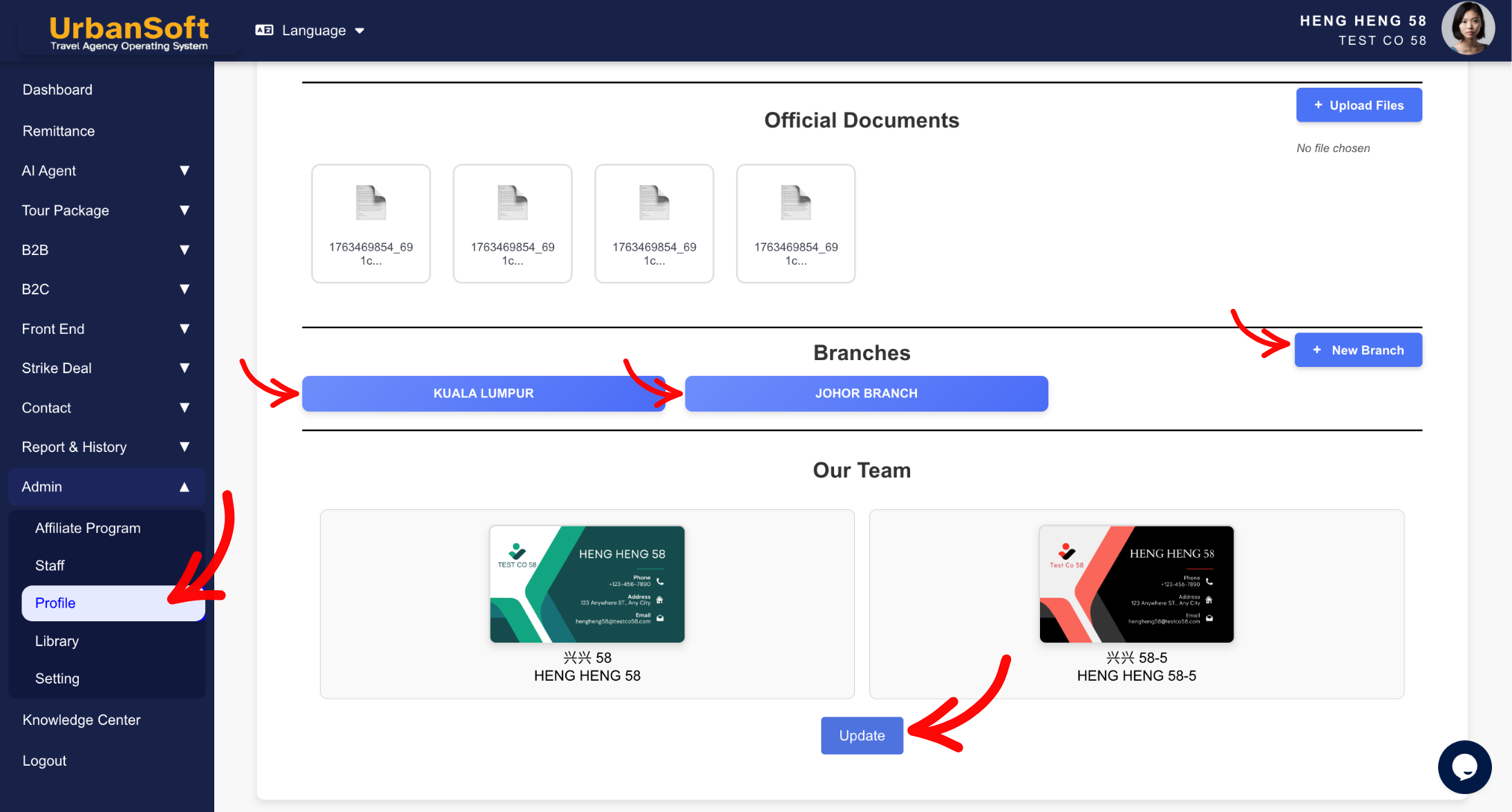
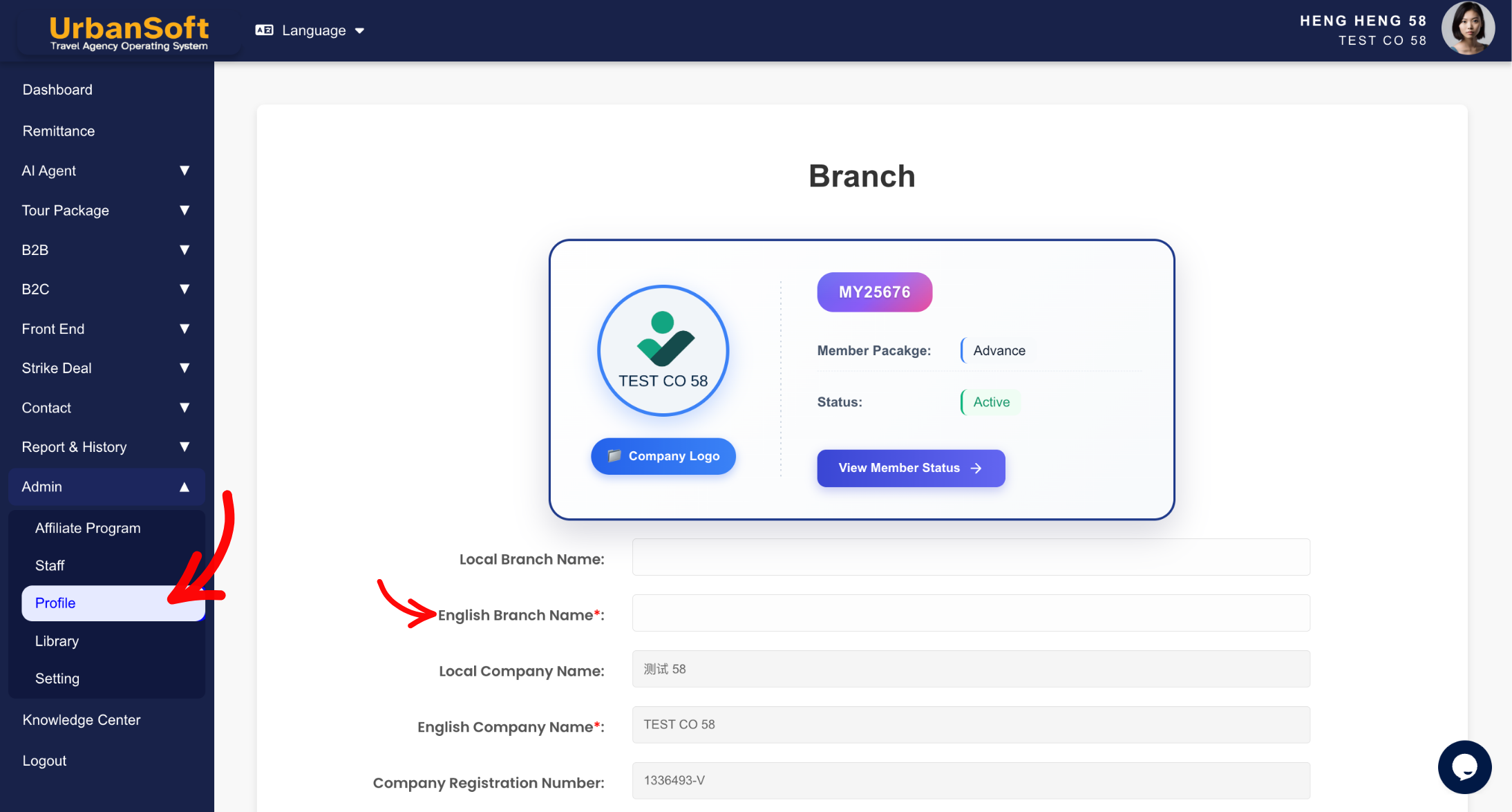
-
Log in to your UrbanSoft account using your administrative credentials.
-
Navigate to Admin > Profile.
-
Scroll down to the Branches section.
-
If your current plan has remaining branch quota:
-
Click + Add New Branch.
-
Enter the branch details (Branch Name, Address, Contact Person, Phone, Email etc), mostly similar to company profile, refer to company profile for more detail explanation.
-
Click Update to add the branch.
-
-
If you have reached your plan's branch limit:
-
To increase your allowed branch limit, you must upgrade your membership to a higher tier.
-
Go to Report & History > Transaction > click +Top Up Credit / Upgrade.
-
Alternatively: Go to Report & History > Order History > click +Top Up Credit / Upgrade.
-
Select a higher membership tier (e.g., Growth, Advance, Premium, Elite) that includes additional branch allocations.
-
Complete the plan upgrade process.
-
Return to Admin > Profile > Branches to add your new branch.
-
Expected Result
Once your membership plan supports the additional branch quota, your new company branch will be added to your profile and reflected across relevant system operations and official documents.
Important Notes
-
The number of company branches you can add depends directly on the quota allocated by your membership package.
-
To increase the number of allowed branches, you need to upgrade your membership to a higher level.
-
Access the upgrade menu via:
-
Report & History > Transaction > +Top Up Credit / Upgrade
-
Report & History > Order History > +Top Up Credit / Upgrade
-
Common Mistakes
-
Attempting to add a new branch when your current membership tier has already reached its maximum branch allowance without upgrading first.
-
Forgetting to click Update after filling in the new branch details under the Profile section.
Different Angles: Same Stories, Same Content, New Perspective
-
Why can't I add another branch office to my UrbanSoft profile?
-
How do I upgrade my membership plan to get more company branch slots?
 How to set up my "Company Profile"?
