.gif)
.gif)
.gif)

 What information should be include in the "Admin > Setting > Download & Delete" tab?
The Admin > Setting > Download & Delete tab in UrbanSoft is a high-security administrative module used to perform full account data exports or execute account file purges. It allows travel administrators to compress and export all media files, documents, costing worksheets, brochures, and traveler passports into a consolidated ZIP archive. Furthermore, it houses the system file deletion utility, which requires a strict 3-step security verification protocol to prevent accidental or unauthorized data destruction.
What Can I Do?
You can manage account backups and data maintenance using the following high-level features:
-
Export Full Offline Backup Archive: Compress and download all stored images, documents, costing worksheets, brochures, and passport attachments into a single ZIP file.
-
Execute System File Purges (Extreme Caution Required): Permanently erase all stored attachments and media files from your account using a multi-layer authorization flow.
-
Maintain Compliance & Audit Archives: Perform scheduled regular backups to comply with data retention policies, audit requirements, or local data protection laws.
Field Definitions & Operational Guidance
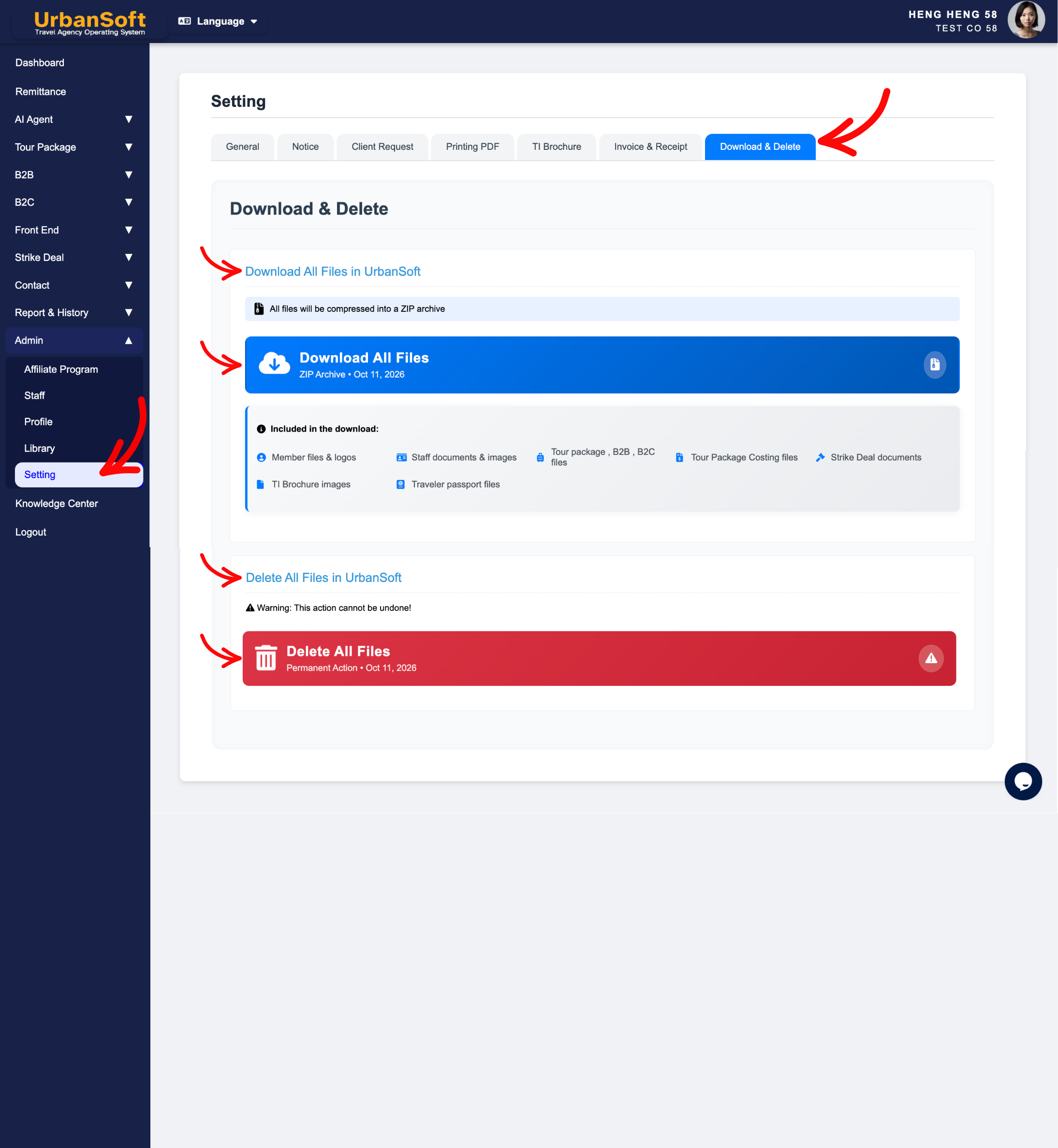
1. Download All Files in UrbanSoft
-
Download All Files: Click this action button to generate and download a complete ZIP archive containing all media files, documents, and attachments stored across your company's UrbanSoft workspace.
-
Included in Download Archive:
-
Member files, company logos, and administrative branding assets.
-
Staff identity documents, user profile images, and credential files.
-
Tour package media resources, route maps, and attraction photos.
-
B2B & B2C quotation attachments, proposal documents, and itineraries.
-
Tour package costing worksheets and internal margin spreadsheets.
-
Strike deal documents and confirmed booking attachments.
-
TI brochure media assets, cover designs, and promotional images.
-
Traveler passport copies and identity files.
-
-
Best Practice: Perform this complete backup regularly (e.g., monthly or quarterly) or prior to making major system-wide updates to ensure an offline data archive is maintained for audit and compliance purposes.
2. Delete All Files in UrbanSoft
-
Delete All Files: A high-security system purge command designed to permanently wipe all stored media attachments, passport copies, and documents from your account workspace.
-
3-Time Confirmation Security Protocol: Requires a strict 3-step security verification process, including entering a unique special One-Time Authorization (OTA) code requested directly from UrbanSoft official support to prevent accidental data loss.
-
Warning Notice: This action is irreversible! Once executed, all stored images, documents, brochures, costing sheets, and traveler passport files will be permanently erased.
-
Best Practice: Only execute this operation during company offboarding, complete system resets, or when clearing account media files under strict data protection/GDPR requirements. Always perform a full Download All Files ZIP export before initiating any deletion sequence.
Example
When preparing for annual data archiving or performing a scheduled system backup:
-
Navigate to Admin > Setting > Download & Delete.
-
Click Download All Files to generate a consolidated ZIP file containing all tour package resources, costing sheets, B2B/B2C attachments, and traveler passports. Save this ZIP file to a secure off-site backup server.
-
If account offboarding or data clearing is required, navigate to Delete All Files, request the special OTA authorization code from UrbanSoft support, complete the 3-time confirmation verification steps, and confirm the file purge.
Important Notes
-
The file deletion function only purges stored file attachments and media assets—it requires an OTA code directly from UrbanSoft support to execute successfully.
-
Always verify that your downloaded ZIP archive opens cleanly and contains all required documents before requesting an account file deletion.
-
"Delete All Files in UrbanSoft" is an irreversible action that permanently removes, uploaded documents and media from system servers.
-
Access to this section should be strictly restricted to master administrators to prevent accidental data loss.
Different Angles: Same Stories, Same Content, New Perspective
- What offline backup options, ZIP export contents, 3-time confirmation protocols, and file deletion safeguards make up the Admin > Setting > Download & Delete tab in UrbanSoft?
-
How do I export a complete backup of my files or delete all stored media in UrbanSoft?
-
How to perform an offline backup of company data in UrbanSoft?
-
Who has permission to access the Download & Delete admin settings?
Same Folder Articles
Related Articles
-
 How to setup "Admin > Setting" page?
-
What information should be include in the "Admin > Setting > General" tab?
-
What information should be include in the "Admin > Setting > Notice" tab?
-
What information should be include in the "Admin > Setting > Client Request" tab?
-
What information should be include in the "Admin > Setting > Printing PDF" tab?
