.gif)
.gif)
.gif)

 What information should be include in the "Admin > Setting > Printing PDF" tab?
The Admin > Setting > Printing PDF tab in UrbanSoft serves as the visual branding and document template center for all exported PDF documents. It allows travel agencies to upload custom header banners and watermark logos, select corporate typography and color themes, configure structured table layouts, and control the visibility of legal credentials, contact details, and social media links across all output PDFs (such as Tour Package, B2B, B2C, and STI PDFs).
What Can I Do?
You can format and customize your PDF exports using the following key functions:
-
Upload High-Resolution Assets: Add custom company header banners and transparent background watermark logos.
-
Customize PDF Table Layouts: Select fonts, corporate color themes, and specialized table layout templates for quotations, itineraries, pricing tables, and package inclusion details.
-
Manage PDF Selection Controls: Configure header styles, company name/address display options, and visibility toggles across 4 distinct PDF document types (Tour Package PDF, B2B PDF, B2C PDF, and STI PDF).
-
Verify Configuration Completeness: Review a status summary verifying that all PDF Document, Table Layout, and Selection fields are fully populated before saving.
Field Definitions & Operational Guidance
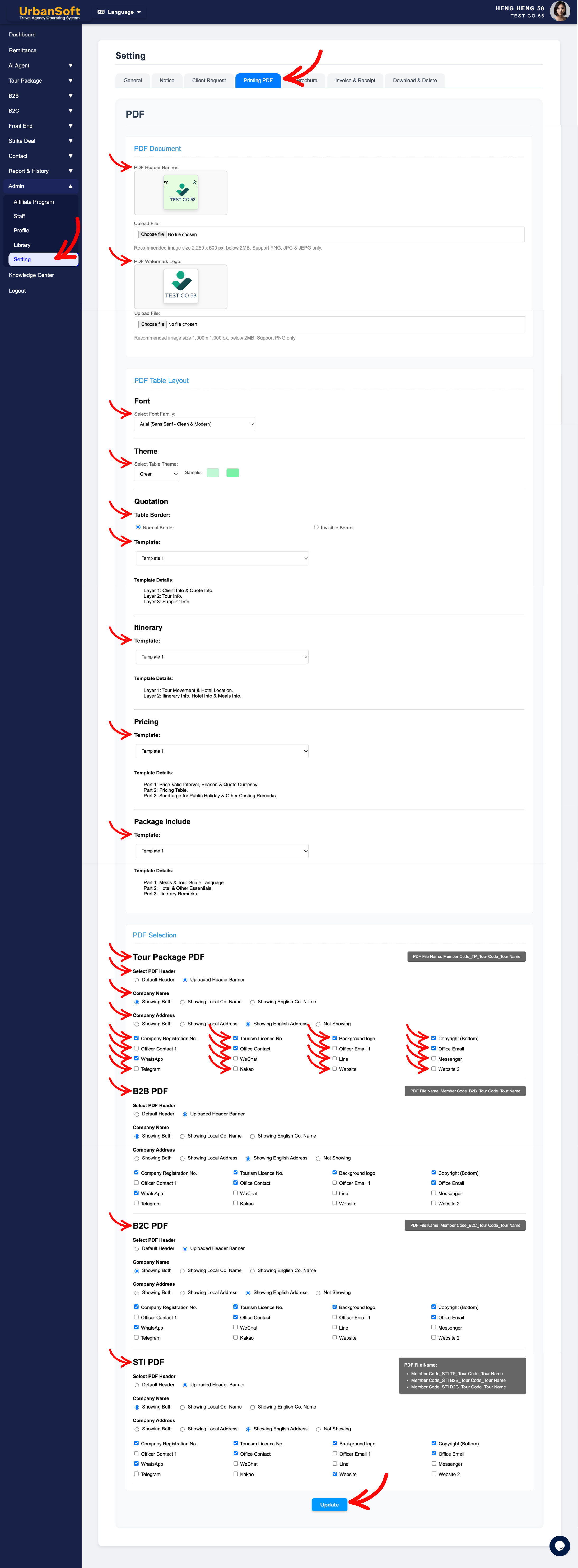
1. PDF Document Assets
-
PDF Header Banner: Upload a custom high-resolution banner image (
2,250 x 500 px, PNG/JPG/JPEG under 2MB) featuring your company branding, logo, and contact graphics to render across the top of exported PDF documents. -
PDF Watermark Logo: Upload a transparent background logo file (
1,000 x 1,000 px, PNG only under 2MB) to render as a faint corporate watermark behind the text on generated PDF pages.
2. PDF Table Layout Settings
-
Font: Select your primary typography style (e.g.,
"Arial"or"Helvetica") from the dropdown to ensure readability across all exported tables. -
Theme: Choose a color theme palette matching your corporate brand identity (e.g.,
"Navy Blue","Modern Dark", or"Classic Slate"). -
Quotation:
-
Table Border: Choose Normal Border for traditional structured grids or Invisible Border for a sleek, borderless modern aesthetic.
-
Template & Template Detail: Select your preferred quotation table layout template from the dropdown to format how clients, quotes, tour details, and supplier information are visually structured.
-
-
Itinerary:
-
Template & Template Detail: Select your preferred daily itinerary table layout template to format how tour movement, hotel location, itinerary details, hotel info, and meals information are structured.
-
-
Pricing:
-
Template & Template Detail: Select your preferred pricing table layout template to format how price validity intervals, season & quote currency, pricing tables, holiday surcharges, and costing remarks are visually structured.
-
-
Package Include:
-
Template & Template Detail: Select your preferred package inclusion table layout template to format how meal & tour guide languages, hotel & essentials details, and itinerary remarks are visually structured.
-
3. PDF Selection Controls (Applies across Tour Package PDF, B2B PDF, B2C PDF, and STI PDF)
-
Select PDF Header: Choose Uploaded Header Banner to use your customized branded banner image, or Default Header for system-generated text headers.
-
Company Name: Choose Showing Both (English + Local) or select Showing English Co. Name / Showing Local Co. Name depending on whether the document targets domestic or international audiences.
-
Company Address: Choose Showing Both or select Showing English Address / Showing Local Address / Not Showing based on quotation formatting preferences.
-
Ticks Element to Show: Check the boxes for elements you wish to display on the exported PDF header and footer:
-
Company Legal Credentials: Company Registration No., Tourism Licence No., Copyright (Bottom).
-
Branding Graphics: Background logo.
-
Primary Contact Details: Officer Contact 1, Office Contact, Officer Email 1, Office Email.
-
Social & Instant Messaging Channels: Check WhatsApp, WeChat, Line, Messenger, Telegram, or Kakao to print direct social contact icons and handles.
-
Websites: Check to show primary and secondary corporate web URLs.
-
4. Status Verification & Saving
-
Complete All Field: Displays a status summary verifying that the entire set of Printing PDF settings—including PDF Document, Table Layout, Selection, and final submission—has been fully populated.
-
Update: Click this action button to save all progress, fields, and configurations for the Printing PDF section.
Example
When setting up document branding for an agency:
-
Go to Admin > Setting > Printing PDF and upload a
2,250 x 500 pxheader banner under PDF Header Banner and a1,000 x 1,000 pxtransparent PNG under PDF Watermark Logo. -
Under PDF Table Layout, select Font:
"Arial", Theme:"Navy Blue", and set Table Border to Invisible Border for a modern design. -
Under PDF Selection, select Uploaded Header Banner, set Company Name to Showing Both, and check WhatsApp, WeChat, Company Registration No., and Tourism Licence No.
-
Verify the Complete All Field check and click Update to apply the branding across all exported PDFs.
Important Notes
-
Uploading images with exact recommended dimensions (
2,250 x 500 pxfor banners and1,000 x 1,000 pxPNG for watermark logos) (PNG required for watermarks), prevents visual distortion or stretching when exporting PDFs. -
PDF Selection settings can be customized individually across the 4 PDF document types (Tour Package PDF, B2B PDF, B2C PDF, and STI PDF), allowing you to tailor client-facing B2C proposals differently from B2B supplier sheets.
-
Selecting "Uploaded Header Banner" will automatically hide standard text-based company headers to avoid visual clutter.
-
Display settings can be configured independently for Tour Package PDF, B2B PDF, B2C PDF, and STI PDF versions to suit different buyer or partner audiences.
Different Angles: Same Stories, Same Content, New Perspective
- What branding assets, color themes, table layout templates, header selections, and social icon toggles make up the Admin > Setting > Printing PDF tab in UrbanSoft?
-
How do I upload custom banners, logos, and configure contact details on UrbanSoft PDF exports?
-
How to show or hide company registration and tourism license numbers on quotes?
-
What are the image size requirements for PDF banners and watermarks?
-
How to customize B2B vs. B2C PDF layout templates?
-
How to change table font styles and visual themes in PDF exports?
-
How to customize the layout and branding for Tour Package PDFs?
Same Folder Articles
Related Articles
-
 What information should be include in the "Admin > Setting > General" tab?
-
What information should be include in the "Admin > Setting > Notice" tab?
-
What information should be include in the "Admin > Setting > Client Request" tab?
-
What information should be include in the "Admin > Setting > TI Brochure" tab?
-
What information should be include in the "Admin > Setting > Invoice & Receipt" tab?
