.gif)
.gif)
.gif)

 What information should be include in the "Admin > Setting > TI Brochure" tab?
The Admin > Setting > TI Brochure (Tour Itinerary Brochure) tab in UrbanSoft serves as the centralized master branding and text template manager for exported Tour Itinerary Brochures. It allows travel agencies to configure official company header/footer details, select brochure typography, upload transparent cover logos, and write custom slogans and welcome letters. These settings auto-populate across generated brochure documents while maintaining consistency and professionalism.
What Can I Do?
You can format and customize your Tour Itinerary Brochure exports using the following key administrative functions:
-
Configure PDF Layout & Branding Displays: Control how your company name, official address, and contact details appear across brochure headers, covers, and footers.
-
Manage Office Credentials & Channels: Select specific legal identifiers, contact numbers, email addresses, and social messaging icons to print on brochure documents.
-
Customize Visual Assets & Content Defaults: Upload a high-resolution transparent cover logo, set default fonts, and write customized corporate slogans and welcome letters for clients.
-
Verify Configuration Completeness: Review a status checklist ensuring all brochure defaults, PDF layout selections, and text fields are fully populated before saving.
Field Definitions & Operational Guidance
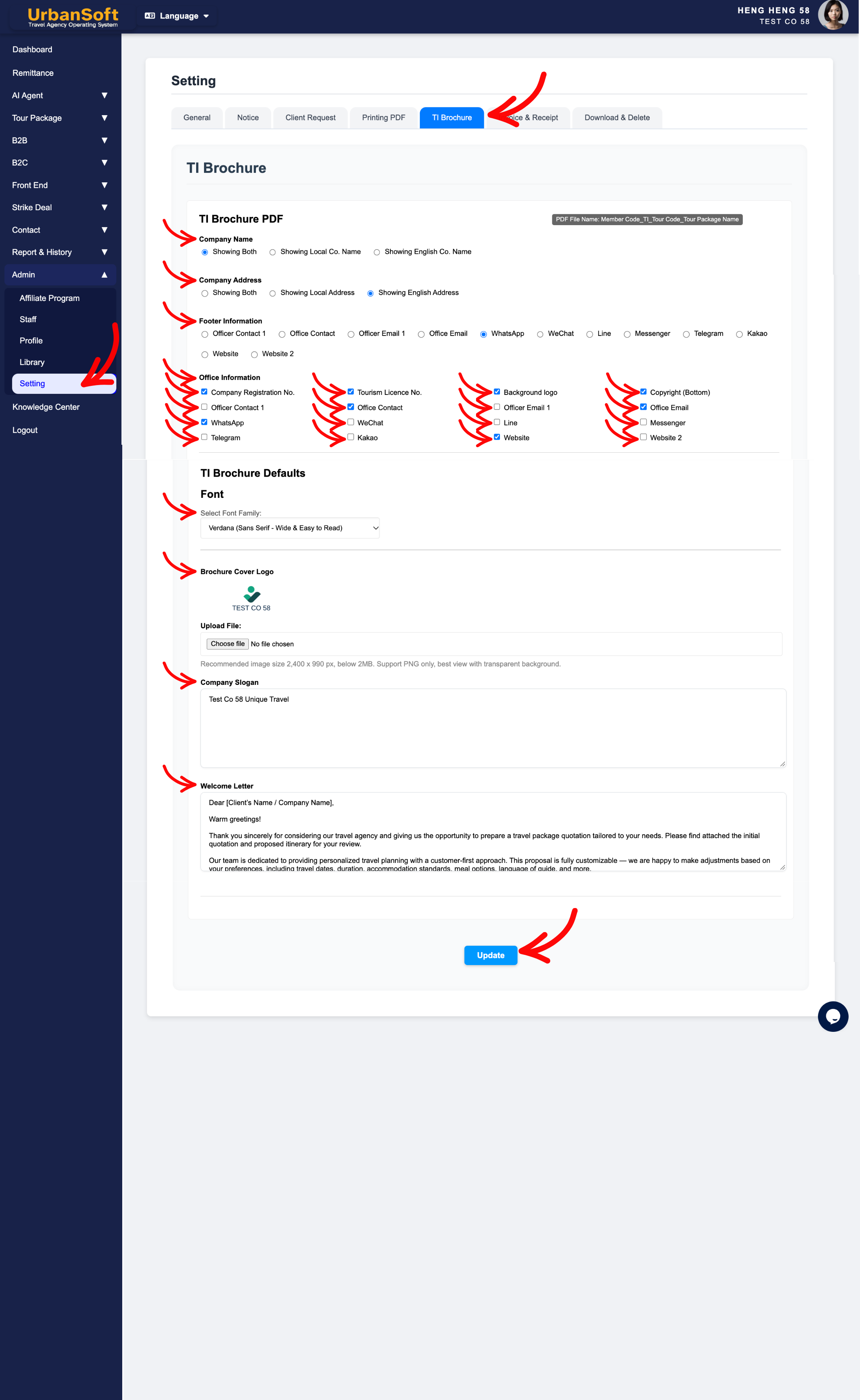
1. TI Brochure PDF Layout & Display Options
-
Company Name: Choose Showing Both (English + Local) or select Showing English Co. Name / Showing Local Co. Name to determine how your official company title displays on the brochure cover and page headers.
-
Company Address: Choose Showing Both or select Showing English Address / Showing Local Address to control the display of your address block.
-
Footer Information: Select which primary contact details or channels to display in the brochure footer (e.g., Officer Contact 1, Office Contact, Officer Email 1, Office Email, WhatsApp, WeChat, Line, Messenger, Telegram, Kakao, Website, or Website 2), makes it easy for customers to get in touch quickly..
-
Office Information: Check the specific legal credentials, branding elements, and communication channels you want printed on the document:
-
Legal Credentials: Company Registration No., Tourism Licence No., and Copyright (Bottom), enhance document compliance and authority.
-
Visual Branding: Background logo.
-
Communication Channels: Officer Contact 1, Office Contact, Officer Email 1, Office Email, WhatsApp, WeChat, Line, Messenger, Telegram, Kakao, Website, or Website 2.
-
2. TI Brochure Defaults & Visual Content
-
Font: Select the typography style from the dropdown for all text across brochure pages to ensure visual readability.
-
Brochure Cover Logo: Upload a transparent background logo file (
2,400 x 990 px, PNG only under 2MB) designed to blend smoothly over brochure cover photos. -
Company Slogan: Enter your official tagline or brand value proposition (e.g.,
"Crafting Unforgettable Journey Experiences Across Asia"). -
Welcome Letter: Write a standard introductory message or greeting from your management to set a warm, welcoming tone (introducing your services, team values, or trip highlights) for clients opening the brochure (e.g.,
"Dear Traveler, Thank you for choosing us to guide your journey...").
3. Status Verification & Saving
-
Complete All Field: Displays a status summary verifying that the entire set of TI Brochure settings—including TI Brochure PDF Defaults, layout controls, and text blocks—has been fully populated.
-
Update: Click this action button to save all progress, fields, and configurations for the TI Brochure section.
Example
When setting up Tour Itinerary Brochure branding for a travel agency:
-
Navigate to Admin > Setting > TI Brochure and select Company Name: Showing Both (English + Local).
-
Upload a
2,400 x 990 pxtransparent PNG under Brochure Cover Logo and enter Company Slogan: "Your Trusted Partner in Luxury Asian Travel". -
Write a warm introductory greeting under Welcome Letter and check WhatsApp, WeChat, Tourism Licence No., and Company Registration No. under Office Information.
-
Verify the Complete All Field checklist status and click Update to save the brochure settings globally.
Important Notes
-
Uploading a cover logo in transparent PNG format with the exact recommended dimensions (
2,400 x 990 px, under 2MB) ensures seamless overlay blending on brochure cover images without awkward background blocks. -
The welcome letter written in
Admin > Setting > TI Brochureserves as a master template that pre-populates on new brochure exports to save time, while still allowing customization for specific client proposals. -
Selecting the right social messaging handles (e.g., WhatsApp, WeChat) in the Footer and Office Information, helps clients easily connect with your support team during their travels.
-
Settings configured in this section, automatically apply across all newly exported TI Brochure PDFs.
Different Angles: Same Stories, Same Content, New Perspective
- What brochure headers, cover logos, slogans, welcome letters, and contact icons make up the Admin > Setting > TI Brochure tab in UrbanSoft?
-
How do I configure the cover logo, welcome letter, and footer details for my Tour Itinerary (TI) brochures in UrbanSoft?
-
What are the image specifications for the TI Brochure Cover Logo?
-
How to show or hide tourism licence numbers on TI brochures?
-
How to select font styles for brochure PDF exports?
Same Folder Articles
Related Articles
-
 What information should be include in the "Admin > Setting > General" tab?
-
What information should be include in the "Admin > Setting > Notice" tab?
-
What information should be include in the "Admin > Setting > Client Request" tab?
-
What information should be include in the "Admin > Setting > Printing PDF" tab?
-
What information should be include in the "Admin > Setting > Invoice & Receipt" tab?
