.gif)
.gif)
.gif)

 How to "Upload Files" in tour package?
File uploads in a Tour Package allow you to attach essential documents, promotional materials, brochures, itinerary details and quotation directly to tour packages within UrbanSoft. Supported file format is PDFs or spreadsheets or word or text or images (PDF/Excel/Word/Txt/Png/JPG). You will learn where to locate the file upload section and how to upload and manage package attachments.
When Do You Use This?
Use this feature when you need to attach supporting documents, high-resolution brochures, customized itinerary PDFs, or terms and conditions to a specific tour package for internal reference or sharing with clients and partners.
Before You Start
-
You need:
-
Authorized access to the UrbanSoft backend with permissions to manage and edit tour packages.
-
The files you wish to upload saved on your local device in supported formats (e.g., PDF, Word, Excel, Txt, PNG, JPG), the file cannot be larger than 2 MB.
-
-
Precautions:
-
Ensure file sizes remain within the platform's upload limit to guarantee optimal performance.
-
Verify that documents do not contain confidential internal notes before uploading them if they are client-facing.
-
Step-by-Step
-
Log in to your UrbanSoft account using your credentials.
-
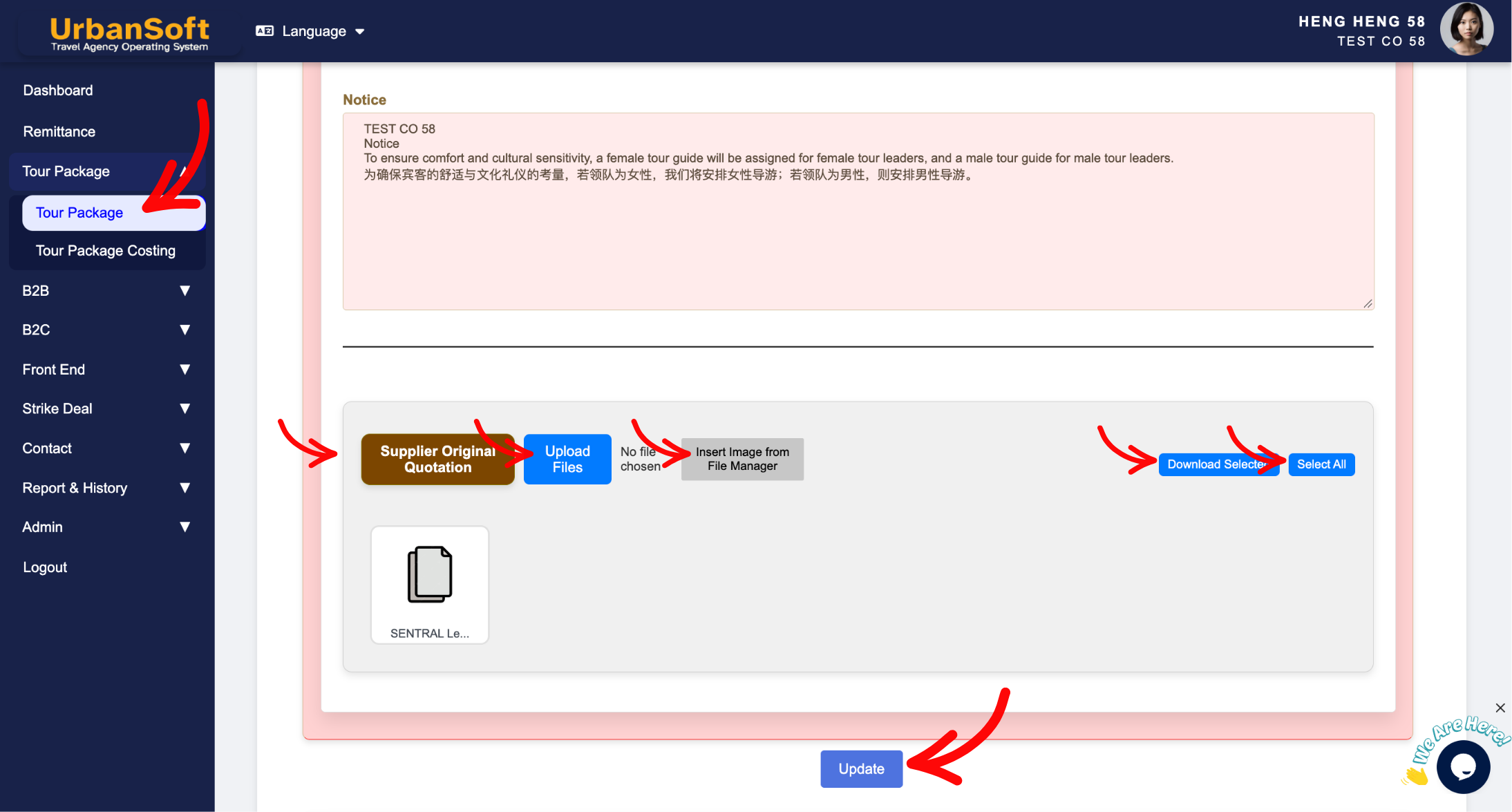
From the main menu, navigate to Tour Package > Tour Package, overhere will have tour package index table.
-
Click the + Add New Tour Package button or click Edit on an existing tour package.
-
Select Cost Structure tab at top menu.
-
Scroll down to locate the Supplier Original Quotation section, on the package creation/editing form.
-
Click the Upload File / Insert Image from File Manager button.
-
Wait for the file upload progress bar to complete and verify that the file name appears in the attachment list.
-
Click Update at the bottom of the page to finalize and store your uploaded files.
Expected Result
The uploaded files will be successfully attached to your tour package cost structure section for record and can be viewed, downloaded, or updated anytime from the package detail view.
Important Notes
-
You can upload supporting documents (such as itinerary PDF, word, excel, text or images) directly inside the tour package form.
-
Always click Update after uploading files to ensure the attachments are properly bound to the package record.
Common Mistakes
-
Closing or navigating away from the page before clicking Update, causing the uploaded files to be discarded.
-
Uploading unsupported file formats or exceeding allowable file size limits, the file cannot be larger than 2 MB.
Different Angles: Same Stories, Same Content, New Perspective
-
Where can I attach PDF brochures or documents to a tour package in UrbanSoft?
-
How do I add downloadable attachments to my itinerary packages?
Same Folder Articles
-
 How to create "New Tour Package" manually?
-
How to create "New Tour Package", with "Ai Insert Tour Package" feature?
-
How to edit or update an existing "Tour Package"?
-
How to duplicate assisting "Tour Package"?
-
How to use "Ai Translate" to translate assisting tour package to another new other language tour package?
