.gif)
.gif)
.gif)

 How can I download PDF version of STI and Tour Package?
This guide will show you how to download a formatted PDF version of a Simple Tour Itinerary (STI) and a Full Tour Itinerary (Tour Package) in UrbanSoft. You will learn where to locate the PDF download options and how to save or print official itinerary documents for your clients or operational records.
When Do You Use This?
Use this feature when you need to send a clean, printable, or presentable PDF copy of a Tour Package or STI to customers, travel agents, or internal operation teams.
Before You Start
-
You need:
-
Authorized access to the UrbanSoft portal with permissions to view Tour Packages and STI documents.
-
A PDF viewer software installed on your device (e.g., Adobe Acrobat, Chrome PDF viewer).
-
-
Precautions:
-
Ensure all package details, itineraries, prices, and branding settings (such as company logo) are updated before exporting the PDF.
-
Verify whether you are downloading a client-facing PDF (without costs/agent details) or an internal operational document.
-
Step-by-Step
-
Log in to your UrbanSoft account using your credentials.
-
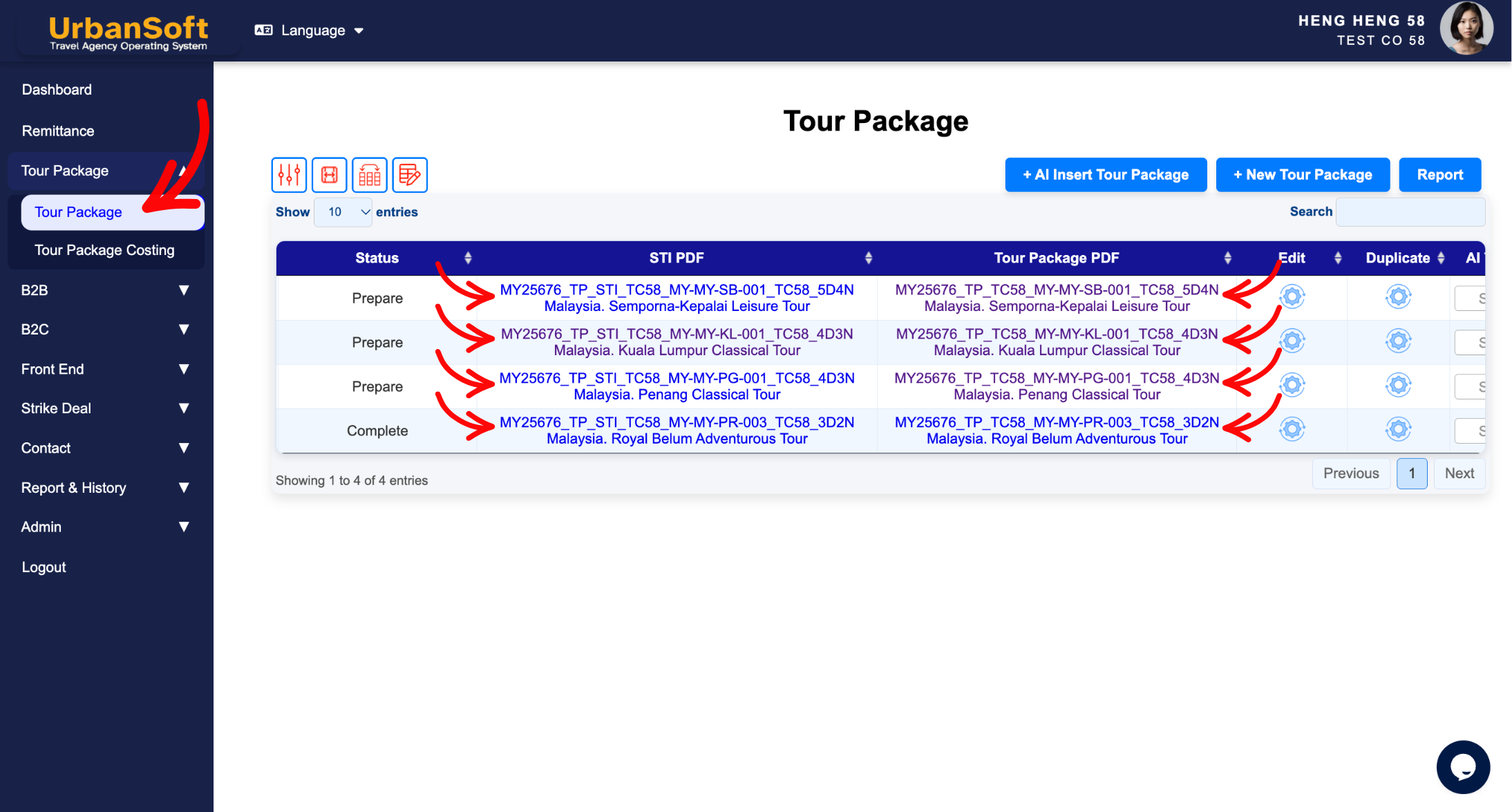
From the left navigation menu, go to Tour Package > Tour Package, overhere will have tour package list table.
-
Locate the specific tour package you wish to export using the search or filter bar.
-
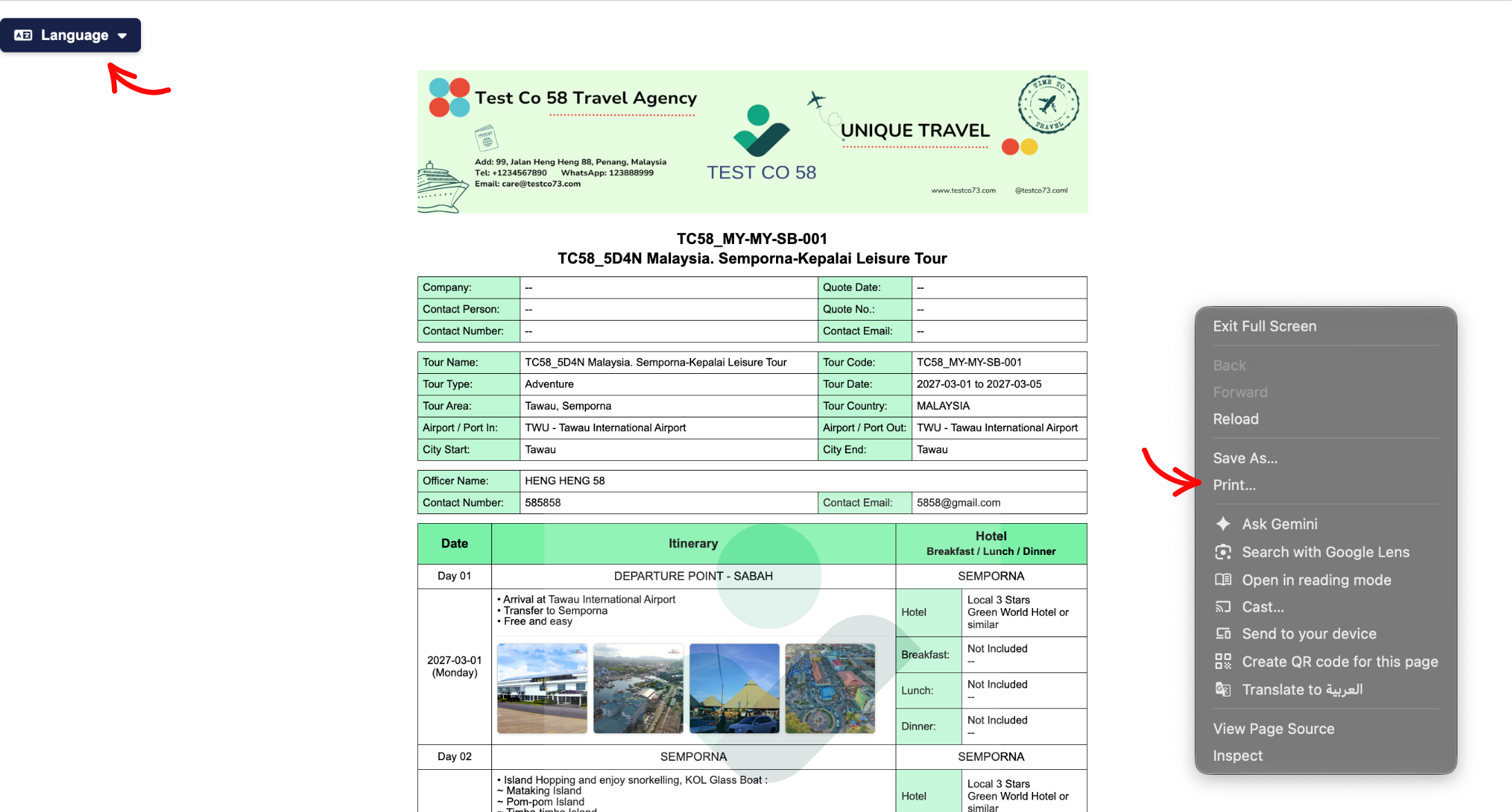
Click on the tour package STI PDF or Tour Package PDF link in the list to view its detailed PDF page. The system will generate the PDF document automatically.
-
At detailed PDF page, you can change PDF framework language, or press mouse right-click to opens a context menu, and click Print button.
-
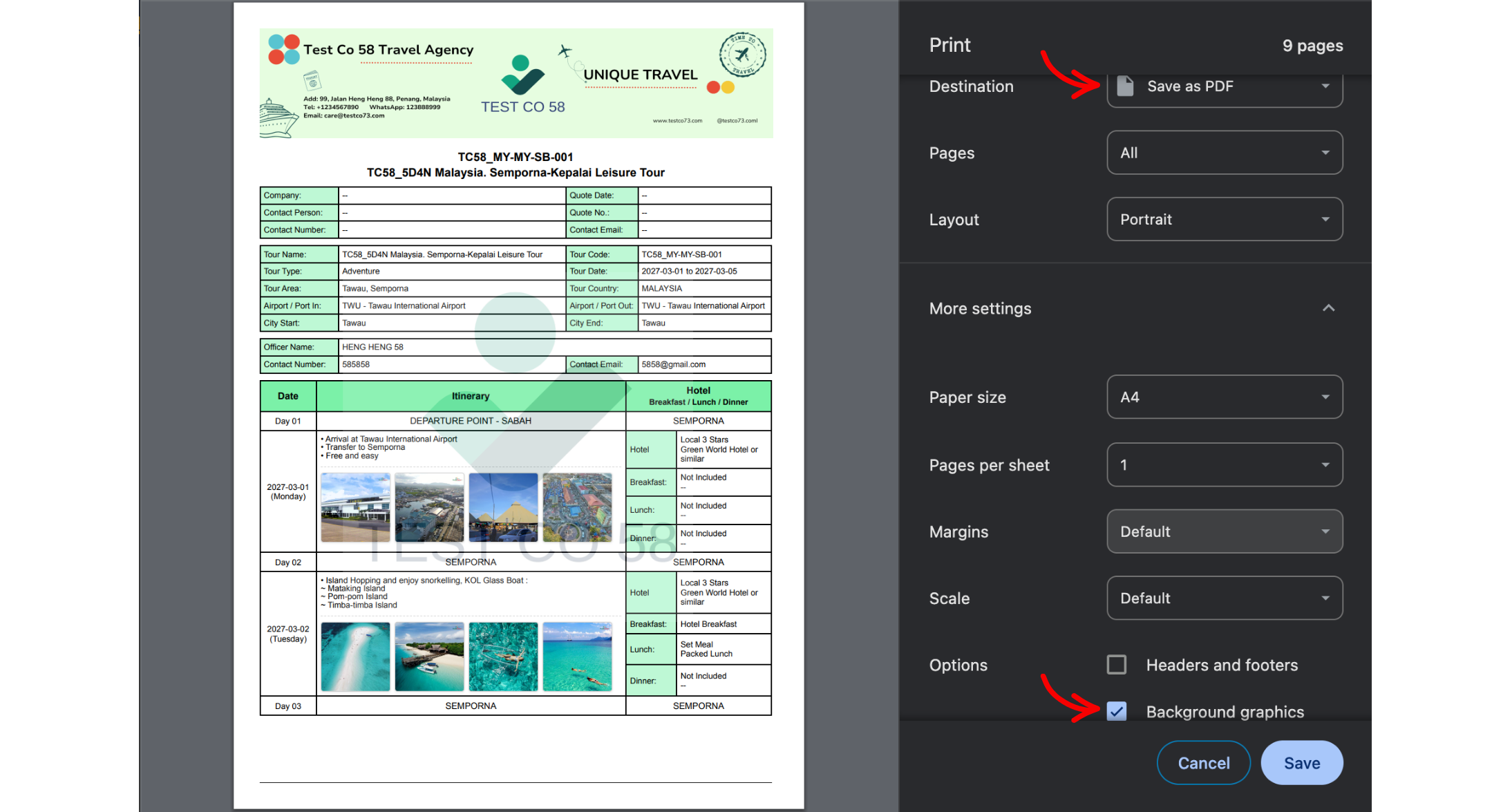
Make sure you select Save as PDF option, and check Background Graphics.
-
Click Save or Download to store the PDF file onto your device.
Expected Result
A cleanly formatted PDF document containing the Tour Package or STI details (including daily itinerary, images, inclusions, and terms) will be downloaded to your device, ready to be printed or shared with clients.
Important Notes
-
Generated PDFs automatically adopt your company's settings (such as header logo and contact information) configured under Admin > Setting.
-
You can re-download updated PDF versions anytime if changes are made to the package or STI.
Common Mistakes
-
Attempting to download a PDF for an incomplete or draft tour package that lacks mandatory fields.
-
Exporting a PDF without updating company branding/logo settings beforehand.
-
Forgetting to verify privacy/pricing display toggles before sending the PDF to external buyers.
Different Angles: Same Stories, Same Content, New Perspective
-
Where can I export a printable itinerary or STI PDF in UrbanSoft?
-
How do I save a tour package itinerary as a PDF file?
-
How to export and share STI PDFs in UrbanSoft?
-
How to generate and download an STI or Tour Package PDF?
Same Folder Articles
-
 How to create "New Tour Package" manually?
-
How to create "New Tour Package", with "Ai Insert Tour Package" feature?
-
How to edit or update an existing "Tour Package"?
-
How to duplicate assisting "Tour Package"?
-
How to use "Ai Translate" to translate assisting tour package to another new other language tour package?
