.gif)
.gif)
.gif)

 How share my Company Profile in "Other OTA"?
This guide explains how to enable the Share to OTA feature in UrbanSoft. You will learn how to toggle this setting within your Company Profile so that your company's business details, verified badges, and product offerings are automatically shared and visible across connected partner OTA platforms and networks.
When Do You Use This?
Use this feature when you want to expand your company's market reach, increase brand exposure, and automatically distribute your verified company information and tour packages to third-party OTA platforms and B2B partner distribution networks connected to UrbanSoft.
Before You Start
-
You need:
-
Authorized administrator access to your UrbanSoft backend.
-
An active and properly configured Company Profile (including English Company Name, contacts, and services).
-
-
Precautions:
-
Ensure all uploaded company details, official licenses, and contact information are accurate and up to date before enabling OTA sharing.
-
You can disable or toggle off OTA sharing at any time if you wish to restrict profile visibility.
-
Step-by-Step
-
Log in to your UrbanSoft account using your administrative credentials.
-
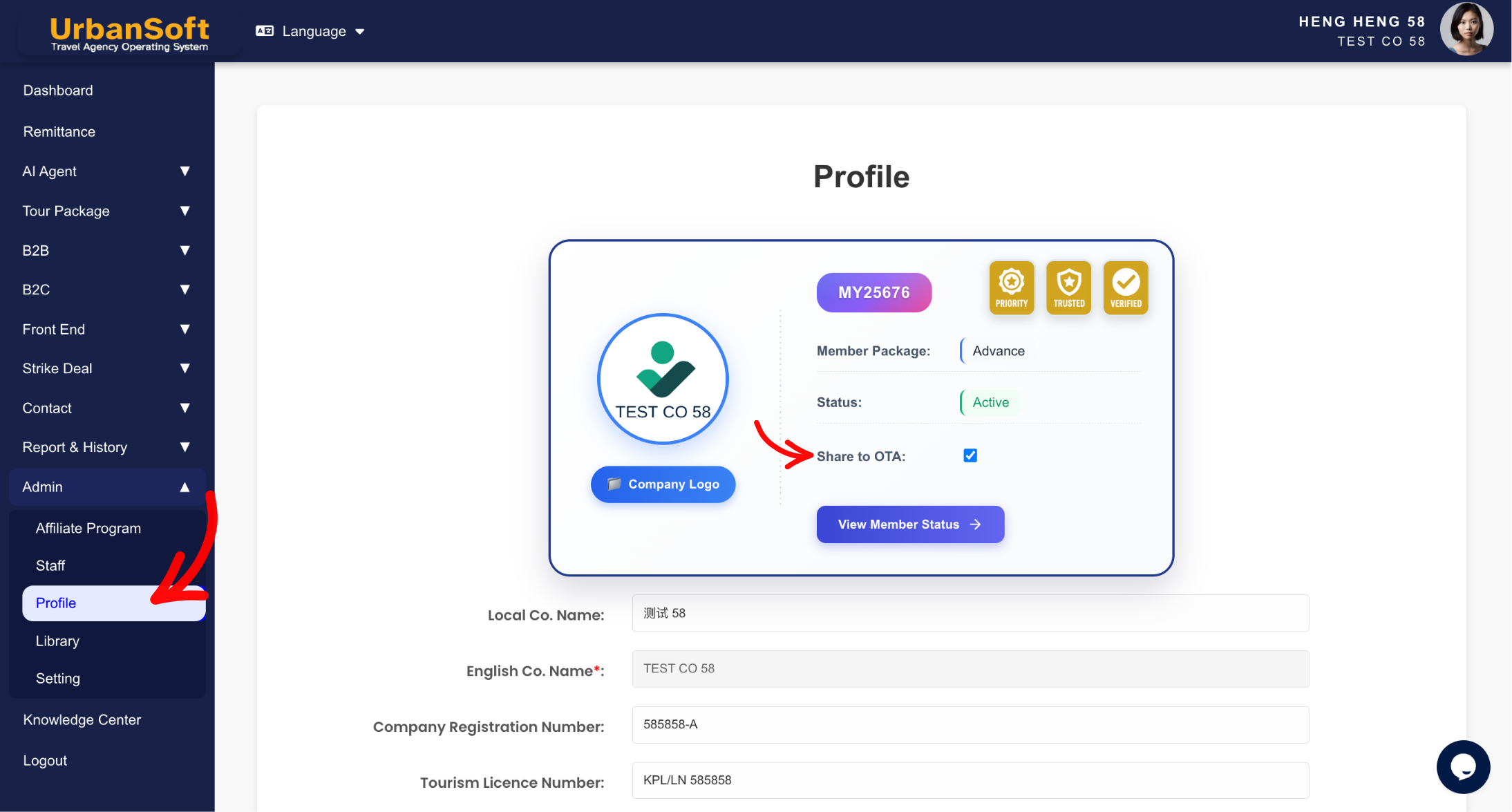
From the main menu on the left, navigate to Admin > Profile.
-
Locate the Share to OTA setting field near the top of your profile configuration page.
-
Toggle Share to OTA: Switch or enable the Share to OTA toggle switch.
-
Scroll down to the bottom of the page and click Update to apply the setting.
Expected Result
Once enabled and saved, your company profile information and verified credentials will be shared with selected connected OTA platforms, allowing external agents and buyers to view your official business profile.
Important Notes
-
Share to OTA: Toggle to allow your company profile share to selected OTA.
-
Toggling this feature on ensures seamless integration and visibility across UrbanSoft's partner ecosystem without manually re-entering your business credentials on each external portal.
-
Always ensure your official documents and tourism licenses are verified to display Recommended Badges when shared to OTAs.
Common Mistakes
-
Enabling Share to OTA without filling in essential contact details or official documents, leading to an incomplete presentation on partner channels.
-
Forgetting to click Update after switching the toggle switch.
Different Angles: Same Stories, Same Content, New Perspective
-
How do I enable my company profile to be visible on partner OTAs in UrbanSoft?
-
Where is the toggle switch to share my company details with external distribution channels?
 How to set up my "Company Profile"?
