.gif)
.gif)
.gif)

 How to insert itinerary from "DMC (Destination Management Center)" to active Tour Package?
This guide explains how to use the Destination Management Center (DMC) integration in UrbanSoft to insert pre-built attractions, activities, events, and tour proposals directly into an active tour package itinerary. You will learn about key UI controls, checkboxes, language preview settings, and how to instantly inject itinerary content, highlights, stories, and images into your active package.
When Do You Use This?
Use this feature when creating or editing a tour package, and you want to quickly populate daily itinerary schedules, using pre-configured DMC templates instead of typing daily details manually.
Before You Start
-
You need:
-
Authorized access to your UrbanSoft Admin backend with permissions to edit tour packages.
-
Membership tier Launch and above.
-
Pre-built DMC itineraries set up in Admin > Library > D.M.C.
-
-
Precautions:
-
Verify whether you want to insert content into specific days or all days across the itinerary.
-
Select your desired language display mode before inserting content to ensure proper language rendering.
-
Step-by-Step
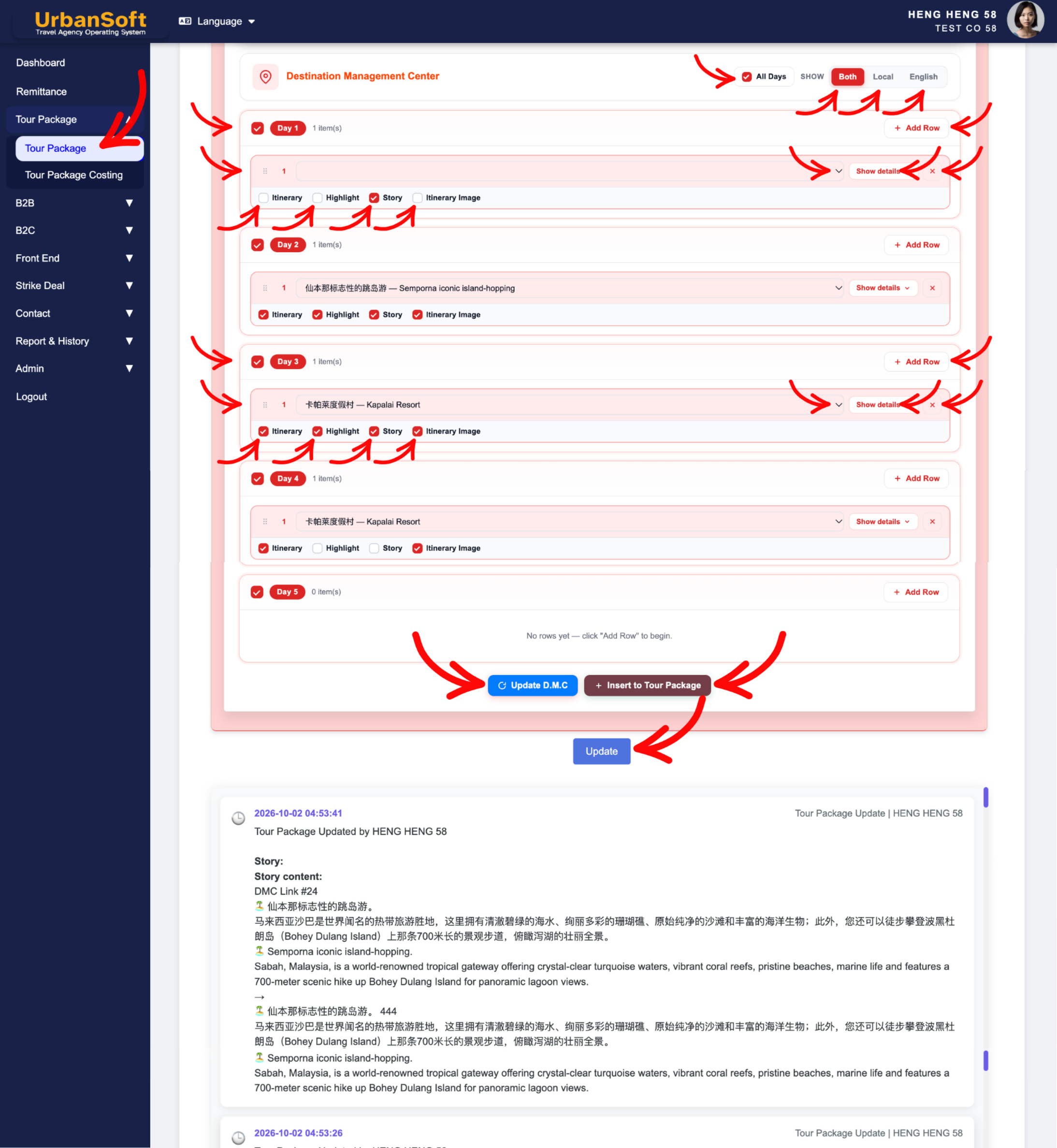
-
Log in to your UrbanSoft account using your credentials.
-
From the main left navigation menu, go to Tour Package > Tour Package, overhere will have tour package index table.
-
Click the + Add New Tour Package button or click the Edit button next to an existing tour package.
-
Scroll down to the Destination Management Center (DMC) section within the itinerary tab.
-
Select Days:
-
Tick Checkbox All Days to apply/insert the selected DMC itinerary across every single day of the tour package.
-
Tick Checkbox Day for individual day boxes (e.g., Day 1, Day 2) to insert content into specific days only.
-
-
Set Language Display Mode (Show):
-
Choose Both, Local, or English to control which language variation displays in the DMC section and tour package view. (Both displays Local and English; Local displays Local only; English displays English only).
-
-
Add Row / Select Preset:
-
Click Add Row to add a new blank activity row under the selected day.
-
From Select a DMC Preset Itinerary, choose a pre-set destination, attraction, activity, event, or proposal dropdown option.
-
-
Preview Content (Show Details):
-
Click Show Details to preview pre-set itinerary names, information, highlight descriptions, story content, and uploaded images (up to 4 images per preset).
-
-
Configure Checkbox Selection Controls:
-
Tick Checkbox Insert Itinerary to inject itinerary descriptions into the Itinerary tab daily schedule.
-
Tick Checkbox Insert Highlight to push key selling points directly into the Highlight tab.
-
Tick Checkbox Insert Story to send rich background stories into the Other tab.
-
Tick Checkbox Insert Itinerary Image to copy attraction photos into the daily itinerary image gallery in the Highlight tab.
-
-
Adjust Order & Update:
-
Reorder items via Arrange Order to adjust the sequence of visiting points within a day.
-
Click Update D.M.C to save adjustments made in the DMC section (if forgot to Update DMC section, and direct click Insert to Tour Package all adjustment in MDC section will gone).
-
-
Insert to Package:
-
Click Insert to Tour Package to instantly inject the selected DMC content, itinerary, highlight, story and images into your active tour package.
-
-
Click Update at the bottom of the page to finalize the package.
Expected Result
The selected DMC itinerary descriptions, highlights, stories, and images will be automatically inserted into their respective tabs, and daily breakdown sections of your active tour package.
Important Notes
-
DMC Concept: Destination Management Center (DMC) is a centralized hub to pre-build and store reusable attractions, activities, events, and tour proposals so they can be instantly inserted into any tour package itinerary with a single click. Preset and manage DMC templates via Admin > Library > D.M.C.
-
You can select whether to insert DMC content into all days (Checkbox All Days) or specific individual days (Checkbox Day).
-
You can selectively control what content is injected using the insertion checkboxes (Insert Itinerary, Insert Highlight, Insert Story, and Insert Itinerary Image).
-
Remember to click Update D.M.C to save adjustments made in the DMC section (if forgot to Update DMC section, and direct click Insert to Tour Package all adjustment in MDC section will gone).
-
Click Insert to Tour Package after configuring your DMC selections.
Common Mistakes
-
Forgetting to click Insert to Tour Package after checking the insertion boxes, resulting in unapplied changes.
-
Forgetting to Update DMC section, and direct click Insert to Tour Package button, all adjustment in MDC section will gone.
-
Selecting the wrong language display mode (Both, Local, or English) before inserting content into a package designed for a specific language target.
-
Forgetting to set up or update DMC master presets at Admin > Library > D.M.C prior to trying to use them in the package builder.
Different Angles: Same Stories, Same Content, New Perspective
-
How do I insert pre-set DMC attraction templates into an active itinerary in UrbanSoft?
-
Where can I import saved DMC highlights and itinerary stories into my tour package?
Same Folder Articles
-
 How to create "New Tour Package" manually?
-
How to create "New Tour Package", with "Ai Insert Tour Package" feature?
-
How to edit or update an existing "Tour Package"?
-
How to duplicate assisting "Tour Package"?
-
How to use "Ai Translate" to translate assisting tour package to another new other language tour package?
Related Articles
-
How to create "New Tour Package" manually?
-
How to edit or update an existing "Tour Package"?
-
What should be filled out in the "Costing Table" field in Cost Structure section?
-
What information should be include in the "Cost Structure" tab?
-
What information should be include in the "Tour Package Basic Information" tab?
