.gif)
.gif)
.gif)

 How to manage "Staff Permissions"?
This guide explains how to manage and configure Staff Permissions in UrbanSoft. You will learn about the three authorization tiers (Read, Write, and Master) and how to assign these permission levels across all operational and administrative modules to control team access effectively.
When Do You Use This?
Use this feature when assigning roles to new staff members, updating job responsibilities for existing employees, or restricting sensitive operational and financial data access within your organization.
Before You Start
-
You need:
-
Master level or administrator access to your UrbanSoft backend account.
-
Clear understanding of the roles and responsibilities assigned to each staff member.
-
-
Precautions:
-
Exercise caution when granting Master access, as it provides full control over core system settings, financial reports, and user management.
-
Ensure permission configurations match staff duties to maintain operational security and data privacy.
-
Only users with Master permission can manage staff access rights.
-
Multiple Master users are allowed within a single UrbanSoft account, enabling shared administrative control among selected staff members.
-
Step-by-Step
-
Log in to your UrbanSoft account using your administrative credentials.
-
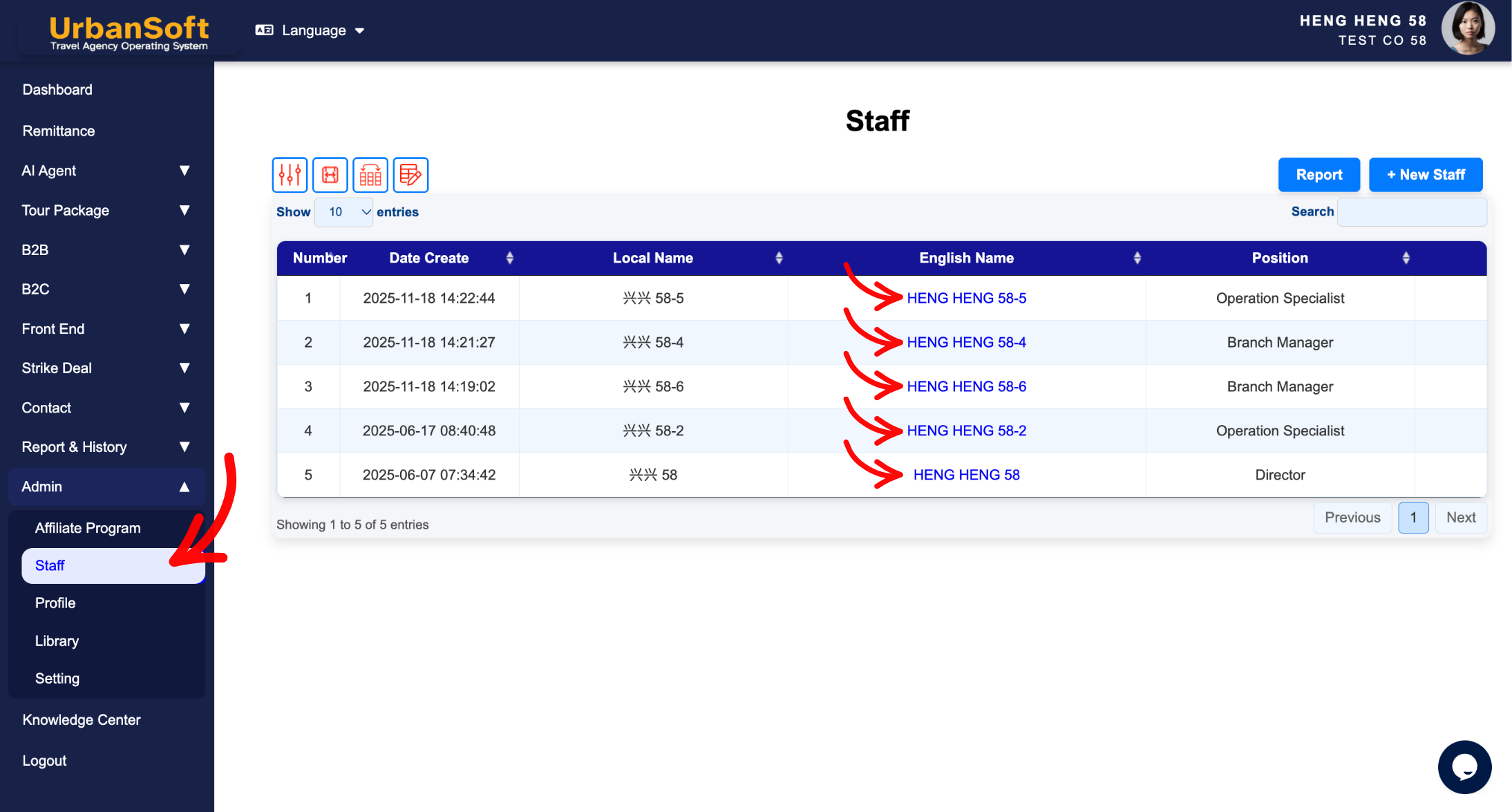
From the main left navigation menu, go to Admin > Staff > Staff Index Table .
-
Locate the staff member whose permissions you want to configure and click Staff Name to access Set Permissions & Status control page.
-
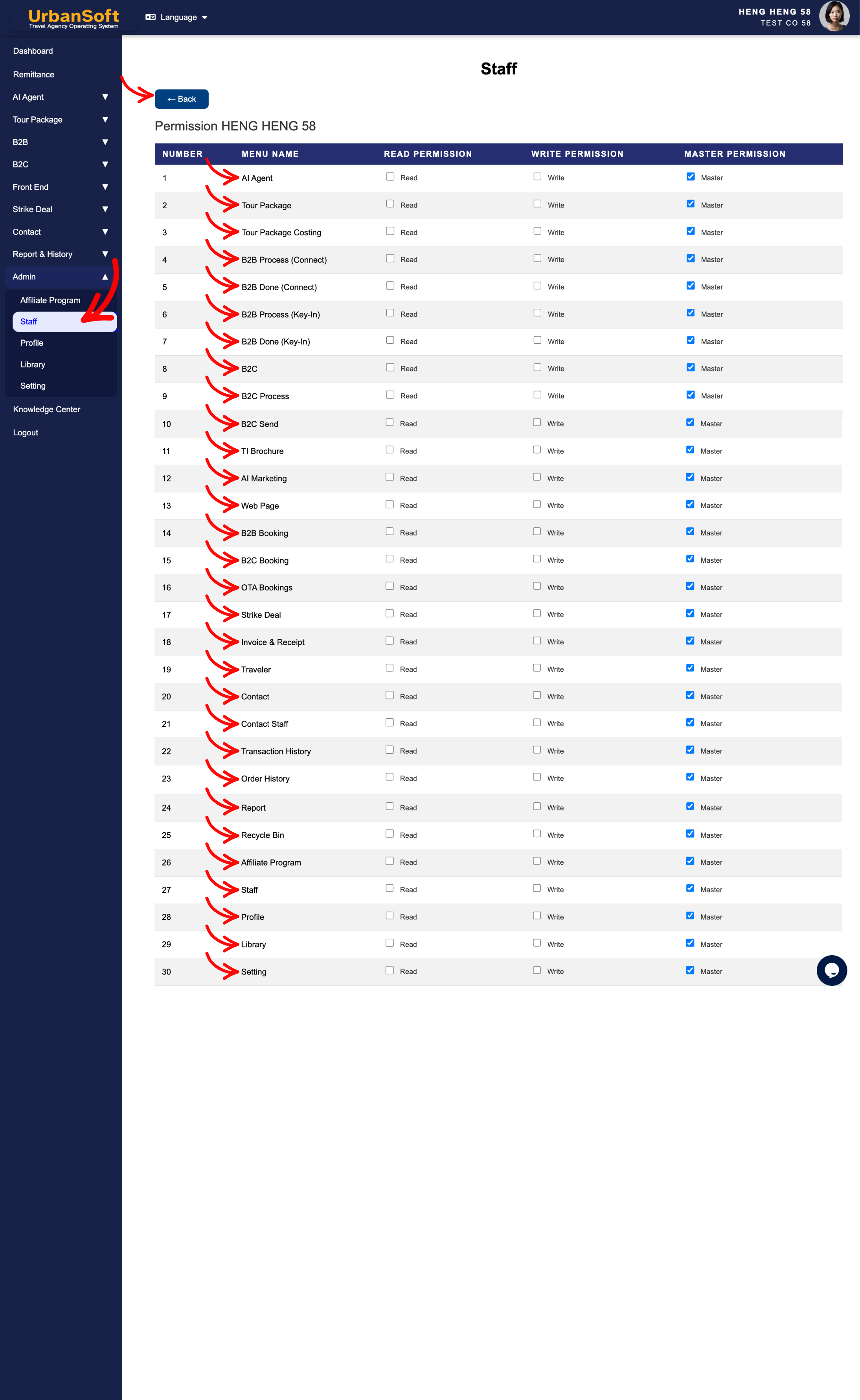
Assign Permission Tiers per Module: Select the appropriate authorization tier (Read, Write, or Master) for each individual module:
-
Core & Package Management: AI Agent, Tour Package, Tour Package Costing, TI Brochure, AI Marketing, Web Page.
-
B2B & B2C Operations: B2B Process (Connect), B2B Done (Connect), B2B Process (Key-in), B2B Done (Key-in), B2C, B2C Process, B2C Done.
-
Bookings & Sales: B2B Booking, B2C Booking, OTA Bookings, Strike Deal.
-
Finance & CRM: Invoice & Receipt, Traveler, Contact, Contact Staff, Transaction History, Order History, Report.
-
Admin & System Maintenance: Recycle Bin, Affiliate Program, Staff, Profile, Library, Setting.
-
-
Tick to Active each module permission status.
-
After tick the check box, system will Auto Update to apply the new permission rules.
Expected Result
The staff member's account access will immediately reflect the newly assigned permission tiers across all UrbanSoft modules.
Important Notes
-
3 Authorization Tiers (Set Permissions & Status):
-
Read: Allows the staff member to view itineraries, reports, and quotations without permission to create, edit, or delete entries.
-
Write: Allows the staff member to create, edit, update, delete, and manage tour packages, quotes, and day-to-day operations.
-
Master: Grants full administrative control over system settings, company setup, financial reports, and user management.
-
-
Permissions can be configured granularly across all 29 system modules listed above.
-
System always Auto Update after tick to modifying permission settings.
Common Mistakes
-
Accidental assignment of Master permissions to general staff members, exposing administrative and financial configurations.
-
Assigning Read permission to operational staff who need to create or update itineraries, preventing them from saving work.
-
System will Auto Update after tick to adjusting module permissions.
Different Angles: Same Stories, Same Content, New Perspective
-
How do I restrict a team member from editing tour package details in UrbanSoft?
-
Where can I assign Read, Write, or Master permission levels to staff accounts?
 How to set up my "Company Profile"?
