.gif)
.gif)
.gif)

 How to top up "Credits"?
This guide will show you how to safely and easily top up CREDITS in your UrbanSoft account. You will learn where to access the Credit Top-Up function, how to select or enter a top-up amount, choose your payment method, and complete the transaction.
When Do You Use This?
Use this feature when your account credit balance is running low, or when you need to purchase extra credits to pay for establishing business partner connections, or Ai processing transaction actions (such as, Ai insert tour package, Ai itinerary generation, Ai translation, Ai image search, Ai content generation or Ai marketing flyer) within UrbanSoft.
Before You Start
-
You need:
-
Administrator or authorized billing access to your UrbanSoft account.
-
An active credit card, debit card, or valid payment method accepted by UrbanSoft.
-
Access to your UrbanSoft account backend.
-
-
Precautions:
-
Verify your required top-up amount before confirming payment.
-
Ensure your payment details are accurate to avoid transaction failure.
-
Check for any minimum top-up requirements or applicable promotional credit bundles.
-
Step-by-Step
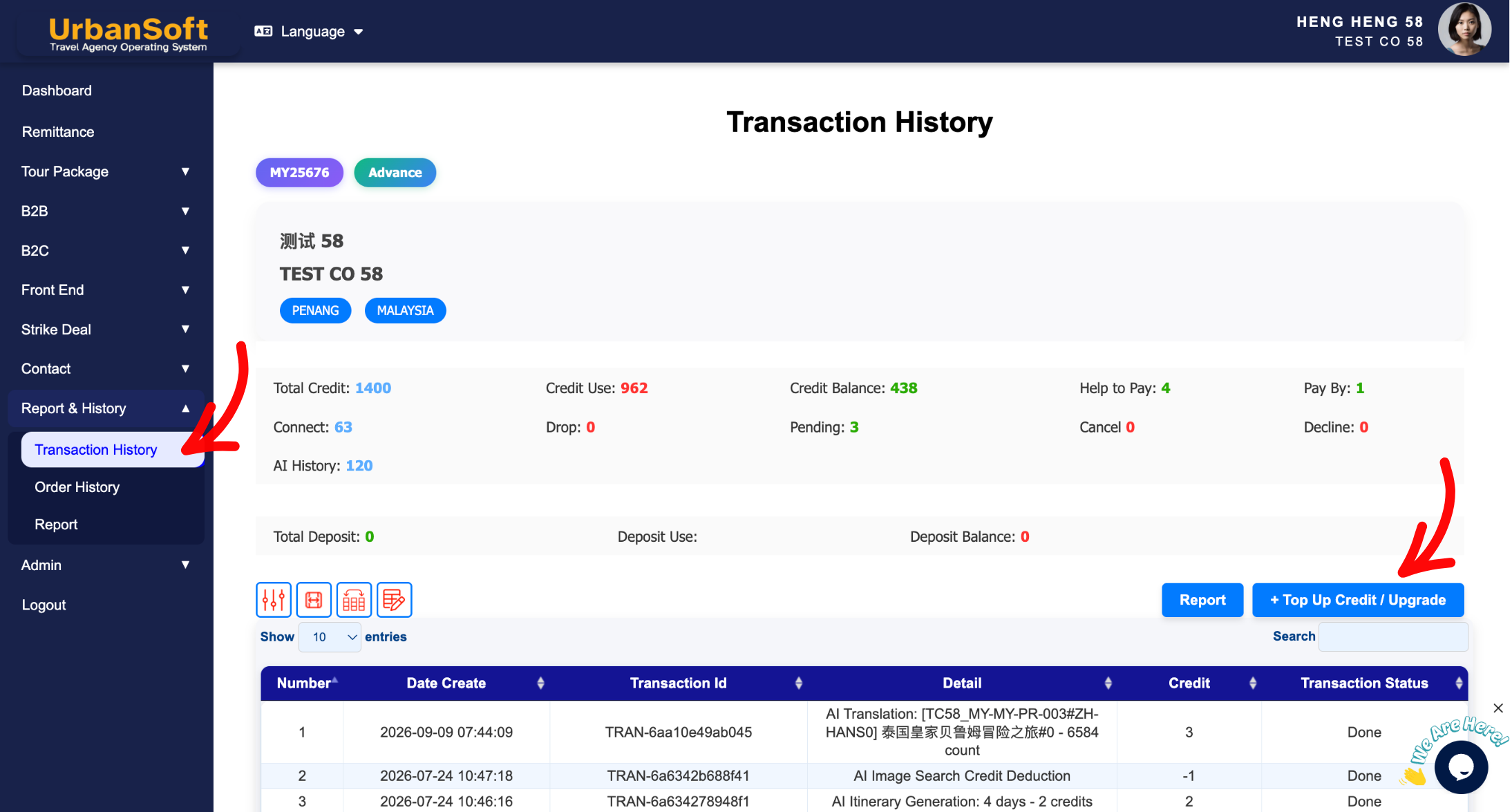
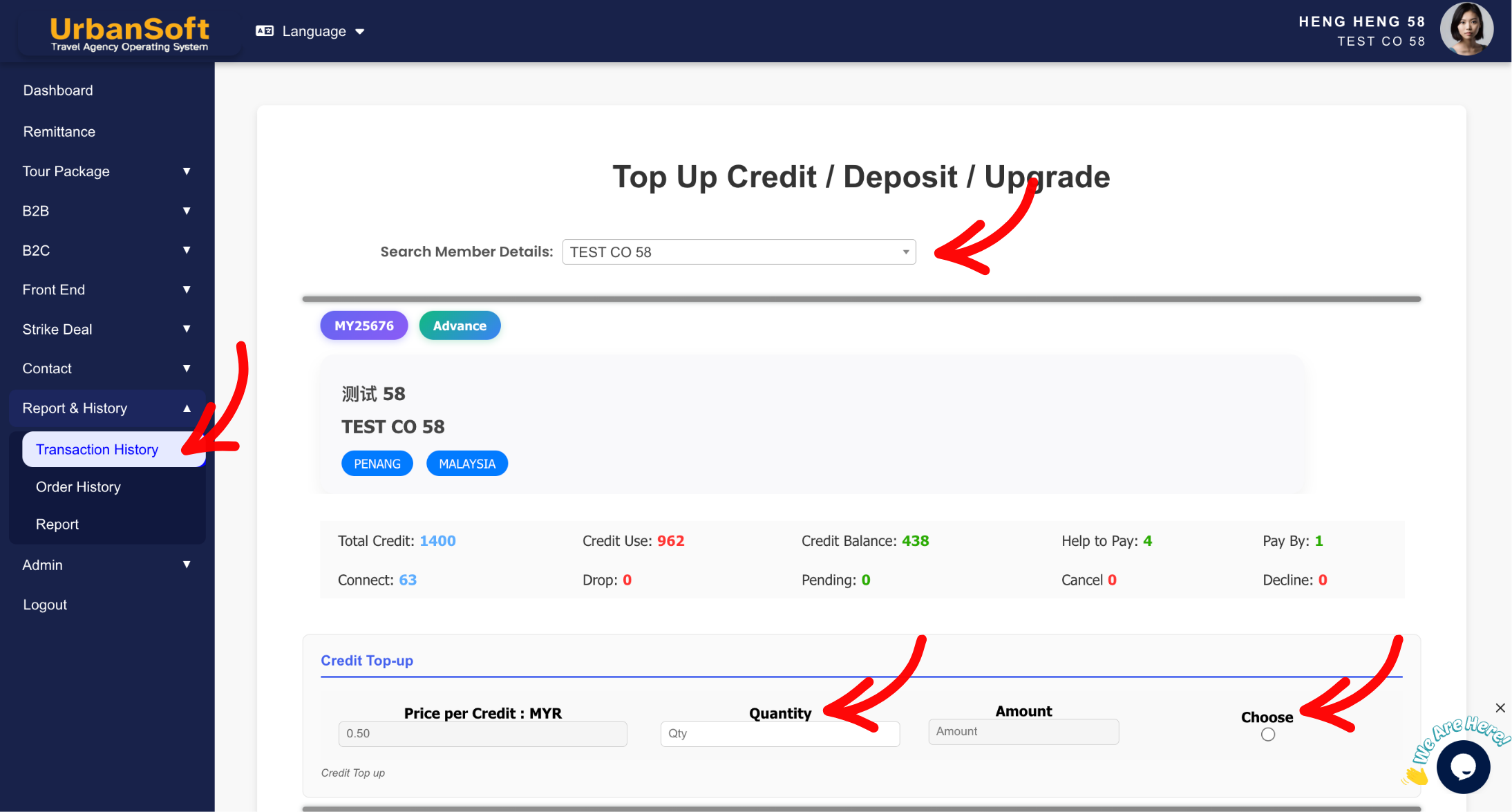
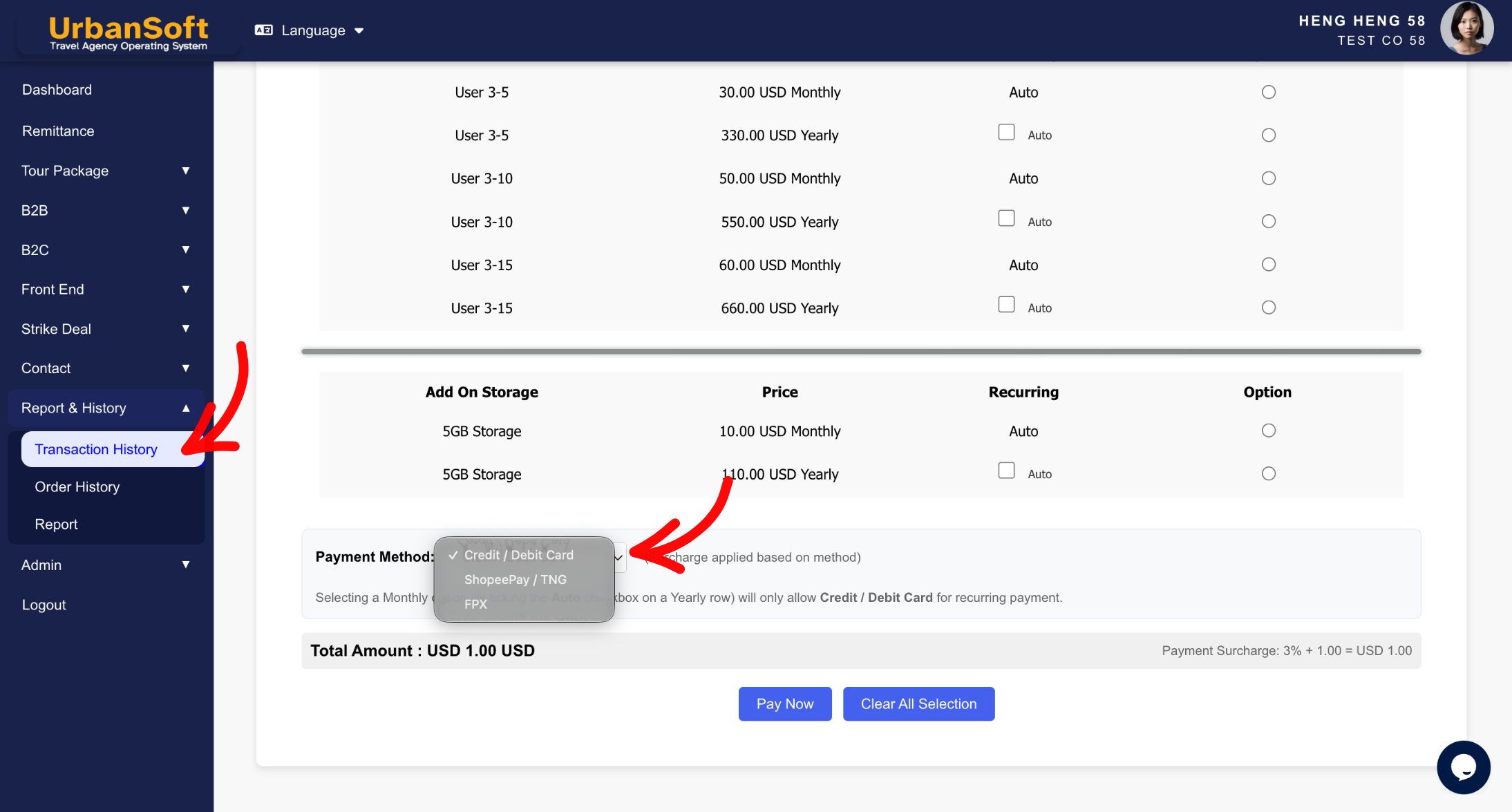
-
Log in to your UrbanSoft account using your administrator credentials.
-
Navigate to Report & History > Transaction / Order History > + Top Up Credit / Upgrade, from the left navigation menu.
-
Locate the Credits Top-up section on the page.
-
Enter your desired top-up amount. Then, click the circle below Choose to confirm the number of credit you want.
-
Choose your preferred payment method (e.g., Credit/Debit Card, eWallet, FPX - Online Banking).
-
Review the payment summary. Click Clear All Selections if you need to reset your choices.
-
Click Pay Now to confirm your top-up credit request.
-
Complete the payment authorization via the payment gateway.
-
Check your account balance on the screen to confirm the top-up success.
Expected Result
Your UrbanSoft account credit balance will update immediately after payment confirmation, allowing you to seamlessly continue using credit-dependent services.
Important Notes
-
Credit top-ups are non-refundable once processed successfully.
-
Purchased credits are added to your account balance immediately upon successful payment authorization.
-
Invoices and payment receipts for top-ups can be downloaded under Admin > Billing History / Receipts.
Common Mistakes
-
Attempting to top up without proper administrative permissions.
-
Closing or refreshing the payment gateway window before the transaction process completes.
-
Selecting an incorrect payment currency or method during checkout.
Different Angles: Same Stories, Same Content, New Perspective
-
Where can I buy more credits for my UrbanSoft account?
 How to "Subscribe" to UrbanSoft?
