.gif)
.gif)
.gif)

 How to set up my "UrbanSoft Account"?
You will learn how to create and activate your UrbanSoft account.
When Do You Use This?
Use this when you are a new user and need to create an UrbanSoft account for the first time.
Before You Start
You need:
-
Your Local and English company name
-
Your company country
-
The Person In Charge Local and English name, contact number, and email
-
Your business type
-
A valid email address
-
A member referral code, if applicable
Precautions:
-
All fields marked with (*) are compulsory.
-
For Local fields, enter the information in your native language.
-
For English fields, enter the romanized version.
-
Include the country code before your contact number. Example: Malaysia: 60xxxxxxxxx (No need to add +)
-
Your password must have at least 8 characters, including 1 uppercase letter, 1 lowercase letter, and 1 number.
Step-by-Step
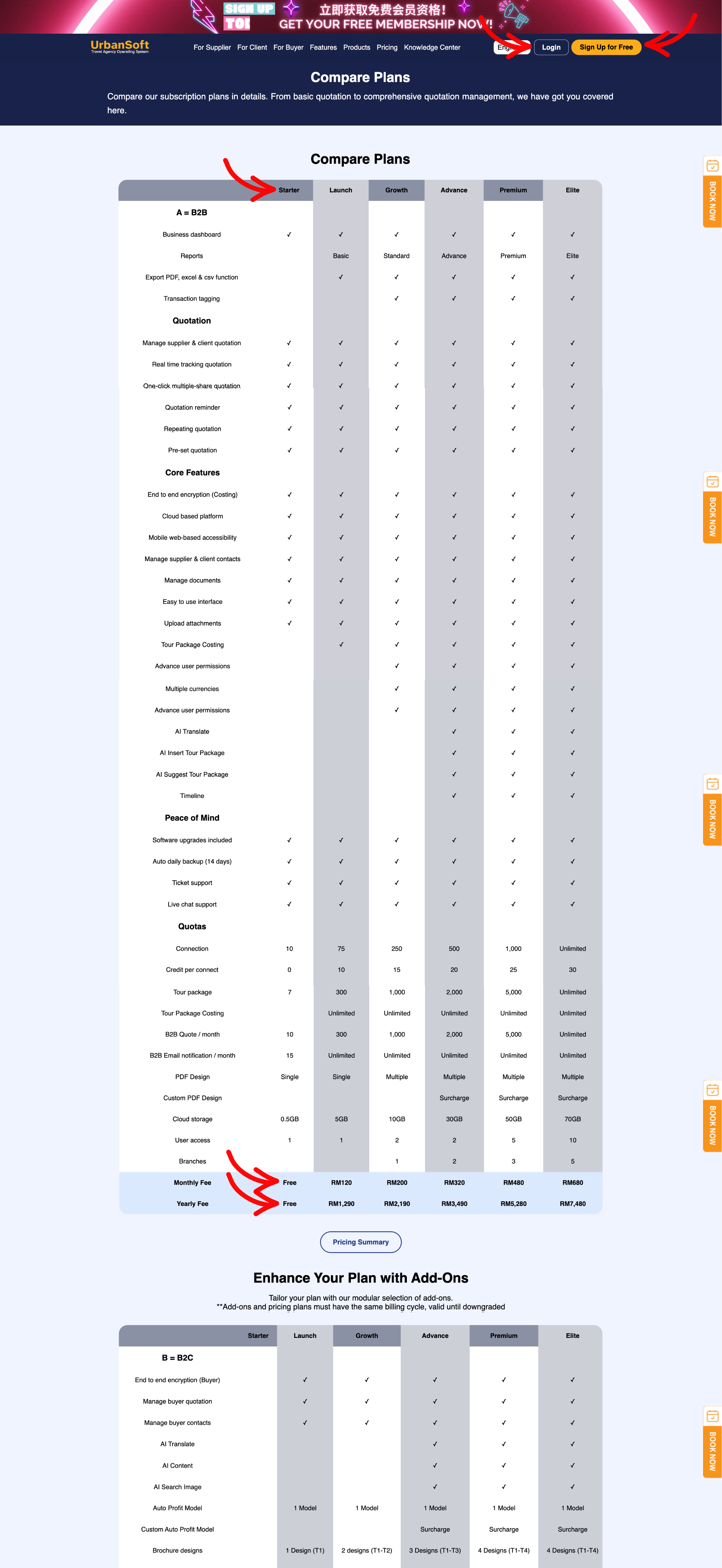
Select Your Membership Package
UrbanSoft Membership Detail page https://urbansoft360.com/web/ComparePrice
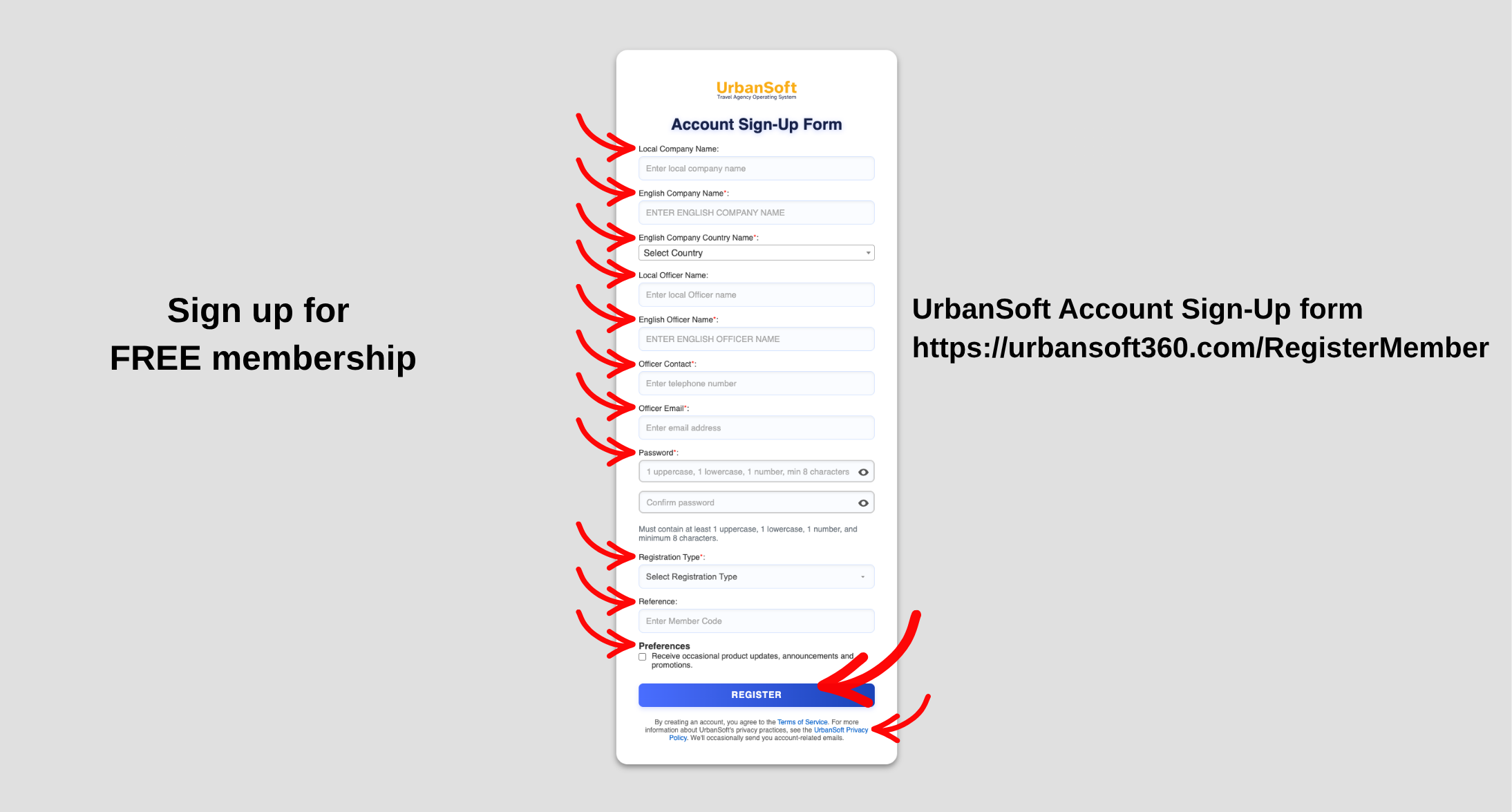
Sign up for FREE Membership
UrbanSoft Account Sign-Up form https://urbansoft360.com/RegisterMember
- Go to Sign Up for Free and open the account sign-up form.
- Enter your company name in both Local and English.
- Select your company country and enter the officer name, contact number, and email.
- Create a password and enter it again in Confirm Password.
- Select your Registration Type, such as Travel Agency, Accommodation, Transfer, Tour Guide, Meal, Attraction, or Event.
- Enter the Reference member code, if required.
- Read and accept the applicable terms and policies.
- Click Register, the system will create your UrbanSoft account.
- Open the email sent by UrbanSoft, then copy verification code and paste to the request box to activate your account.
Expected Result
Your UrbanSoft account is created and activated after you successfully verify your email address.
Important Notes
- Make sure all required information is accurate before registering.
- Your email address must be verified before your UrbanSoft account is activated.
Common Mistakes
-
Leaving a required field* blank
-
Entering the wrong company country
-
Forgetting the country code in the contact number (No need to add +)
-
Using a password that does not meet the requirements
-
Entering Local and English information incorrectly
-
Registering without verifying the email address
 How to get started with “UrbanSoft”?
