.gif)
.gif)
.gif)

 How to top up "Deposit"?
This guide will show you how to safely and quickly top up DEPOSITS in your UrbanSoft account. You will learn where to find the Deposit Top-Up function, how to enter or select your top-up amount, choose your payment method, and complete the deposit transaction.
When Do You Use This?
Use this feature when your account deposit balance is low, or when you need to maintain a required deposit fund to issue bookings, process ticketing, or utilize prepaid supplier services within UrbanSoft.
Before You Start
-
You need:
-
Administrator or authorized finance management permissions for your UrbanSoft account.
-
An active payment method (such as credit card, debit card, eWallet, or FPX online banking) supported by UrbanSoft.
-
Access to your UrbanSoft account administration portal.
-
-
Precautions:
-
Double-check the required deposit amount before proceeding with payment.
-
Ensure your bank or payment card has sufficient funds and authorization limits.
-
Keep a copy of your transaction receipt for account reconciliation if needed.
-
Step-by-Step
-
Log in to your UrbanSoft account using your administrator credentials.
-
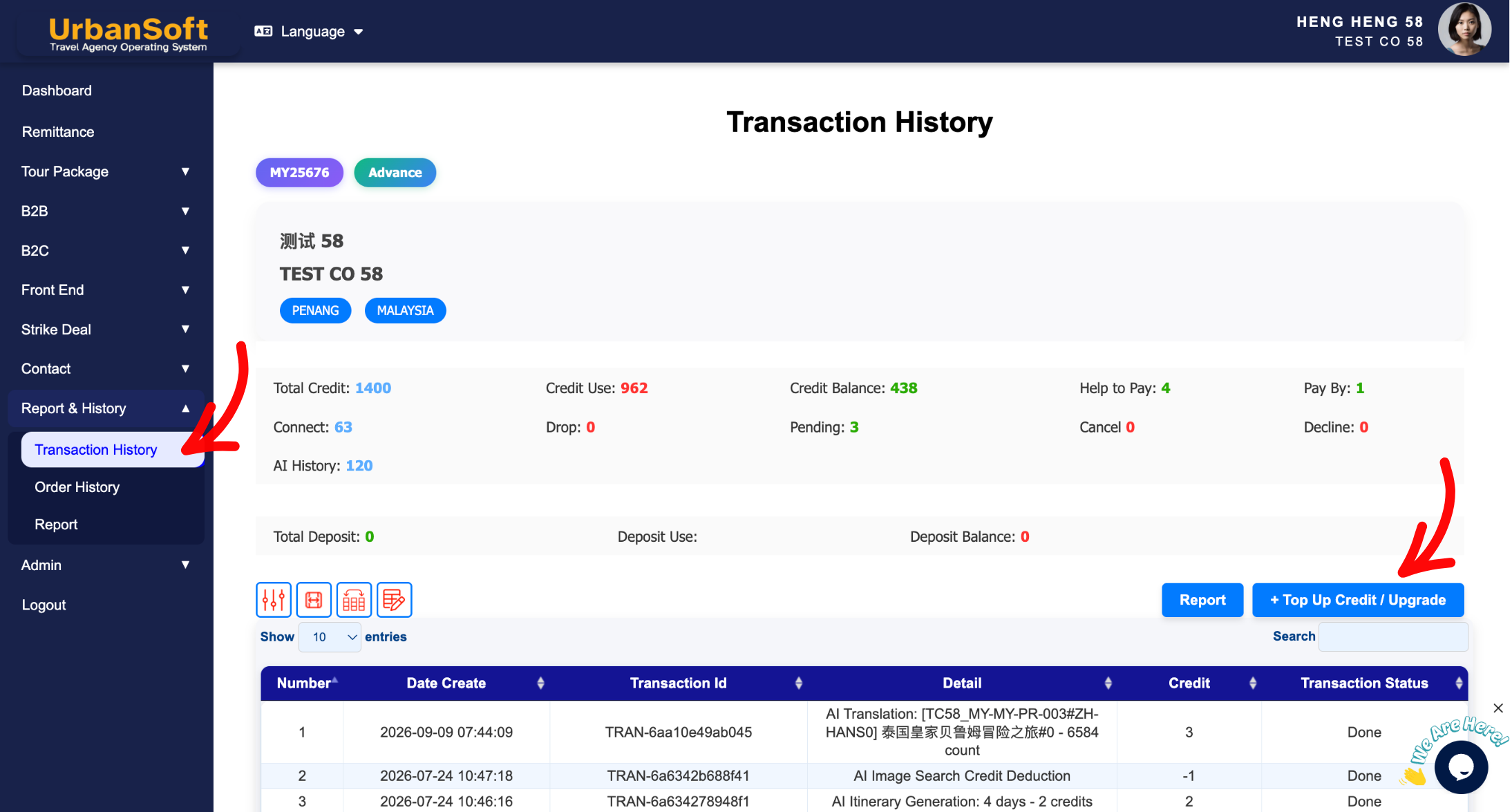
Go to Report & History > Transaction / Order History > + Top Up Credit / Upgrade, from the left navigation menu.
-
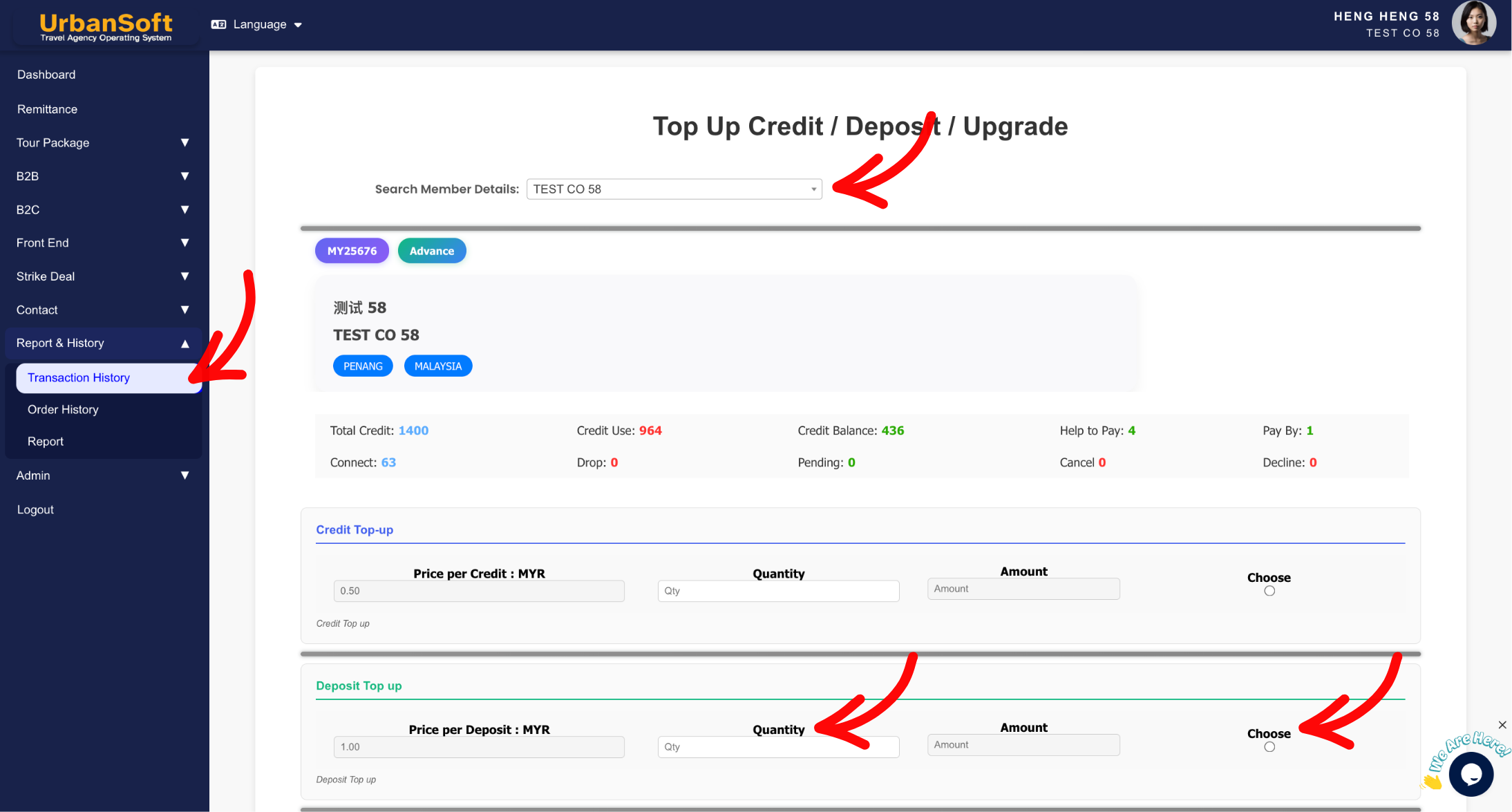
Locate the Deposit Top-up section on the page.
-
Enter your desired top-up amount. Then, click the circle below Choose to confirm the deposit you want.
-
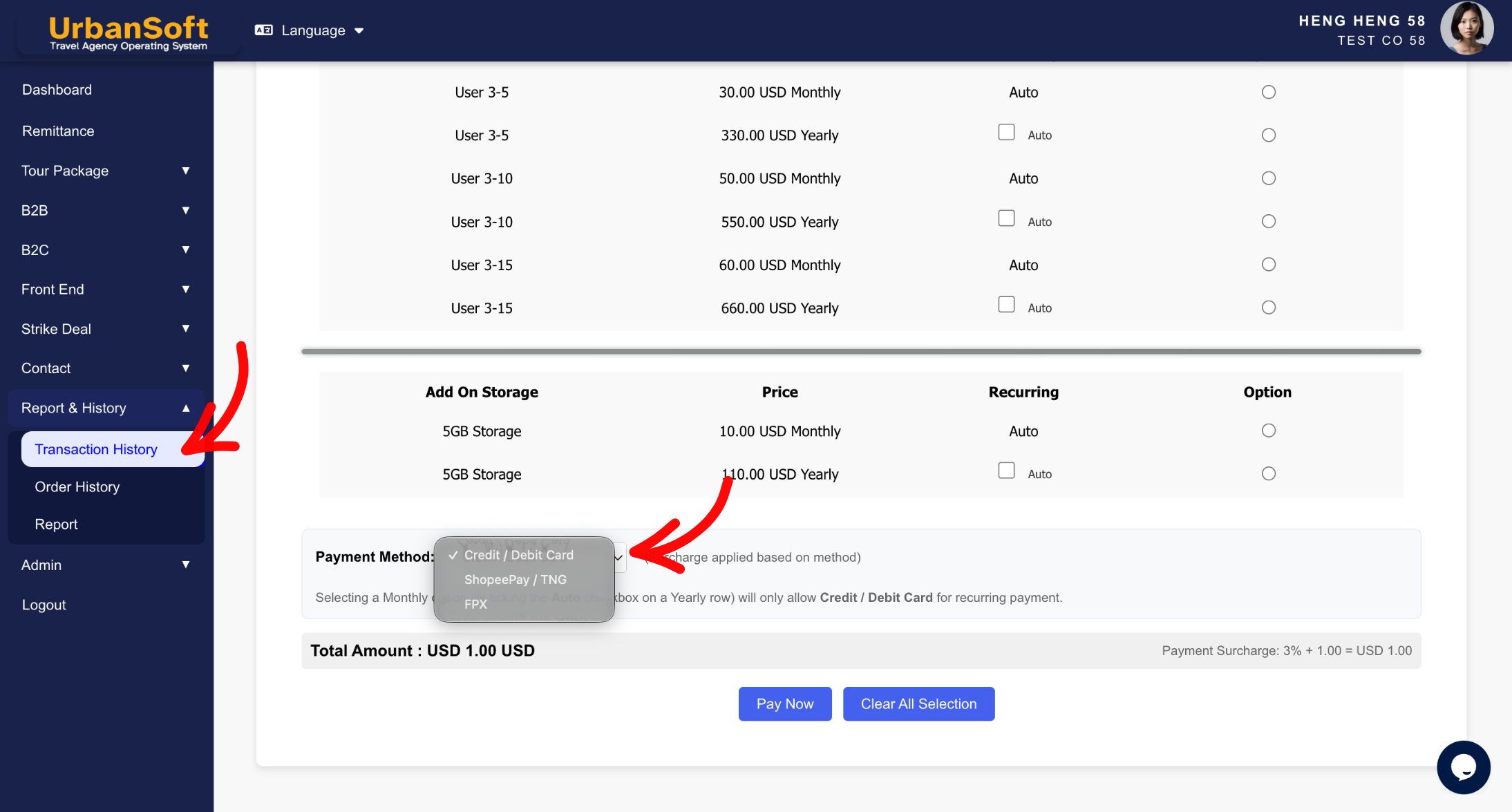
Choose your preferred payment method (e.g., Credit/Debit Card, eWallet, FPX - Online Banking).
-
Review the payment summary. Click Clear All Selections if you need to reset your choices.
-
Click Pay Now to confirm your top-up deposit request.
-
Complete the payment authorization via the payment gateway.
-
Check your account balance on the screen to confirm the top-up success.
Expected Result
Your deposit balance in UrbanSoft will be updated immediately upon successful payment confirmation, allowing you to proceed with supplier reservations and operational transactions seamlessly.
Important Notes
-
Deposit top-ups are processed to maintain operational wallet balances for account actions.
-
Invoices, receipts, and deposit transaction records can be reviewed and downloaded under Admin > Billing History / Receipts.
-
Ensure top-ups are completed prior to time-sensitive bookings to avoid transaction holds.
Common Mistakes
-
Attempting to top up without appropriate administrative or financial permissions.
-
Closing or refreshing the payment gateway window before receiving transaction confirmation.
-
Selecting an incorrect payment currency or method during checkout.
Different Angles: Same Stories, Same Content, New Perspective
-
Where can I add funds to my UrbanSoft deposit balance?
-
How do I reload my operational deposit wallet in UrbanSoft?
 How to "Subscribe" to UrbanSoft?
